Enrolling a company iPhone or iPad with a work account (ADDE)
Learn how to enroll a company-owned iPhone or iPad in Redamp.io MDM by signing in with your work account.
Your company owns this iPhone or iPad and manages it with Redamp.io MDM. You enroll it yourself: you sign in with your work account in Settings, and the device becomes a managed company device. It takes a few minutes.
Before you start
- The device runs iOS or iPadOS 17 or later. Check it in Settings → General → About.
- You know your work e-mail address and your Redamp.io password.
- If your Redamp.io account uses two-factor authentication, keep your authenticator app at hand.
- The device is connected to the internet.
Important: Enroll only the company device this way. Any iPhone or iPad that signs in with your work account gets full device management, including a personal one. If you want to use your own phone for work, ask your administrator for the personal device enrollment instead.
Step 1 - Open VPN & Device Management
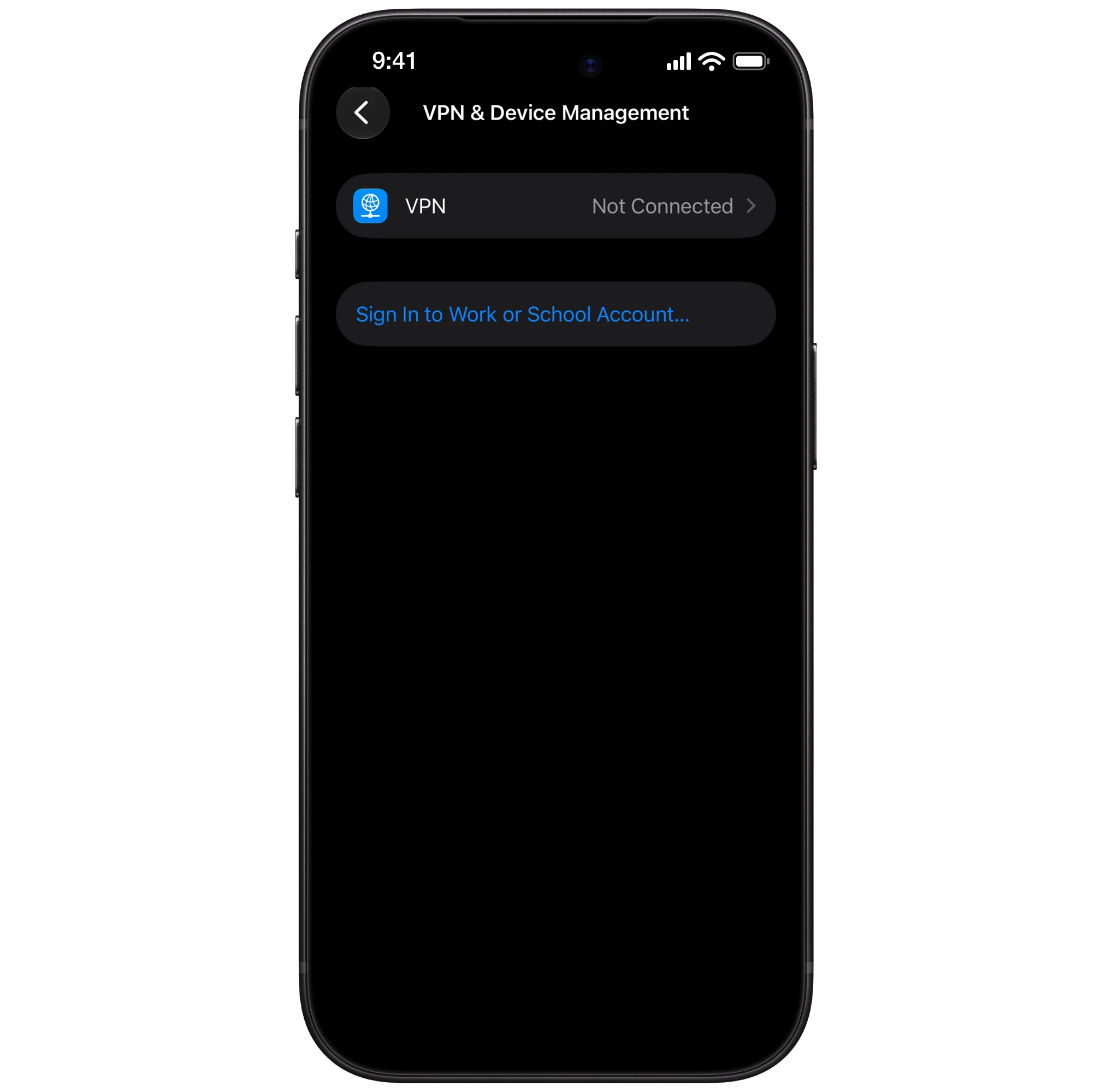
On the iPhone or iPad, open Settings → General → VPN & Device Management and tap Sign In to Work or School Account.
Step 2 - Enter your work account
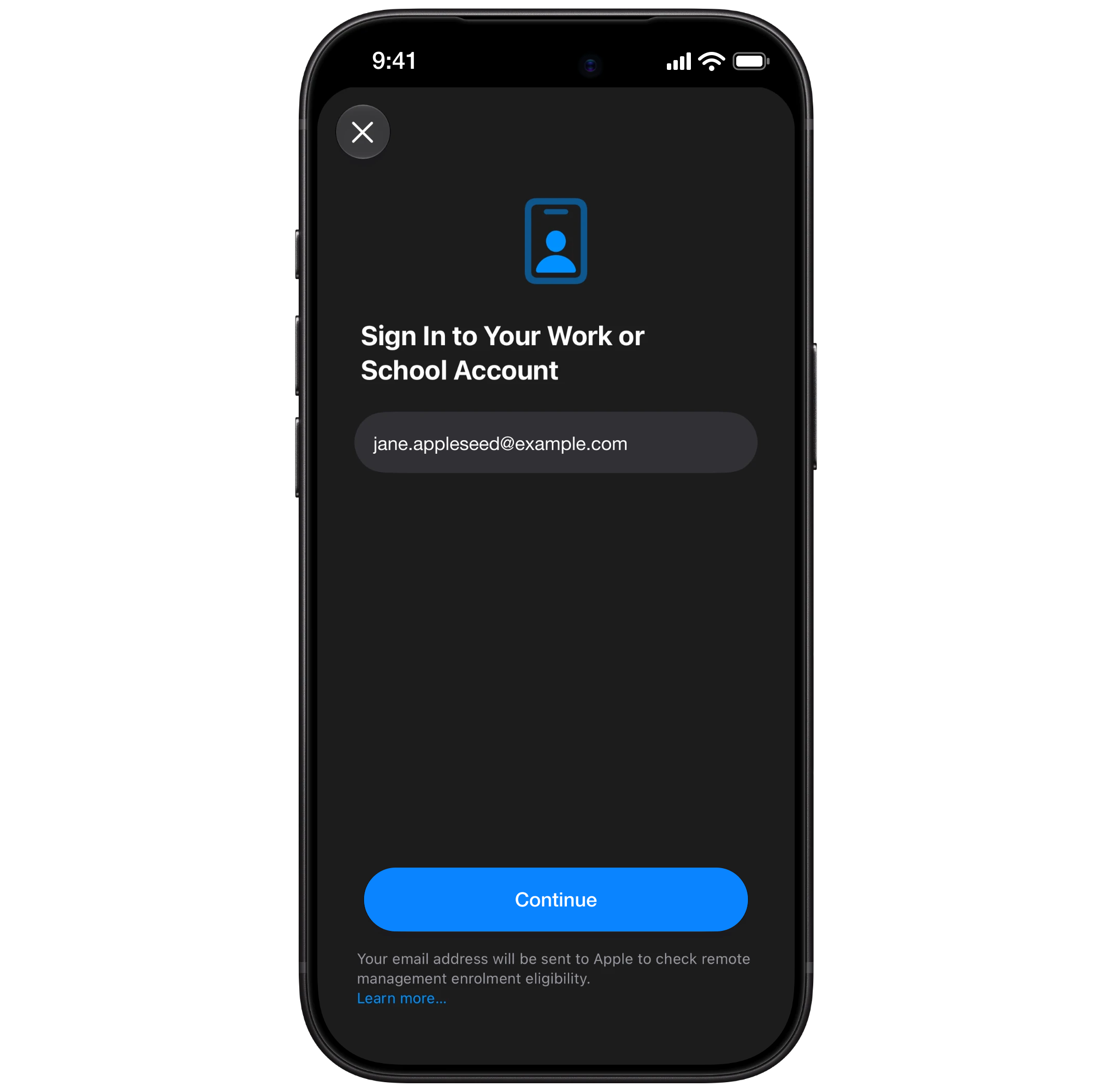
Enter your work e-mail address and continue. The device finds your company's management server by itself.
Step 3 - Sign in to Redamp.io
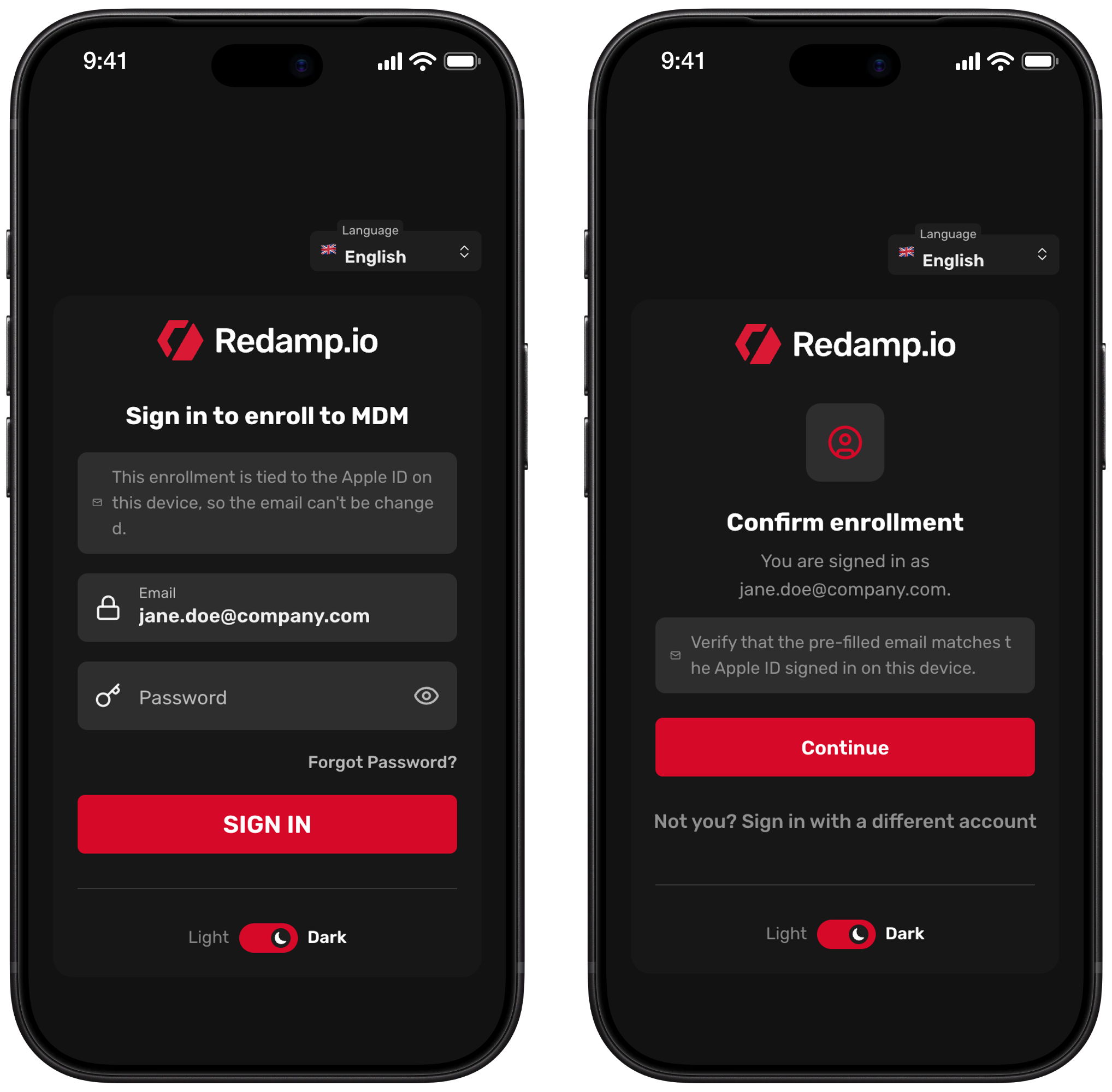
The Redamp.io sign-in page Sign in to enroll to MDM opens.
- Your e-mail address is already filled in and cannot be changed, because the enrollment belongs to the account you entered in Step 2. Enter your Redamp.io password.
- If you use two-factor authentication, open your authenticator app and enter the code.
- On Confirm enrollment, check that You are signed in as shows your work e-mail and tap Continue.
When you see You're all set, the page takes you back to Settings to finish.
Step 4 - Finish the enrollment on your device
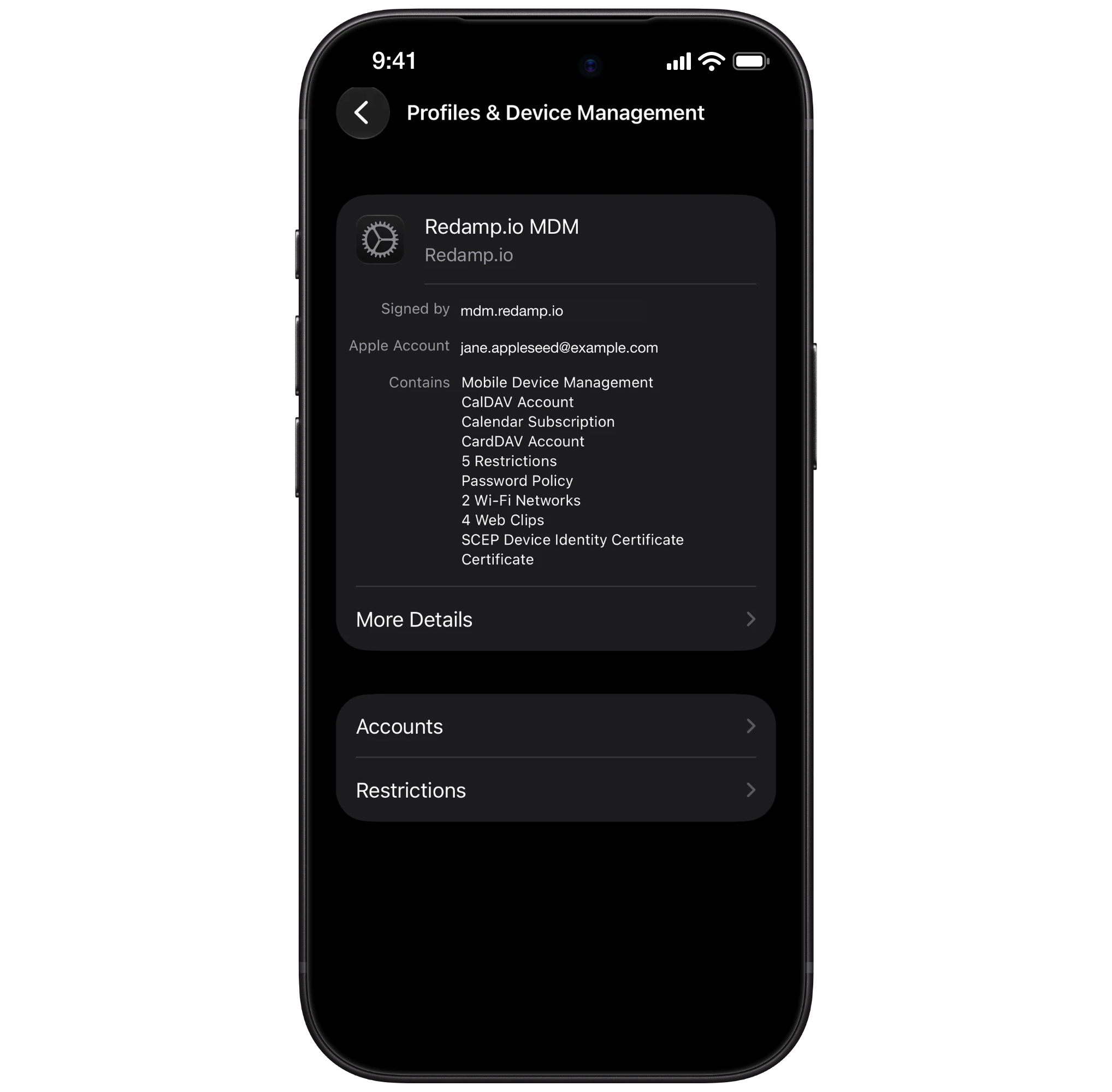
Follow the prompts on the device until the enrollment completes. The device now appears in VPN & Device Management as managed by your company.
Step 5 - Sign in to the Redamp.io app
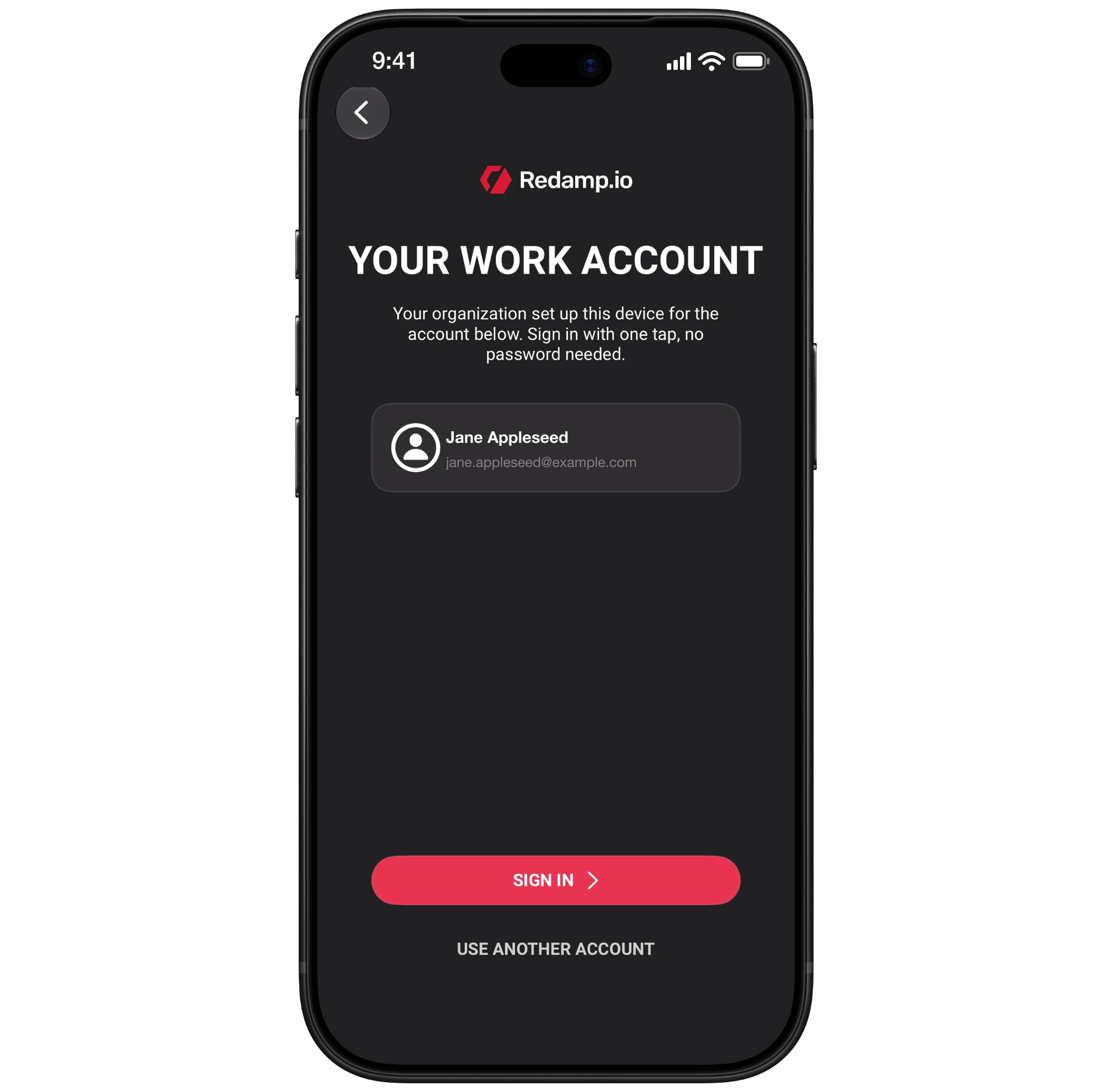
If your company uses the Redamp.io app, it installs on the device by itself within a few minutes. Open it. On Your work account tap Sign in. You do not need a password.
Step 6 - Run your first scan
Open the Redamp.io app and follow its instructions to run your first scan. The scan checks the security of your device and finishes the setup. Your company then sees your device in Redamp.io.
What your company can see and do
The device is a fully managed company device. It is not supervised, so some of the strongest controls are not available.
Your company can:
- See the model, serial number, UDID, IMEI and phone number
- See all apps installed on the device
- Install and remove work apps, settings and restrictions
- Require system updates
- Lock the device, clear its passcode, or erase the whole device
Your company cannot:
- See where the device is
- Turn on Lost Mode, restart or shut down the device remotely
Removing management
You can remove management yourself in Settings → General → VPN & Device Management. Work apps, work data and company settings disappear from the device. Talk to your administrator first: the device belongs to your company, and without management you may lose access to work services.
If something goes wrong
| Message on the sign-in page | What to do |
|---|---|
| Account doesn't match | Sign in with the same work account you entered in Step 2. |
| No managed Apple ID | Your work account is not ready for enrollment yet. Contact your administrator. |
| Enrollment link expired | Start again from Step 1. |
| Something went wrong | Check the internet connection and tap Try again. |
If the enrollment fails on the device itself, check that it runs iOS or iPadOS 17 or later. If it still fails, contact your administrator.