Enrolling your personal iPhone or iPad (BYOD)
Learn how to enroll your own iPhone or iPad with your work account, what your company can and cannot see, and how to remove the work data again.
Your company lets you use your own iPhone or iPad for work. This is called BYOD (Bring Your Own Device, see Key terms ). You sign in with your work account in Settings and iOS creates a separate work space on your device. Your company manages only that work space, your personal apps and data stay private.
The enrollment takes about five minutes. You sign in with your work account, then to Redamp.io, and finally you install the Redamp.io app.
Before you start
You need:
- Your work account - your work email address, used as a Managed Apple Account, and its password. Your administrator gives you both.
- A Redamp.io account with the same email address. During enrollment you sign in to Redamp.io and the email must match your work account.
- iOS or iPadOS 15 or later and an internet connection.
Warning: Delete Redamp.io first if you installed it yourself from the App Store. Your own copy blocks the work copy that your company installs, and the app then cannot be set up for work.
What your company can and cannot see
Your company can:
- See your work account and the device model and iOS version
- Install, configure and remove work apps
- See the apps and settings it installed
- Set work settings such as Wi-Fi, VPN or work email
- Require a passcode of at least 6 characters
- Lock the screen, you unlock it with your own passcode
Your company cannot:
- See the serial number or other hardware identifiers of your device
- See your personal apps, or install or remove them
- See your photos, messages, emails, browsing or personal files
- See where your device is
- Erase your device or remove its passcode
- Force an iOS update
Work apps and their data live in the separate work space. When you leave, only this work space is removed.
Step 1 - Sign in with your work account
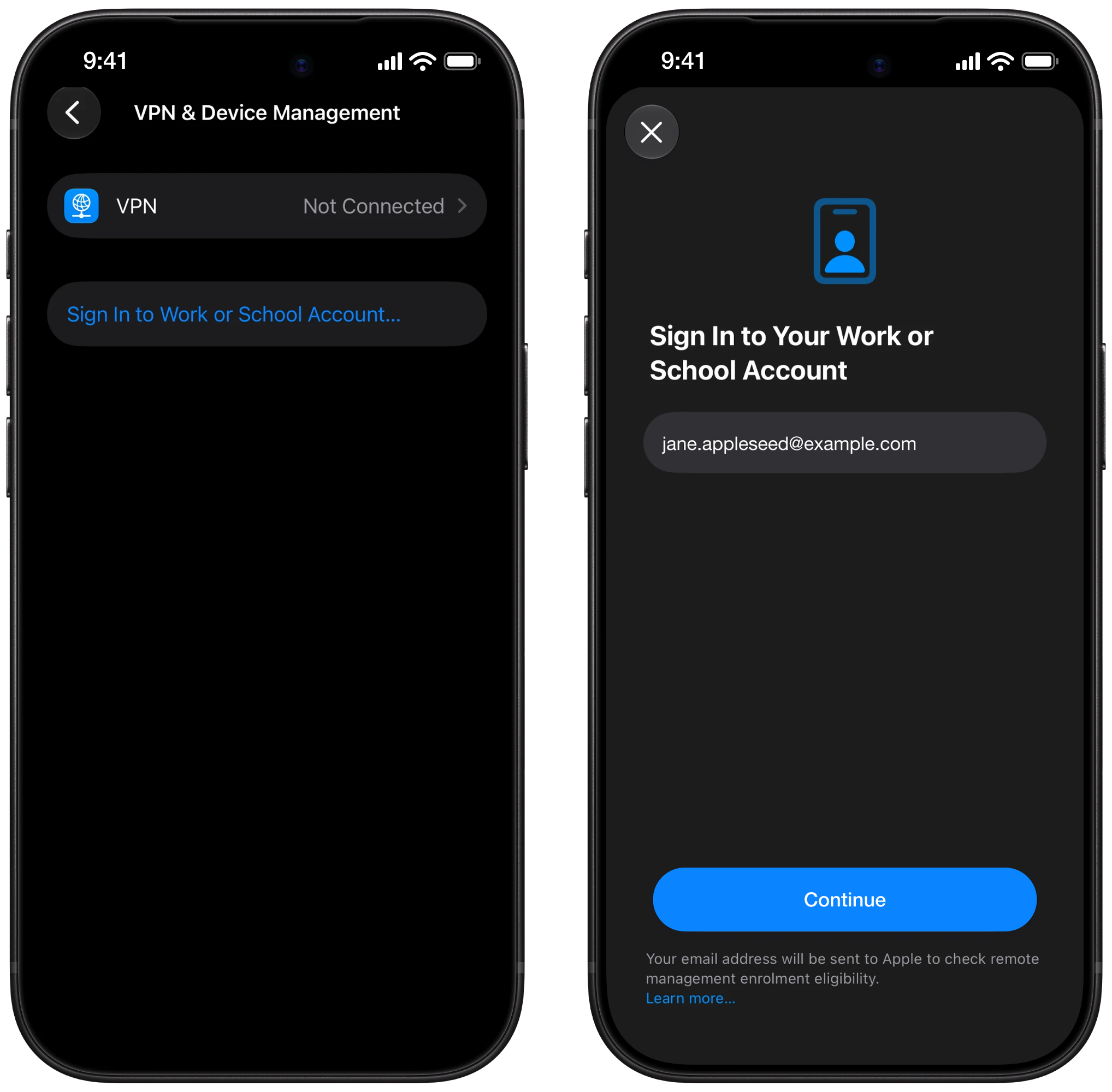
- Open Settings → General → VPN & Device Management.
- Tap Sign In to Work or School Account.
- Enter your work email address and tap Continue.
Step 2 - Sign in to Redamp.io
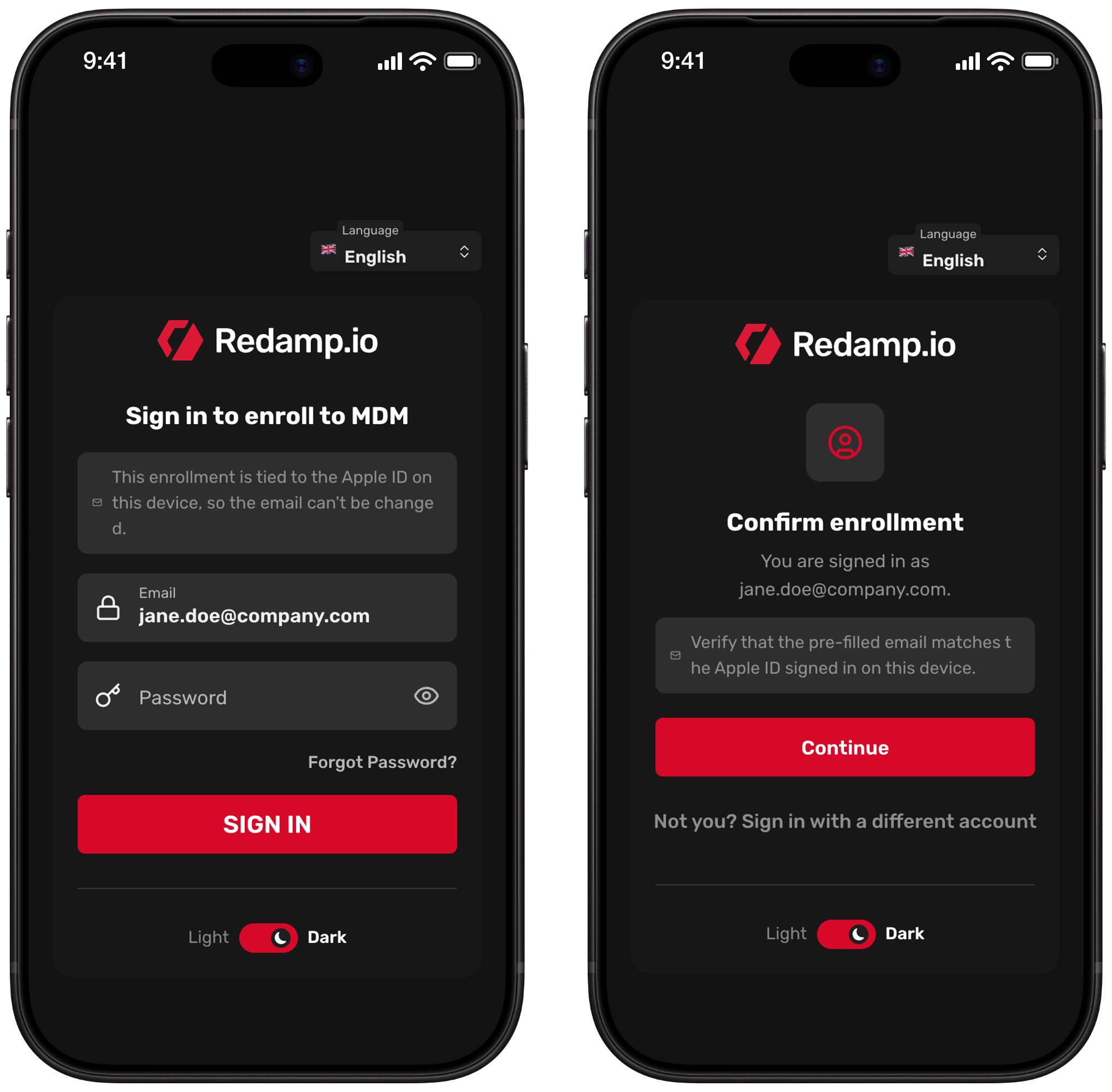
iOS opens the Redamp.io sign-in page.
- Your work email is already filled in and cannot be changed. Enter your Redamp.io Password and tap SIGN IN.
- If you use two-factor authentication, enter the code from your authenticator app.
- Check that the page shows your work email and tap Continue.
The page says You're all set and returns you to Settings.
Step 3 - Sign in to your work account in Settings
Back in Settings, iOS downloads the enrollment and asks you to sign in to your work account.
- Enter the password of your work account.
- Follow the remaining prompts on the screen.
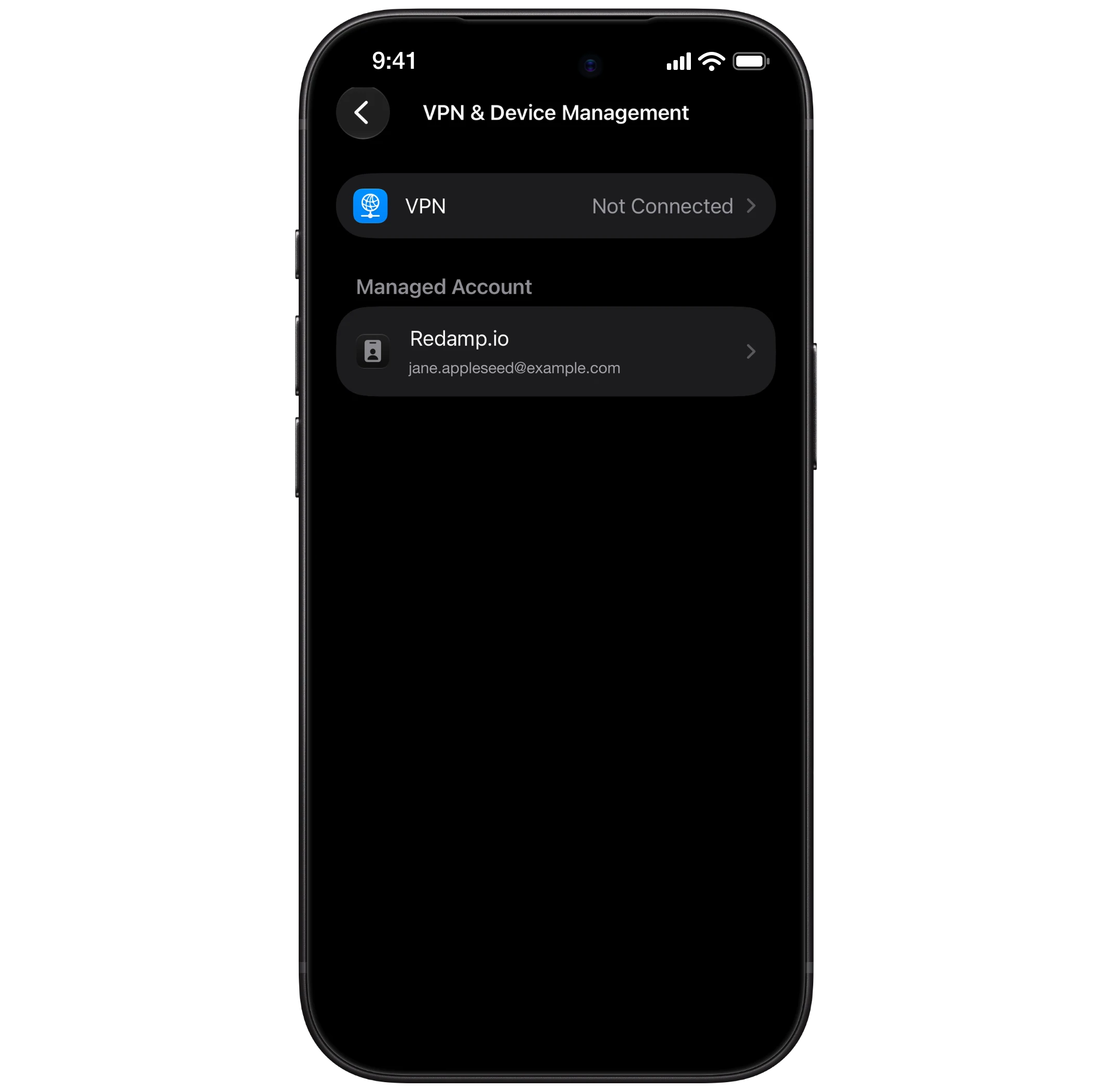
Your work account now appears in VPN & Device Management.
Step 4 - Install the Redamp.io app
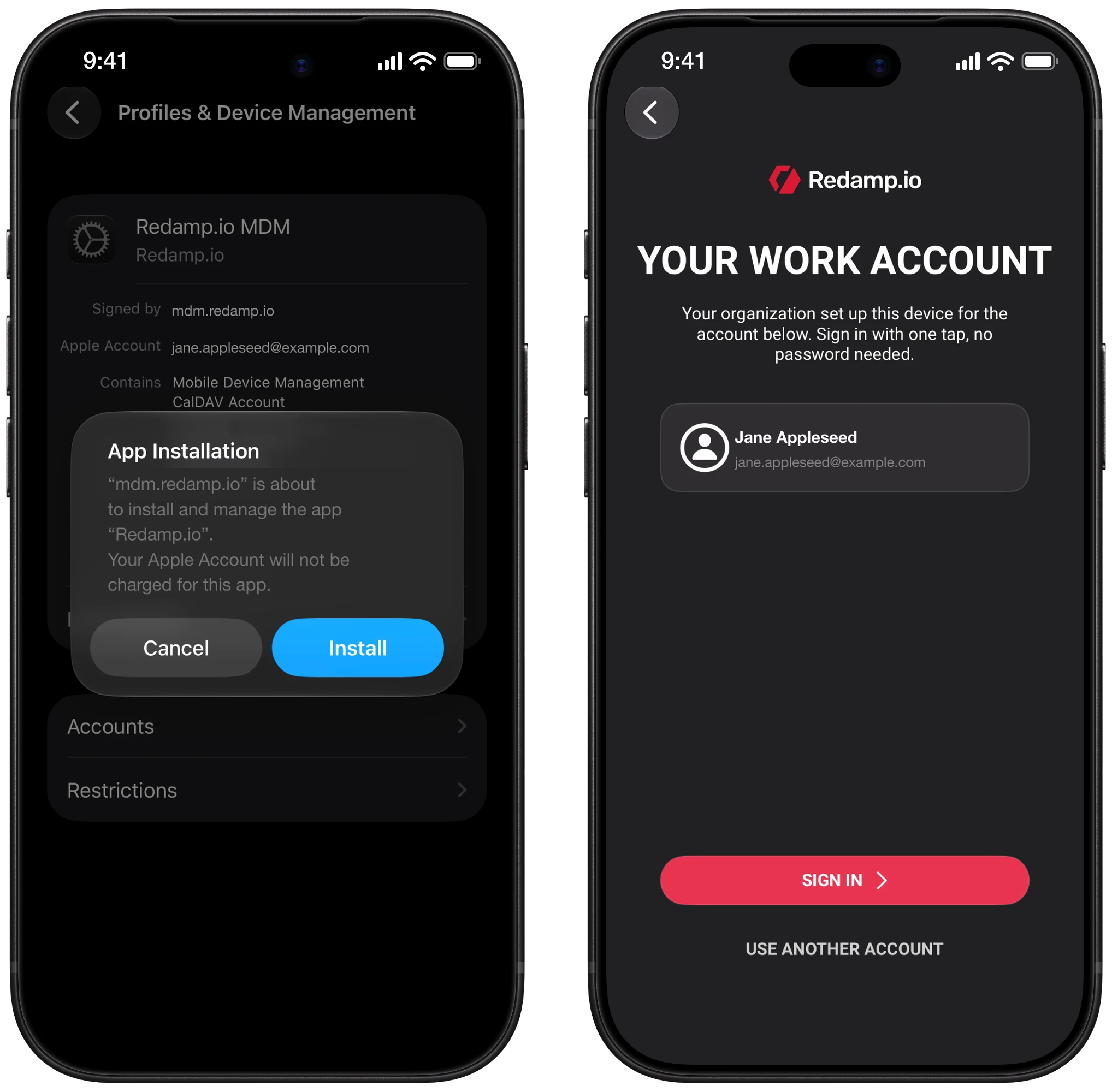
Shortly after enrollment, your device asks whether to install the Redamp.io app.
- Tap Install.
- Open the Redamp.io app. Your work account shows your name and work email. Check that it is you and tap Sign in. No password is needed.
Note: If you decline the prompt, your administrator can send it again.
Step 5 - Run your first scan
Open the Redamp.io app and follow its instructions to run your first scan. The scan checks the security of your device and finishes the setup. Your company then sees your device in Redamp.io.
How to leave
You can remove the work space from your device at any time.
- Open Settings → General → VPN & Device Management.
- Tap your work account.
- Tap Sign Out and confirm.
iOS removes the work apps, the work data and the work account. Your personal apps and data stay on the device. Your administrator can also remove your device from management, with the same result.
Common problems
| Message | What to do |
|---|---|
| Account doesn't match | You signed in to Redamp.io with a different account than your work account. Tap Sign in with a different account and use the account with your work email. |
| Enrollment link expired | Start again in Settings → General → VPN & Device Management. |
| No managed Apple ID | Your Redamp.io account has no work account. Contact your administrator. |
| MDM is not set up | Your company has not set up device management yet. Contact your administrator. |
| Something went wrong | Check your internet connection and tap Try again. |