Setting up a company iPhone or iPad (ADE)
Learn what happens when you turn on a company-owned iPhone or iPad for the first time and how to finish its enrollment in MDM.
Your company owns this iPhone or iPad and manages it with Redamp.io MDM. It uses ADE (Automated Device Enrollment, see Key terms ): when you turn the device on for the first time, it enrolls in your company's management by itself, as part of the normal iOS setup.
The setup takes about ten minutes. You go through the usual iOS setup screens, sign in to Redamp.io on the Remote Management screen, and finish the setup. Your work apps and settings then arrive on their own.
Before you start
You need:
- Your Redamp.io email and password. You sign in with them during the setup, and the device is assigned to that account.
- Your two-factor authentication app, if you have two-factor authentication turned on for Redamp.io.
- Wi-Fi or mobile data. The device must be online to enroll.
Tip: If someone already set up the device before it reached you, ask your administrator to erase it first. The enrollment starts only on a freshly erased device.
Step 1 - Turn on the device
Turn on the device and follow the setup screens: choose your language and country, and connect to Wi-Fi.
Your company may skip some of the usual screens, so you might see fewer of them than on a personal iPhone. That is expected.
Step 2 - Remote Management
After you connect to the internet, the device shows the Remote Management screen. It tells you that your company will set up and manage this device, and may show its support phone number or email.
This screen cannot be skipped. A company device always enrolls in management, and you cannot remove the management later.
Step 3 - Sign in to Redamp.io
The Remote Management screen opens the Redamp.io sign-in page.
- Enter your Redamp.io email and password and tap Sign in.
- If you have two-factor authentication turned on, enter the code from your authenticator app.
- Check the email on the Confirm enrollment screen and tap Continue. If it is not your account, tap Not you? Sign in with a different account.
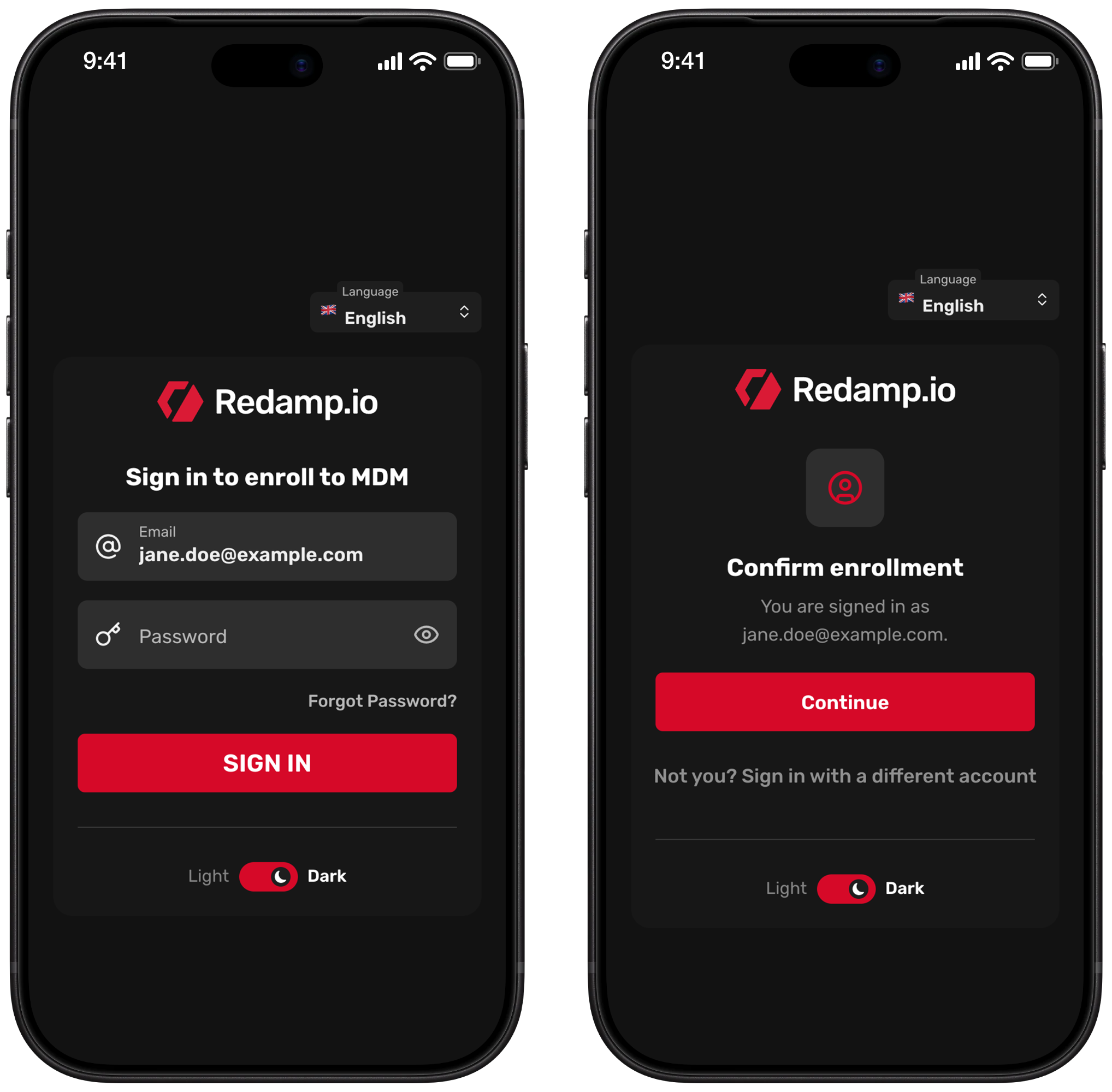
The device connects to your company's management and returns to the setup.
Step 4 - Finish the setup
Continue through the remaining setup screens until you reach the Home screen.
Your work apps and settings, such as Wi-Fi or email, arrive in the first few minutes. Keep the device online and unlocked for a while after the setup.
Step 5 - Sign in to the Redamp.io app
If your company uses the Redamp.io app, it installs itself on the device. When you open it, it offers to sign you in with the account you used during the setup.
- Open Redamp.io.
- On the Your work account screen, check your name and email and tap Sign in. You do not need a password.
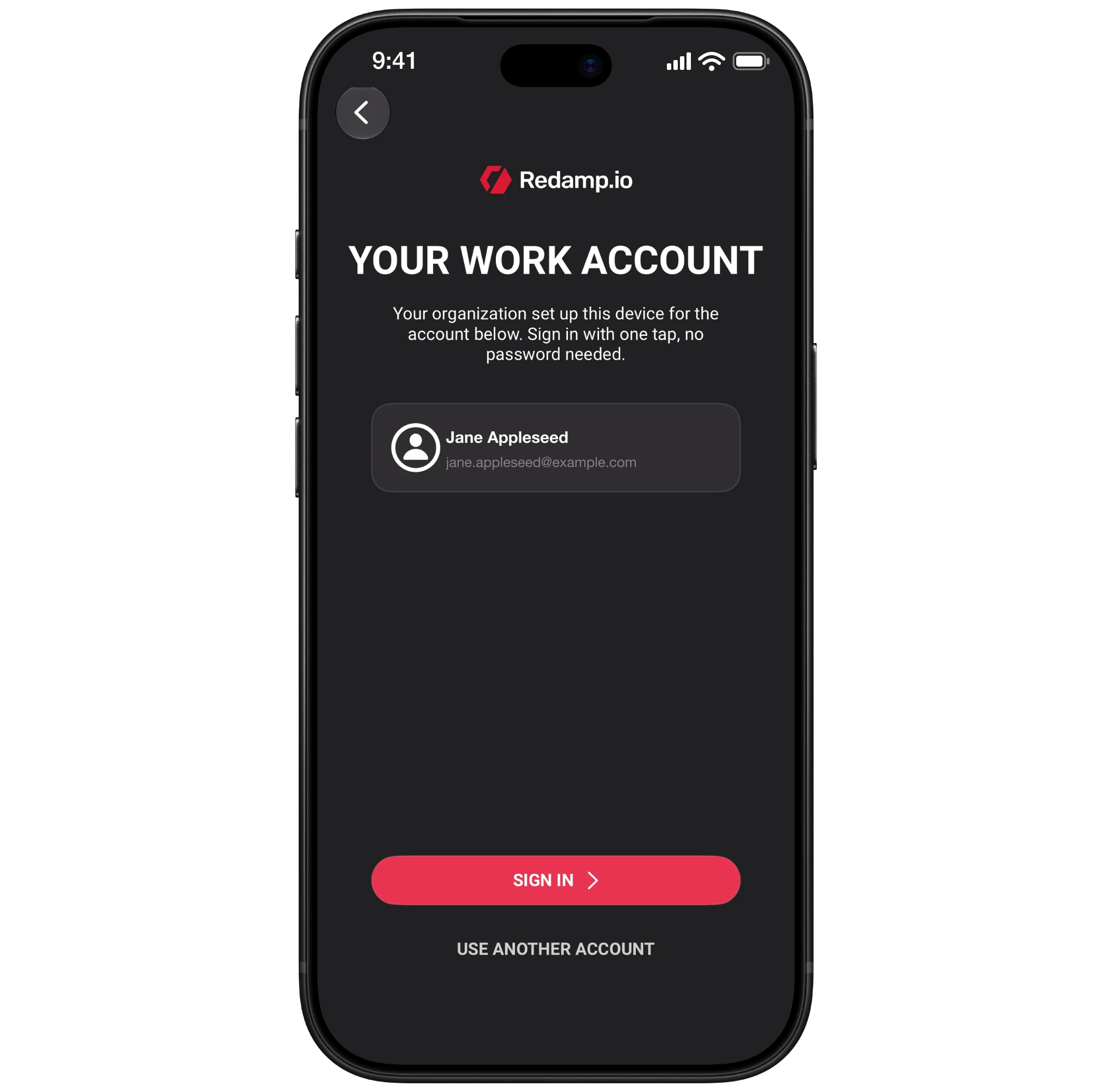
If the account shown is not yours, tap Use another account and sign in with your email.
Step 6 - Run your first scan
Open the Redamp.io app and follow its instructions to run your first scan. The scan checks the security of your device and finishes the setup. Your company then sees your device in Redamp.io.
What your company can and cannot see
Your company can:
- See the device model, serial number and iOS version
- See all apps installed on the device
- Install, configure and remove apps
- Set Wi-Fi, VPN, email and restrictions
- Require a passcode and clear it if you forget it
- Lock, restart or erase the device
- Turn on Lost Mode, which locks the device with a message and shows its location
Your company cannot:
- See your photos, messages, emails or browsing history
- See what you do inside apps or read your files
- See where the device is, except in Lost Mode
Because the device belongs to your company, your company manages the whole device, not only a work space. Keep your personal photos and accounts on a personal device.
Check that your device is managed
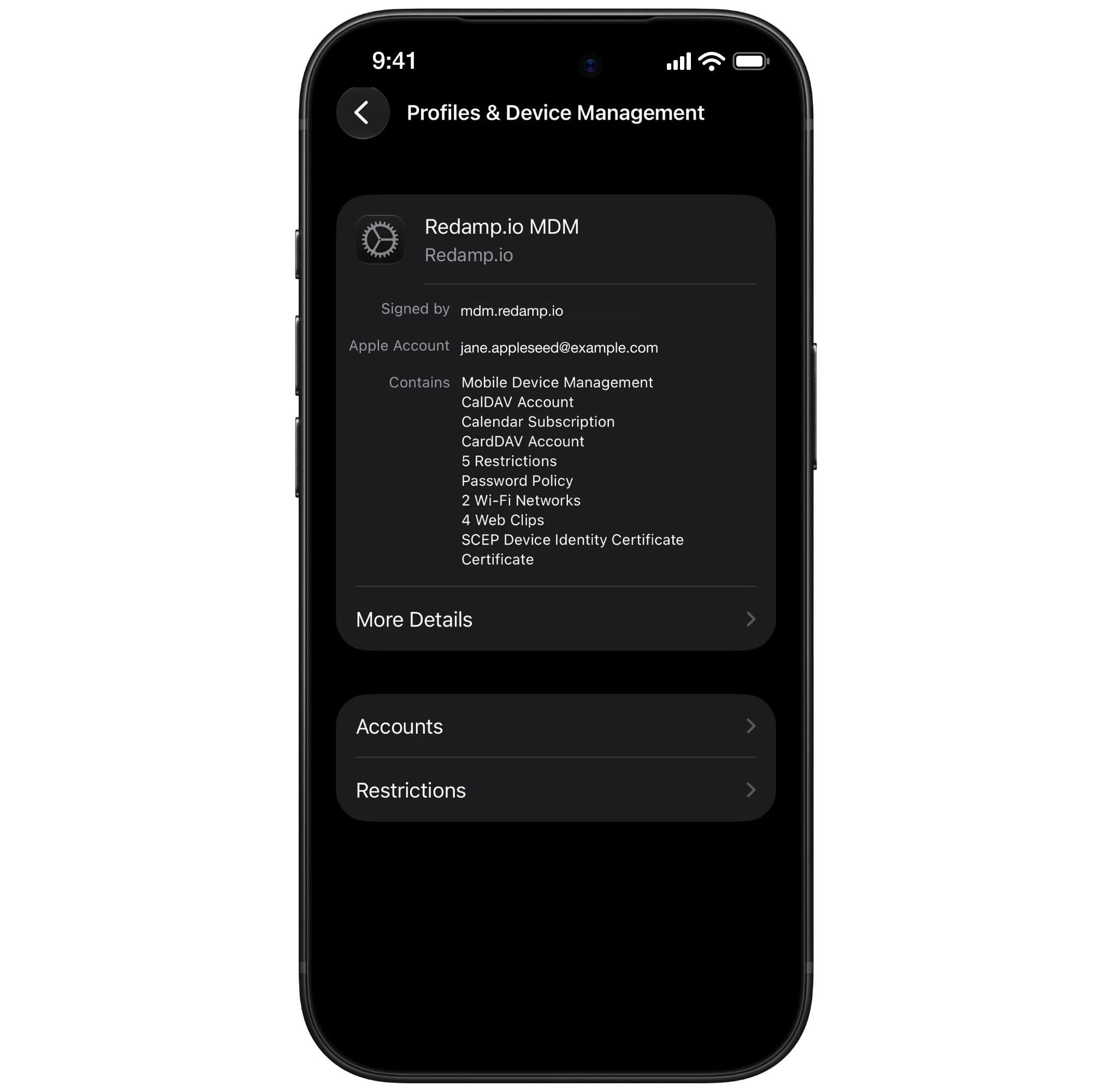
Open Settings → General → VPN & Device Management. You see your company's management profile there.
If something goes wrong
| What you see | What to do |
|---|---|
| Device not assigned | The device is not assigned to your company's management yet. Contact your administrator. |
| Enrollment link expired | The sign-in took too long. Go back and restart the setup, then sign in within a few minutes. |
| Enrollment could not be completed or Enrollment failed | Close the window and restart the setup. If it happens again, contact your administrator. |
| No Remote Management screen, the device goes straight to the Home screen | The device was not assigned to your company when it was set up. Ask your administrator to assign it and erase it. |