Enrolling an iPhone or iPad with an invitation (Profile)
Install the management profile from the invitation you received.
Your company manages its iPhones and iPads with Redamp.io MDM (mobile device management). You received an invitation to enroll your device, by e-mail, as a notification in the Redamp.io app, or as a QR code from your administrator.
Enrolling takes about two minutes and has three parts:
- Open the invitation and download the management profile.
- Install the profile in Settings.
- Allow the Redamp.io app, if your company uses it.
Before you start
- An iPhone or iPad with iOS 16 or later.
- Safari. A profile can only be downloaded and installed from Safari, not from Chrome, Firefox or an app's built-in browser.
- The passcode of the device. iOS asks for it during installation.
- For an e-mail invitation, the e-mail and password of your Redamp.io account.
Step 1 - Open your invitation
Follow the part that matches the invitation you received.
Invitation by e-mail
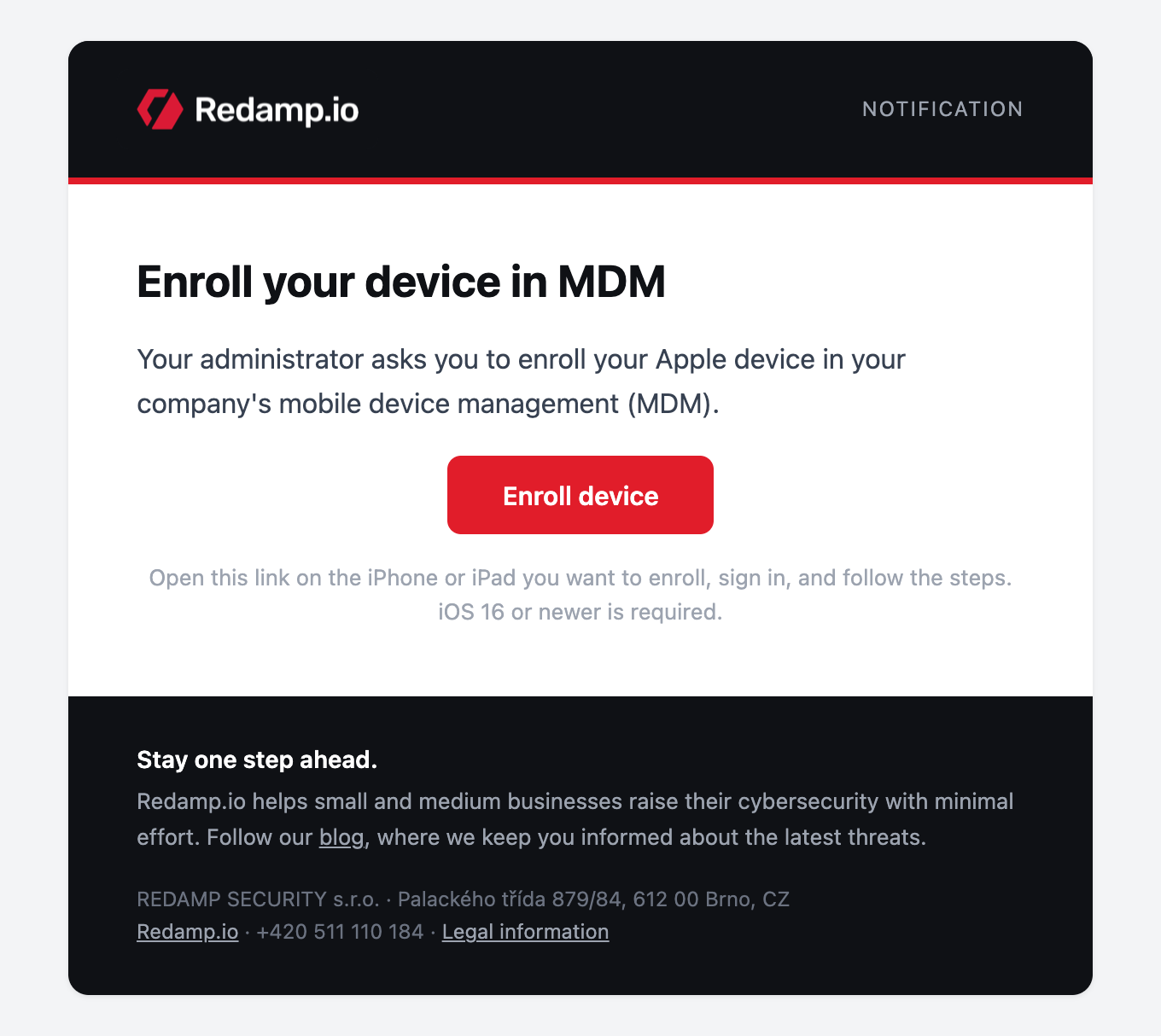
- Open the e-mail Enroll your device in MDM on the iPhone or iPad you want to enroll, and tap Enroll device.
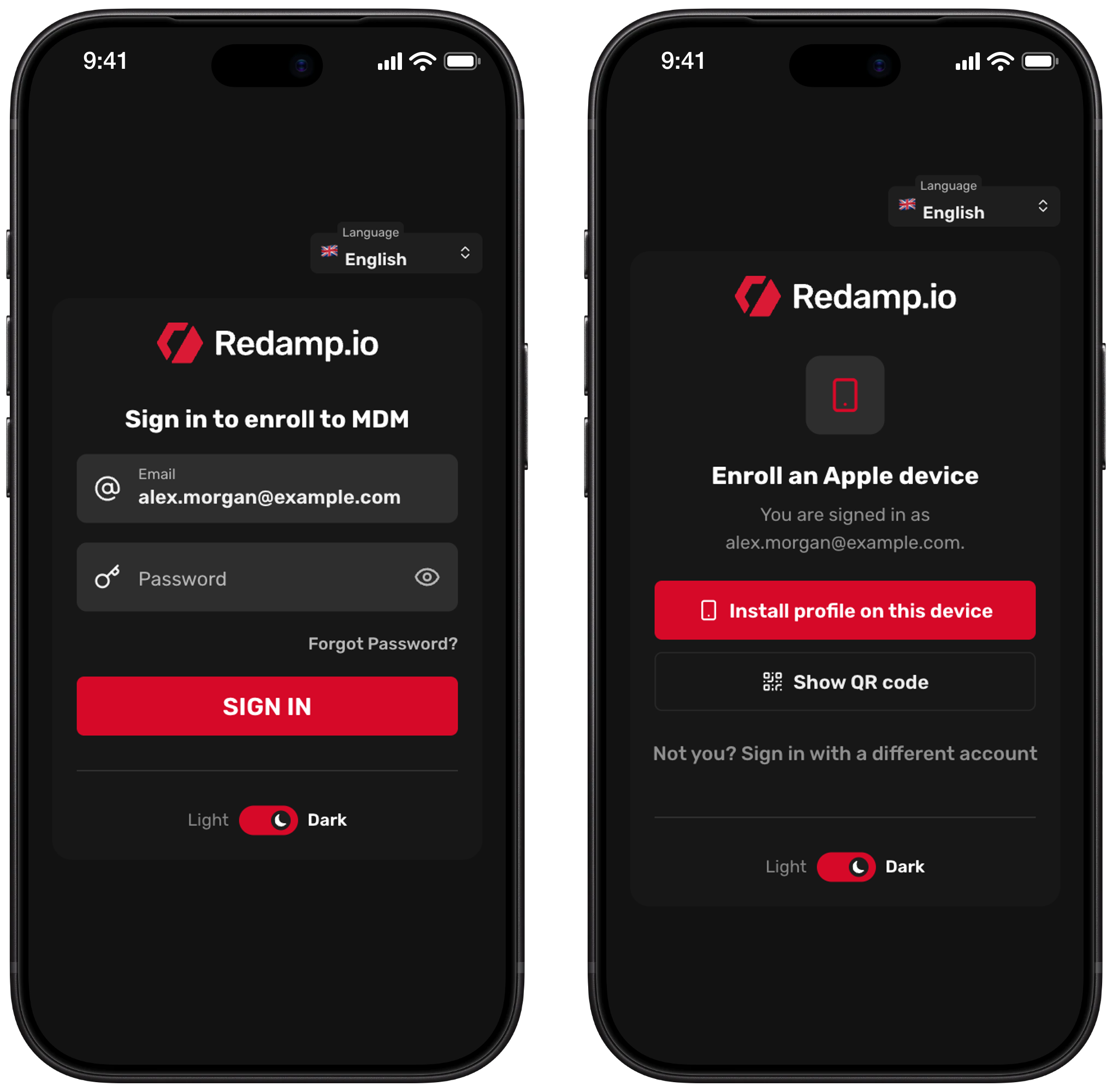
- Sign in with your Redamp.io e-mail and password and tap Sign in. If your account uses two-factor authentication, enter the code as well.
- On the Enroll an Apple device screen, tap Install profile on this device.
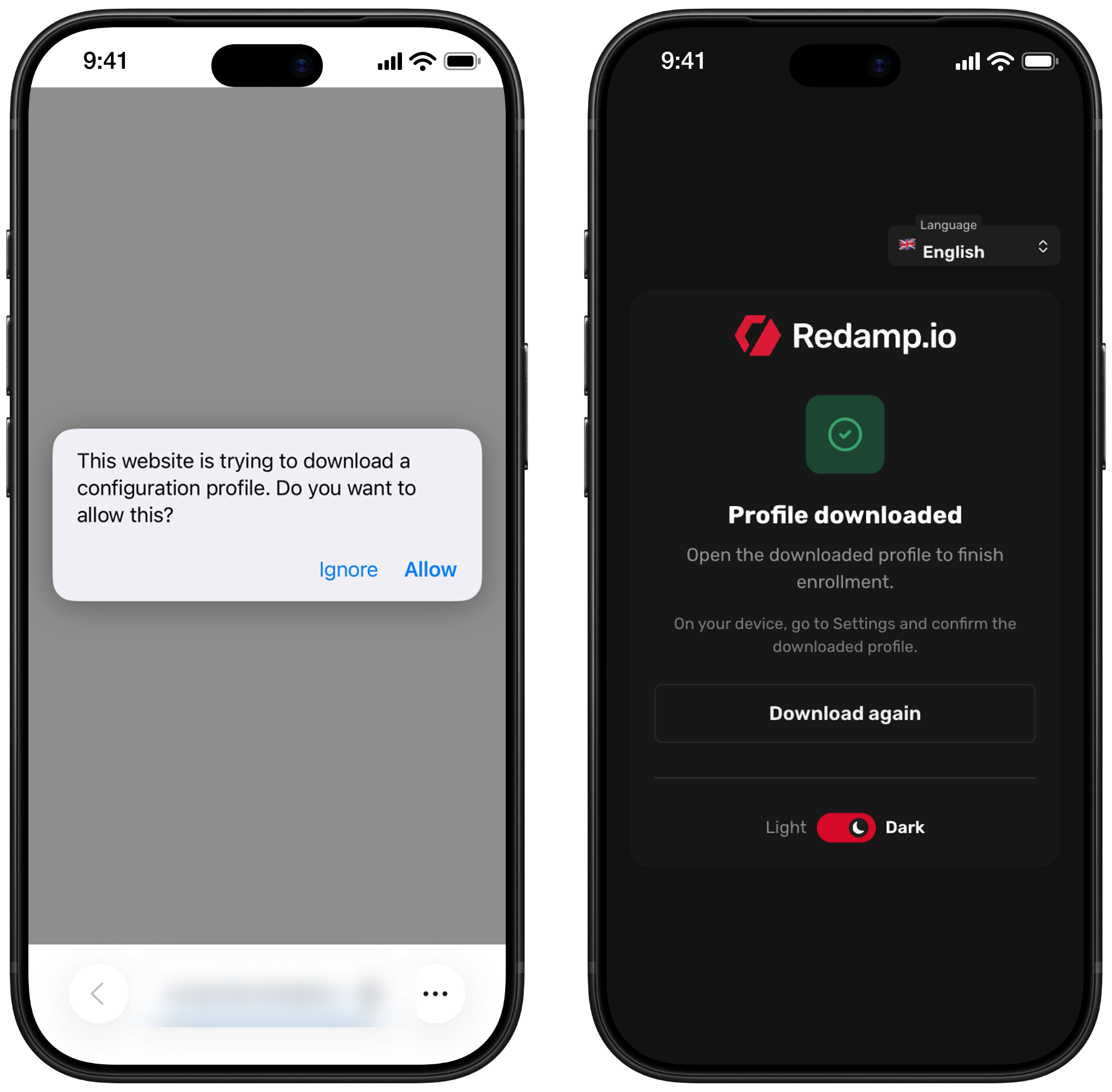
- Safari asks whether to allow the download of a configuration profile. Tap Allow, then Close. The page now shows Profile downloaded. Continue with Step 2 .
Tip: Opened the e-mail on a computer? Sign in there and tap Show QR code. Then scan the code with the camera of your iPhone or iPad and continue from point 4.
Notification from the Redamp.io app
If the Redamp.io app is already on your device, you get the notification MDM installation request.
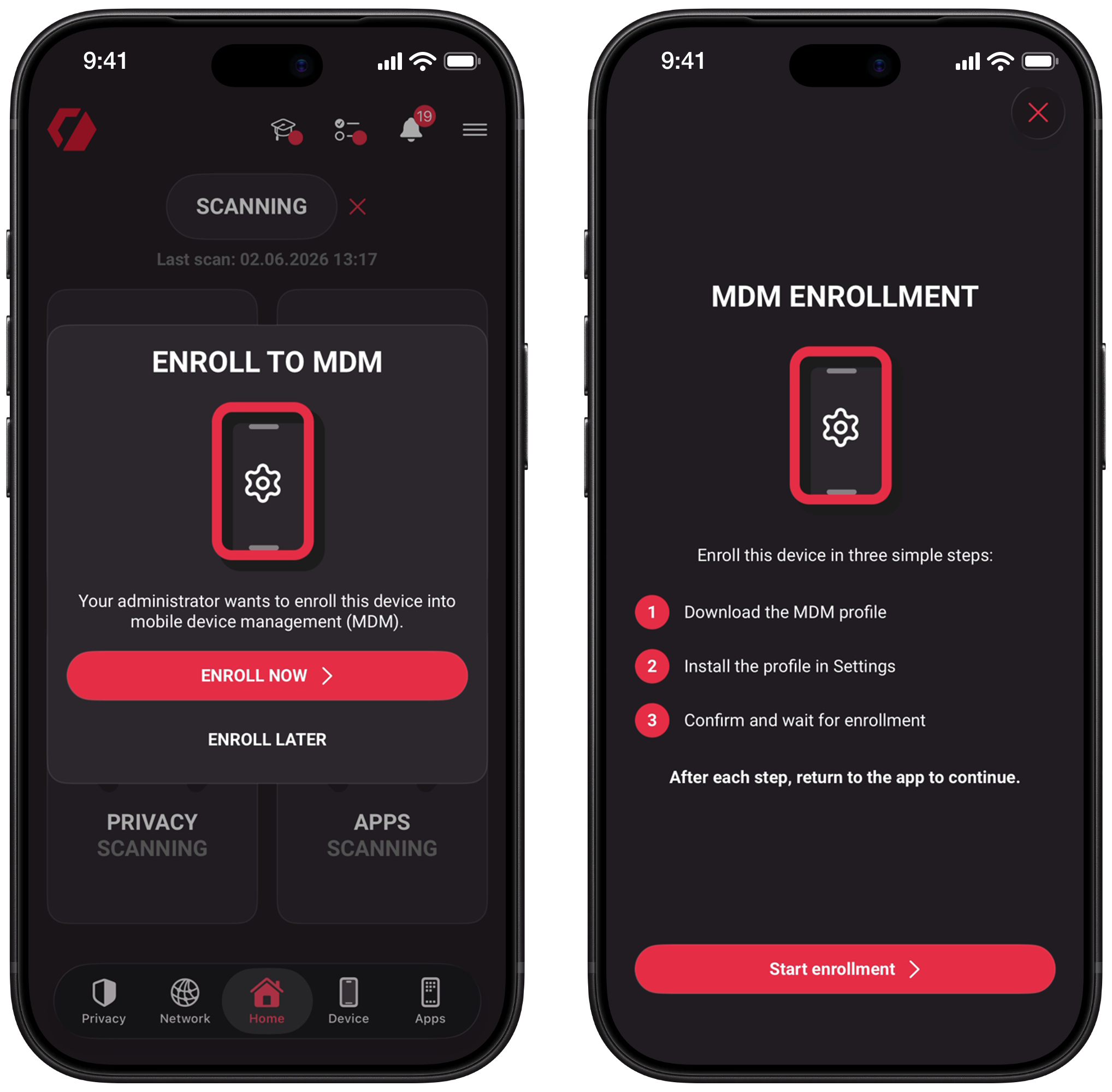
- Tap the notification. The app opens the Enroll to MDM card. Tap Enroll now.
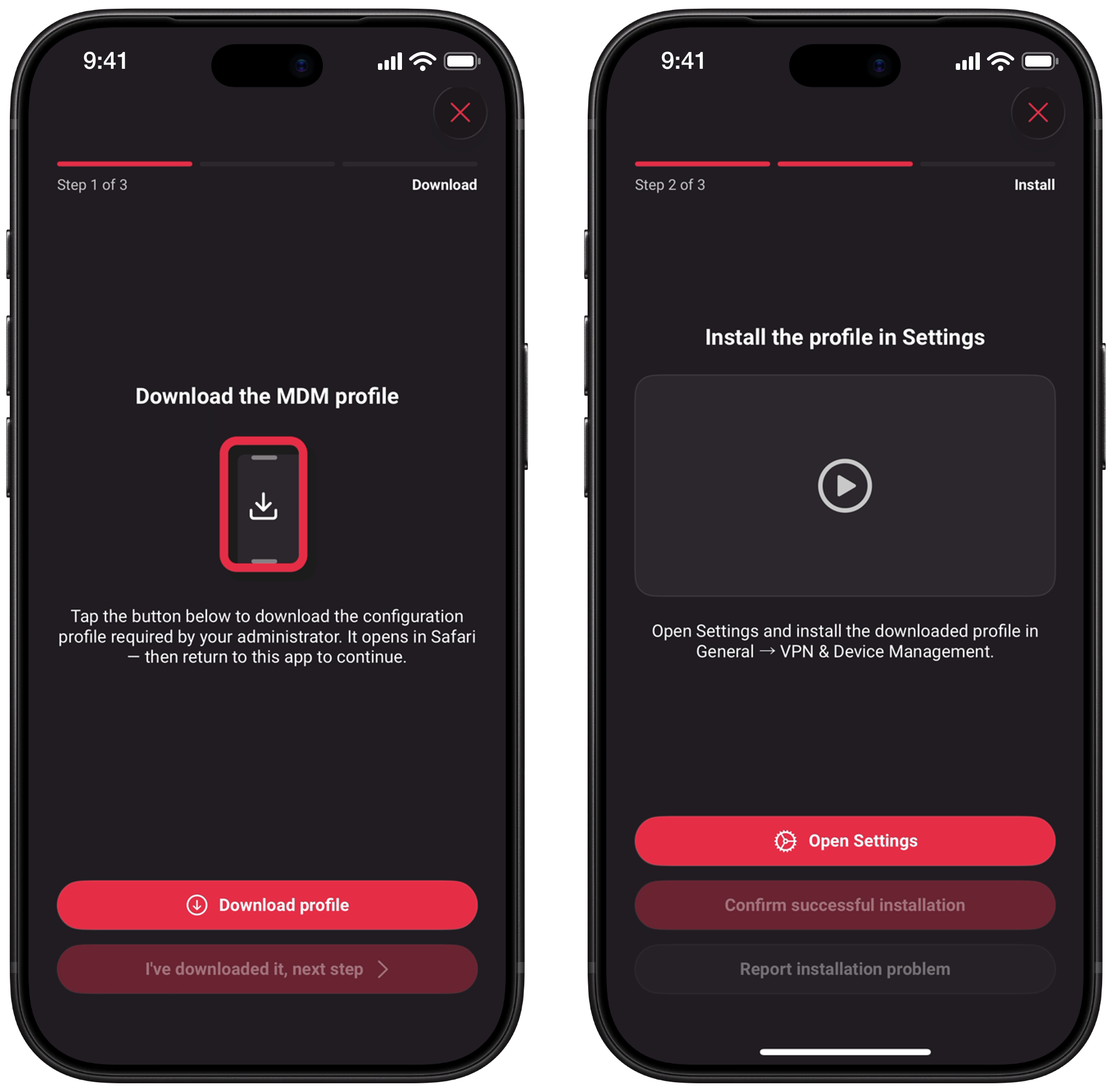
- The app shows the three steps of the enrollment. Tap Start enrollment.
- Tap Download profile. Safari opens and asks whether to allow the download. Tap Allow, then Close.
- Go back to the Redamp.io app and tap I've downloaded it, next step. The app now asks you to install the profile. Tap Open Settings and continue with Step 2 .
Tip: Safari did not open, or the link opened in another browser? Tap Copy link in the app and paste it into Safari.
QR code from your administrator
- Open the Camera on the iPhone or iPad you want to enroll and point it at the QR code.
- Tap the link that appears, then tap Allow and Close in Safari.
The code works for one device and expires 15 minutes after your administrator shows it. If it does not work, ask for a new one.
Step 2 - Install the profile in Settings
The profile is downloaded, but not installed yet. Install it soon: iOS deletes a downloaded profile that is not installed after a few minutes.
This short video shows the whole installation:
- Open Settings and tap Profile Downloaded at the top. If you do not see it, go to General → VPN & Device Management and tap Redamp.io MDM under Downloaded Profile.
- Check that the profile is Redamp.io MDM and tap Install in the top right corner. Enter your passcode.
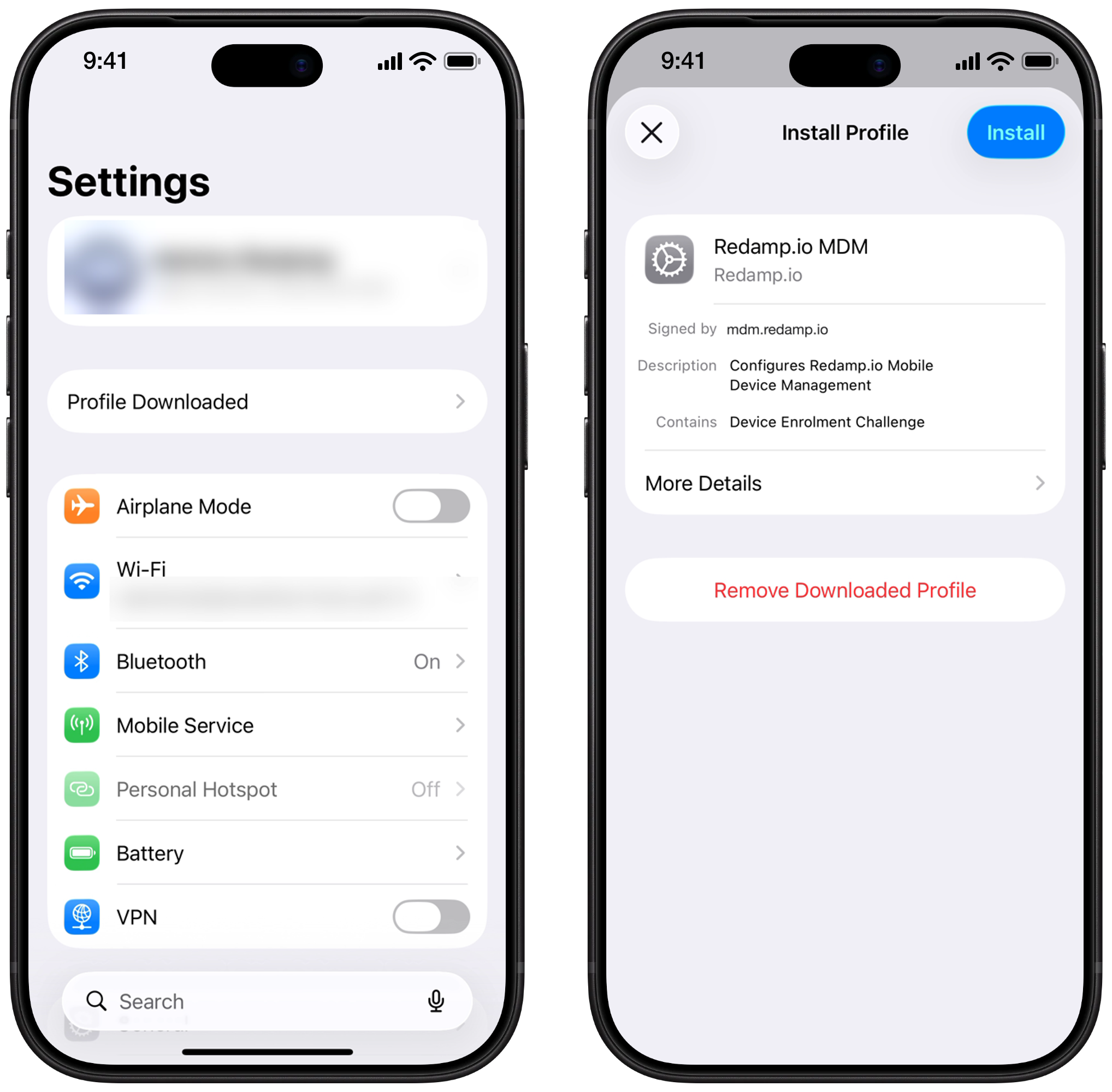
- Tap Install again to confirm.
- On the Warning screen, which describes what device management allows, tap Install.
- In the Remote Management dialog, tap Trust.
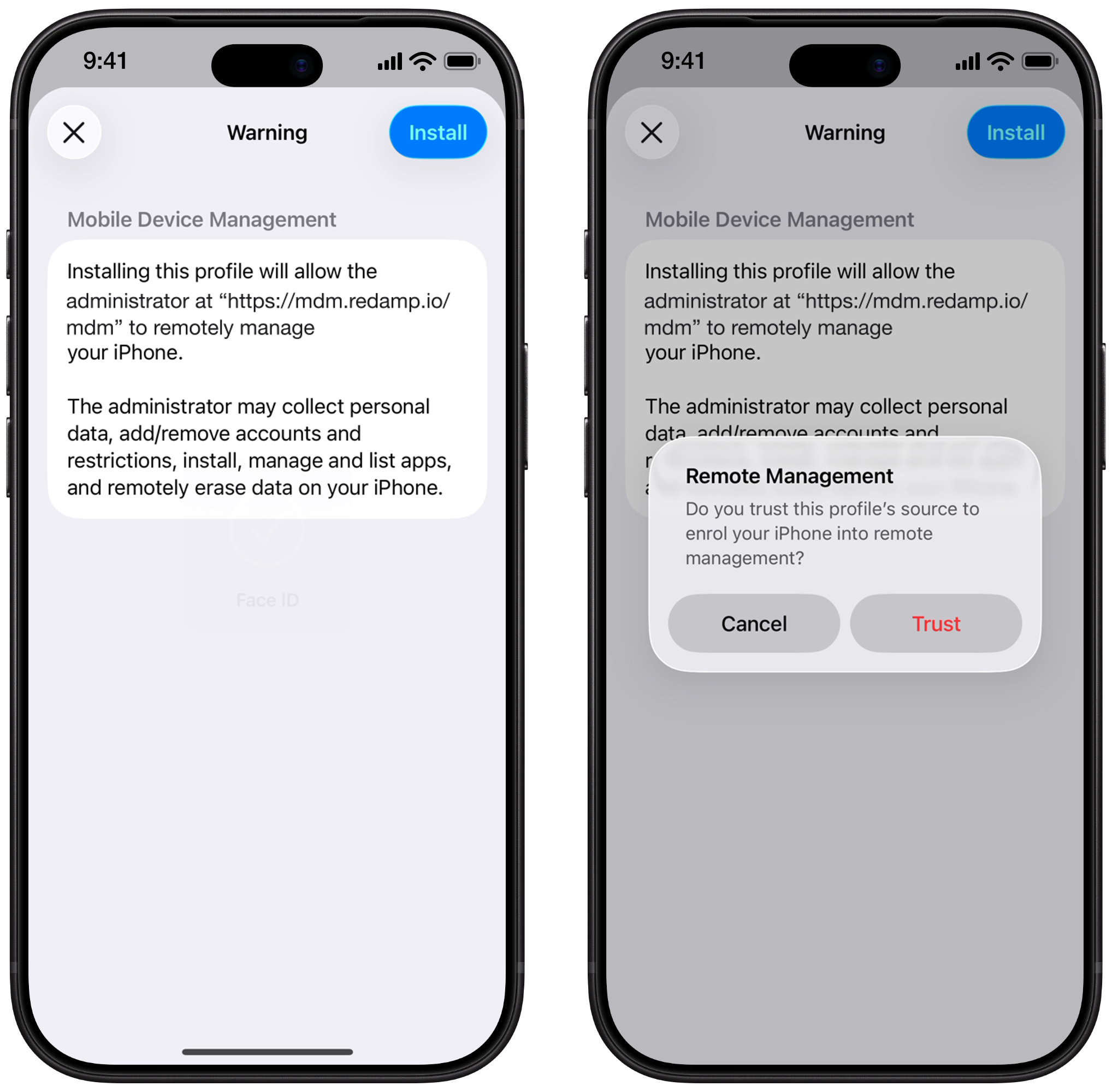
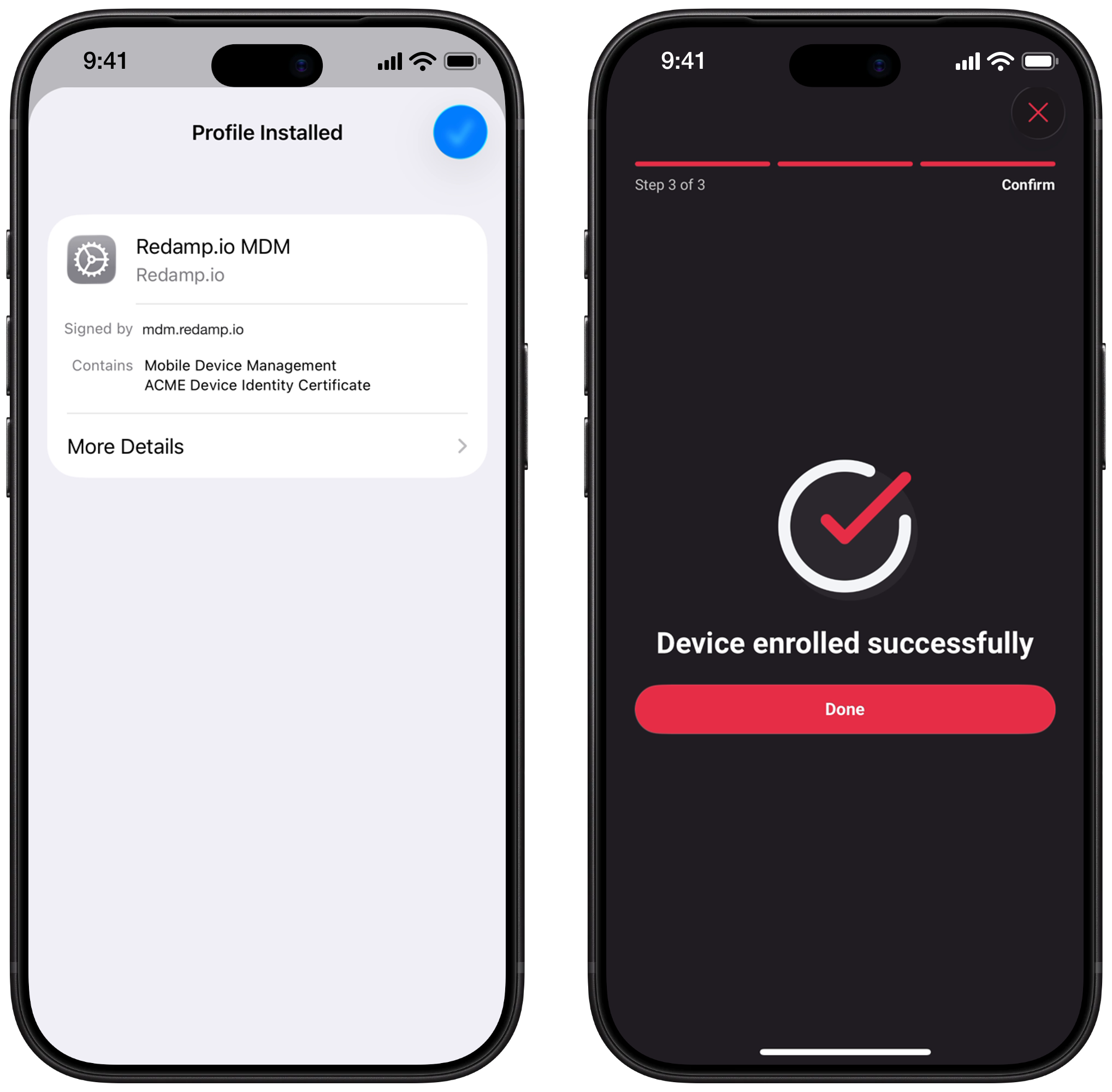
- When Profile Installed appears, tap Done.
Your device is now enrolled. If you started from the Redamp.io app, go back to it and tap Confirm successful installation. The app checks the enrollment and shows Device enrolled successfully.
Step 3 - Allow the Redamp.io app
If your company uses the Redamp.io app, it is installed on your device through device management shortly after enrollment.
- When iOS asks whether to install Redamp.io, or whether your company may manage it, allow it. To install the app, you have to be signed in to the App Store with your Apple ID.
- Open Redamp.io and sign in with your Redamp.io e-mail and password, if you are not signed in yet. The app then connects to your company's device management by itself.
If your company does not use the Redamp.io app, there is nothing more to do.
Step 4 - Run your first scan
Open the Redamp.io app and follow its instructions to run your first scan. The scan checks the security of your device and finishes the setup. Your company then sees your device in Redamp.io.
What your company can see and do
Device management gives your company access to the device, not to your personal content.
Your company can:
- See the device model, name, serial number, iOS version and storage
- See the phone number and network details, such as the IMEI and the Wi-Fi address
- See the installed apps, configuration profiles and certificates
- Install and remove apps, settings and restrictions, for example Wi-Fi networks or passcode rules
- Lock the device or remove its passcode
- Erase the device remotely, for example when it is lost or stolen
Your company cannot:
- See your photos, messages, e-mails or browsing history
- See the content of your apps
Removing the profile
You can remove the management profile at any time. Talk to your administrator first: your company may require it on this device.
- Open Settings → General → VPN & Device Management.
- Tap Redamp.io MDM under Mobile Device Management.
- Tap Remove Management and enter your passcode.
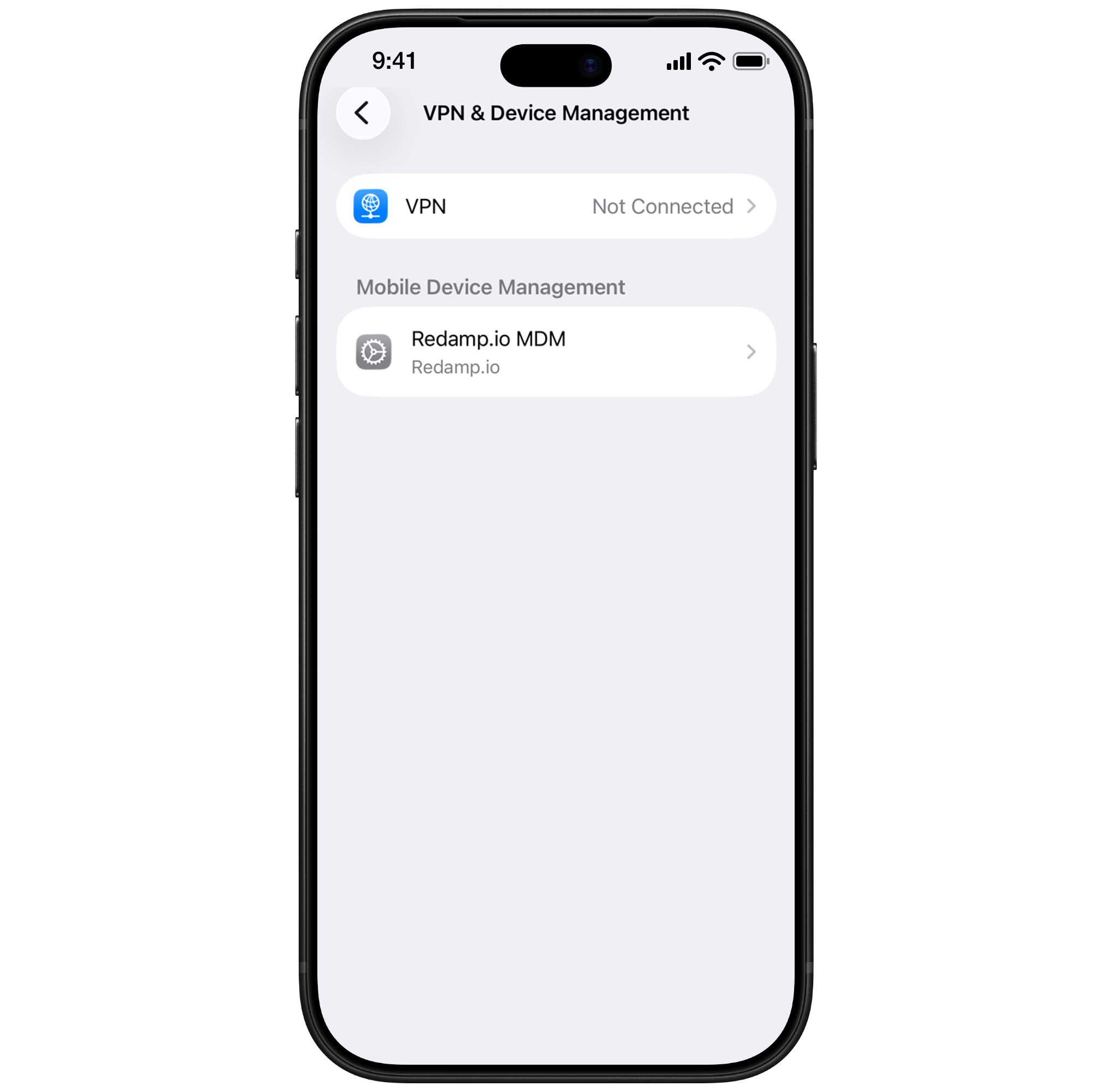
When you remove the profile, the apps, settings and restrictions your company installed are removed too. Your company sees that the profile was deleted from the device.
Common problems
| What you see | What to do |
|---|---|
| Installing a profile only works in Safari on an iPhone or iPad. | You opened the link in another browser or on a computer. Open it in Safari on your device, or tap Show QR code and scan the code with the device. |
| A Security Delay message when you install the profile | Stolen Device Protection in iOS makes you wait one hour away from familiar places such as home or work. Install the profile at a familiar place, or wait for the delay to pass. In the Redamp.io app, tap Report installation problem, choose I saw a "Security Delay" message and then Remind me in an hour. |
| Profile was downloaded in Safari when you open the link again | The download link works only once. Go to Settings and install the profile from Step 2 . |
| No Profile Downloaded in Settings | The downloaded profile expired. Go back to the enrollment page or the app and download it again (Download again or Download profile). |
| You have not been invited | Your administrator has not invited you yet. Ask them to send you an invitation. |
| Invitation expired or Enrollment withdrawn | Your invitation is no longer valid. Ask your administrator for a new one. |
| Set up two-factor authentication | Sign in to Redamp.io on a computer, finish the two-factor authentication setup, and then open the invitation again. |