Installing the Redamp.io headless application on Windows Devices
Learn how to install the Redamp.io headless application on all your Windows devices.
Installation
The Redamp.io headless application is available for download using the following links:
- for 64-bit systems: https://windows.redamp.io/headless/64/Redamp_io_headless_64.msi
- for 32-bit systems: https://windows.redamp.io/headless/32/Redamp_io_headless_32.msi
It is necessary to download the installer that matches your device architecture (in most cases, this will be a 64-bit system).
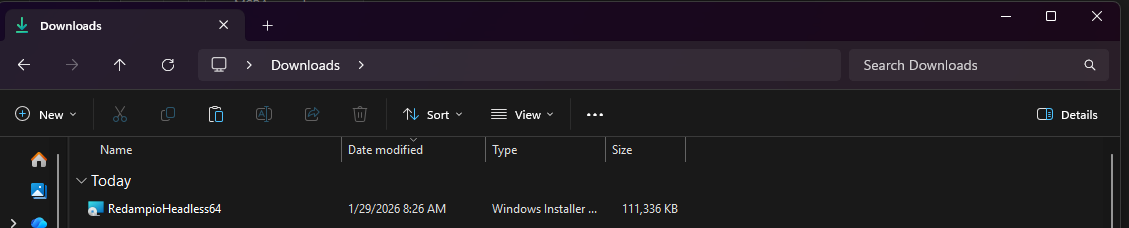
After downloading the .msi file, install the application on your device. Once the installation is complete, everything is ready for logging into your Redamp.io account.
Open Windows PowerShell or Command Prompt under an administrator account.
The application automatically adds the path to the redamp-cli application into the PATH variable, so after opening a new terminal, it is possible to simply enter the command redamp-cli.
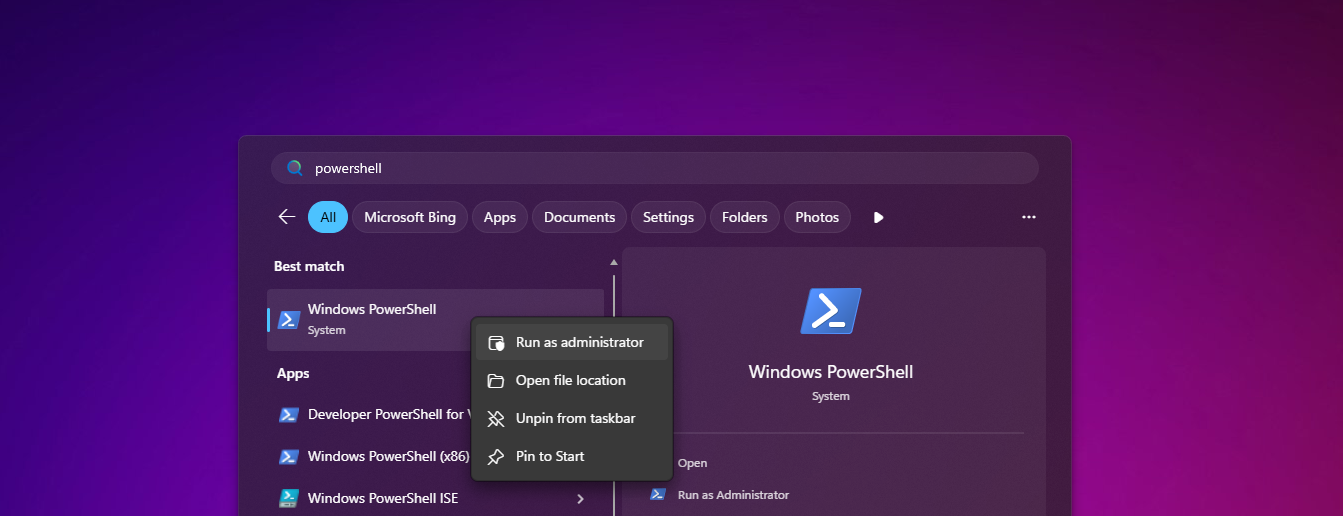
Note: If the terminal does not recognize the
redamp-clicommand, follow these steps:
- Press Win + R, type
sysdm.cpl, and confirm with Enter — the System Properties window will open.- Go to the Advanced tab and click the Environment Variables button.
- In the lower section of the window, under System variables, locate the Path variable and double-click it.
- Check whether the list contains the Redamp.io installation path (typically
C:\Program Files\Redamp.io\or a similar folder).- If the path is missing, add it using the New button and paste the path. If it is already present, confirm the window by clicking OK and close all System Properties windows.
- Open a new terminal and try the
redamp-clicommand again.If the issue persists even after verifying the PATH variable, restart the device or contact our support team.
Login
In the newly opened terminal window, you can log into the Redamp.io application using the following command:
$ redamp-cli login
Log into the console application using the credentials you previously created and under which you want the device to be logged in. To successfully log in, you only need your email address and password.
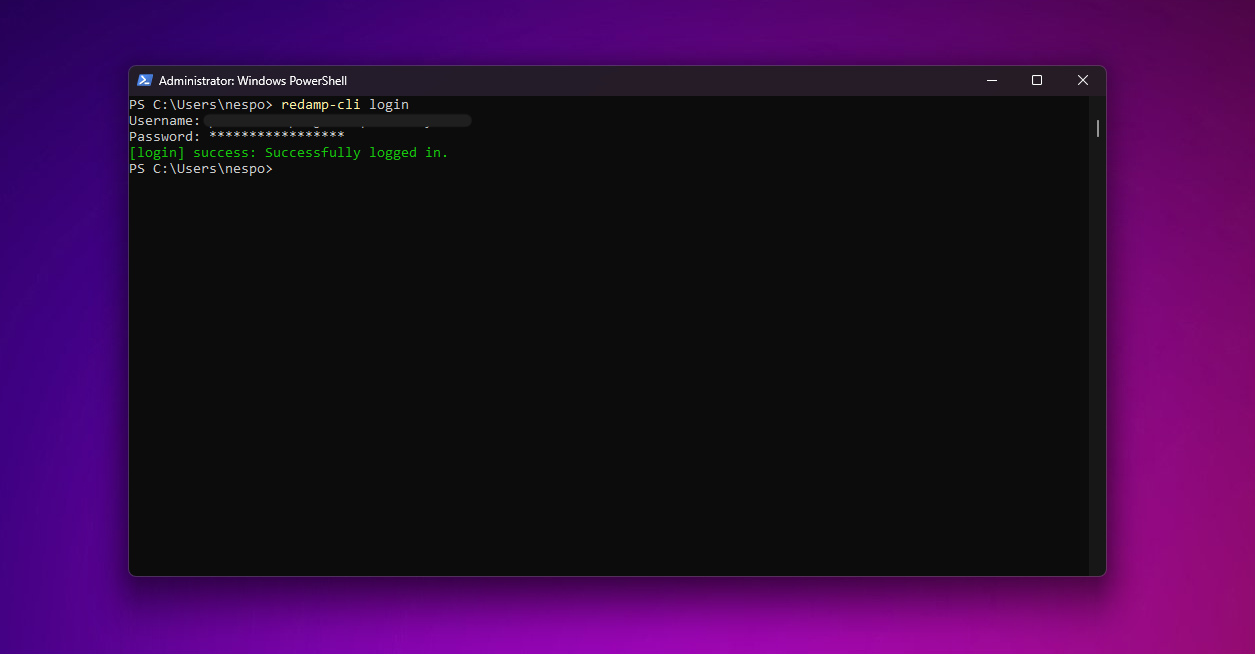
If the account credentials are entered correctly, you will be informed about the successful login. If the credentials are incorrect, repeat the process again.
In case of a successful login, your device should automatically send a scan to the web platform (the process takes a few minutes). If after some time you still do not see the device in the web console, you can manually trigger a scan using the following command:
$ redamp-cli full_scan
Your device will regularly communicate, display, and synchronize data with the web console.
Working with the Redamp.io Headless Application
If you want to use the application directly from the console, you have a set of commands available that can be used. You can display all available commands by entering the command redamp-cli help or simply redamp-cli into the terminal.
For example, you can start a device scan using the following command:
$ redamp-cli full_scan
You can view the scan results in the web console under your account.
The list of commands supported by the Redamp.io Headless application will be expanded in the near future to better compensate for the lack of a graphical interface.
Available Commands
| Command | Description |
|---|---|
$ redamp-cli login | Log into an account using username and password |
$ redamp-cli logout_user | Log out the currently logged-in user |
$ redamp-cli user | Display information about the currently logged-in user |
$ redamp-cli full_scan | Start a complete scan (device, network, privacy, applications) |