Configurations, apps and policies
Create configurations, add apps and deliver them to iPhones and iPads with policies.
Settings and apps reach your iPhones and iPads in three steps. You describe what a device should have in a configuration, decide which devices get it in a policy, and Redamp delivers it to every device the policy is aimed at.
You find everything in MDM → iOS + iPadOS, on the Configurations, Apps and Policies tabs.
How it fits together
| Building block | What it is | Example |
|---|---|---|
| Configuration | One setting of one kind, or one app | "Office Wi-Fi", "Baseline restrictions", "Expense Tracker" |
| Policy | A set of configurations, aimed at all devices or at devices with a tag | "Sales team" deploys Office Wi-Fi and Expense Tracker to devices tagged sales |
| Device | Gets the result of every policy aimed at it | An iPhone tagged sales gets the Wi-Fi and the app |
A configuration on its own does nothing. It reaches a device only when a policy carries it, so build them in this order:
- Create the configurations you need.
- Add the apps you want to install, each as a configuration too.
- Create a policy that carries them and aim it at your devices.
Step 1 - Create a configuration
Open the Configurations tab and click New configuration.
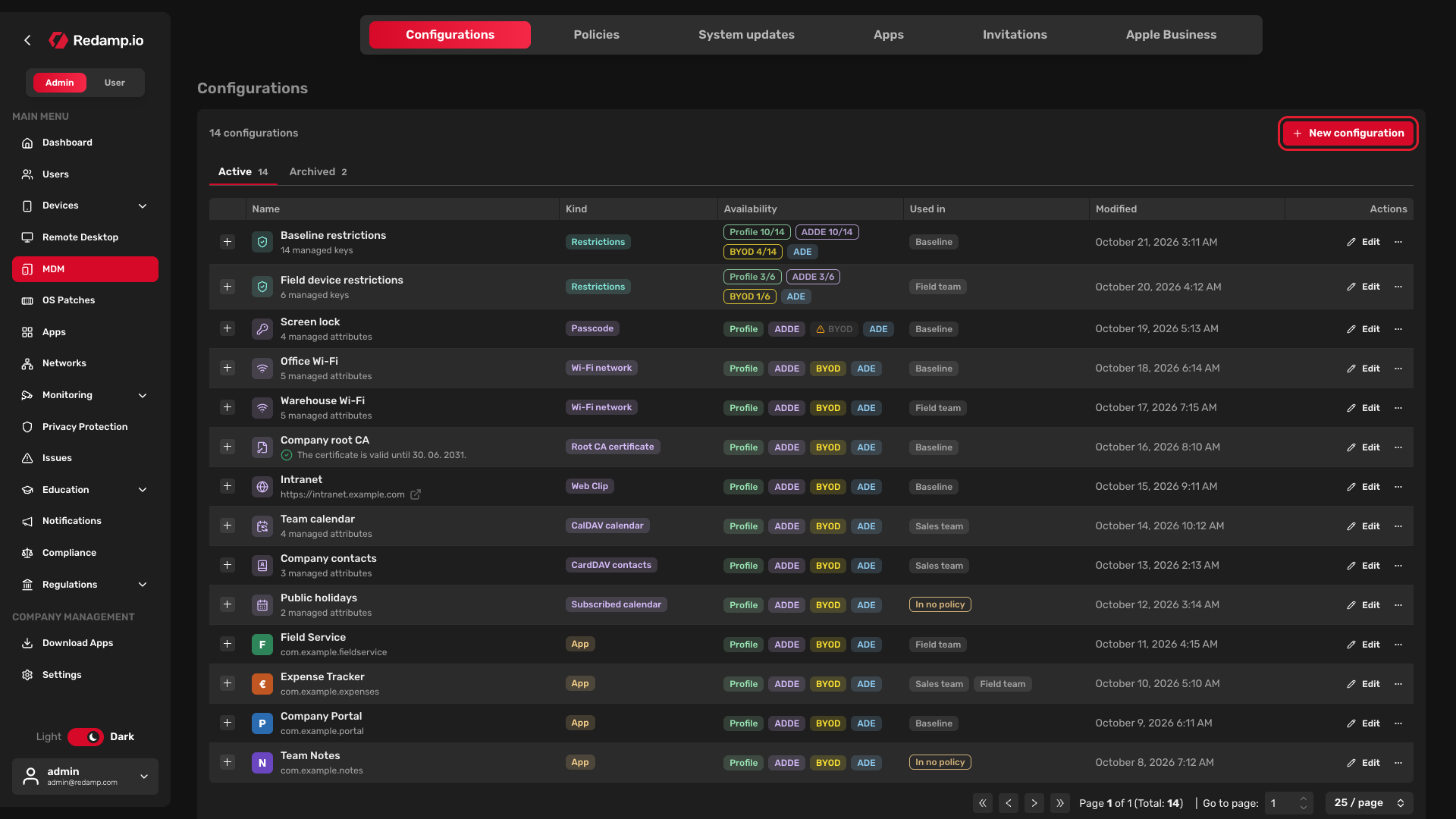
Pick the type of configuration:
- Restrictions - turn individual iOS features on or off, from a catalogue of every rule Apple offers.
- Profile - a ready-made profile, such as a passcode policy, a Wi-Fi network, a Web Clip or a root certificate, whose attributes you fill in.
- App - an app from your catalogue. See Step 2 .
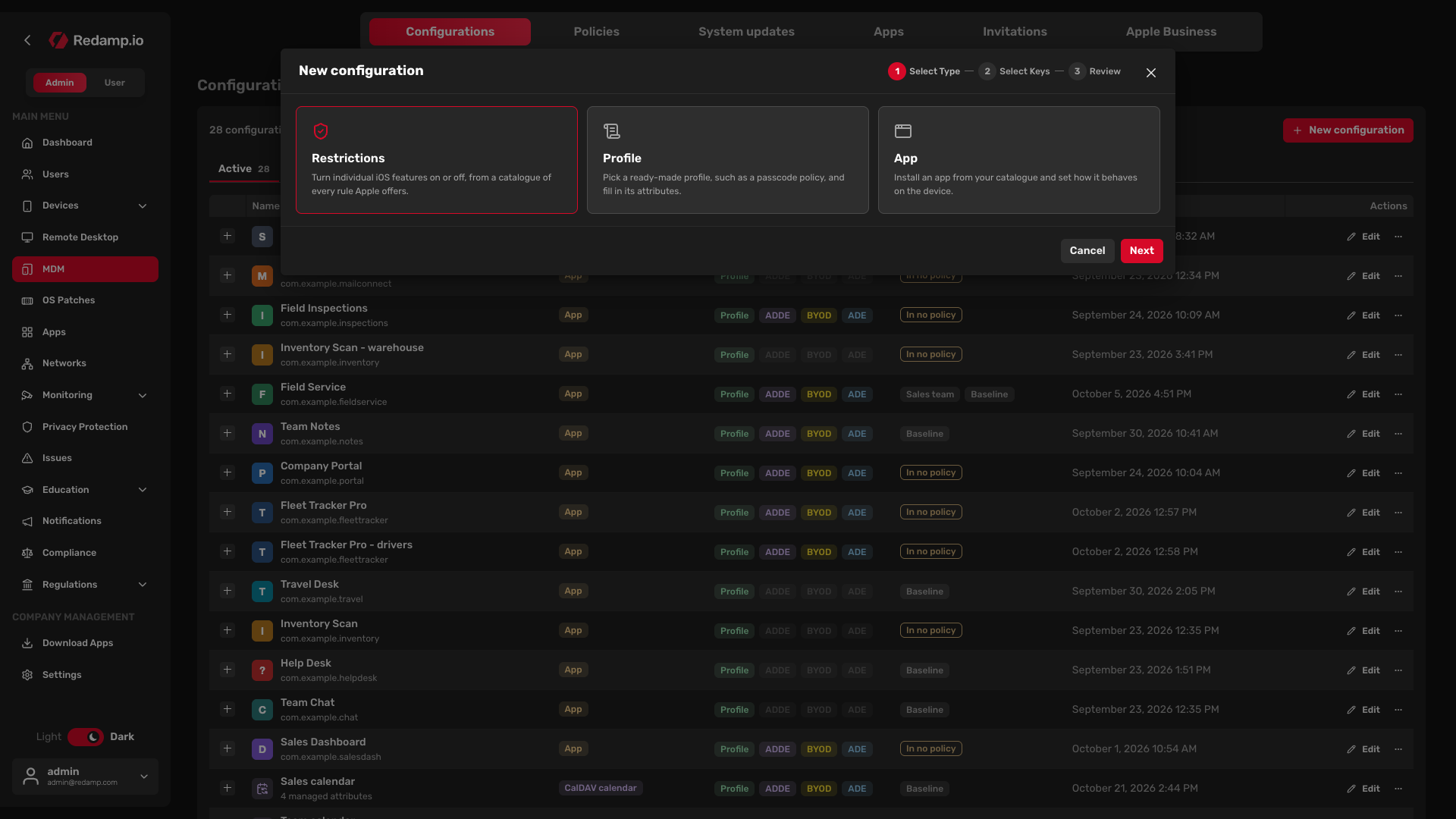
Then set the values:
- For Restrictions, go through the keys in Select Keys and set each one you want to manage to On or Off. A key you leave as Not managed stays under the user's control. Turn on Managed keys only to see just the keys you set.
- For a Profile, choose the profile in Select Profile and fill in its attributes in Specify Attributes.
The Where it works column shows on which enrollment types each key takes effect. Some keys work only on a supervised device, which only ADE (Automated Device Enrollment) provides. Devices enrolled with a profile, through ADDE or as BYOD ignore them. Read more about the differences in Enrollment types .
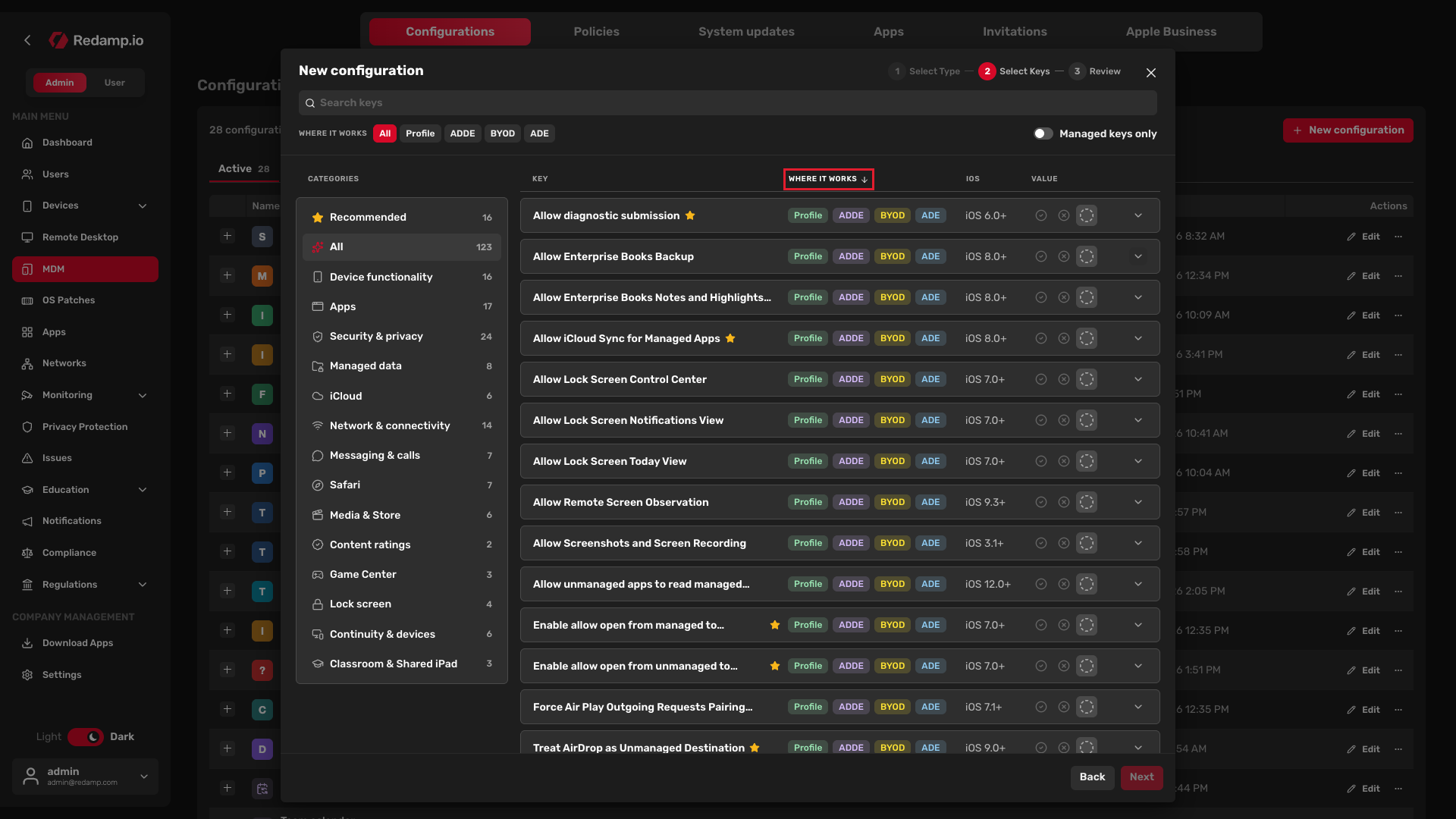
On the Review step, enter the Configuration name and save it. Name it after what it contains, not after who it is for, for example "Baseline restrictions". You decide who gets it in the policy.
The new configuration appears in the list. The Availability column shows where it works and Used in shows the policies that carry it. Until a policy carries it, it is marked In no policy.
Step 2 - Add an app
An app gets to devices the same way as any other setting: you add it to the app catalogue, create a configuration for it and put the configuration in a policy.
Add the app to the catalogue
Open the Apps tab and click Add app. Choose where the app comes from:
- Purchased in ABM - apps your organization already got in Apple Business Manager. Click Load from ABM to list them. This tab appears only when Apps and Books is connected.
- App Store - type the app name and click Search.
- In-house app - your own app. Fill in the Bundle ID, the Name and the Manifest URL (it must start with
https://) and click Check manifest.
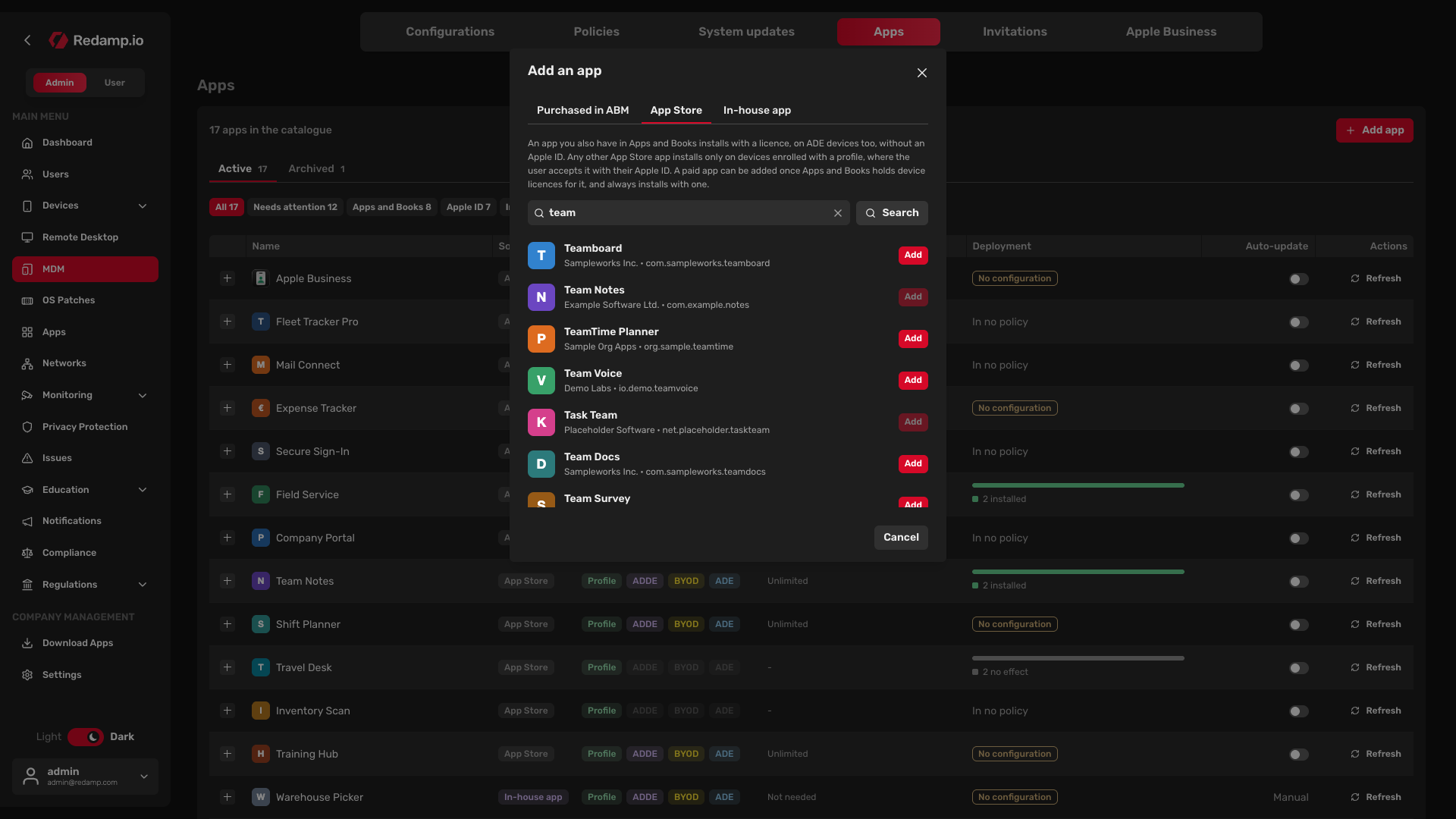
Adding the app only puts it in the catalogue. No device gets it yet.
Note: App Store apps install on ADE, BYOD and ADDE devices only with a licence from Apps and Books. Without Apps and Books, only free apps reach devices enrolled with a profile, and the user approves each first install with their own Apple ID. See Installing App Store apps with Apps and Books to connect it. The Licences column on the Apps tab shows how many licences each app has.
You do not add the Redamp.io app. Redamp installs it on its own, see Pairing Redamp.io with managed devices .
Create a configuration for the app
Expand the app in the list with and click Create configuration. You can also start from New configuration on the Configurations tab and pick App.
On the Settings step, choose how the app behaves on the device:
- The user can hide the app
- Keep the app's data out of backups
- App configuration - settings the app reads on first start, such as a server address. Click Add setting to add one. Which keys the app understands comes from its vendor.
The user cannot delete an app that a policy installs.
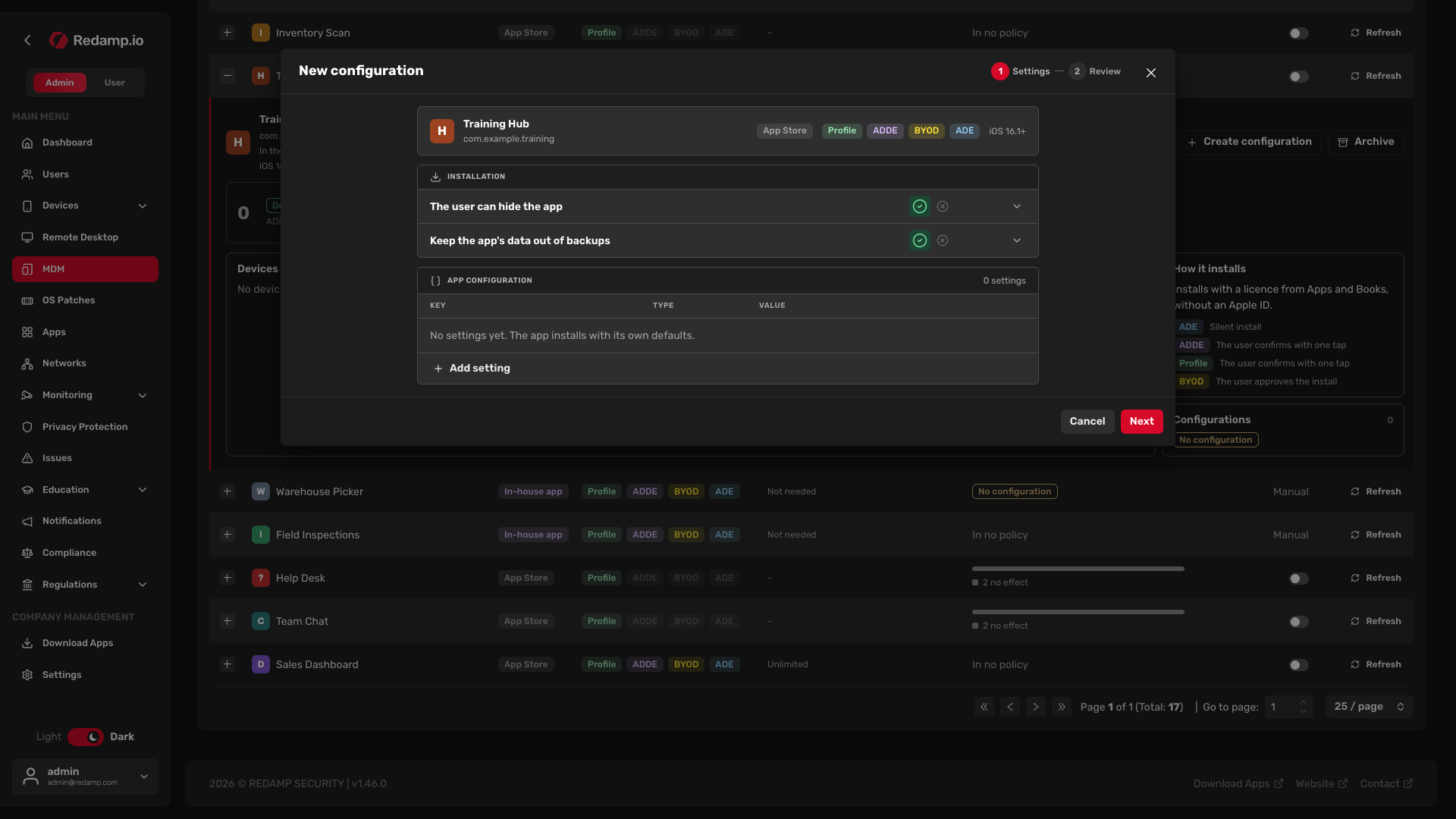
Name the configuration on the Review step and save it.
Step 3 - Create a policy
Open the Policies tab and click New policy. The wizard has three steps.
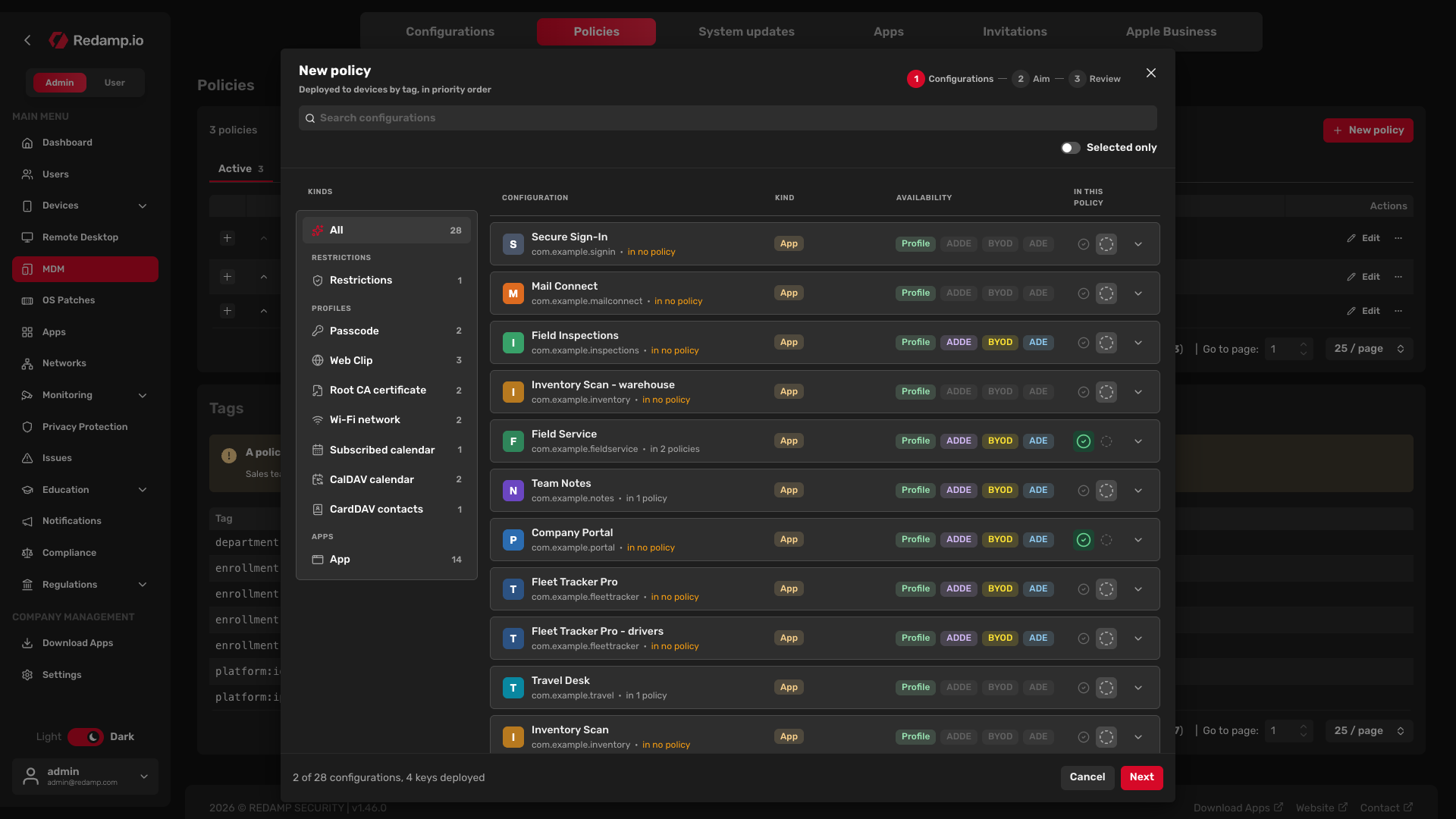
Configurations
Turn on each configuration the policy should deploy with in the In this policy column. The list on the left filters them by kind, grouped into Restrictions, Profiles and Apps, and you can search by name.
A policy carries only one configuration of each kind, so it cannot hold two passcode or two restrictions configurations. Wi-Fi networks, Web Clips, certificates and calendars are the exception, a policy can carry several of them. Each app can be in a policy once.
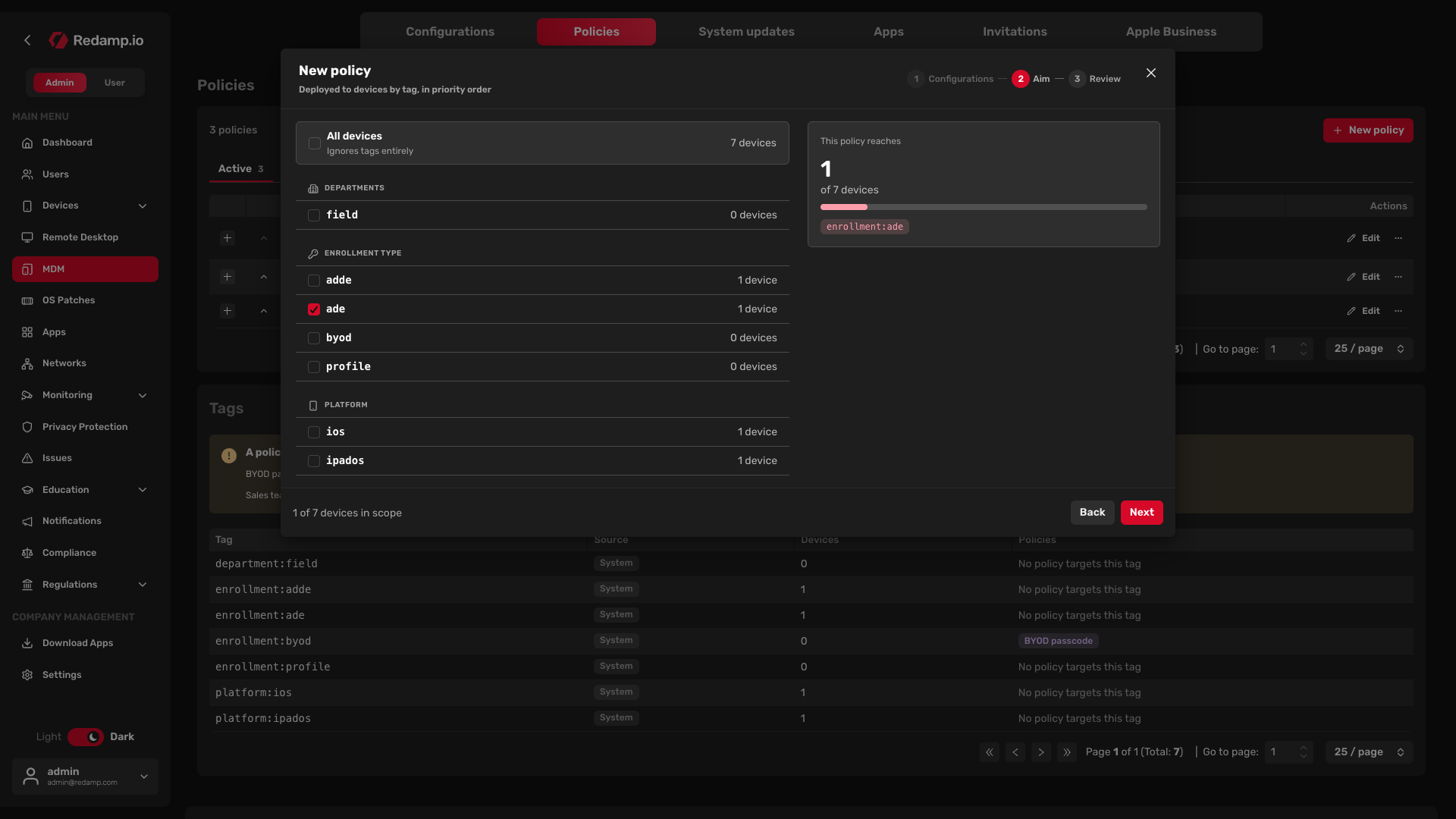
Aim
Choose which devices get the policy:
- All devices - every device, now and in the future. Tags are then ignored.
- Tags - tick one or more tags, and the policy reaches devices with at least one of them. Tags are grouped, for example by department, enrollment type and platform, and each shows how many devices carry it.
This policy reaches on the right shows how many of your devices your choice covers.
Tags come from two places. Redamp adds system tags on its own, for example by enrollment type. You add your own tags to a device in its detail, in the Tags section.
Review
Enter the Name and, if you like, a Description. The table shows each configuration and whether it takes effect on each enrollment type: Applies, Some settings ignored or No effect.
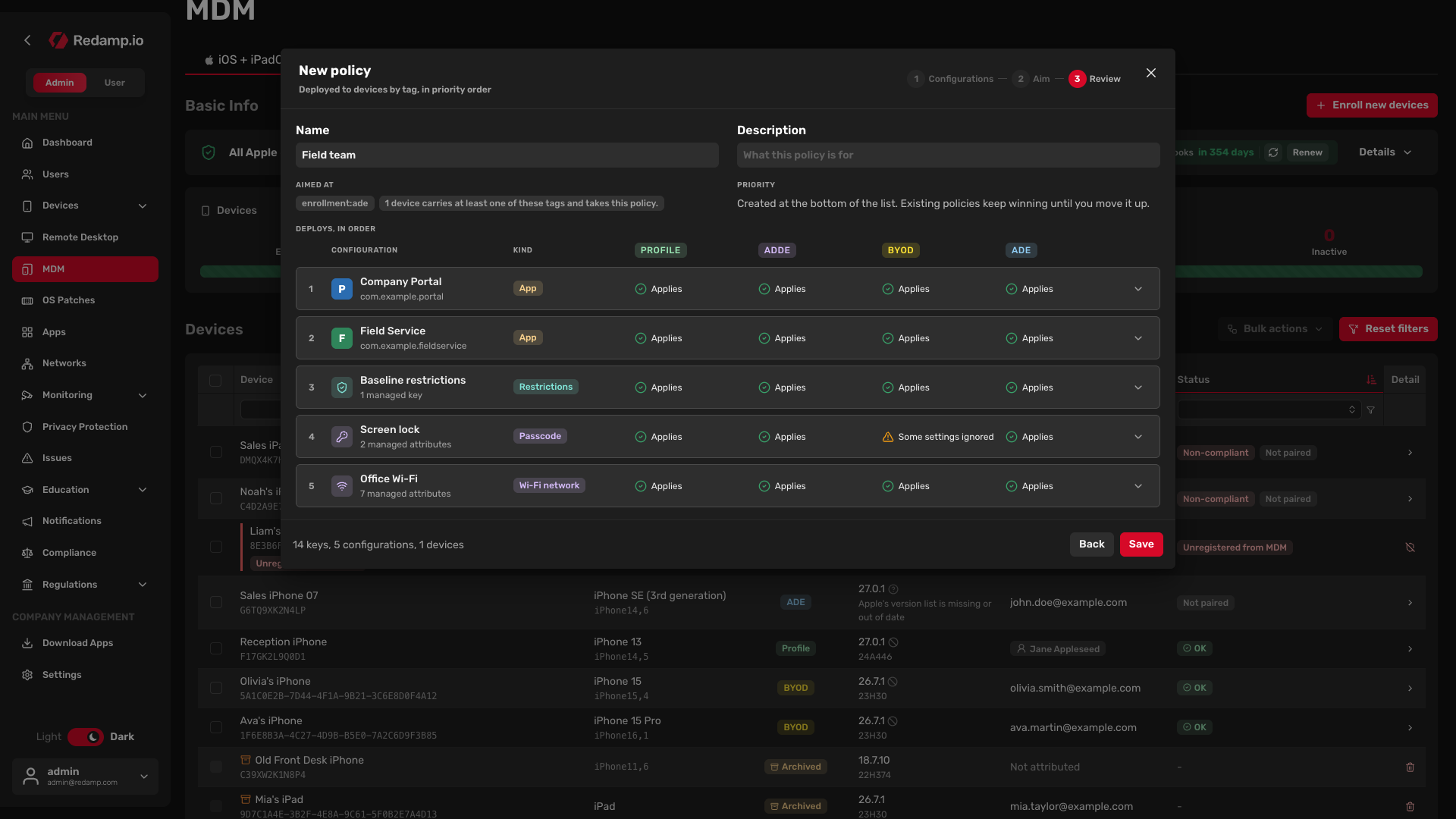
Save the policy. Redamp sends the changes to the devices it is aimed at on its own.
Priority and how policies combine
A device can get several policies at once, for example a baseline for all devices and a stricter one for the sales tag. When two policies set the same key, the policy higher in the list wins. The # column shows the order.
- A new policy is created at the bottom of the list, so the existing policies keep winning until you move it up.
- Move a policy with the Move up and Move down arrows.
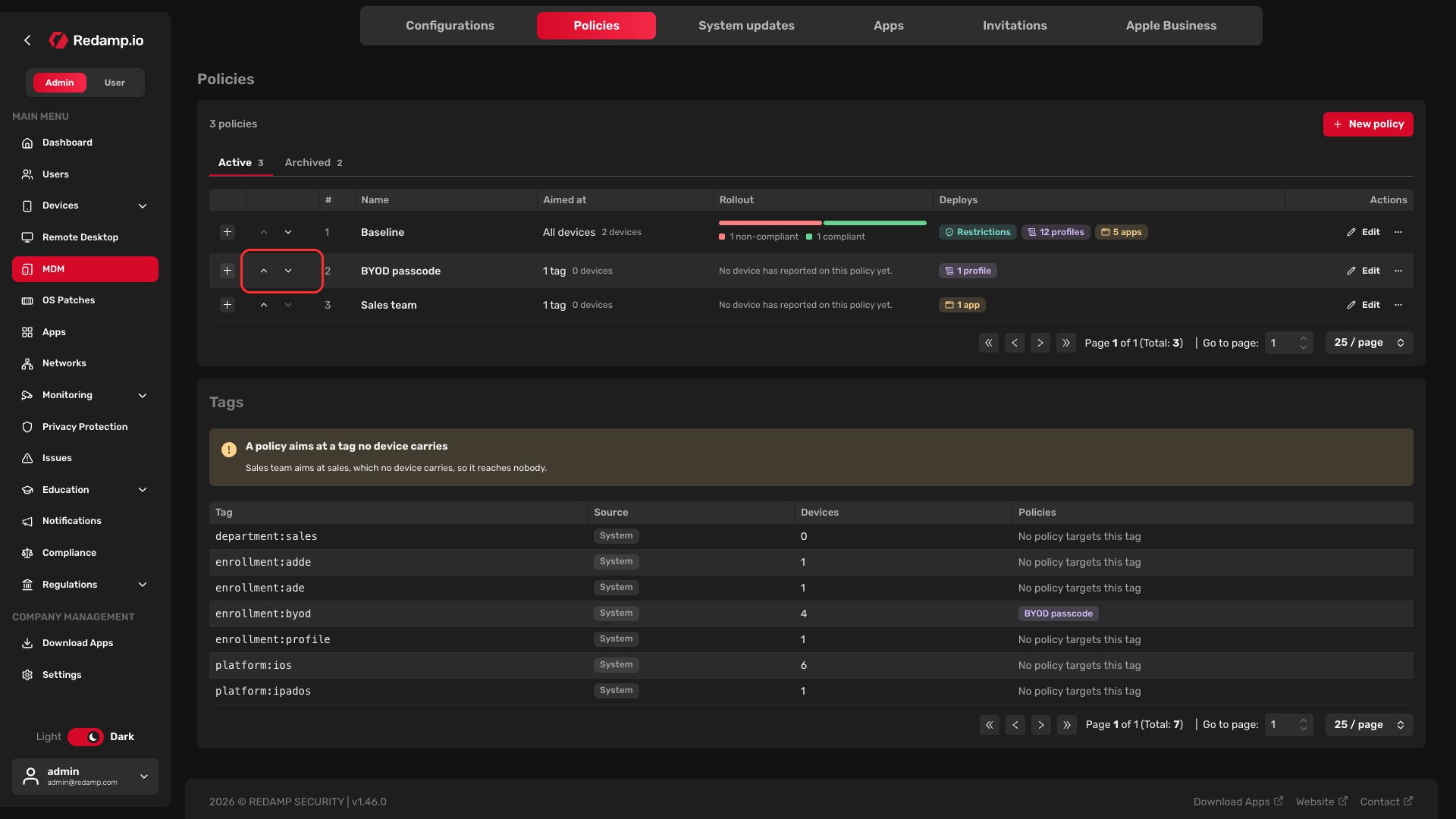
Policies combine key by key, not as a whole. The device gets every key that any of its policies sets, and only conflicting keys are decided by the order.
| Key | "Sales team" (higher) | "Baseline" (lower) | The device gets |
|---|---|---|---|
| Camera | On | Off | On, from "Sales team" |
| Screenshots | not set | Off | Off, from "Baseline" |
| AirDrop | Off | not set | Off, from "Sales team" |
Wi-Fi networks, Web Clips, certificates, calendars and apps add up. A device in two policies with a different Wi-Fi network in each gets both networks.
What the device shows
Click a device in the Devices list and scroll to its Policies section. You see every policy aimed at the device, what it was matched by, and its verdict:
| Verdict | What it means |
|---|---|
| Compliant | The device satisfies every policy aimed at it. |
| Partially compliant | The device satisfies some of its policies, not all. |
| Reconciling | A new or changed policy is on its way. A locked device postpones MDM commands until it is unlocked, so this can last a while. |
| Awaiting user | The profile is installed, but the user has not done what it requires yet, for example set a passcode. |
| Non-compliant | The device does not satisfy one or more of its policies. |
| No policy | No policy is aimed at the device. |
Expand a policy and then one of its configurations to see each key and its Outcome:
- Applied - the device has the value from this policy.
- Overridden - a policy higher in the list sets the key, its name is shown next to it.
- Dropped - the device cannot honour the key, for example because it is not supervised. The reason is shown next to it.
A policy marked No effect here sets nothing this device can use, either because of its enrollment type, supervision or iOS version, or because a higher policy sets all of its keys.
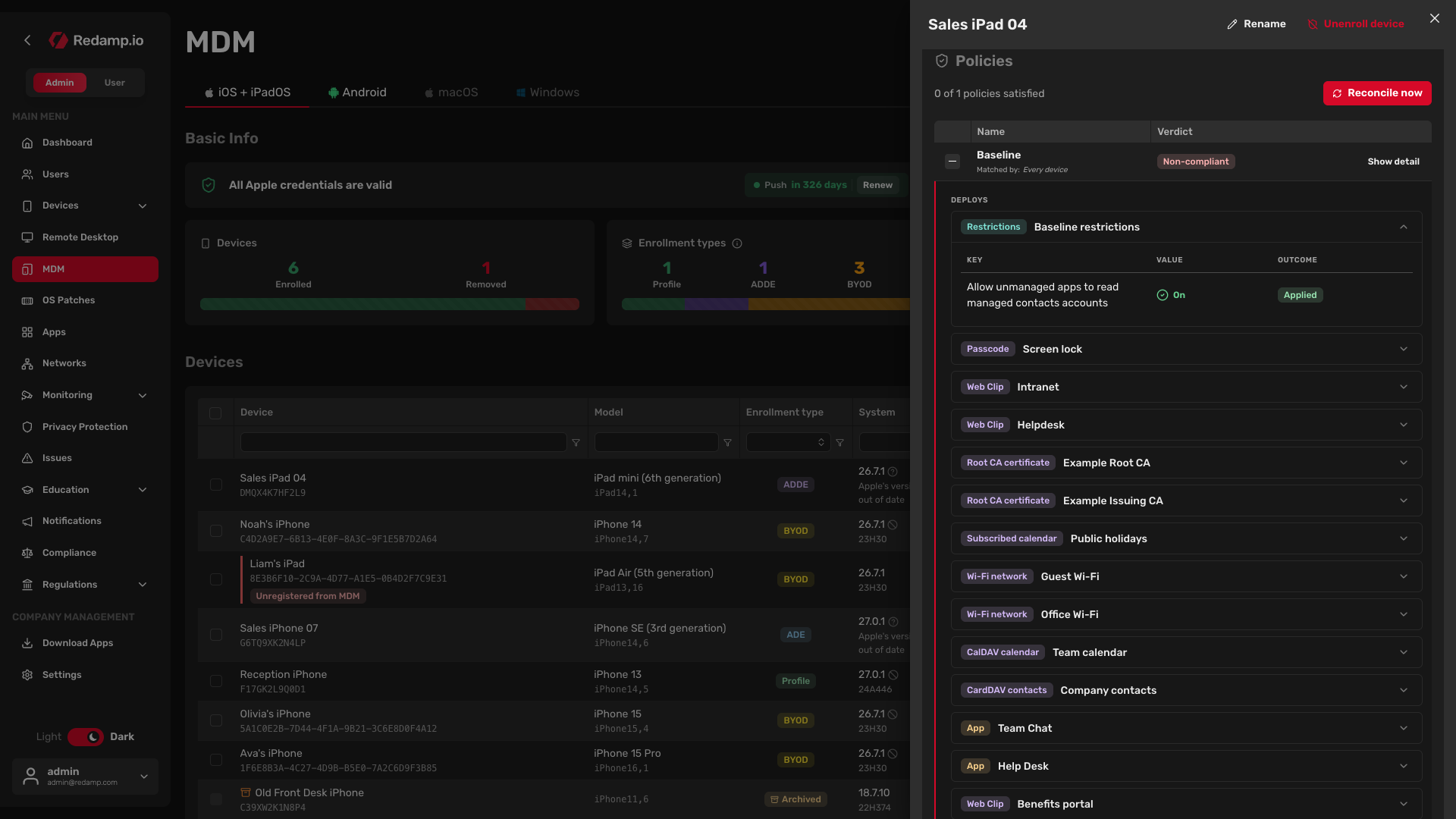
If something did not arrive, click Reconcile now. Redamp checks the device and sends again whatever is missing.
Some items are marked System configuration. Redamp adds them itself, for the Redamp.io app and for system updates. You cannot edit or redeploy them here. System updates are managed on the System updates tab.
Change or remove
- Edit a configuration - click Edit next to it. Every device that has it gets the new version.
- Stop using a configuration or a policy - click Archive. An archived configuration or policy stops applying and the devices lose what only it gave them. Archiving the configuration of an app removes the app and its data from the devices, unless another configuration of the same app still reaches them.
- Bring it back - open the Archived tab and click Restore. A restored policy returns to the bottom of the list.
- Delete for good - only from the Archived tab. A configuration cannot be deleted while any policy still carries it, an archived one included.
Archiving an app on the Apps tab only removes it from the catalogue and touches no device. To remove an app from devices, archive its configuration.