iOS and iPadOS MDM overview
What Redamp.io MDM does for your iPhones and iPads and how to find your way around the console.
MDM (Mobile Device Management) lets you manage your company's iPhones and iPads from the Redamp.io console. You enroll the devices once, then send them settings and apps, keep iOS up to date, lock or erase a lost device remotely and install the Redamp.io app on them.
This page explains the two ways to run MDM, tells you where to start and explains the terms the other guides use. You find MDM in the console under MDM → iOS + iPadOS.
Two ways to run MDM
When you set up MDM, the console asks Do you use Apple Business Manager? Your answer decides which devices you can enroll.
| Basic MDM | Apple Business Manager | |
|---|---|---|
| How devices enroll | One by one, the user installs a profile from an invitation | Also zero-touch at first power-on, or by signing in with a work account |
| Enrollment types | Profile | Profile, ADE, ADDE and BYOD |
| Which devices | Any iPhone or iPad, wherever it was bought | Also devices bought through Apple Business Manager and employees' personal devices |
| Supervised devices | Only if you prepare them in Apple Configurator | Every ADE device, with Lost Mode, restart and shut down |
| App Store apps | Free apps, installed with the user's own Apple ID | Also paid apps and apps without an Apple ID, through Apps and Books licences |
| What you need | A push certificate from Apple | A push certificate and an Apple Business Manager account |
Which one to choose
- Your company buys devices through Apple Business Manager, or you want employees to enroll their personal phones: choose Apple Business Manager.
- You only manage a few company devices and do not have Apple Business Manager: choose Basic MDM.
Moving from Basic MDM to Apple Business Manager
You can start with Basic MDM and connect Apple Business Manager later with Connect Apple Business Manager on the MDM overview. Devices you already enrolled stay managed and invitations keep working.
The move works in one direction only. Once Apple Business Manager is connected, you cannot go back to Basic MDM.
Note: If you do not see Connect Apple Business Manager, Apple Business Manager is not enabled for your organization. Contact us at [email protected] .
Where to start
Pick the guide for the way you chose:
Not sure how your devices should enroll? Read Enrollment types first.
After the setup
- Enrollment types - which of the four types fits which device.
- Inviting devices to enroll with a profile - invitations by e-mail, notification or QR code.
- Enrolling company devices with ADE - zero-touch devices from Apple Business Manager.
- Configurations, apps and policies - send settings and apps to your devices.
- Remote commands - lock, erase, Lost Mode and other remote actions.
- Pairing Redamp.io with managed devices - how MDM installs the Redamp.io app.
- Installing App Store apps with Apps and Books - app licences from Apple Business Manager.
- Renewing the push certificate and Renewing the ABM server token - once a year.
- For your users: ADE , BYOD , ADDE and Profile enrollment.
Find your way in the console
The top of the MDM page shows Basic Info: the Enroll new devices button, the state of your Apple credentials (with Apple Business Manager the Apple credentials strip, with Basic MDM the Certificate expiration tile) and device counts. Below is the Devices list. Click a device to open its detail with device state, commands, policies, tags and, on supervised devices, Lost Mode.
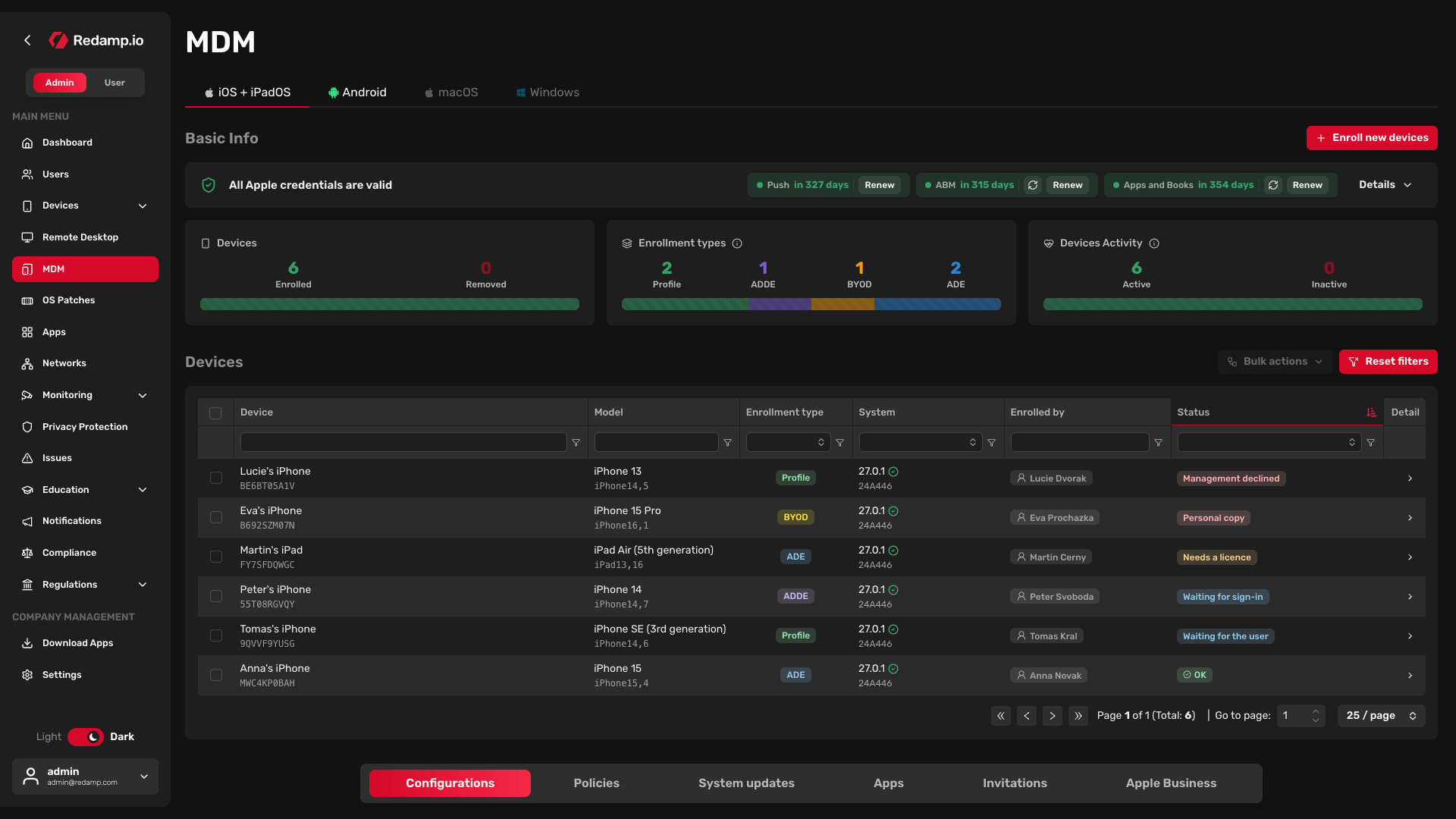
Under the device list are these tabs:
- Configurations - settings and apps you can send to devices.
- Policies - which configurations go to which devices, aimed at all devices or at devices with a tag.
- System updates - update campaigns that bring devices to a current iOS version by a deadline, and update settings for ADE devices.
- Apps - the app catalogue with each app's source, licences and auto-update.
- Invitations - invitations you sent and whether they are still valid.
- Apple Business - devices from Apple Business Manager, enrollment profiles and work account domains. Shown only with Apple Business Manager.
Key terms
MDM (Mobile Device Management) - managing devices remotely: settings, apps, updates and commands.
Basic MDM - MDM without Apple Business Manager. Devices enroll only with a profile from an invitation.
Apple Business Manager (ABM) - Apple's web portal where your company owns its devices, connects them to an MDM server and manages work accounts. Needed for ADE, BYOD and ADDE.
Push certificate - the certificate through which Apple delivers MDM commands to devices. Required in both modes. Valid one year, renewed with the same Apple ID that created it.
ABM server token - the .p7m file from Apple Business Manager that links it to Redamp.io MDM. Valid one year.
Apps and Books - App Store app licences from Apple Business Manager. Without them ADE, BYOD and ADDE devices get no App Store apps.
Work account (Managed Apple Account) - an Apple account your company manages in Apple Business Manager. Required for BYOD and ADDE.
Work account domain - your company's e-mail domain. Through it an iPhone finds the MDM server when the user signs in with a work account. For each domain you choose BYOD or ADDE.
Enrollment type - how a device enrolled. It decides what MDM can do on the device. There are four:
- ADE (Automated Device Enrollment) - a company device in Apple Business Manager that enrolls itself in Setup Assistant at first power-on. Always supervised.
- BYOD (Account-driven User Enrollment) - an employee's personal device, enrolled by signing in with a work account. Only work data is managed. Never supervised.
- ADDE (Account-driven Device Enrollment) - a company device enrolled by signing in with a work account, iOS 17 or later. Capabilities like Profile. Never supervised.
- Profile (Profile-based Device Enrollment) - a device that enrolls by installing an MDM profile from an invitation. The user can remove the profile.
Enrollment profile - what an ADE device shows during first setup. New devices get the default one automatically.
Supervised - full management of a company device, which unlocks commands such as Lost Mode, restart and shut down. ADE devices are always supervised, BYOD and ADDE never, Profile devices only when prepared in Apple Configurator.
Configuration - one setting of one kind, for example Wi-Fi or a passcode rule, or one app.
Policy - a set of configurations aimed at all devices or at devices with a tag. A device gets the result of every policy aimed at it.
Tag - a label on a device that policies aim at. You add tags in the device detail or to several devices at once from Bulk actions.