Set up MDM with Apple Business Manager
Set up Redamp.io MDM for iPhones and iPads with Apple Business Manager, from the Apple account and push certificate to the MDM server token and work account domains.
This guide takes you, the company admin, through the setup of MDM for iPhones and iPads with Apple Business Manager. Apple Business Manager adds zero-touch enrollment (ADE), personal devices with a work account (BYOD), company devices with a work account (ADDE) and supervised devices to everything Basic MDM offers.
The setup has three phases: prepare a company Apple ID, run the MDM setup wizard in the console, then finish the details in the Apple Business tab. Already running Basic MDM? Jump to Connect Apple Business Manager later .
New to the terms on this page? See Key terms .
Note: Apple now calls Apple Business Manager "Apple Business". Both names mean the same portal at business.apple.com .
Before you start
Have these ready:
- Admin access to the Redamp.io console.
- MDM enabled for your organization (see Open MDM setup ).
- Your organization in Apple Business Manager, verified by Apple, and an account there with the Organization Administrator or IT Administrator role. Only an Organization Administrator can accept new Apple terms (see Fix a broken connection ). Not in Apple Business Manager yet? Sign up at business.apple.com and follow Apple's Apple Business Manager User Guide . Apple's verification can take several business days.
- A company Apple ID on a generic company address for the push certificate (see Part 1 ).
- For BYOD and ADDE: your company e-mail domain verified in Apple Business Manager, and access to the web server of that domain (see Part 4 ).
Part 1 - Prepare a company Apple ID
The push certificate in Part 2 is tied to one Apple ID, and you renew it every year with that same Apple ID.
- Prepare a generic company address, for example
[email protected]or[email protected]. - Create an Apple ID for it at account.apple.com , or use one you already have. It does not have to be a Managed Apple Account.
- Keep access to that address inside the company, and never use someone's personal Apple ID.
Important: If you lose access to this Apple ID, you cannot renew MDM and every device has to enroll again.
Part 2 - Run MDM setup
Open MDM setup
In the console go to MDM → iOS + iPadOS. What you see depends on the state of your organization:
- Ready to manage your mobile fleet? - MDM is not enabled for your organization yet. Click Request MDM access and we will contact you once it is enabled.
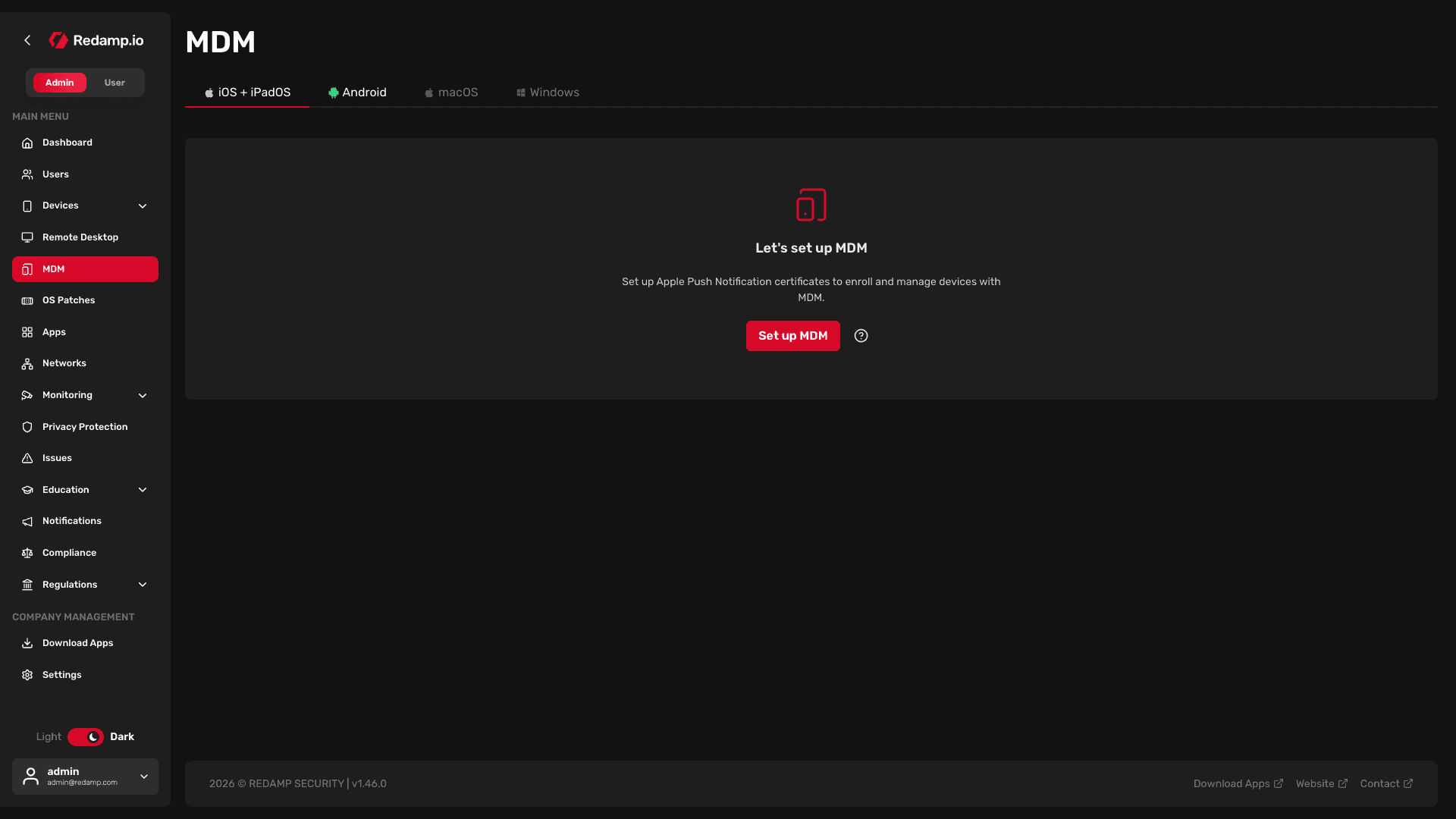
- Let's set up MDM - MDM is enabled but not set up. Click Set up MDM to open the wizard.
- The MDM console with your devices - MDM is already set up. To add Apple Business Manager, see Connect Apple Business Manager later .
Choose Apple Business Manager
The wizard asks Do you use Apple Business Manager? Select Apple Business Manager and click Continue.
This question appears only when Apple Business Manager is available for your organization. If the wizard starts with the certificate signing request instead, contact us at [email protected] .
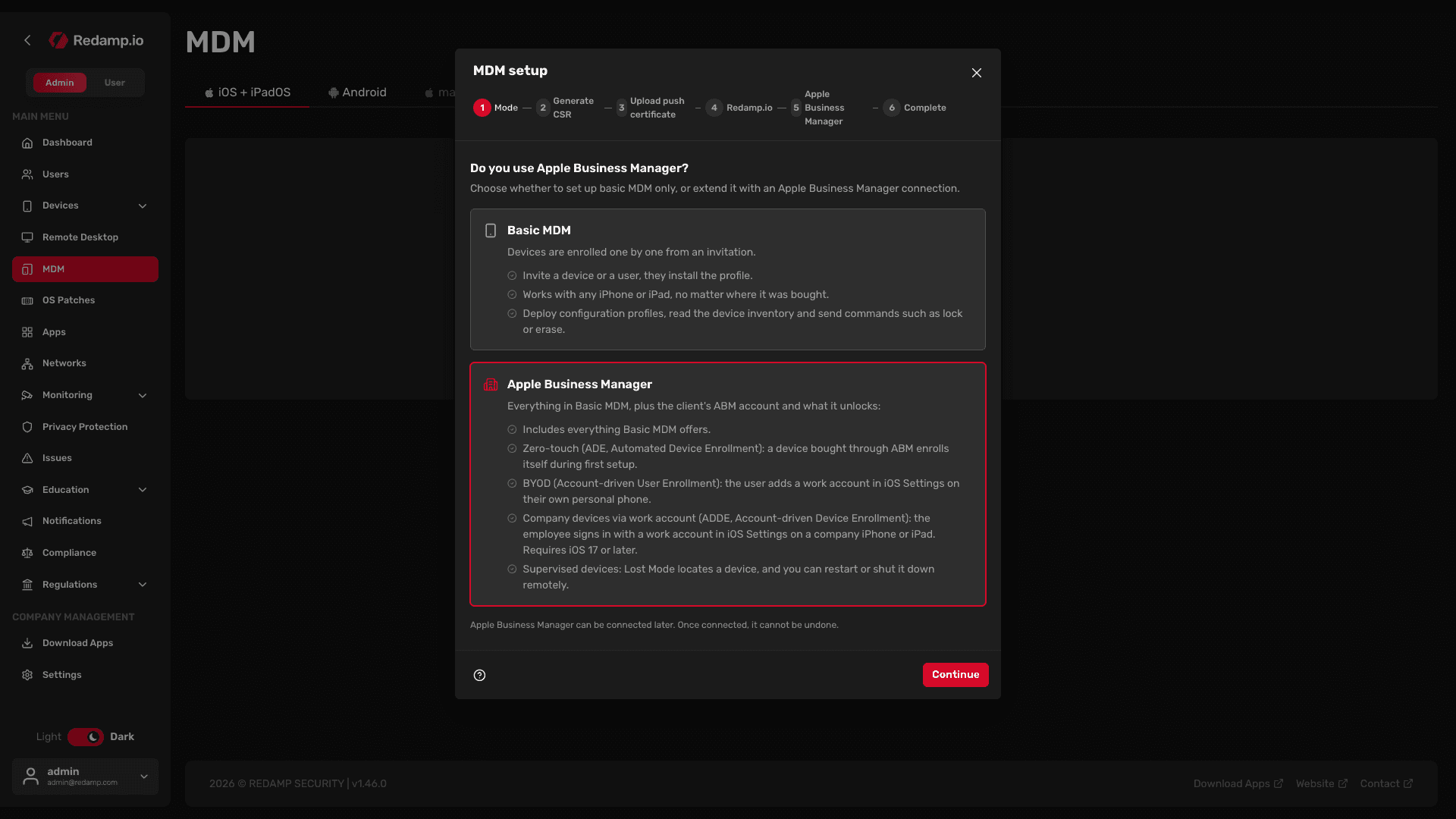
Important: Once connected, Apple Business Manager cannot be disconnected from MDM.
Generate the certificate signing request
Apple delivers every MDM command through its push service. To use it, you need a push certificate, and Apple issues it from a certificate signing request (CSR) that you download here.
- Prepare a company Apple ID. Use the Apple ID from Part 1 . Click Continue.
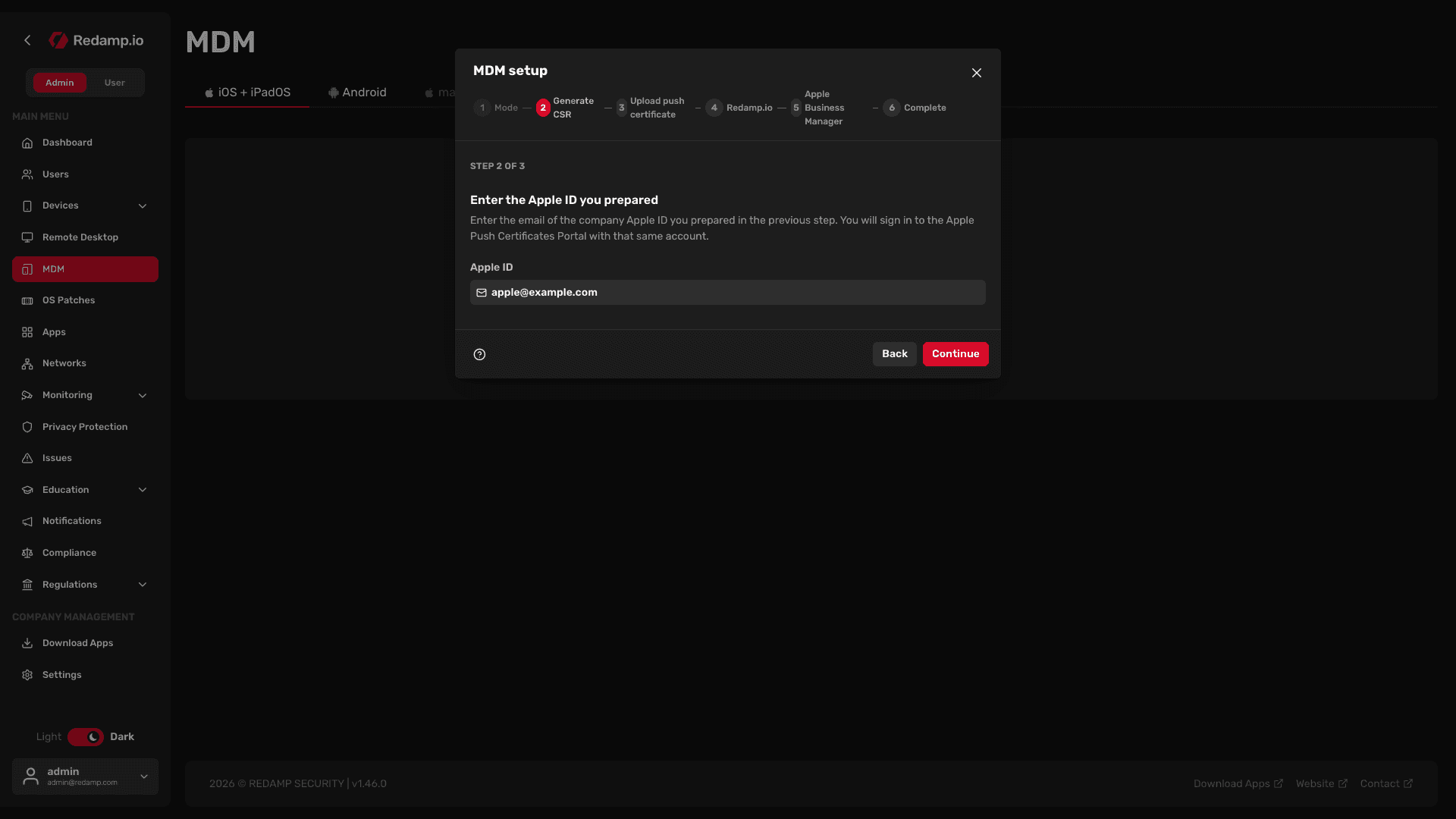
- Enter the Apple ID you prepared. Type its e-mail address and click Continue.
- Download the certificate signing request. Click Download CSR. The file
PushCertRequest_RedampMDM.csris saved to your computer.
Upload the push certificate
Now let Apple issue the certificate from the CSR. The video shows the whole round trip:
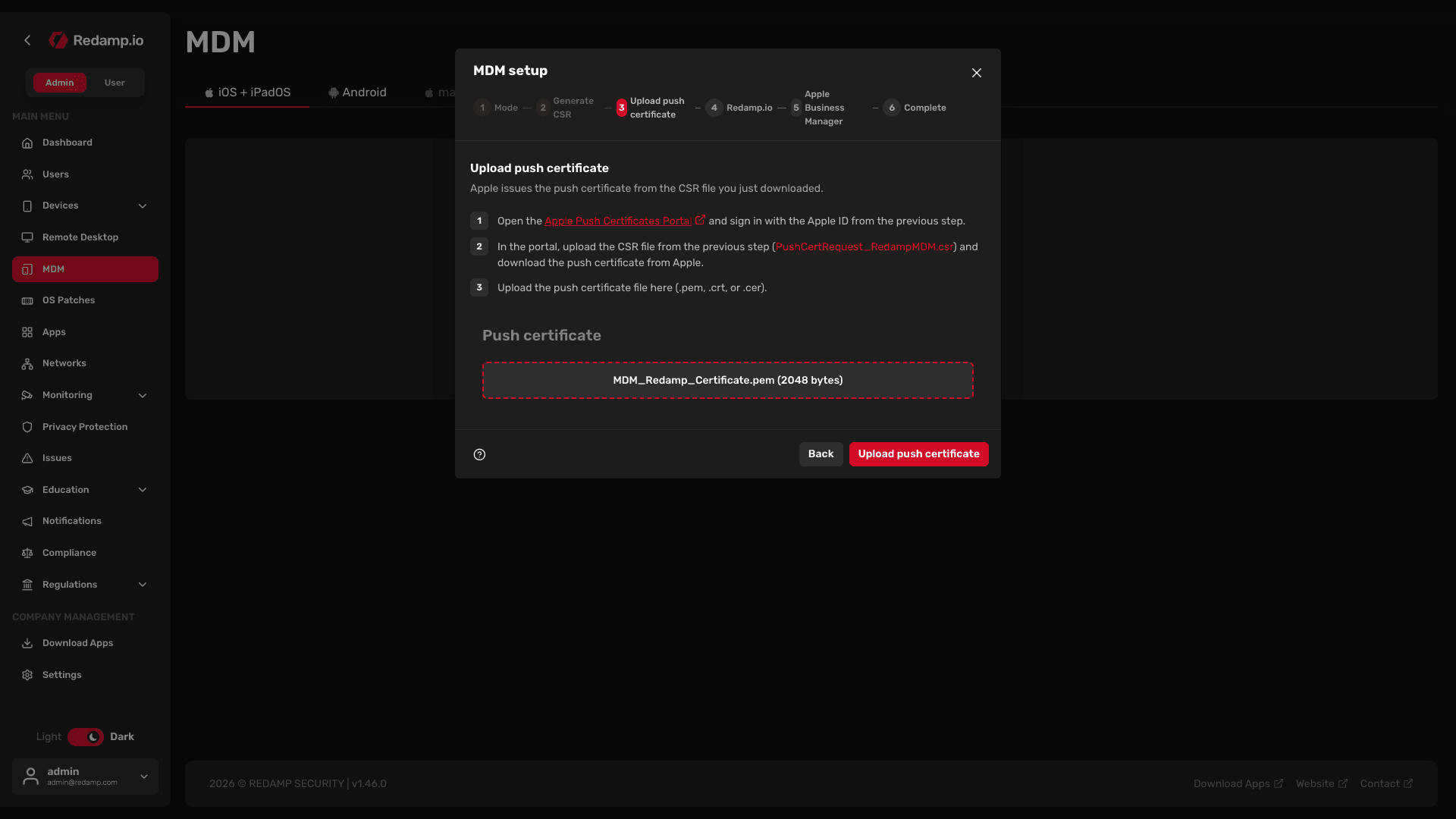
- Open the Apple Push Certificates Portal and sign in with the Apple ID from Part 1.
- Click Create a Certificate and accept Apple's terms of use.
- Click Choose File, select
PushCertRequest_RedampMDM.csrand click Upload. - Click Download next to the new certificate. You get a
.pemfile. - Back in the wizard, drop the file into the Push certificate field (
.pem,.crtor.cer) and click Upload push certificate.
The push certificate is valid for one year. See Renewing the push certificate .
Choose whether to install Redamp.io
This step appears only when Redamp has allowed app pairing for your organization. With Install the Redamp.io app and connect devices turned on, MDM installs the Redamp.io app on managed devices and connects each one with the rest of Redamp.
You make this choice once. Afterwards only Redamp support can change it, so we recommend leaving it on. Click Continue.
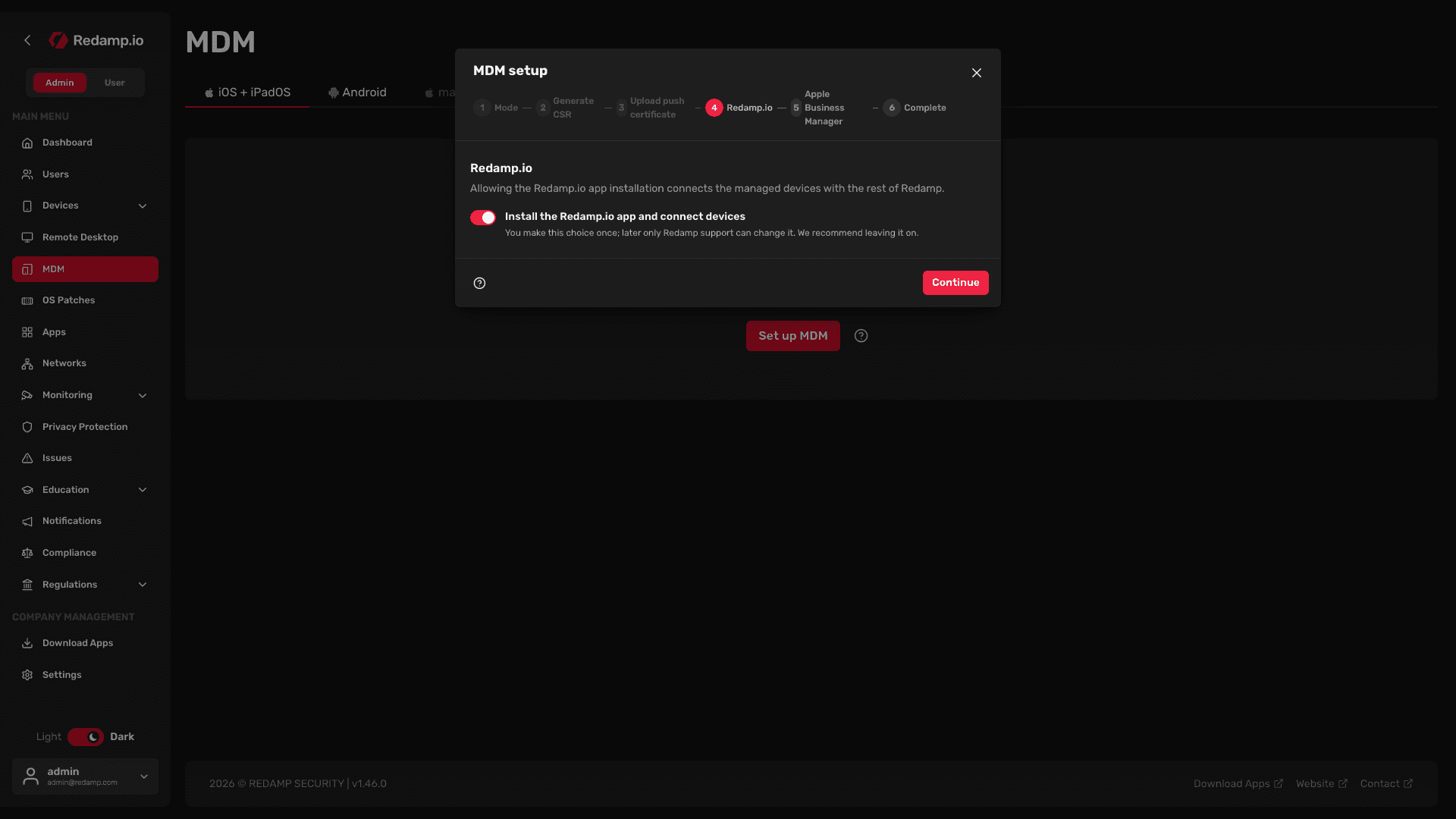
On ADE, BYOD and ADDE devices the app installs only with a licence from Apps and Books, so add Redamp.io to your library after the setup. See Installing App Store apps with Apps and Books . More in Pairing Redamp.io with managed devices .
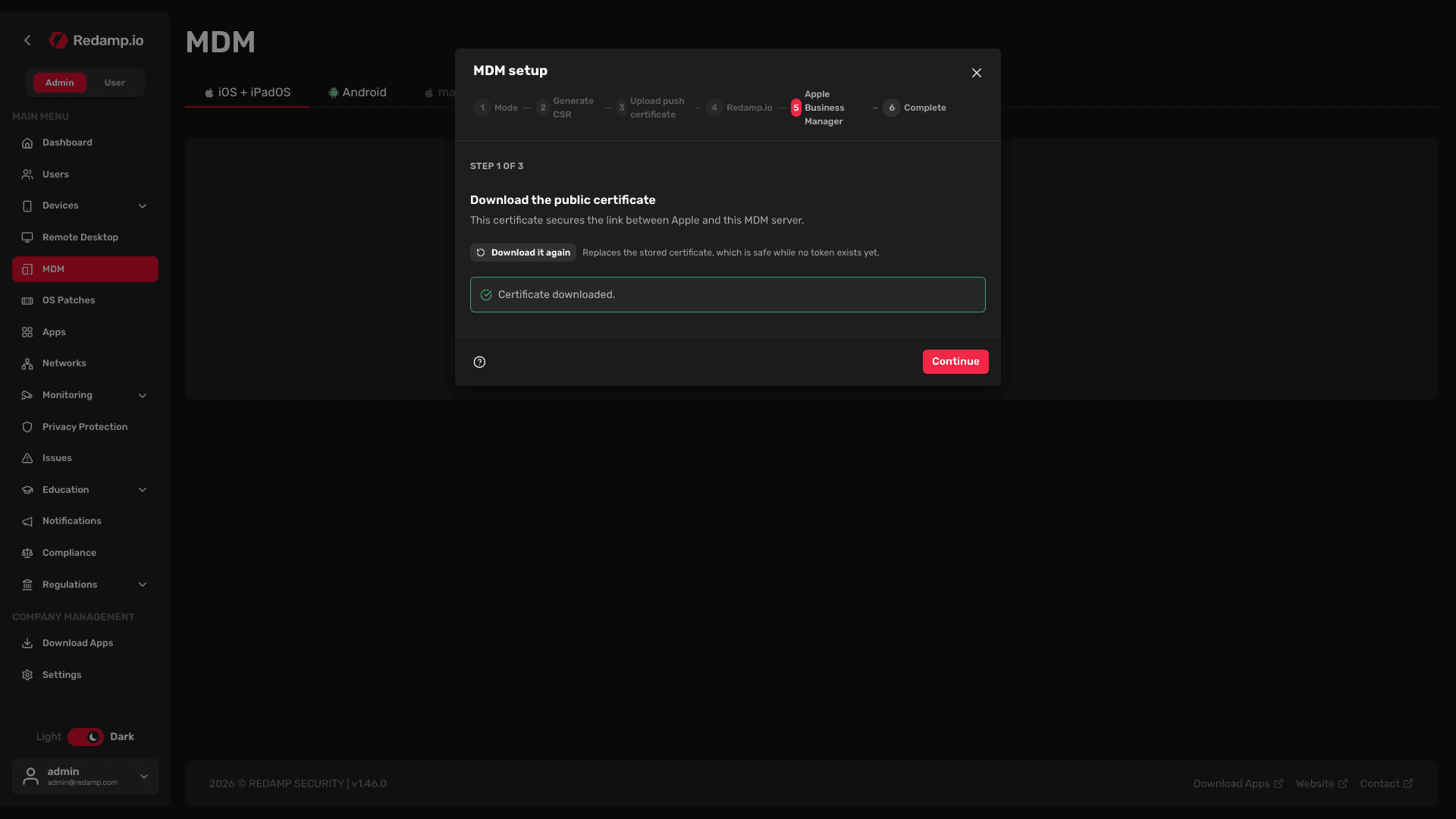
Download the public certificate
Click Download certificate. This certificate secures the link between Apple and the MDM server. Click Continue.
Add the MDM server in Apple Business Manager and upload the token
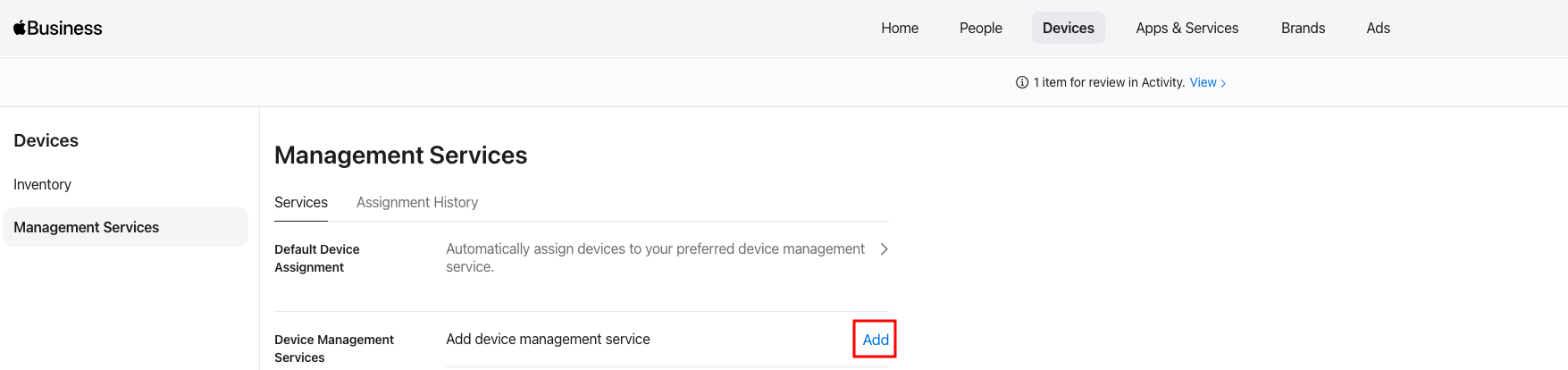
Keep the wizard open and switch to Apple Business Manager .
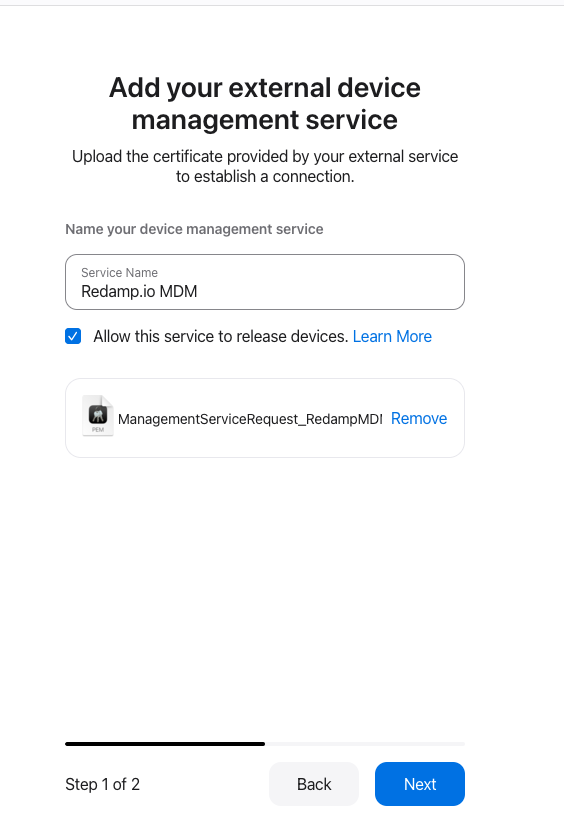
- Go to Devices → Management Services and click Add next to Add device management service.
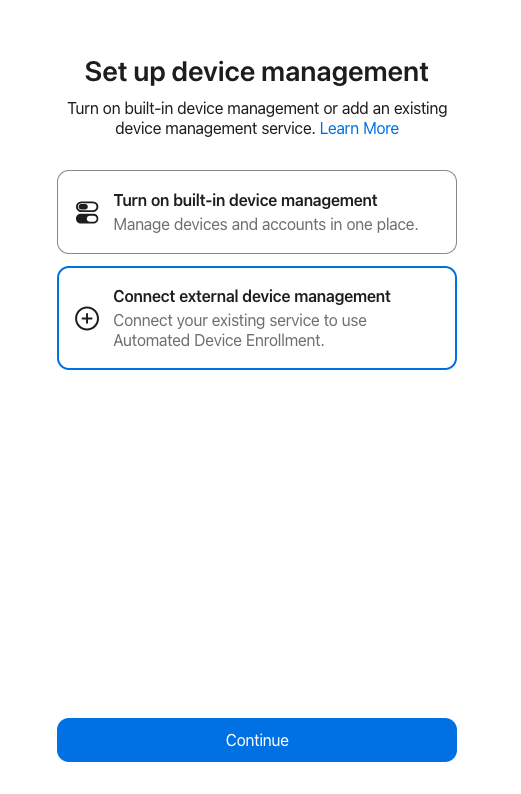
- Select Connect external device management and click Continue.
- Enter a name for the service, for example
Redamp.io MDM. - Select Allow this service to release devices only if you want this MDM server to be able to release devices from your organization.
- Click Upload Certificate, choose the public certificate you just downloaded (
ManagementServiceRequest_RedampMDM.pem) and click Next.
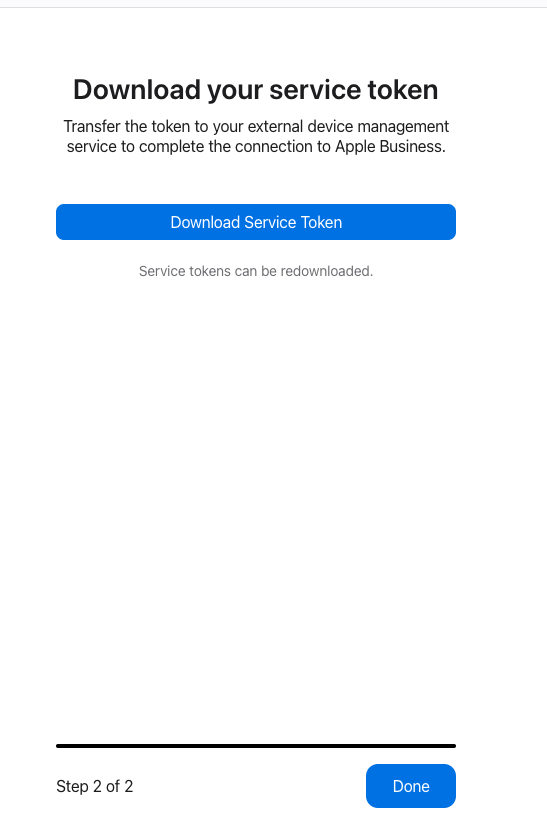
- Click Download Service Token and then Done. You get an encrypted
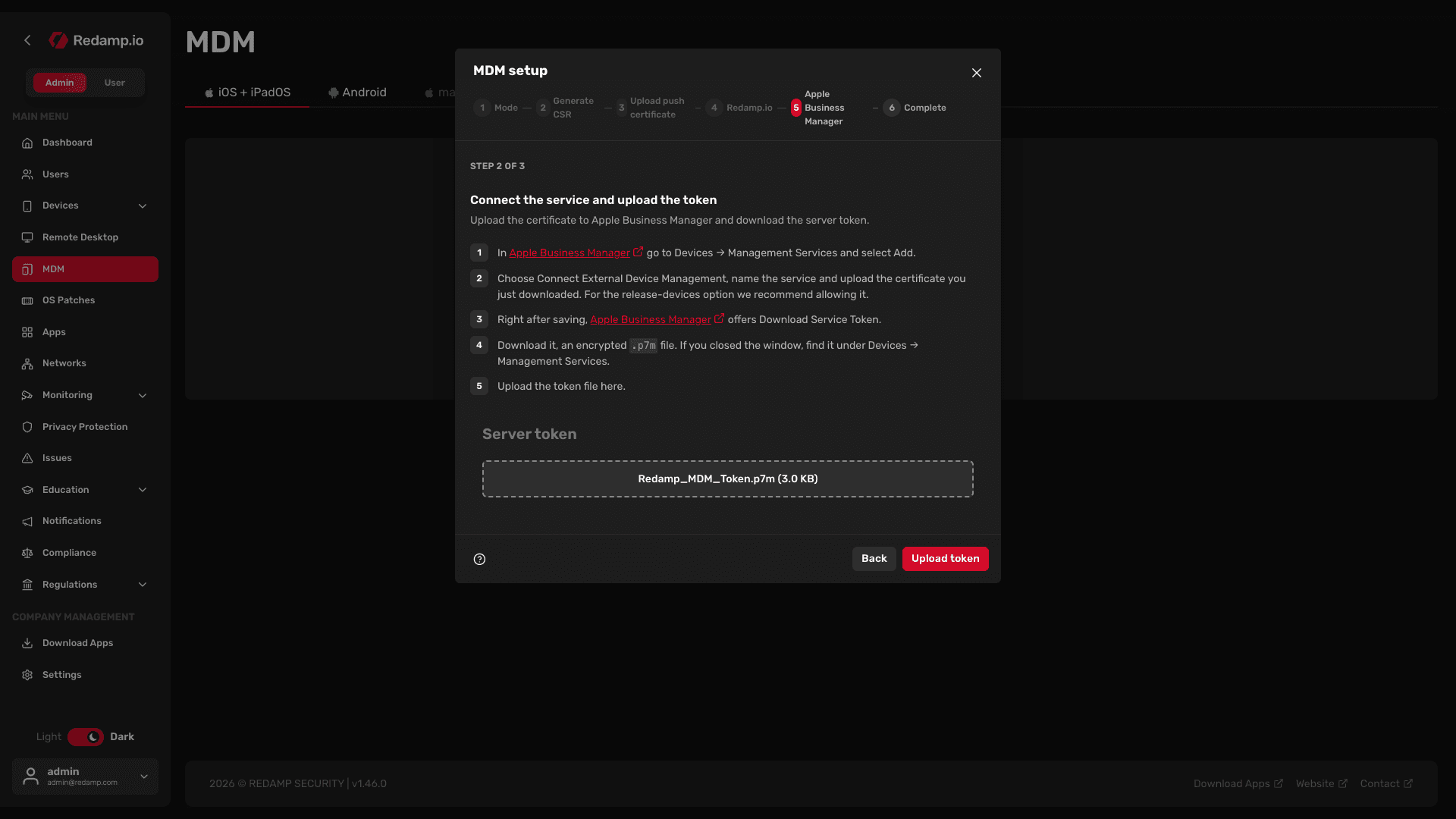
.p7mfile. You can download the token again later.
- Back in the wizard, upload the file to the Server token field and click Upload token.
Check that Apple accepted the token
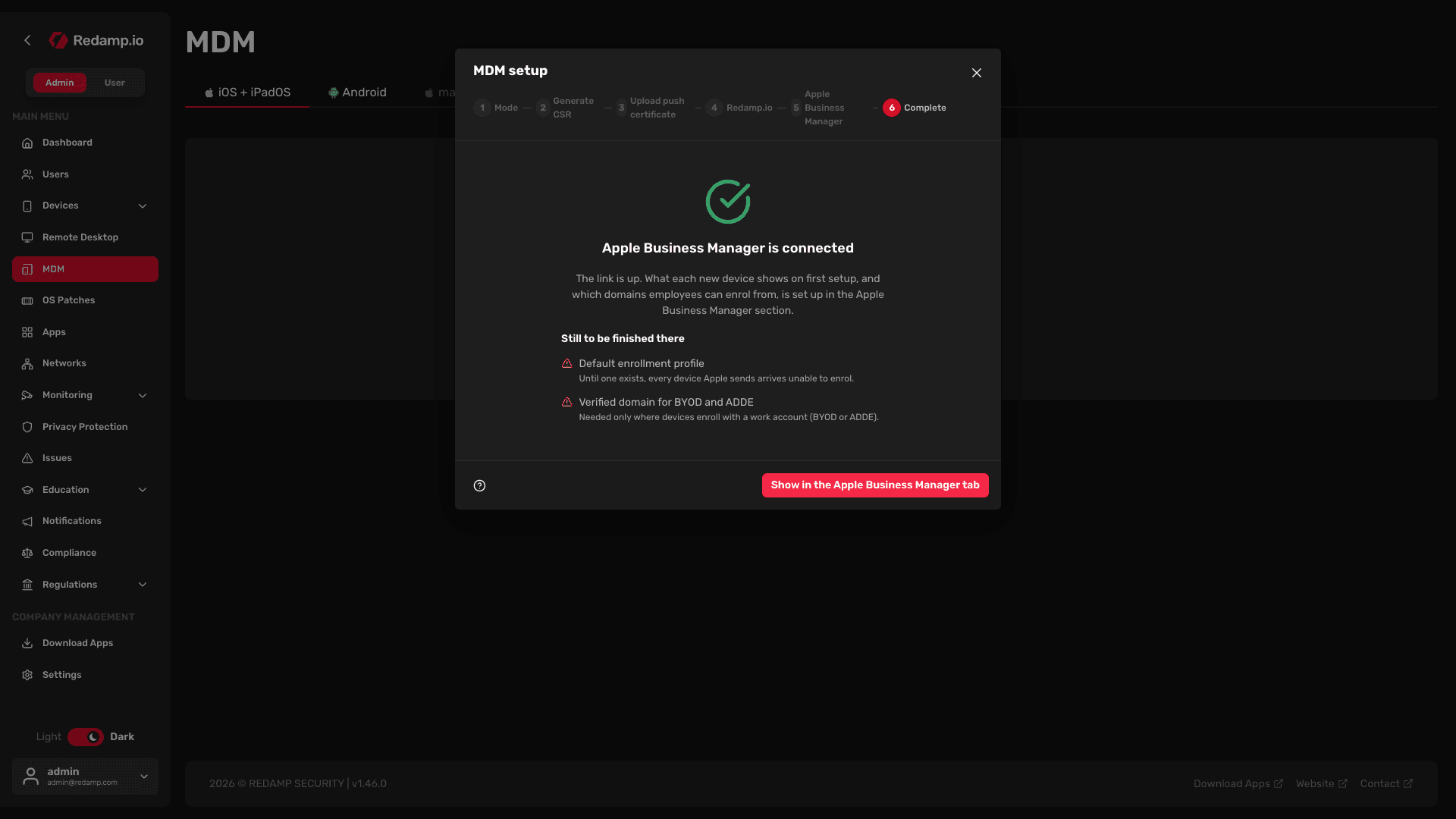
The wizard shows whether Apple accepted the token. Wait for Apple Business Manager is connected. If Apple rejects the token, go back and upload a token Apple accepts.
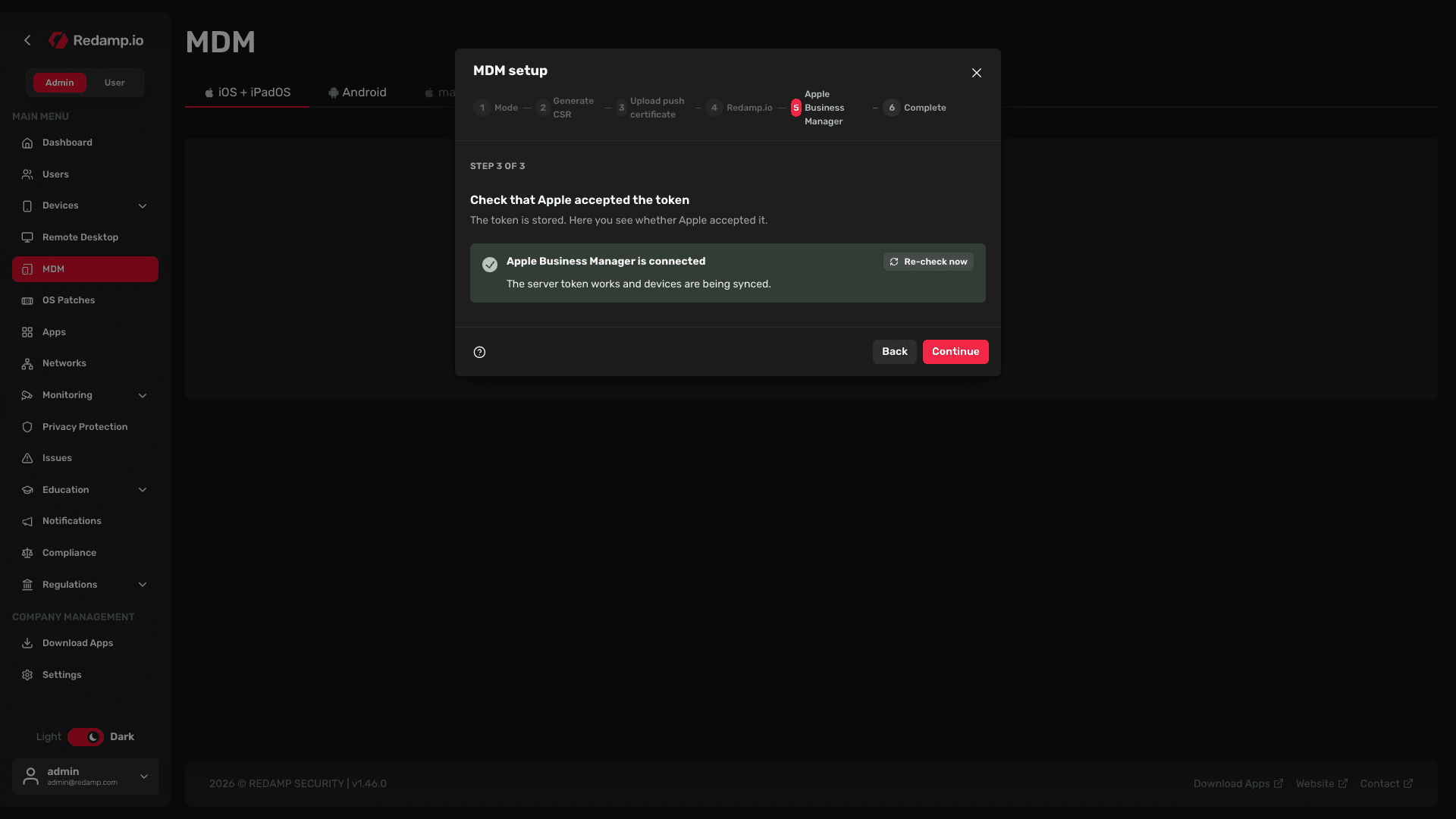
The server token is valid for one year. See Renewing the ABM server token .
Finish the wizard
The last step lists what is Still to be finished there: a Default enrollment profile, a Verified domain for BYOD and ADDE and, with Redamp.io pairing on, the Redamp.io licence from Apps and Books. Click Show in the Apple Business Manager tab and continue with Part 3 .
Part 3 - Get ready for zero-touch devices
- Create the default enrollment profile. In MDM → iOS + iPadOS → Apple Business, add a profile in Enrollment profiles. Until a default profile exists, every device Apple sends cannot enroll. See ADE enrollment .
- Send devices to this MDM server. In Apple Business Manager go to Devices → Management Services → Default Device Assignment, choose this service for iPhone and iPad and click Save. This applies to devices added from now on. Devices you already have, you assign in Devices → Inventory with Assign Device Management.
Part 4 - Set up work accounts for BYOD and ADDE
BYOD and ADDE devices enroll when the user signs in with a work account (a Managed Apple Account) in iOS Settings. This needs two separate things on your e-mail domain:
| Domain verification at Apple | Work account domain in the console | |
|---|---|---|
| What it does | Proves to Apple that you own the domain, so you can create work accounts on it | Tells iPhones and iPads which MDM server to enroll with |
| Where | Apple Business Manager, Settings → Domains | MDM → iOS + iPadOS → Apple Business → Work account domains |
| How | A DNS TXT record | A redirect on your web server |
You need both. One does not replace the other.
Verify the domain and create work accounts at Apple
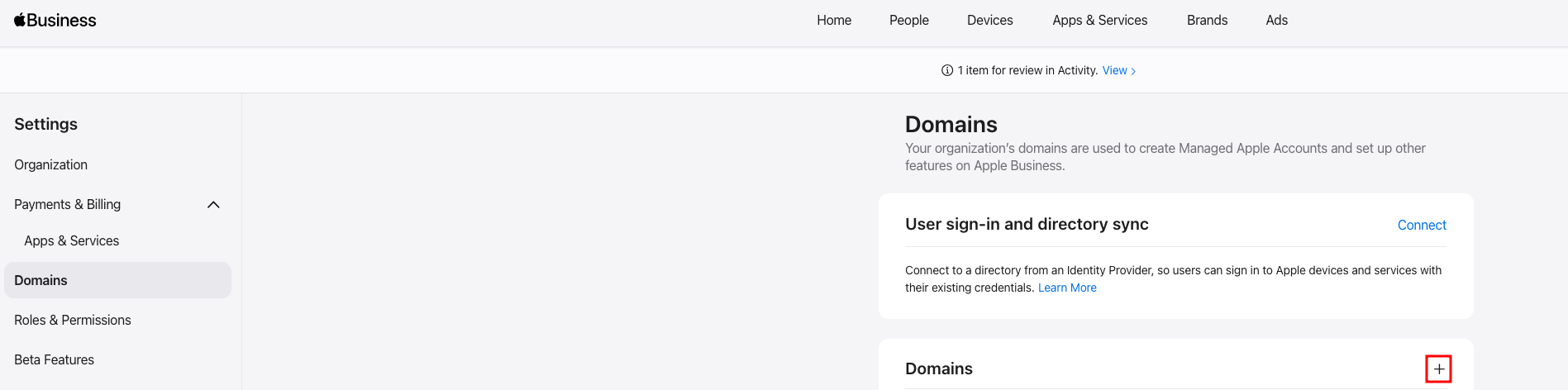
- In Apple Business Manager go to Settings → Domains and click + next to Domains.
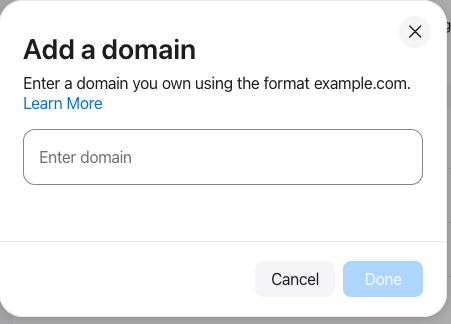
- Enter your domain in the format
example.comand click Done.
- Click Verify and Copy the TXT record. It looks like
apple-domain-verification=.... - Add the record to your domain's DNS and click Check Now. You have 14 days to finish.
- Create work accounts for your users on that domain. Add them by hand in People, or click Connect in User sign-in and directory sync on the same page to connect Microsoft Entra ID or Google Workspace and sign in or sync your existing accounts.
BYOD needs iOS or iPadOS 15 or later, ADDE iOS or iPadOS 17 or later.
Add the work account domain in the console
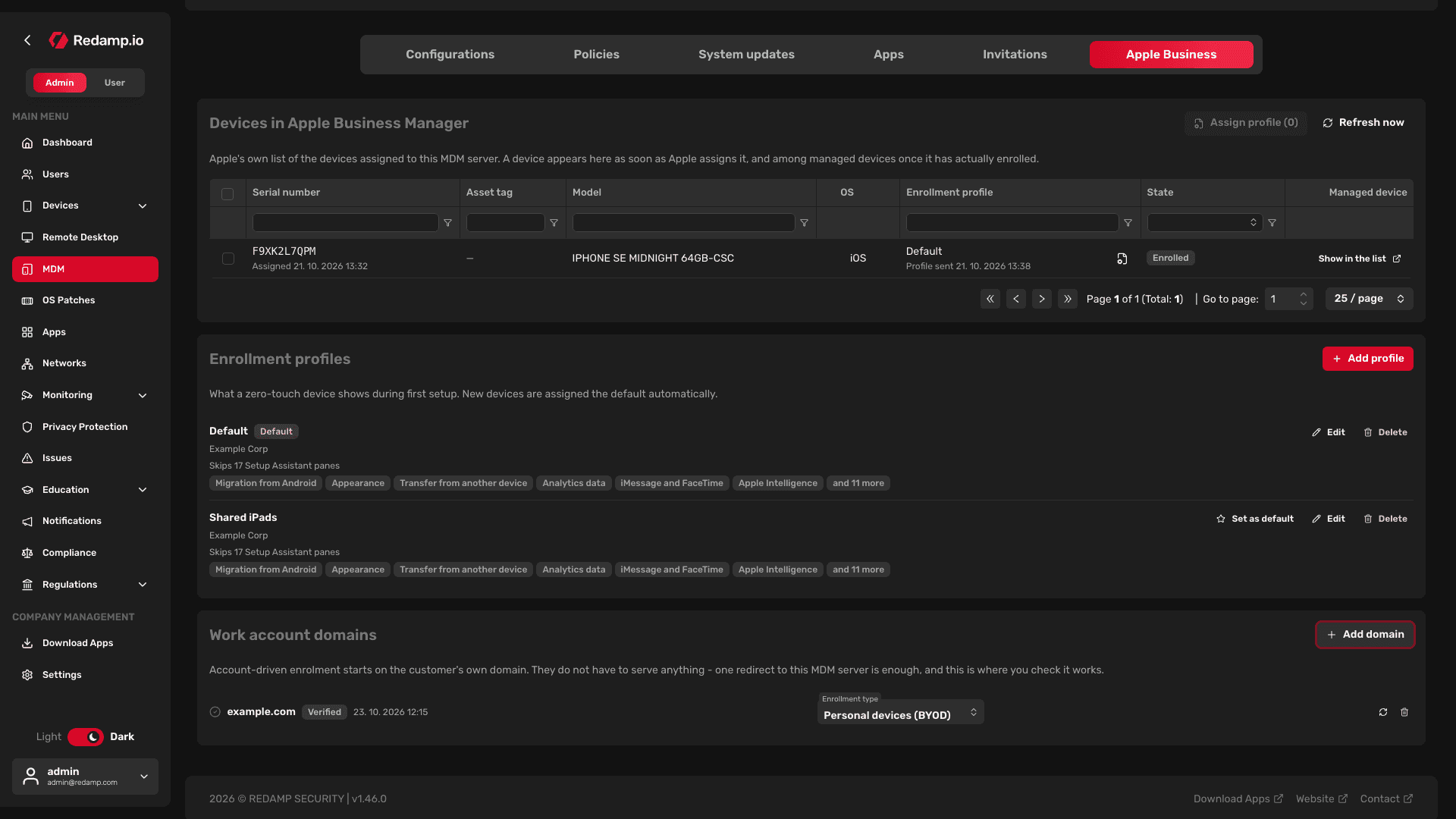
- Go to MDM → iOS + iPadOS → Apple Business and find the Work account domains card.
- Click Add domain.
- Enter the bare domain, for example
example.com, withouthttps://, a port or a path. Click Continue.
Redirect one path
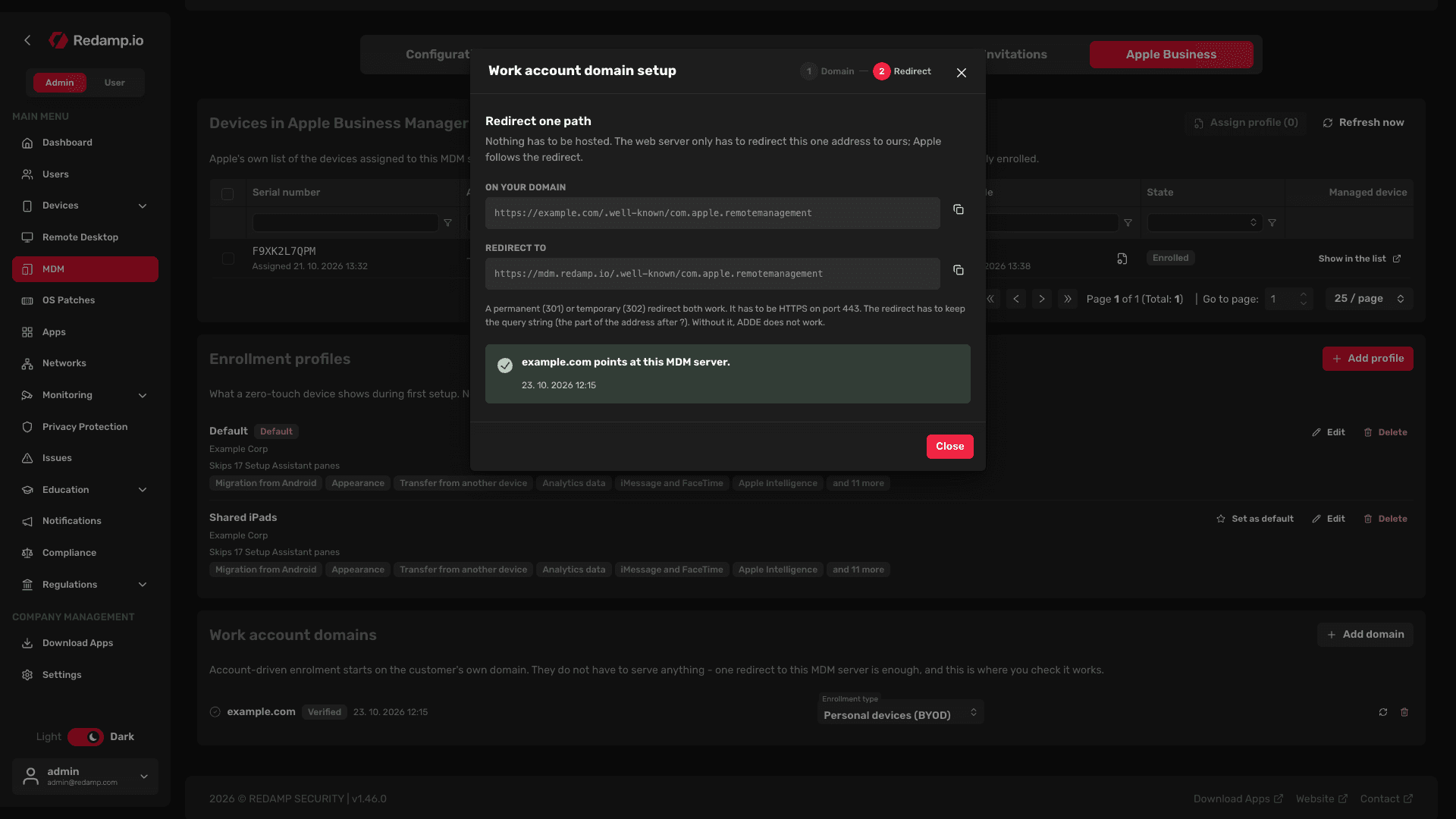
The wizard shows two addresses: On your domain (https://<your domain>/.well-known/com.apple.remotemanagement) and Redirect to (your MDM server). You do not have to host anything. On your web server, redirect the first address to the second:
- A permanent (301) or temporary (302) redirect both work.
- It has to be HTTPS on port 443.
- The redirect has to keep the query string, the part of the address after
?. Without it ADDE does not work and every device enrolls as BYOD.
When the redirect is live, click Verify. The domain is marked Verified once it points at the MDM server. You can also close the wizard and verify later with Verify again on the card.
Tip: If the check reports BYOD works; ADDE needs a change to the redirect, your redirect drops the query string. In nginx, for example, append
$is_args$argsto the target:return 302 <Redirect to address>$is_args$args;. Then verify the domain again.
Choose the enrollment type
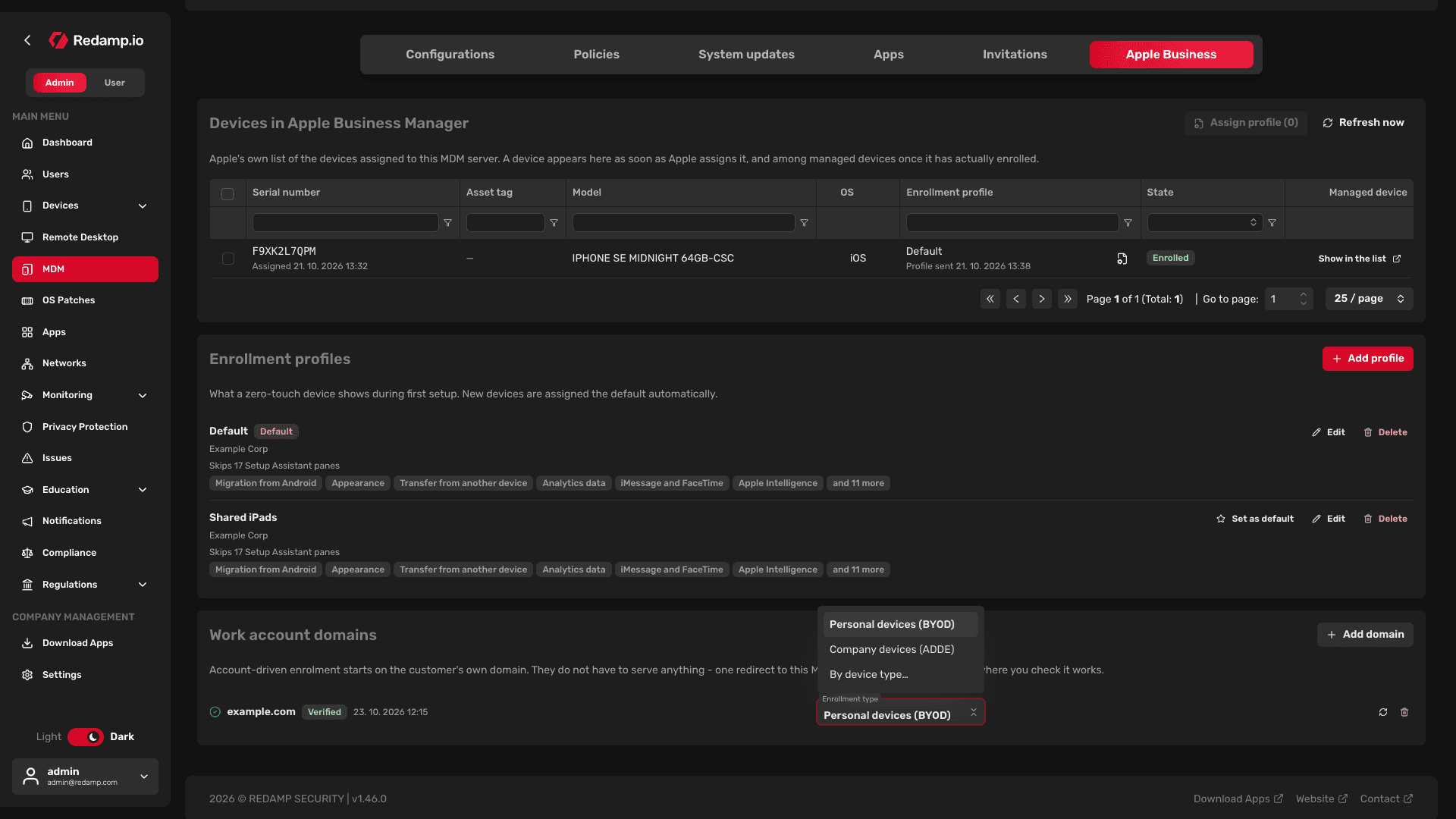
For each verified domain choose the Enrollment type:
- Personal devices (BYOD) - the default. Only work data on the device is managed.
- Company devices (ADDE) - the device gets full management. Requires a redirect that keeps the query string.
- By device type… - set iPhone and iPad separately.
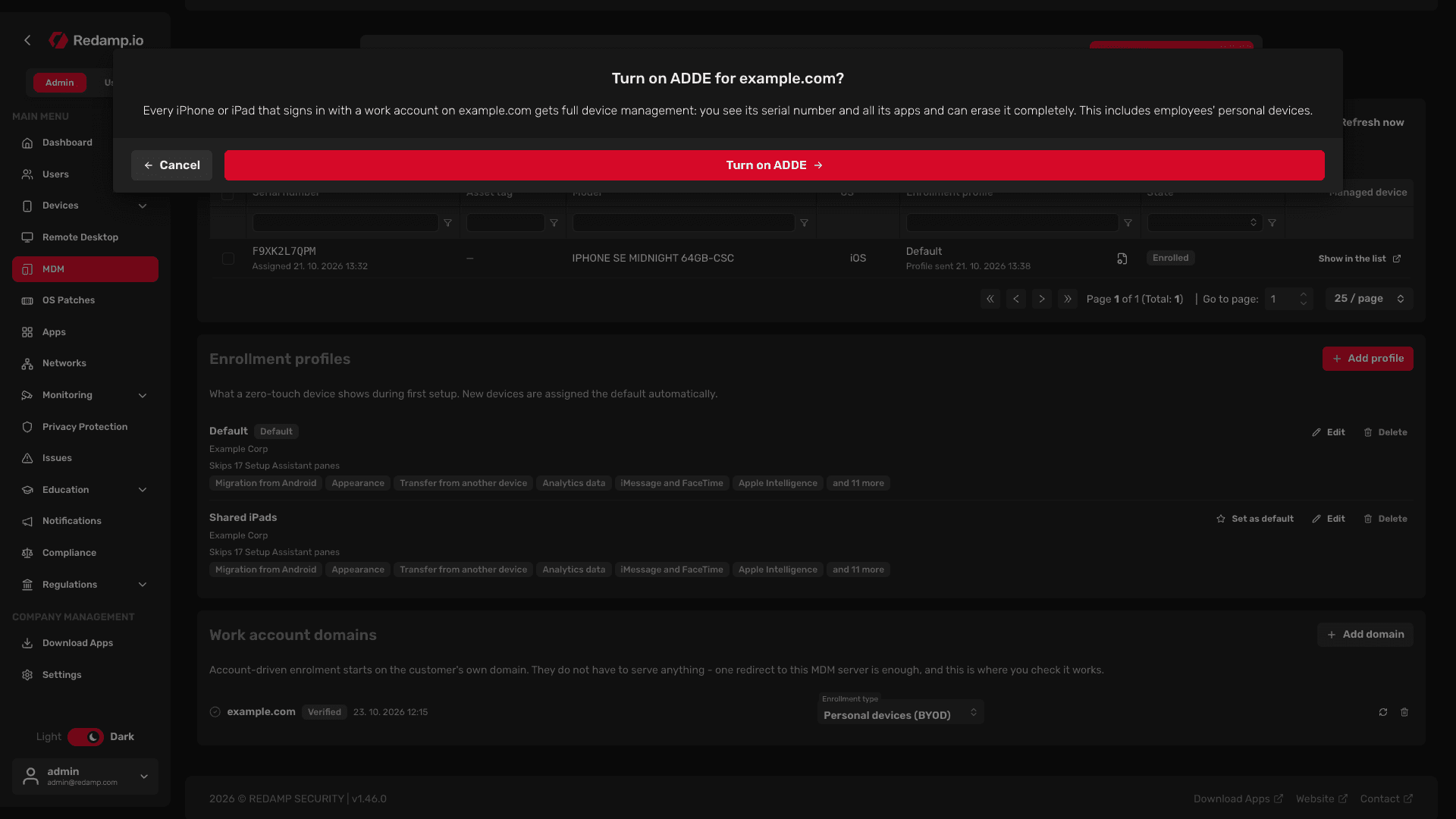
Important: With ADDE, every iPhone or iPad that signs in with a work account on that domain gets full device management, employees' personal devices included. You see its serial number and all its apps and can erase it completely. The console asks you to confirm before turning ADDE on.
Connect Apple Business Manager later
Already running Basic MDM ? You can extend it with Apple Business Manager at any time. Invitations keep working.
- Get your organization into Apple Business Manager (see Before you start ).
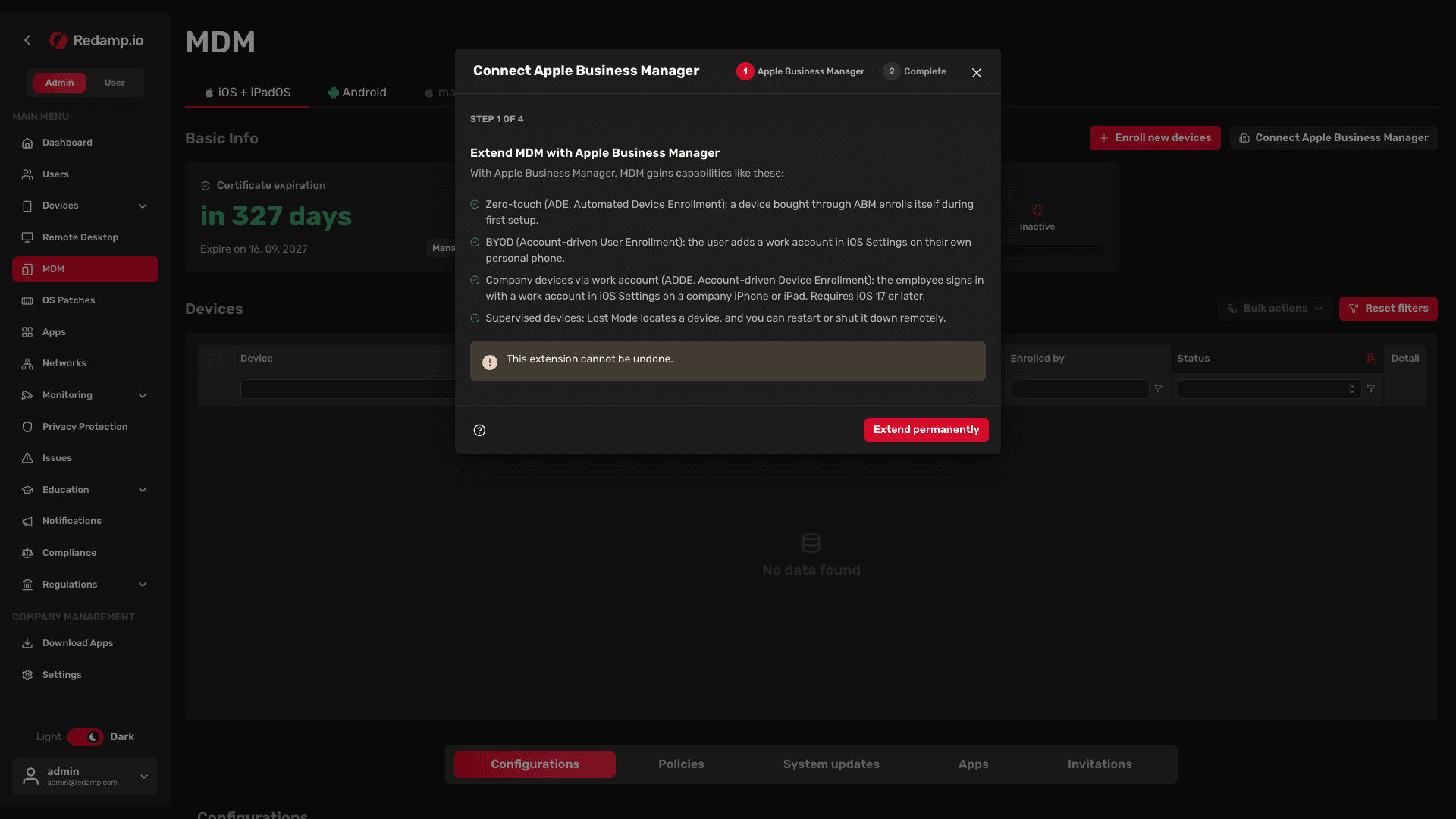
- In MDM → iOS + iPadOS click Connect Apple Business Manager.
- Read Extend MDM with Apple Business Manager and click Extend permanently. This cannot be undone.
- Continue from Download the public certificate in Part 2, then Part 3 and Part 4 .
Fix a broken connection
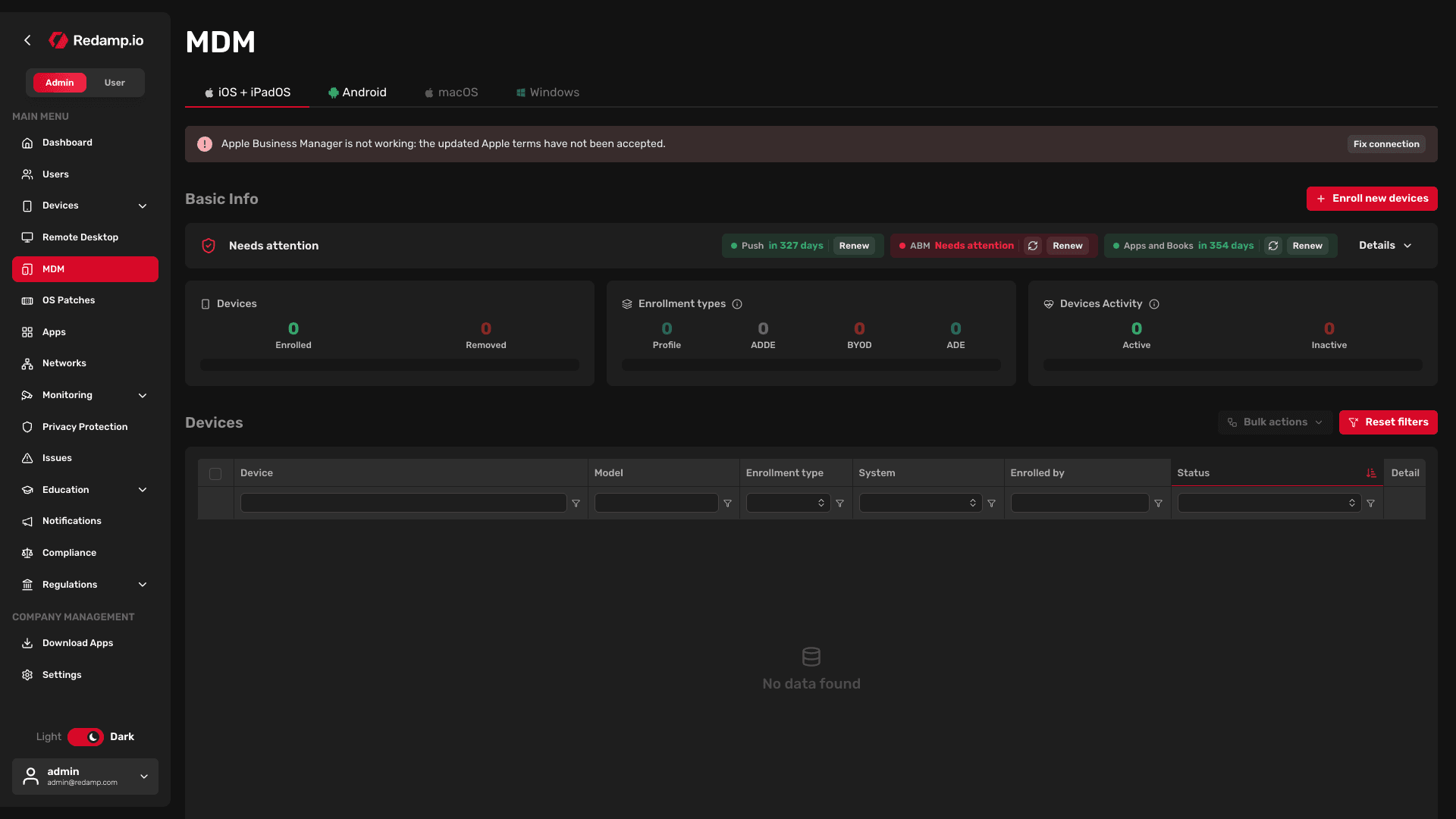
When Apple Business Manager stops working, the MDM console shows a red banner, for example Apple Business Manager is not working: the updated Apple terms have not been accepted.
| What the console says | What to do |
|---|---|
| Apple's terms are not accepted | An Organization Administrator signs in to Apple Business Manager and accepts the updated terms. Then check again in the console. |
| The server token has expired | Download a fresh token in Apple Business Manager and upload it. See Renewing the ABM server token . |
| Apple refused the credentials | Download the token again and check that it comes from the right Apple Business Manager account. |
| Temporary problem | The last attempt to reach Apple failed. Check again in a moment. |
Click Fix connection in the banner to open the Apple Business Manager steps of the wizard. Click Continue through them, upload a new token only when the table above asks for it, and on Check that Apple accepted the token click Re-check now.
Important: Do not click Generate a new certificate anyway to fix a connection. A new certificate makes the stored token unreadable, and you have to connect the service in Apple Business Manager again.
What's next
- Enrollment types - which type fits which device.
- ADE enrollment - zero-touch devices from Apple Business Manager.
- Installing App Store apps with Apps and Books - App Store app licences. Without them ADE, BYOD and ADDE devices get no App Store apps.
- Configurations and policies - settings and apps for your devices.
- Commands - lock, erase and other remote actions.
- Renewing the push certificate and Renewing the ABM server token - once a year.
- For your users: ADE , BYOD and ADDE enrollment.
If anything gets stuck, contact us through the contact form or at [email protected] .