Remote commands for iPhones and iPads
Which commands work for each enrollment type and how to send them.
You can send MDM commands to enrolled iPhones and iPads from the Redamp.io console: ask a device for its details, lock it, clear its passcode, erase it or restart it. Not every command works on every device. What a device accepts depends on its enrollment type and on whether it is supervised.
Commands that lock, erase or unlock a device ask for the 6-digit code from your authenticator app. Turn on two-factor authentication in your account settings before you need them, otherwise these commands stay disabled.
Send a command to one device
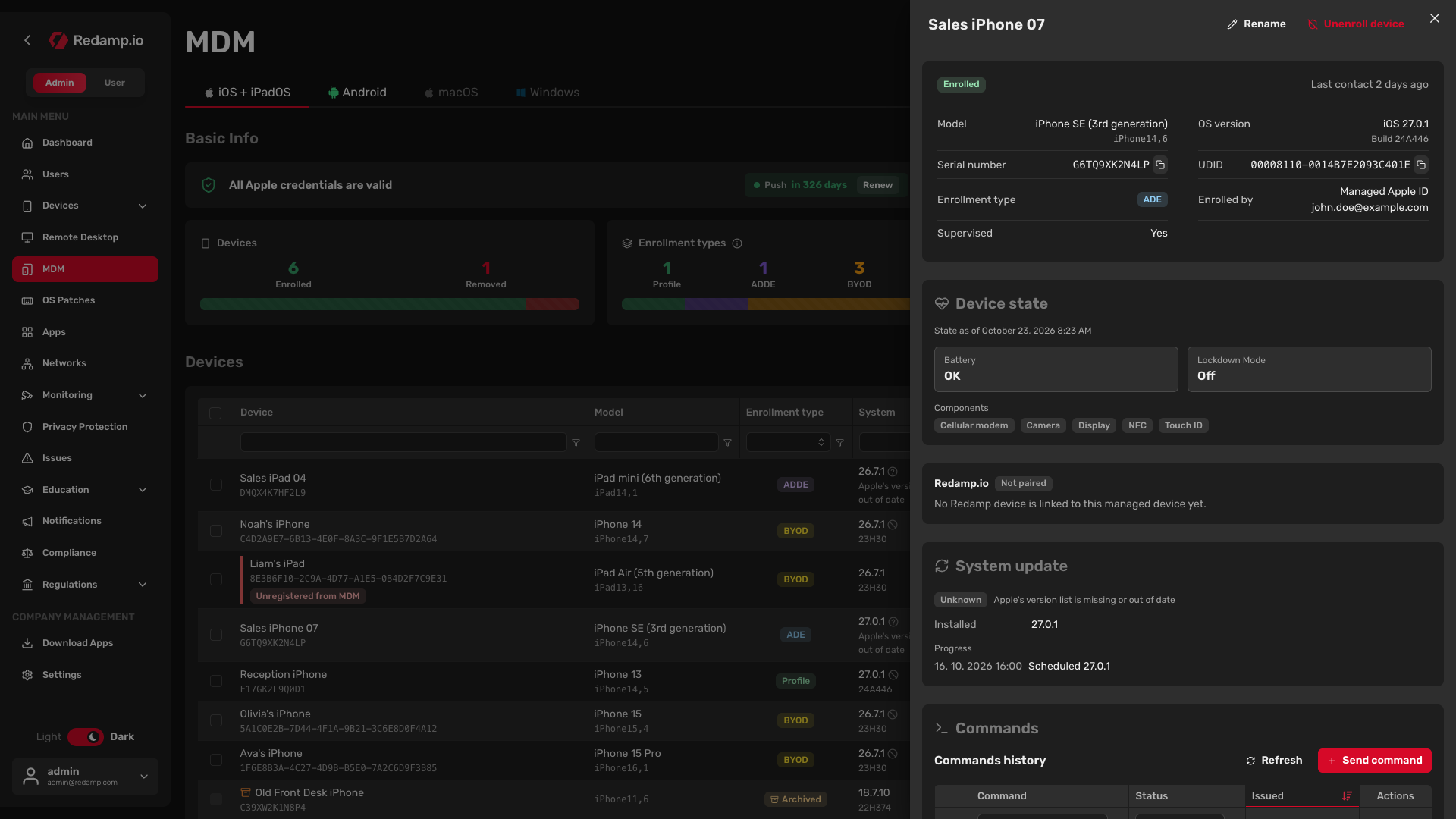
- Go to MDM → iOS + iPadOS and click the device in the Devices table. The device detail opens on the right.
- Scroll to the Commands section and click Send command.
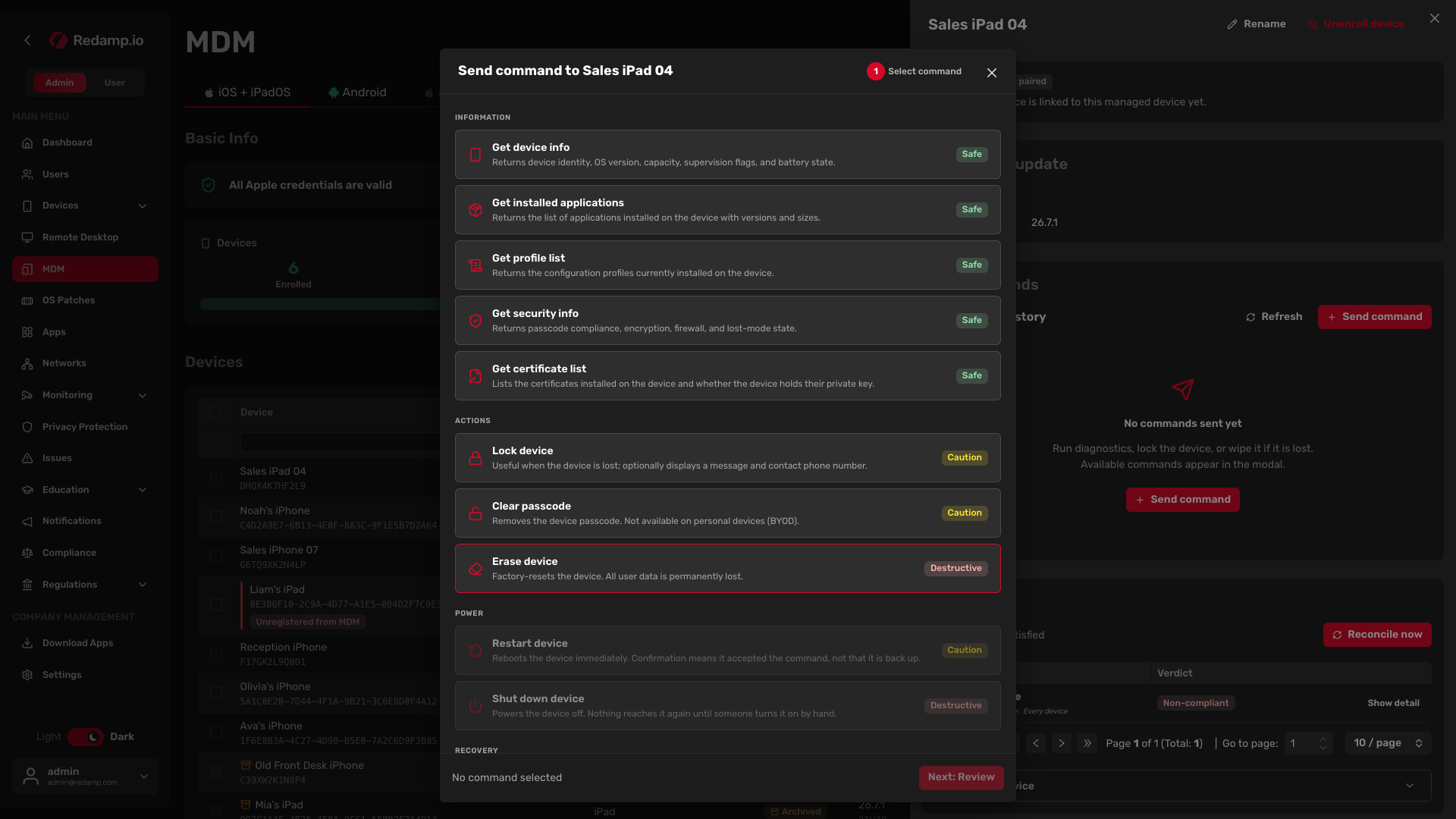
- In Select command, pick the command. Commands the device cannot take are disabled, and hovering over one tells you why.
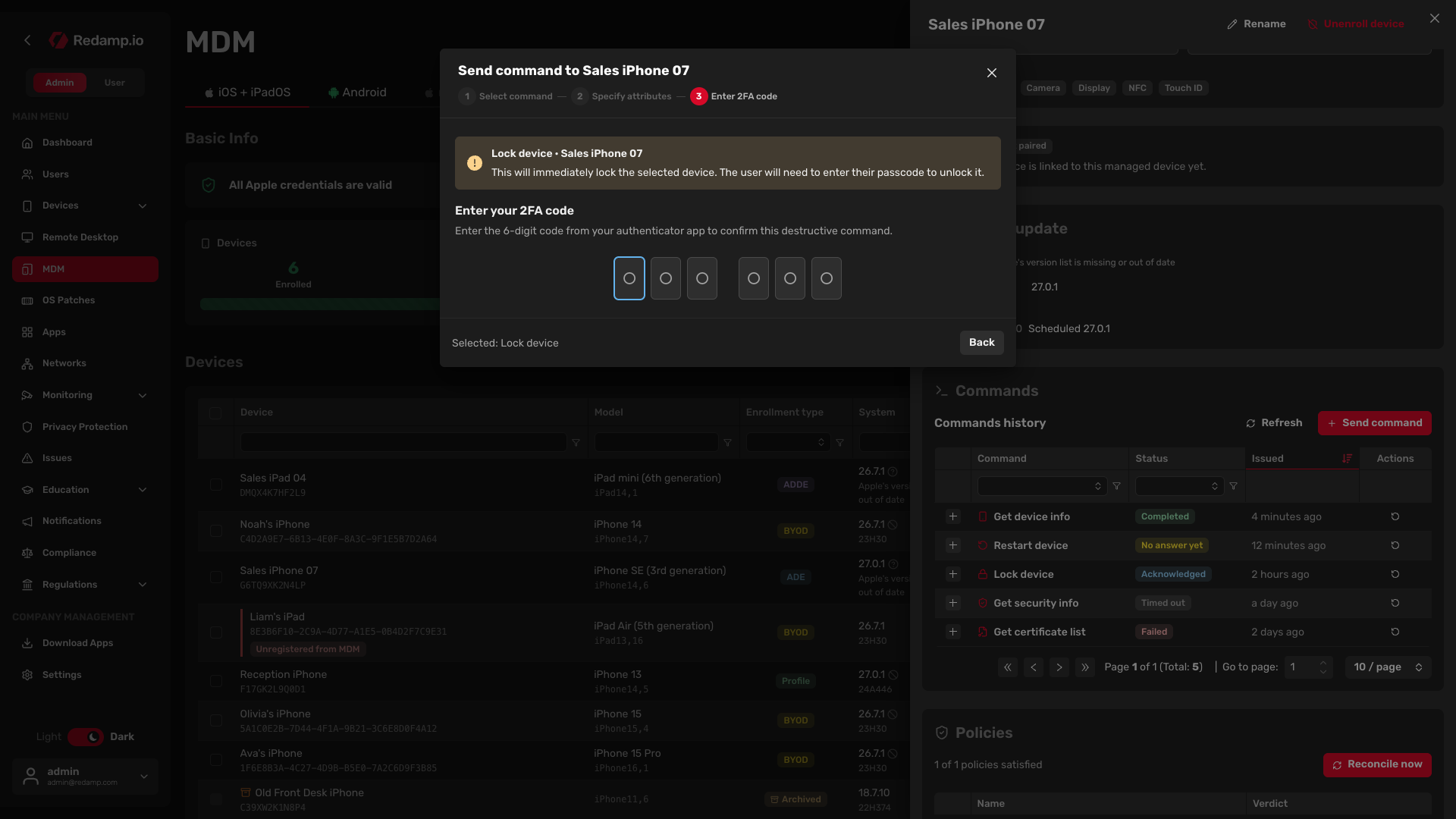
- Some commands have options, for example a message for Lock device. Fill them in under Specify attributes.
- Check the summary under Review and click Send command. For a command that locks, erases or unlocks the device, enter the code from your authenticator app under Enter 2FA code instead.
You can send one command every 5 seconds.
Send a command to several devices
- In the Devices table, select the devices.
- Click Bulk actions → Send command and continue as for one device.
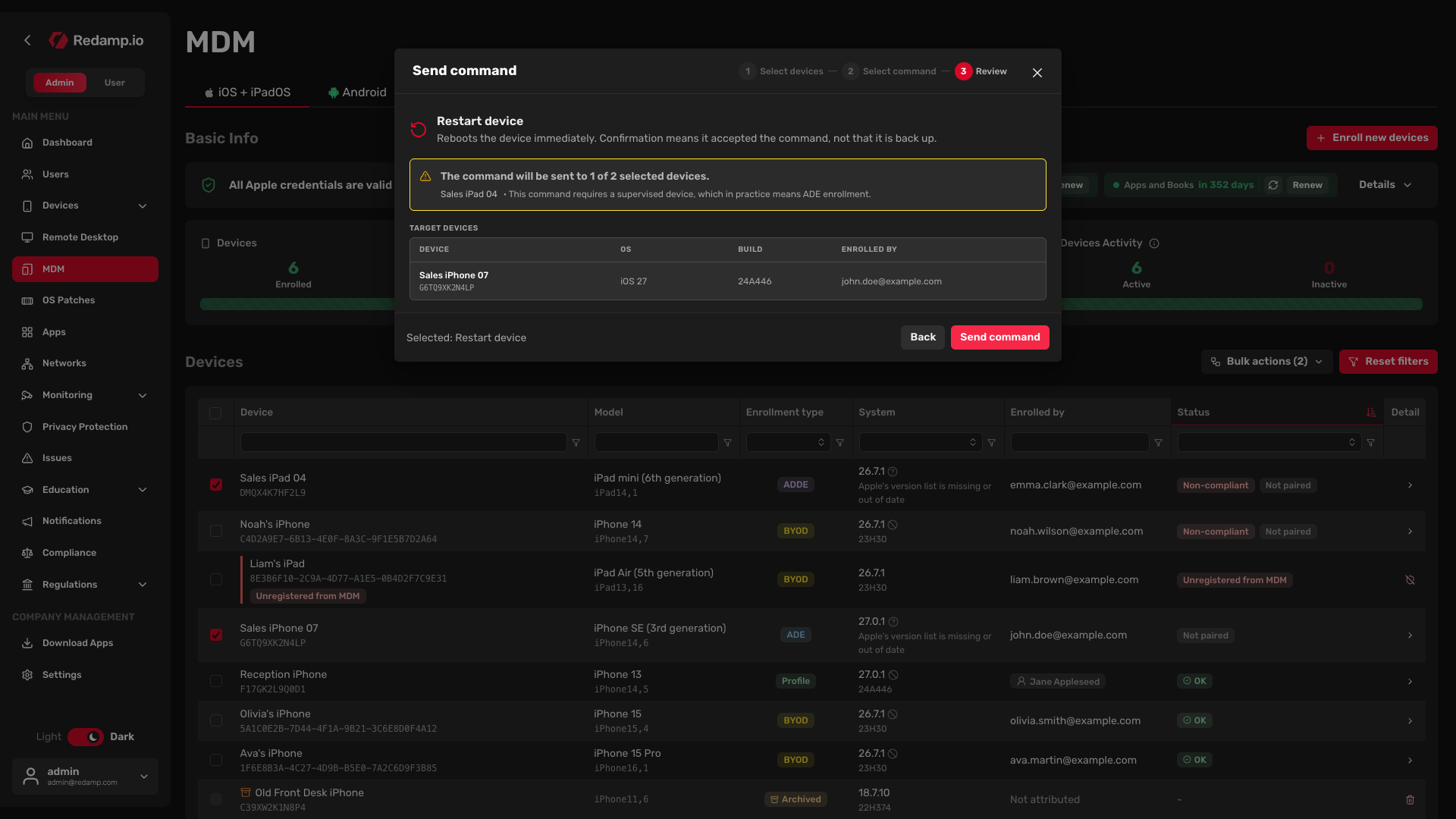
If some of the selected devices cannot take the command, the console tells you which ones and why, and the command goes to the rest. For a command that needs the 2FA code, you also confirm that they will be skipped.
- Erase device for several devices asks you to type the number of devices before the 2FA code. There is no undo.
- Get Activation Lock bypass code and Clear Activation Lock bypass code work for one device at a time only. Send them from the device detail.
Which commands work on which device
Apple decides which commands a device accepts. The console disables the ones a device would refuse.
| Command | ADE | Profile | ADDE | BYOD | 2FA code |
|---|---|---|---|---|---|
| Get device info | Yes | Yes | Yes | Yes, without hardware and passcode details | No |
| Get security info | Yes | Yes | Yes | Yes, without hardware and passcode details | No |
| Get profile list | Yes | Yes | Yes | Managed profiles only | No |
| Get installed applications | Yes | Yes | Yes | Managed apps only | No |
| Get certificate list | Yes | Yes | Yes | Yes | No |
| Lock device | Yes | Yes | Yes | Yes | Yes |
| Clear passcode | Yes | Yes | Yes | No | Yes |
| Erase device | Yes | Yes | Yes | No | Yes |
| Restart device | Yes | Supervised only | No | No | No |
| Shut down device | Yes | Supervised only | No | No | Yes |
| Get Activation Lock bypass code | Yes | Supervised only | No | No | Yes |
| Clear Activation Lock bypass code | Yes | Supervised only | No | No | Yes |
| Lost Mode | Yes | Supervised only | No | No | Yes, to turn it on |
- ADE devices are supervised. Restart, shut down, Activation Lock and Lost Mode are available on them.
- Profile devices are supervised only if they were prepared in Apple Configurator before enrollment.
- ADDE devices are never supervised.
- BYOD devices belong to the employee. Apple does not allow erasing them or clearing their passcode, and it hides personal data from information commands.
What each command does
Information
- Get device info - device identity, OS version, capacity, supervision and battery state.
- Get security info - passcode compliance, encryption and other security settings. The device must be unlocked to answer; until then the command stays pending.
- Get profile list - configuration profiles installed on the device. Turn on Managed profiles only to see only the ones from MDM.
- Get installed applications - apps on the device with versions and sizes.
- Get certificate list - certificates on the device. Turn on Managed certificates only to see only the ones from MDM.
Actions
- Lock device - locks the screen at once. You can add a Message and a Phone number for whoever finds the device. The user unlocks it with their own passcode, so a device without a passcode stays open.
- Clear passcode - removes the passcode. The user sets a new one.
- Erase device - factory reset. All data on the device is lost for good.
Power
- Restart device - restarts the device. The result only says the device accepted the command, not that it is back up.
- Shut down device - turns the device off. No other command reaches it until someone turns it on by hand.
Recovery
- Get Activation Lock bypass code - fetches the code that unlocks an erased device without the former user's Apple Account. You usually do not need it: the console shows the code in the device's Activation Lock section (see Step 4 below).
- Clear Activation Lock bypass code - the code stops working. Send it only after the code has been used. If nobody saved the code, an erased device can no longer be unlocked.
What happens after you send it
The command waits in a queue until the device picks it up. A device that is switched off or offline gets it as soon as it comes online again, so a waiting command is not an error.
Each command appears in Commands history in the device detail with its status:
| Status | Meaning |
|---|---|
| Pending | Sent, the device has not answered yet. |
| No answer yet | Still waiting after 2 minutes. The device is probably offline. |
| Acknowledged | The device accepted an action, for example a lock or restart. |
| Completed | The device answered. Open the row to see the result. |
| Failed | The device refused the command or reported an error. |
| Timed out | The device did not answer in time. |
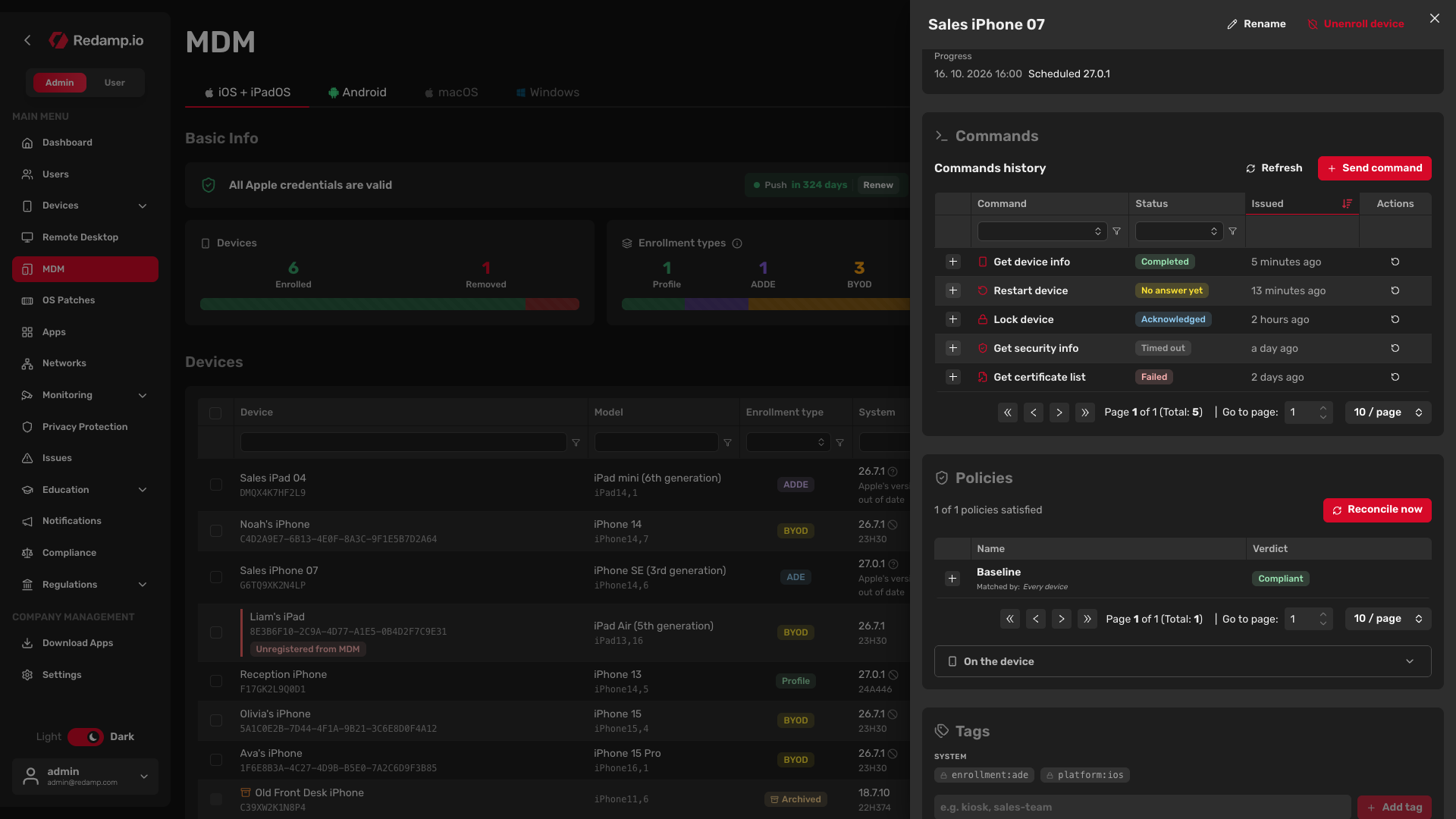
- Click Refresh to load new results.
- Click Re-run command on a row to send the same command again with the same options.
- The history shows the latest 100 commands.
When a device is lost
Go through these steps in order. Each one is harder to undo than the previous one.
Step 1 - Turn on Lost Mode
Lost Mode is available on supervised devices only. On other devices go to Step 2.
- Open the device detail and scroll to the Lost Mode section.
- Under Lock the device, enter a message, a phone number or both. Apple shows them on the Lock Screen so whoever finds the device can return it. A footnote, for example your company name, is optional.
- Click Enable Lost Mode and enter your 2FA code.
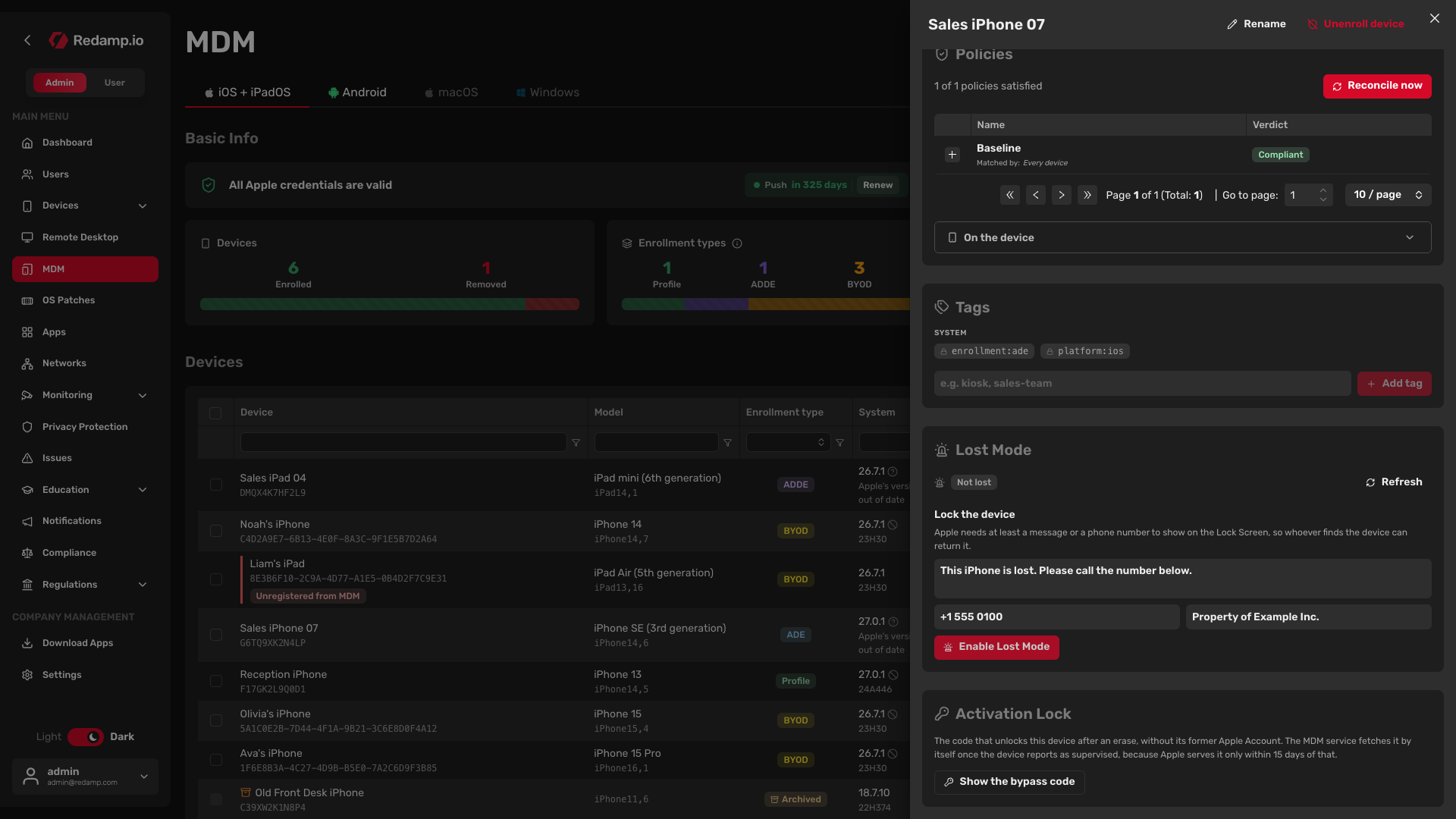
The device locks as soon as it comes online, and the device list marks it Lost. Unlike Lock device, the user cannot unlock it with their passcode. Only you can end Lost Mode from the console.
While the device is lost you can:
- Click Request a position to ask the device where it is. You get one position from the moment the device answers, not live tracking. Open in Maps shows it on the map.
- Click Play the sound to help someone nearby find it.
Once the device is found, click Turn Lost Mode off. This does not ask for a 2FA code. The device unlocks as soon as it comes online.
Tip: The text on the Lock Screen cannot be changed while the device is locked. To change it, turn Lost Mode off and on again.
Step 2 - Lock the device
If the device is not supervised, send Lock device with a Message and a Phone number. The text appears on the Lock Screen, but the user unlocks the device with their own passcode.
Step 3 - Erase the device
If the device will not come back, send Erase device. All data on it is lost. BYOD devices cannot be erased: remove management instead, which deletes the work data.
Step 4 - Unlock Activation Lock after the erase
An erased device may ask for the former user's Apple Account (Activation Lock). On a supervised device you can unlock it with the bypass code.
- Open the device detail and scroll to the Activation Lock section.
- Click Show the bypass code and copy it.
- On the device, at the Activation Lock screen, enter the code in the password field and leave the user name blank.
The MDM service fetches the code by itself once the device reports as supervised. Apple serves it only within 15 days after the device is first supervised, so a device enrolled long ago may have no code. Save the code somewhere safe as soon as you see it.
After you have used the code, you can send Clear Activation Lock bypass code so it stops working.