Inviting devices to enroll with a profile
Send an invitation by e-mail, notification or QR code and follow it until the device is enrolled.
With Profile enrollment, you send an invitation from the console and the employee installs a management profile on their iPhone or iPad. This guide takes you through the Enroll new devices wizard and the Invitations tab, where you follow each invitation until the device is enrolled.
Not sure Profile is the right type for your device? See Enrollment types for iPhones and iPads .
Before you start
- MDM is set up and the push certificate is valid. See Set up Basic MDM without Apple Business Manager or Set up MDM with Apple Business Manager .
- The employee has a Redamp.io account in your organization. Invitations go to people, not to e-mail addresses you type in.
- The device runs iOS or iPadOS 16 or later.
Step 1 - Open the wizard
Go to MDM → iOS + iPadOS and click Enroll new devices.
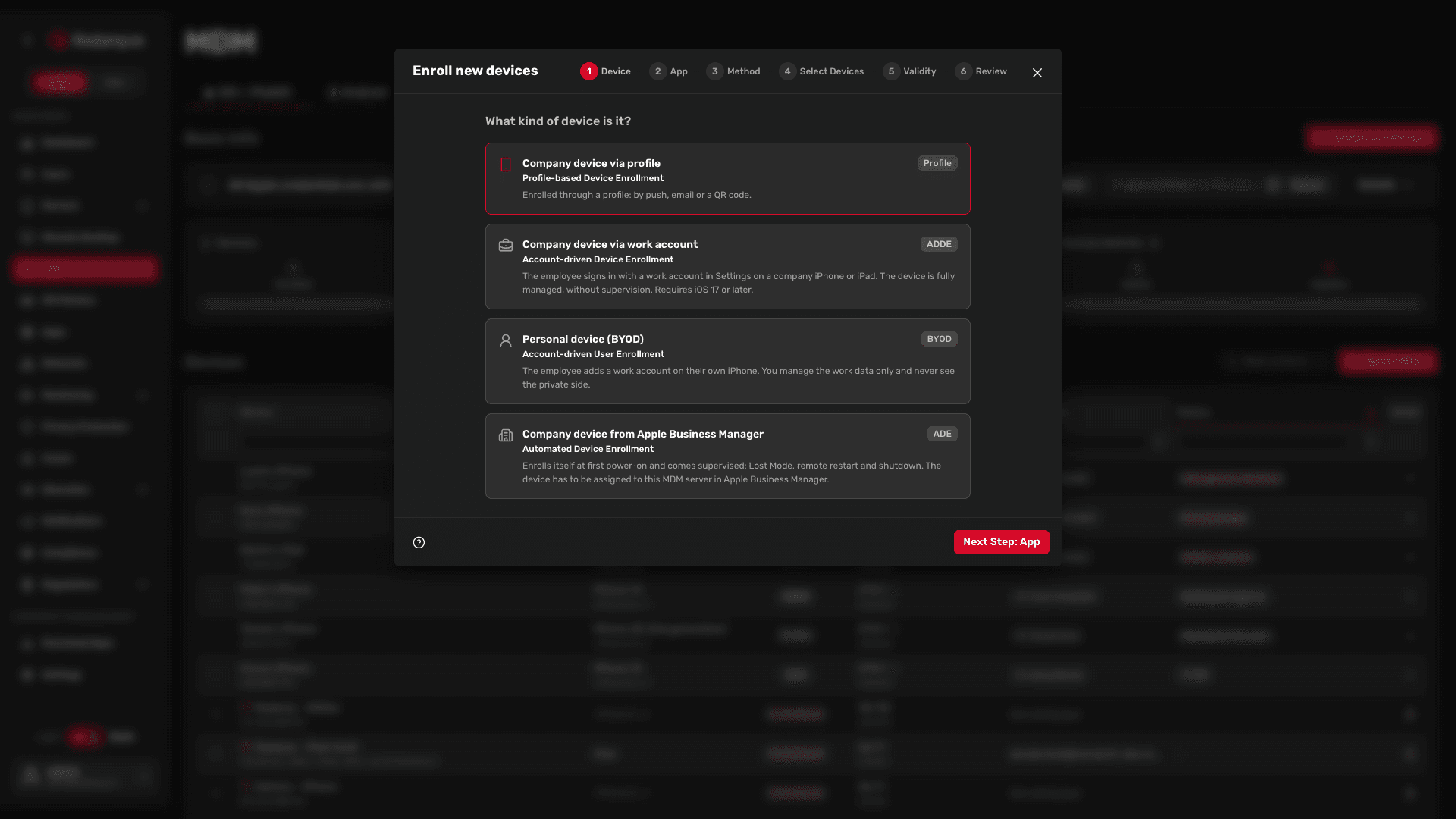
If your organization uses Apple Business Manager, the wizard first asks What kind of device is it? Pick Company device via profile and click Next Step: App. With Basic MDM, the wizard opens directly on the next question.
Step 2 - Say whether Redamp.io is installed
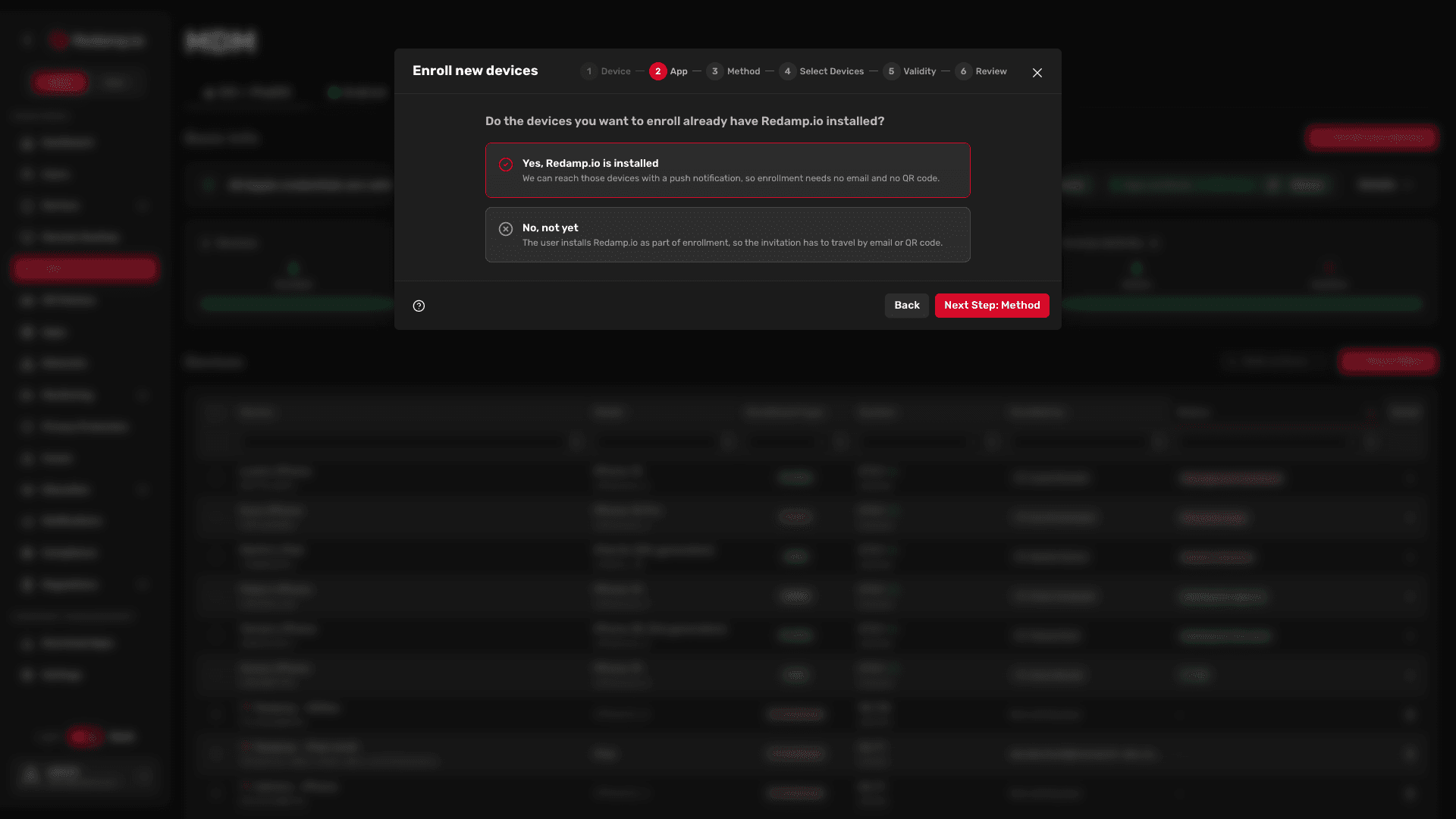
The wizard asks Do the devices you want to enroll already have Redamp.io installed?
- Yes, Redamp.io is installed - you can reach the devices with a push notification, and all three methods are offered.
- No, not yet - the invitation has to travel by e-mail or QR code.
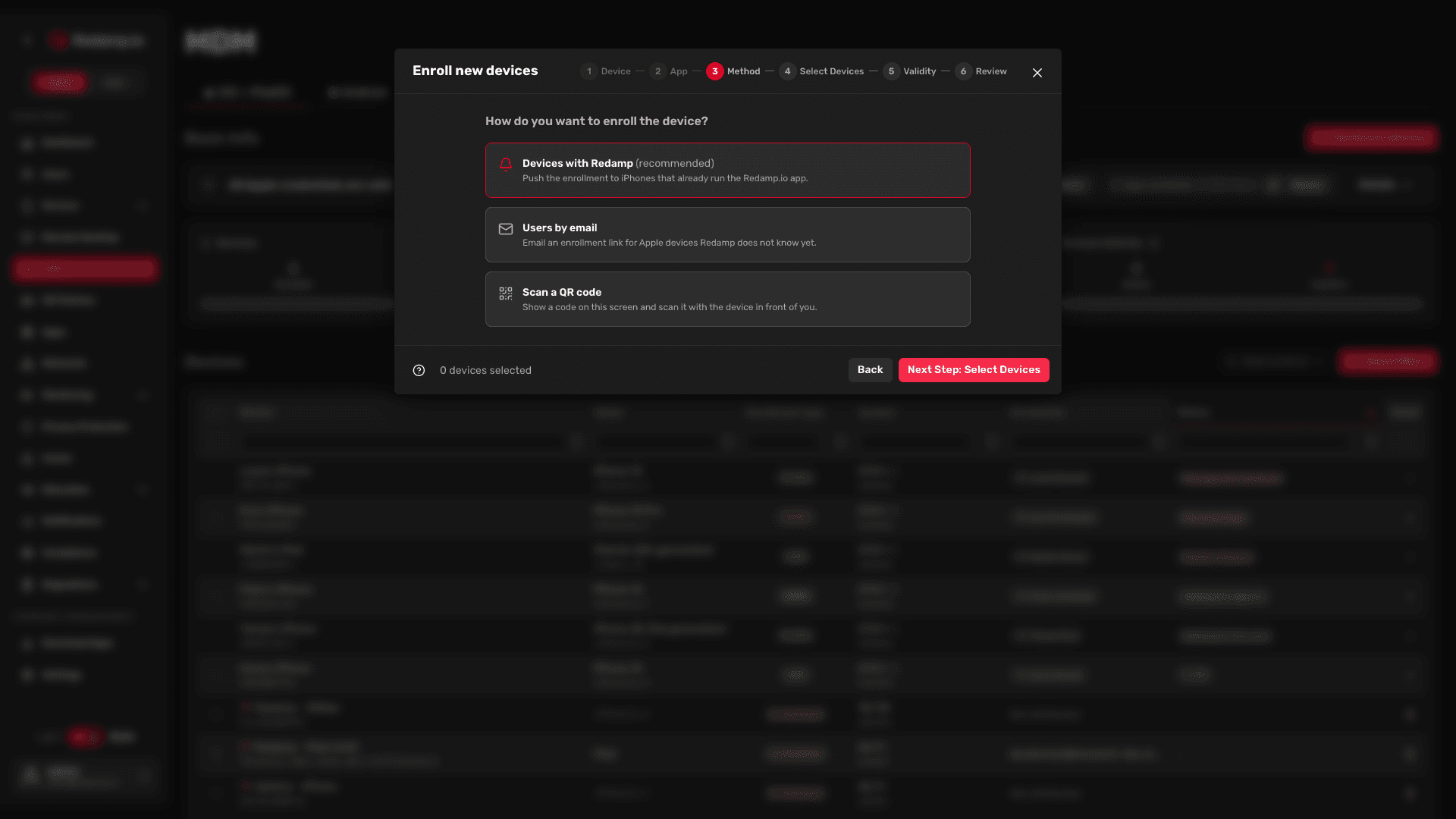
Step 3 - Pick the method
| Method | Use it when | Next steps |
|---|---|---|
| Devices with Redamp (recommended) | The device already runs the Redamp.io app. The employee gets a notification and taps it. | Invite devices by push |
| Users by email | Redamp.io does not know the device yet. The employee gets an e-mail with an enrollment link. | Send an e-mail invitation |
| Scan a QR code | The device is in front of you. You show a code on your screen and scan it with the device. | Enroll by QR code |
Invite devices by push
-
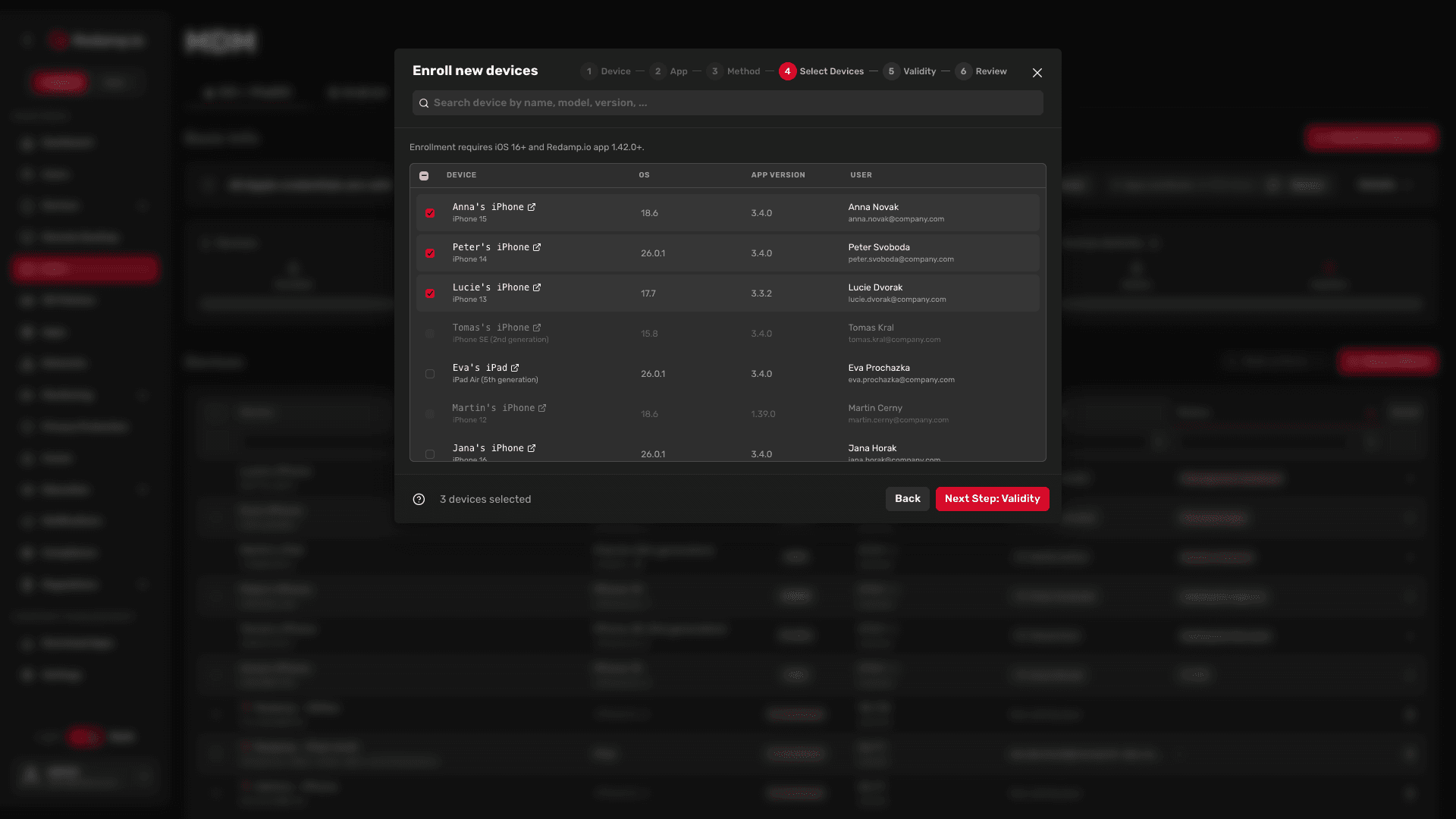
In Select Devices, tick the devices to enroll. The list shows the iPhones and iPads that run Redamp.io in your organization. Search by name, model or user.
A greyed-out device cannot be enrolled yet. Hover over it to see why: it needs iOS 16 or later and Redamp.io 1.42.0 or later.
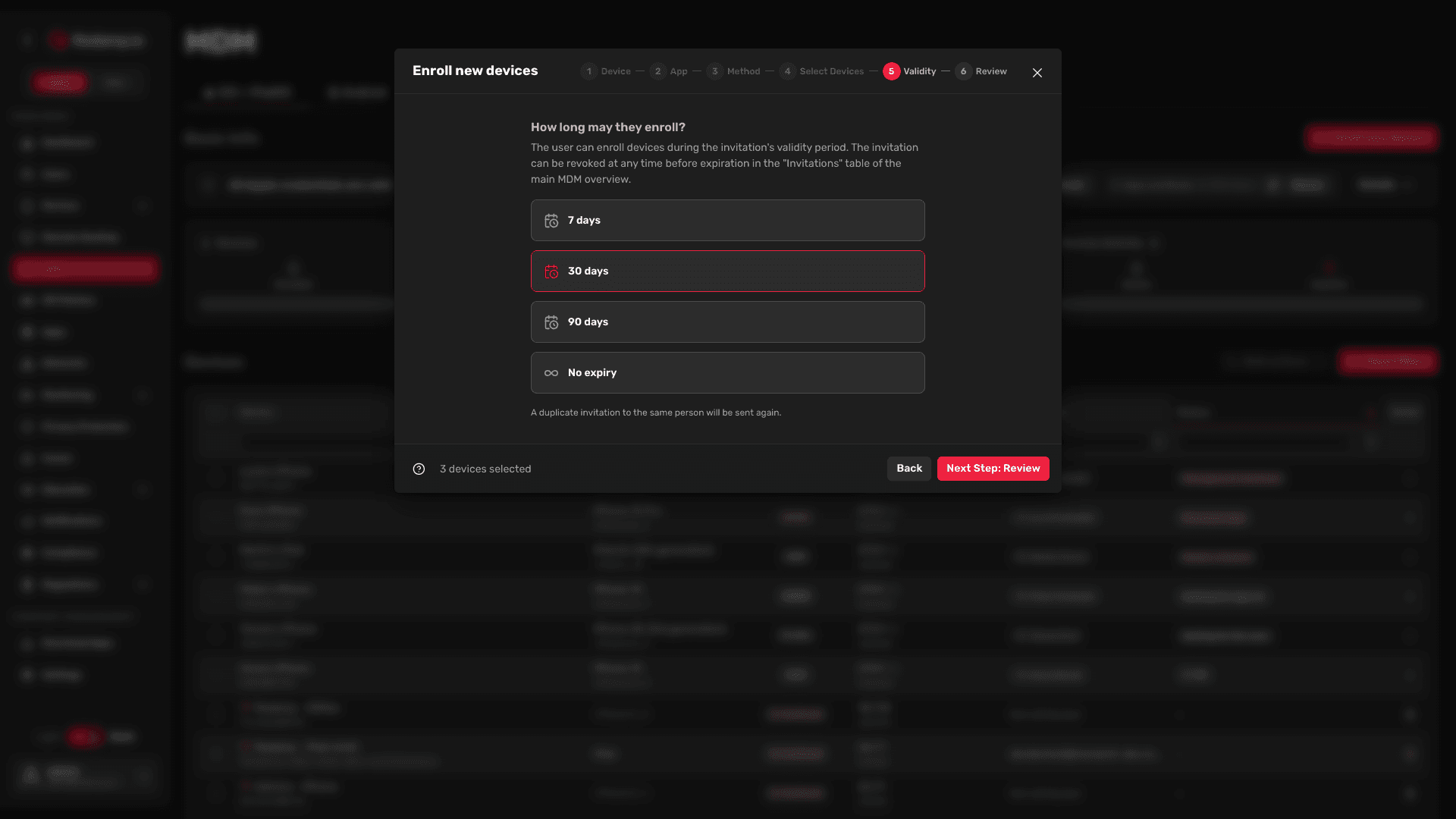
- In Validity, choose how long the employees may enroll: 7 days, 30 days (default), 90 days or No expiry. See How validity works .
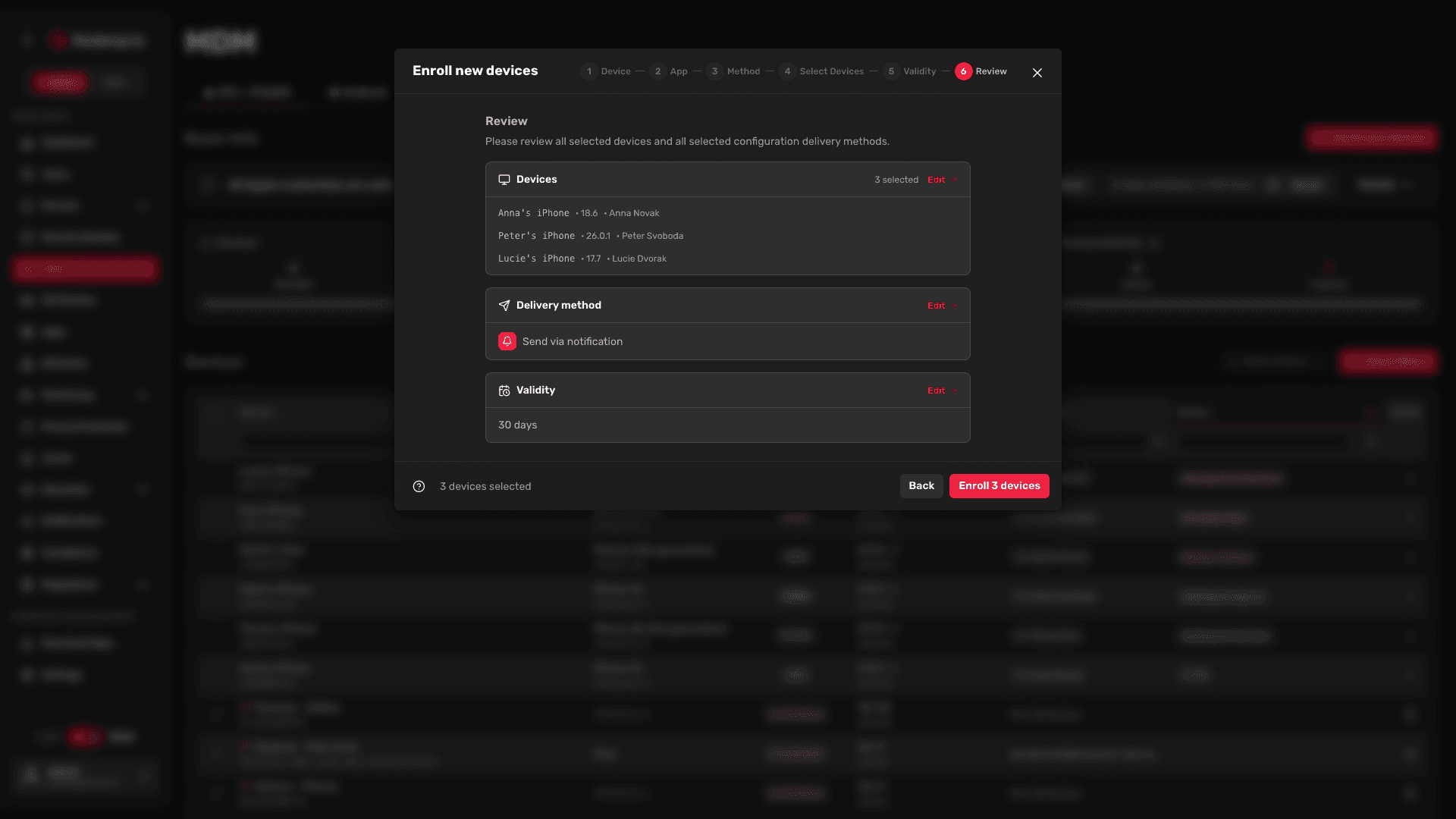
- In Review, check the devices, the delivery method and the validity. Use Edit to go back to the corresponding step. Then click Enroll N devices.
The console confirms Enrollment requested. Each device gets the notification MDM installation request in the Redamp.io app.
Send an e-mail invitation
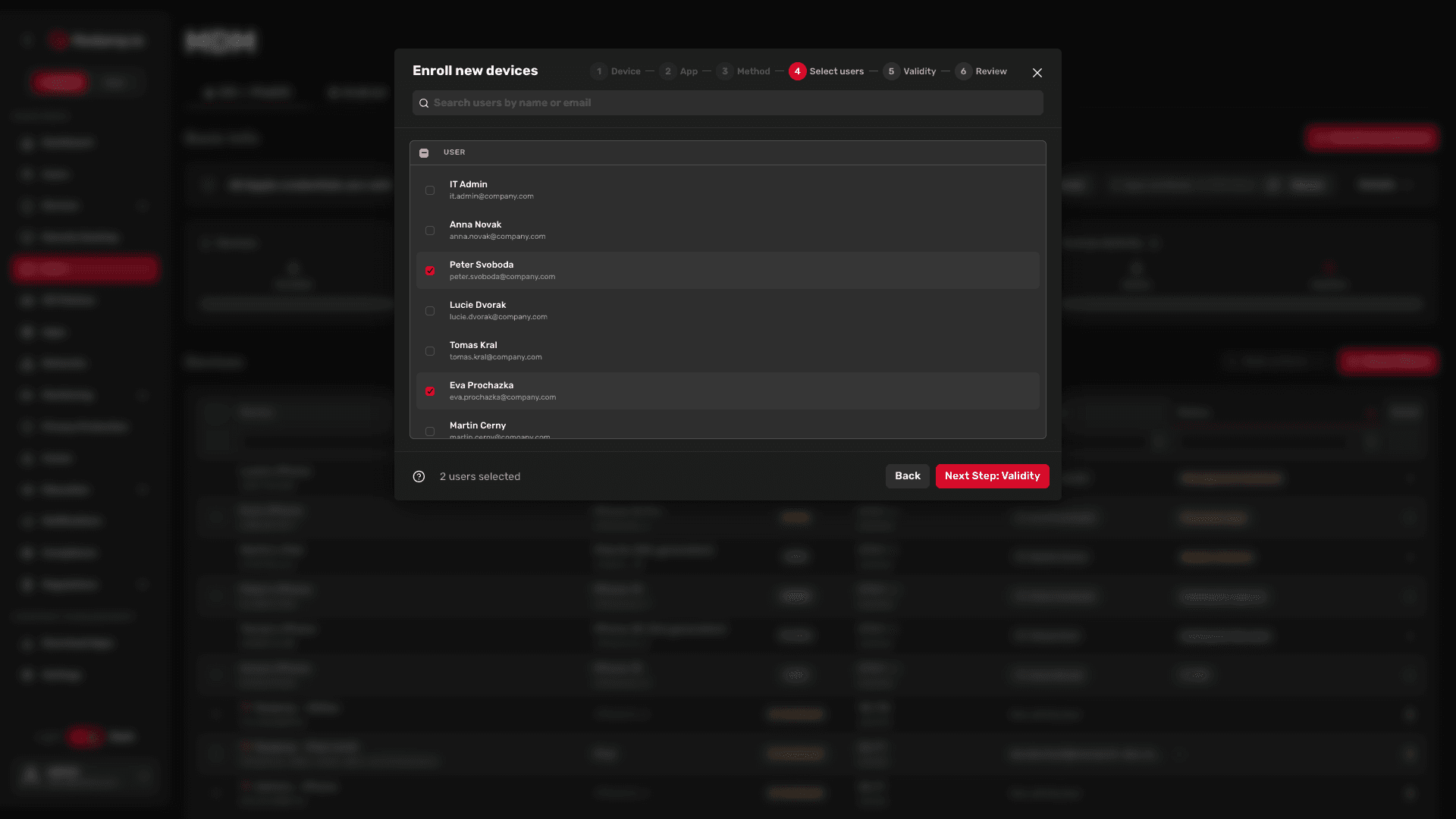
- In Select users, tick the people to invite. Search by name or e-mail.
- In Validity, choose how long they may enroll, the same as for a push.
- In Review, check the users, the delivery method and the validity, then click Send invitation or Send N invitations.
The console confirms Invitations sent. Each person gets the e-mail Enroll your device in MDM. They open it on the iPhone or iPad, sign in with their Redamp.io account and download the profile.
Note: Blocked users and users without an e-mail address do not get the e-mail.
Enroll by QR code
Use this when you hold the device, for example when you hand it to a new employee.
-
In Enrolling user, choose the account the device belongs to:
- Register under my account - your own account. It is greyed out when your account does not belong to this organization.
- Register under someone else's account - pick the employee from the list.
The account cannot be changed later. A device enrolled under the wrong account has to be unenrolled and enrolled again.
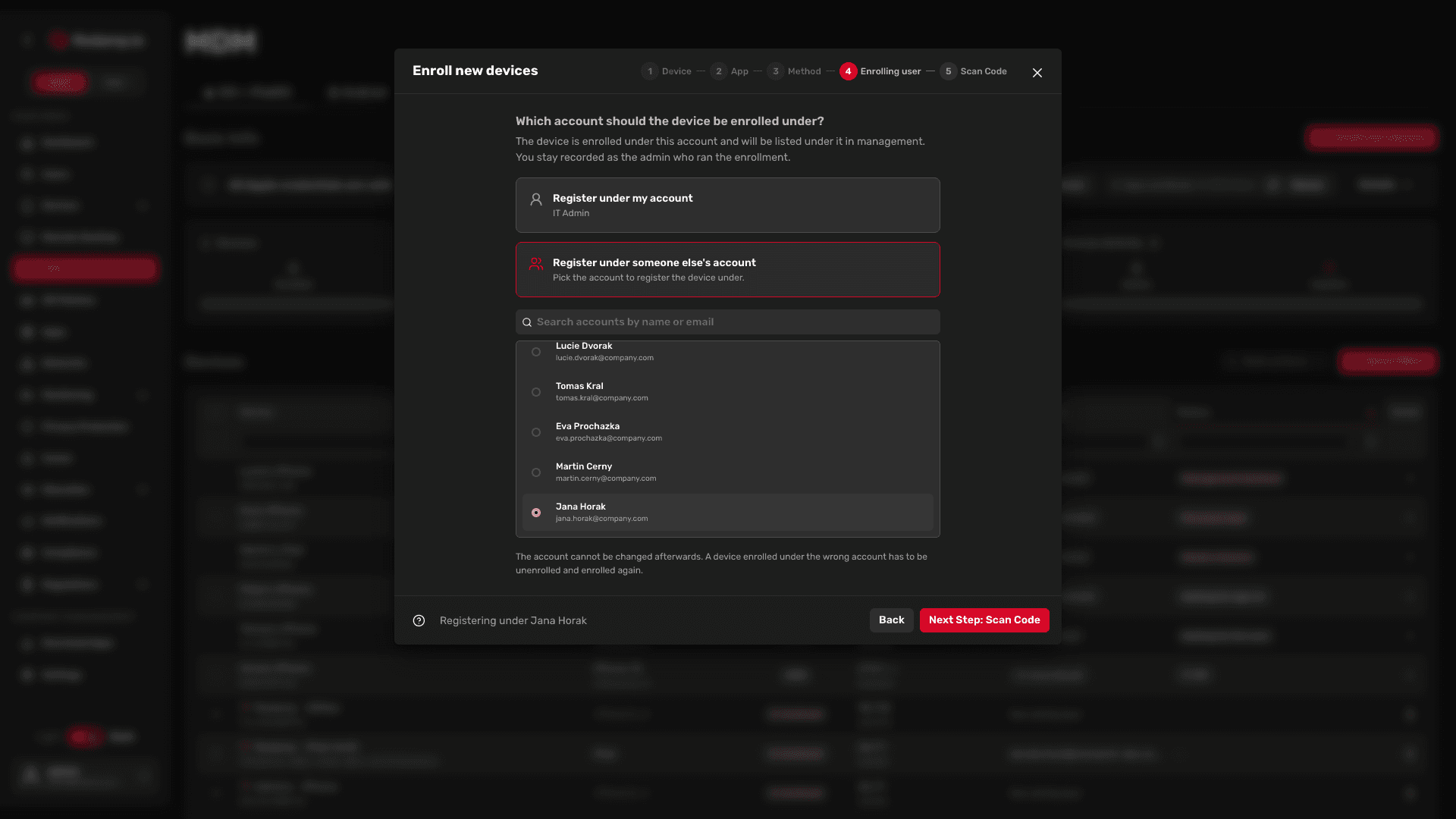
- Click Next Step: Scan Code and then Generate and show QR code.
- Open the Camera on the iPhone or iPad, scan the code and tap the link. The code works for one device and expires after 15 minutes. If it expires, click Get a new code.
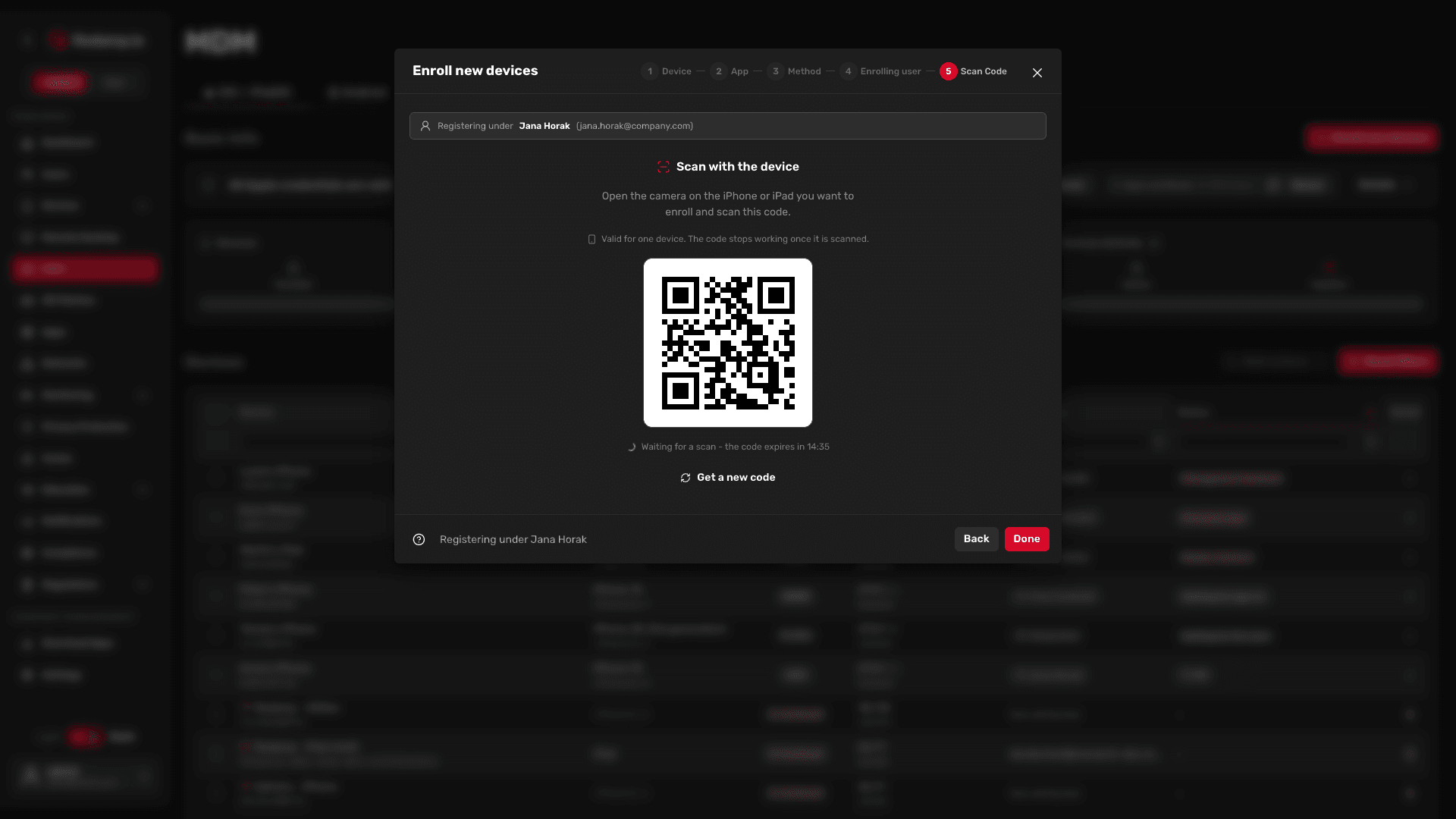
- Install the profile on the device in Settings. The wizard follows the device: Code scanned while it waits for the installation, with a short video of the steps, and Device enrolled when it is done.
- Click Enroll another device for the next one, or Done.
A QR code needs no invitation, so you can enroll a device for someone you have not invited.
How validity works
The validity belongs to the person, not to one device or one link.
- While the invitation is valid, the employee can enroll any number of devices, not only the one you selected.
- Each download link the employee opens, and each QR code, works once and expires after 15 minutes. The employee then gets a new link from the e-mail or the app, as long as the invitation is valid.
- When you invite the same person again, the new validity replaces the old one, even if it is shorter. A cancelled invitation becomes active again.
- Admins can always enroll devices, with or without an invitation.
Follow invitations in the Invitations tab
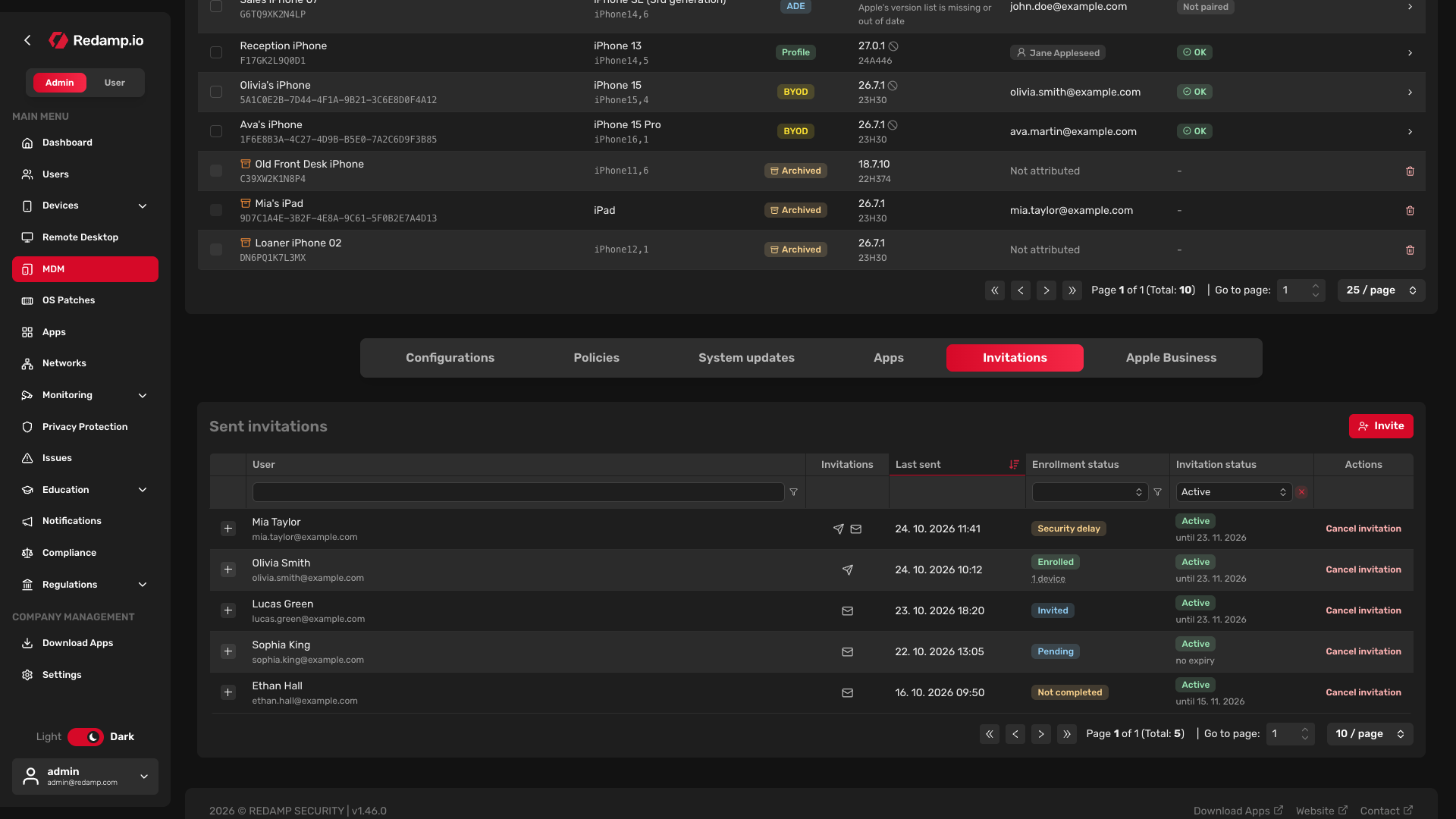
Open the Invitations tab below the device list. The Sent invitations table has one row per person, newest first. Invite opens the same wizard.
By default the table shows only active invitations. To see expired or cancelled ones, change the filter in the Invitation status column.
| Column | What it shows |
|---|---|
| User | The invited person and their e-mail. |
| Invitations | How the invitations went out: push, e-mail or both. |
| Last sent | When the newest invitation was sent. |
| Enrollment status | How far the person got, see below. With an enrolled device it also shows how many devices are enrolled. Hover to see their names. |
| Invitation status | Active with the date it ends or no expiry, Expired, Revoked, or No permission. |
| Actions | Cancel invitation for an active invitation. |
Enrollment status values:
| Status | Meaning |
|---|---|
| Invited | The employee has not started yet. |
| Pending | The employee started the enrollment and the device has not finished it yet. |
| Security delay | iOS Stolen Device Protection made the employee wait. Redamp.io sends the invitation again automatically one hour later. |
| Not completed | The enrollment was started but never finished. |
| Failed | The device reported that the enrollment failed. |
| Enrolled | At least one device of this person is enrolled. |
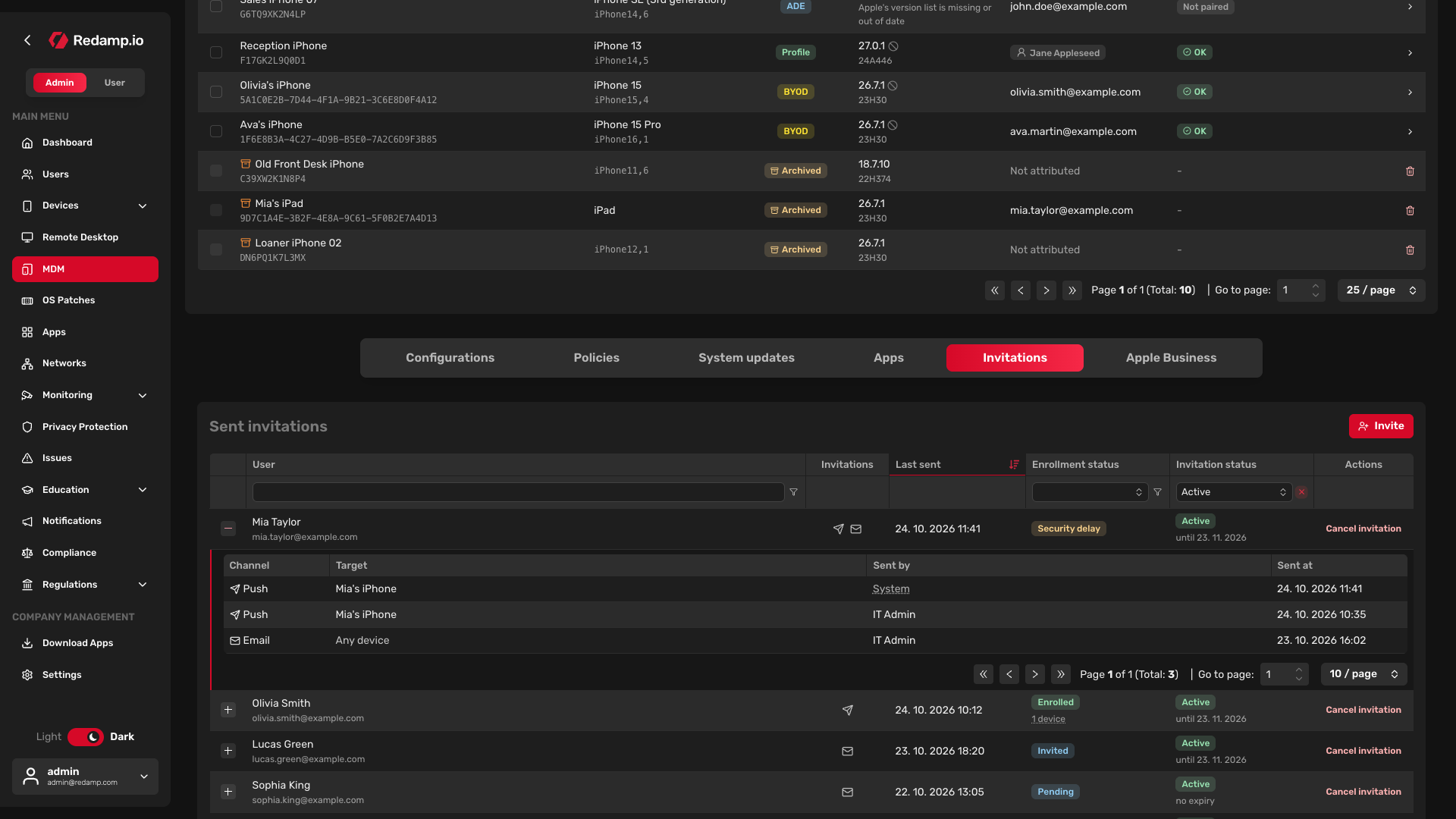
Click a row to see each invitation sent to that person: its Channel, its Target (a specific device, or Any device for an e-mail), who sent it and when. System in Sent by means Redamp.io sent it automatically, for example after a security delay.
Cancel an invitation
- In the person's row, click Cancel invitation.
- Confirm with Revoke.
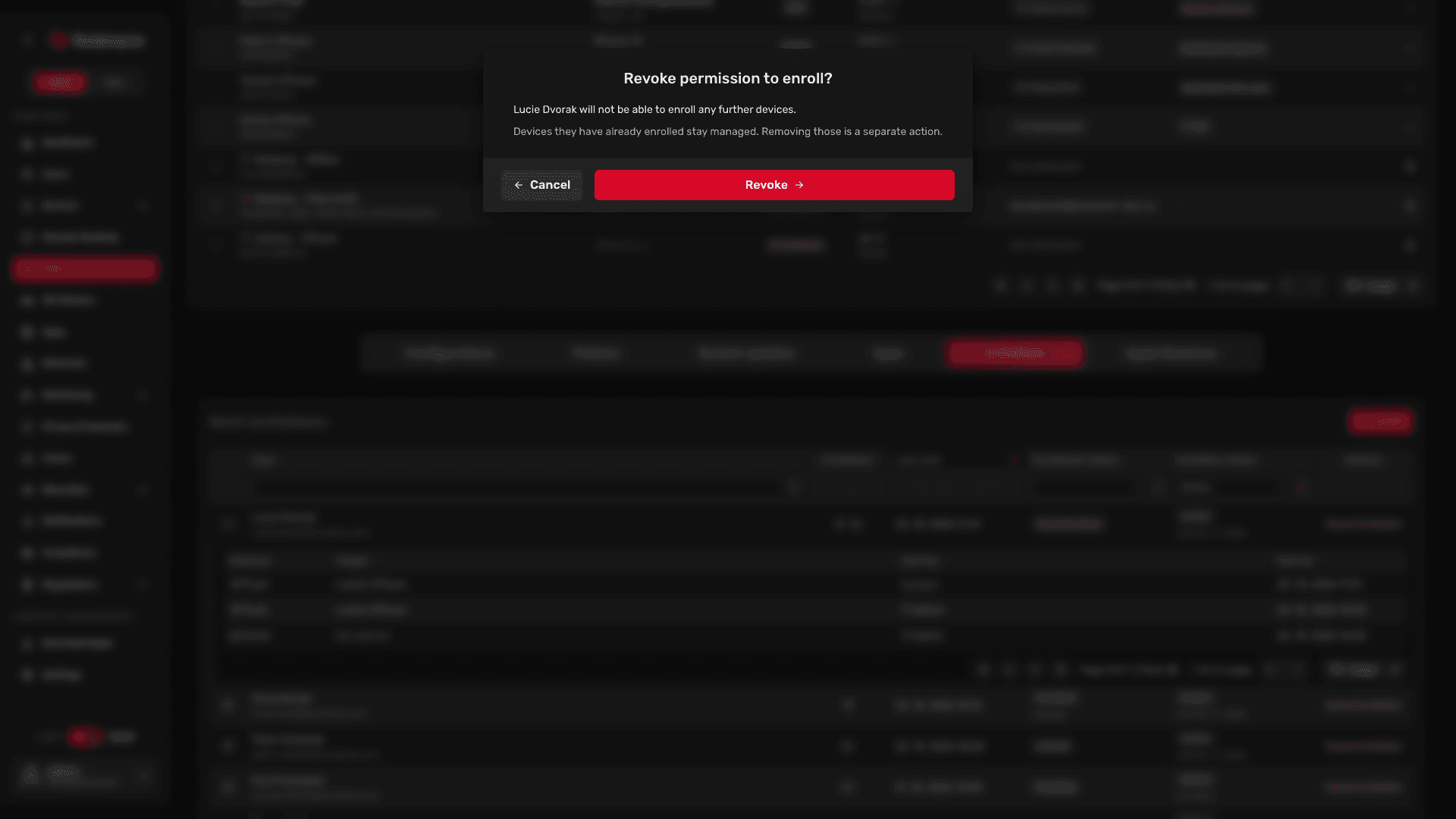
The person can no longer enroll a device, not even from a link they already opened. Devices they have already enrolled stay managed. To remove those, unenroll them in the device list.
Send an invitation again
There is no resend button. Open the wizard again, with Invite or Enroll new devices, and invite the same person. They get a new notification or e-mail, and the new validity replaces the old one.
What the employee receives
- Push - the notification MDM installation request in the Redamp.io app. Tapping it opens the enrollment in the app.
- E-mail - the e-mail Enroll your device in MDM with the Enroll device button.
- QR code - the link opens in Safari on the device.
In every case the employee downloads the profile and installs it in Settings. Send them the step-by-step guide: Enrolling an iPhone or iPad with an invitation .
Common mistakes
| Problem | What to do |
|---|---|
| A device in Select Devices is greyed out | Update iOS to 16 or later, or Redamp.io to 1.42.0 or later, on the device. Or invite the person by e-mail. |
| The employee says the invitation expired | Invite them again, with a longer validity if needed. |
| The device was enrolled under the wrong person | The account cannot be changed. Unenroll the device and enroll it again under the right person. |
| The employee removed the profile | The device leaves management. Invite them again. |