Installing App Store apps with Apps and Books
Learn how to connect the Apple Apps and Books content token, get apps in Apple Business Manager, install them on devices and renew the token every year.
Apps and Books lets Redamp.io MDM install App Store apps with licences your organization gets in Apple Business Manager. Devices need no Apple ID, and company devices enrolled through ADE install the apps silently.
The setup has five steps:
- Download the content token in Apple Business Manager.
- Connect the token in the console.
- Get the apps in Apple Business Manager.
- Add the apps to the console catalogue.
- Install them on devices with a configuration and a policy.
After that, the only regular task is to renew the token once a year.
Before you start
- Apple Business Manager is connected to the console. Apps and Books is available only then. See Set up MDM with Apple Business Manager .
- Your Apple Business Manager account has a role with permission to get licences for apps and books.
Important: Apple invalidates the content token when the password of the Managed Apple Account that downloaded it changes. Download the token with a dedicated account whose password does not change. Apple recommends giving it a custom role with only the Assign licenses for Apps and Books permission.
Step 1 - Download the token in Apple Business Manager
- Sign in to Apple Business Manager .
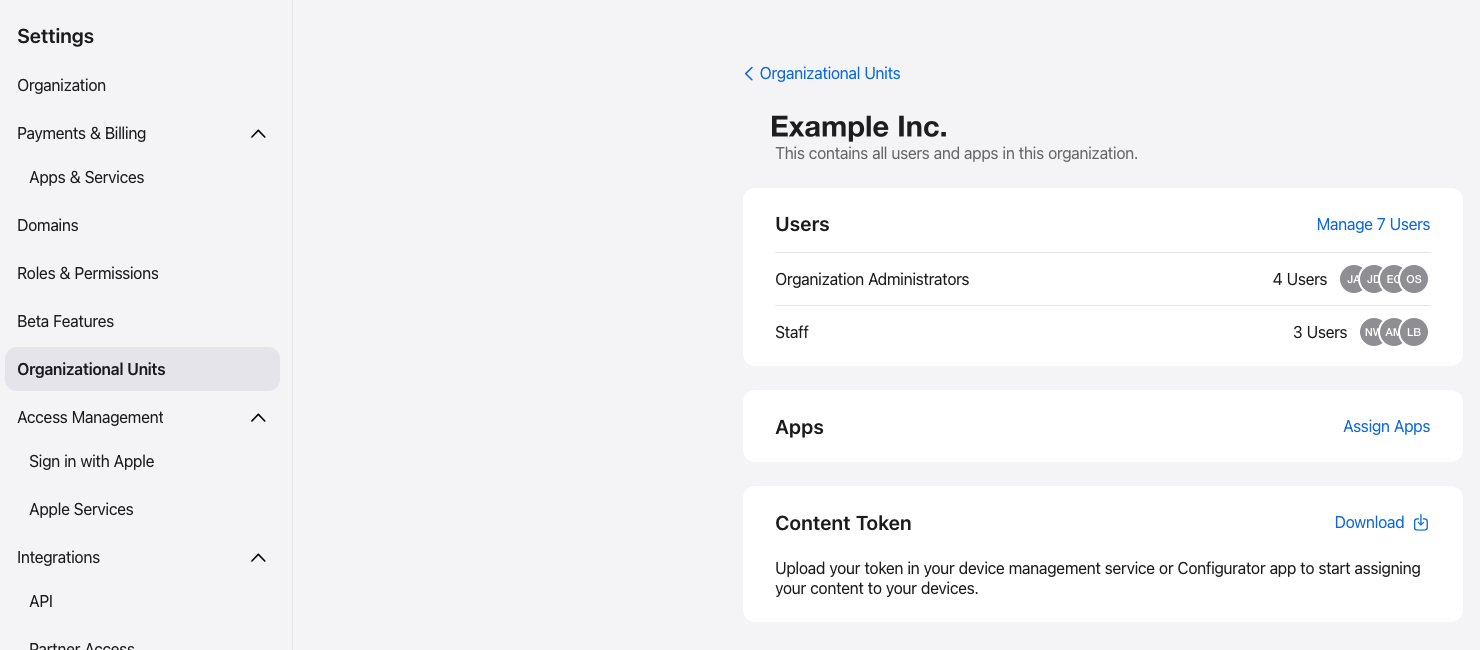
- Go to Settings → Organizational Units and select your organization.
- Click Download next to Content Token. You get a
.vpptokenfile.
If Redamp.io pairing is on, also add the Redamp.io app in Apps and Books (Step 3). ADE, BYOD and ADDE devices get the Redamp.io app only with a licence. See Pairing Redamp.io with managed devices .
Step 2 - Connect the token in the console
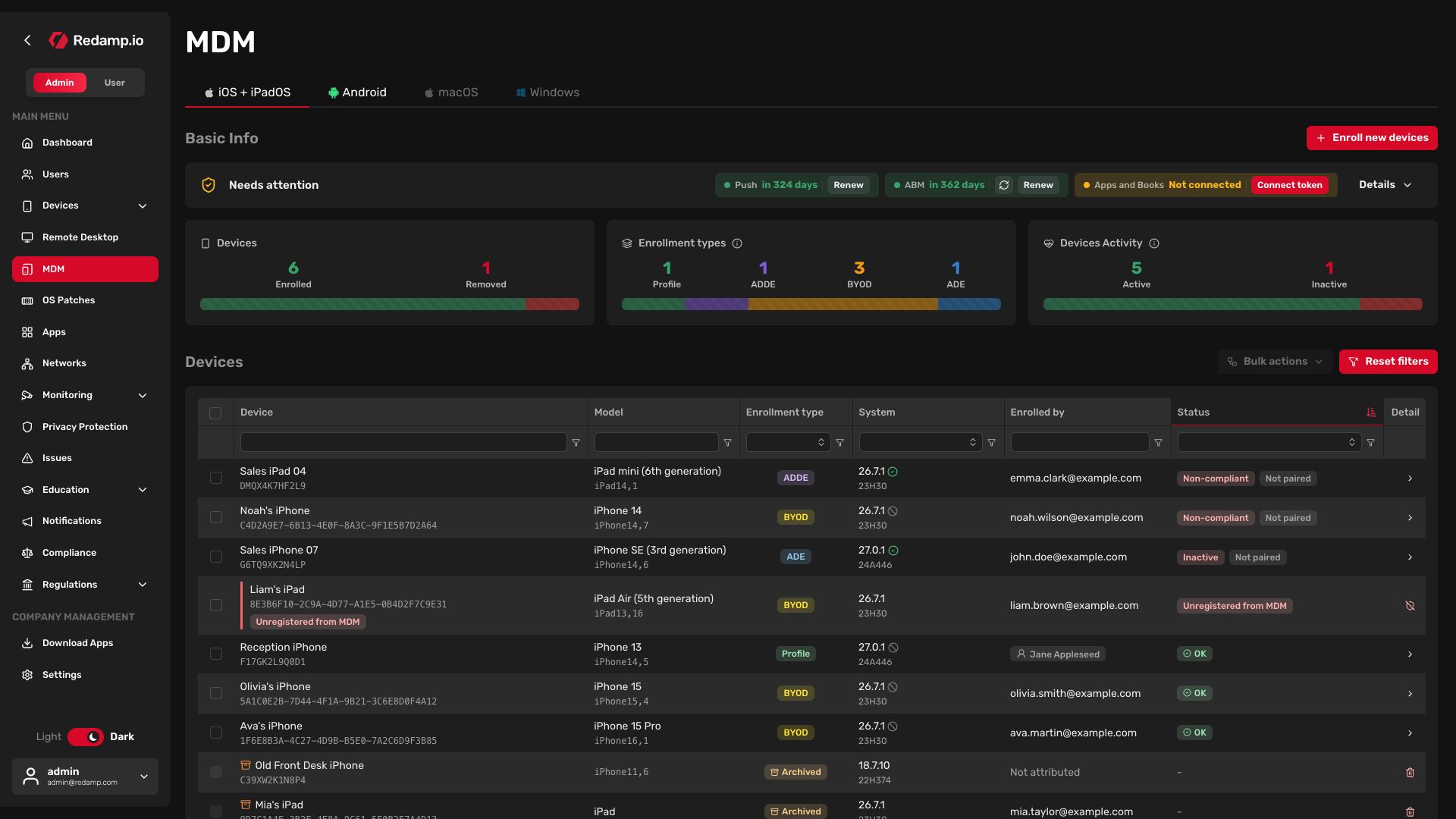
- Open MDM → iOS + iPadOS. In Basic Info, find the Apple credentials strip.
- In the Apps and Books row, click Connect token.
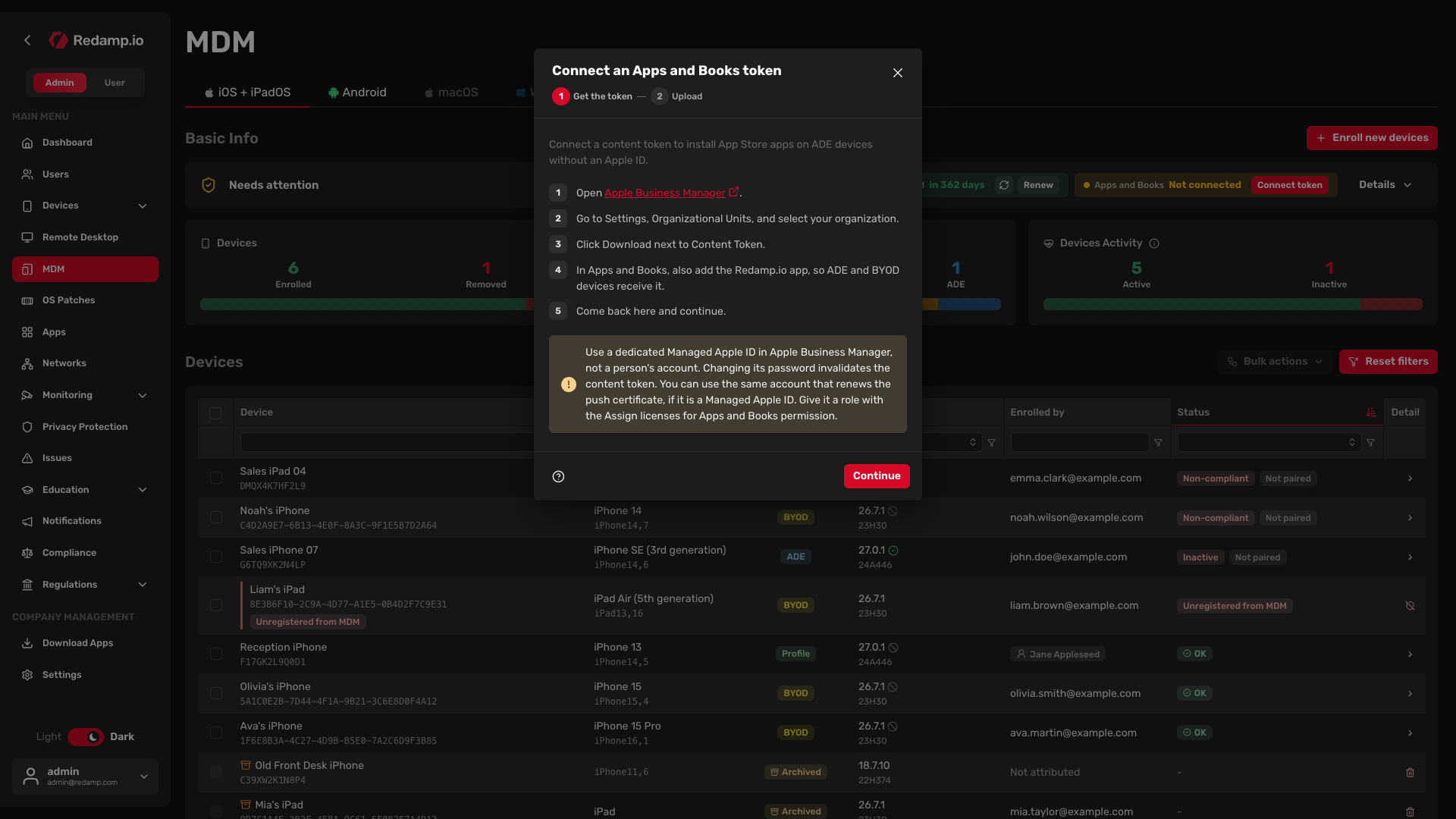
- The dialog Connect an Apps and Books token opens on Get the token and repeats where to get it. Click Continue.
- Choose the
.vpptokenfile and click Upload.
The row shows Syncing… while the console reads your licences for the first time. Then it shows the expiry date and the time of the last sync.
If the token is already used by another MDM, or belongs to another organization or location than before, the console asks Replace this token? first. Confirm with Take it over only if you want Redamp.io to manage these licences from now on. The other MDM stops managing them.
Step 3 - Get the apps in Apple Business Manager
Every app you install through Apps and Books must be in your Apple Business Manager library first, free apps too.
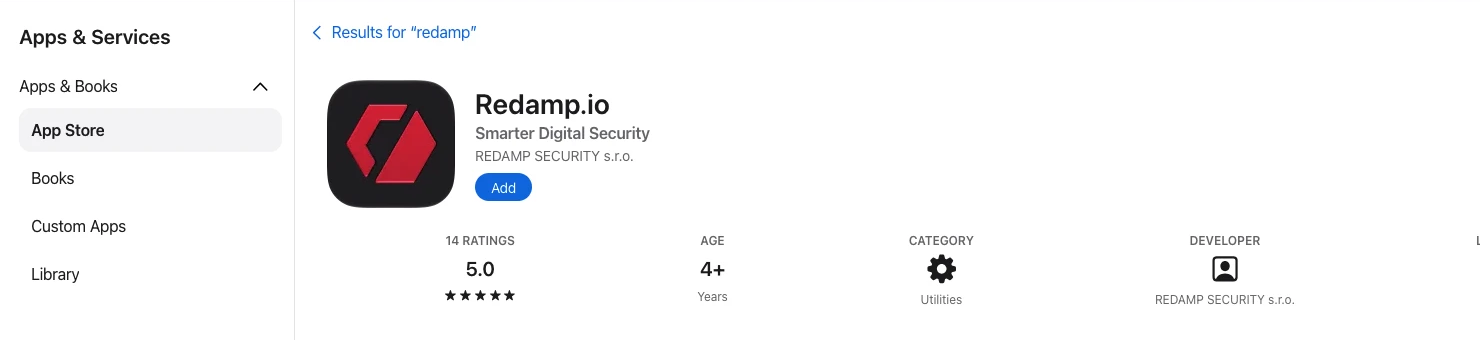
- In Apple Business Manager, go to Apps & Services → App Store and search for the app.
- Open the app and click Add.
- In Add to Library, choose the Organizational Units your content token belongs to and click Review.
- Check the summary and click Add to Library.
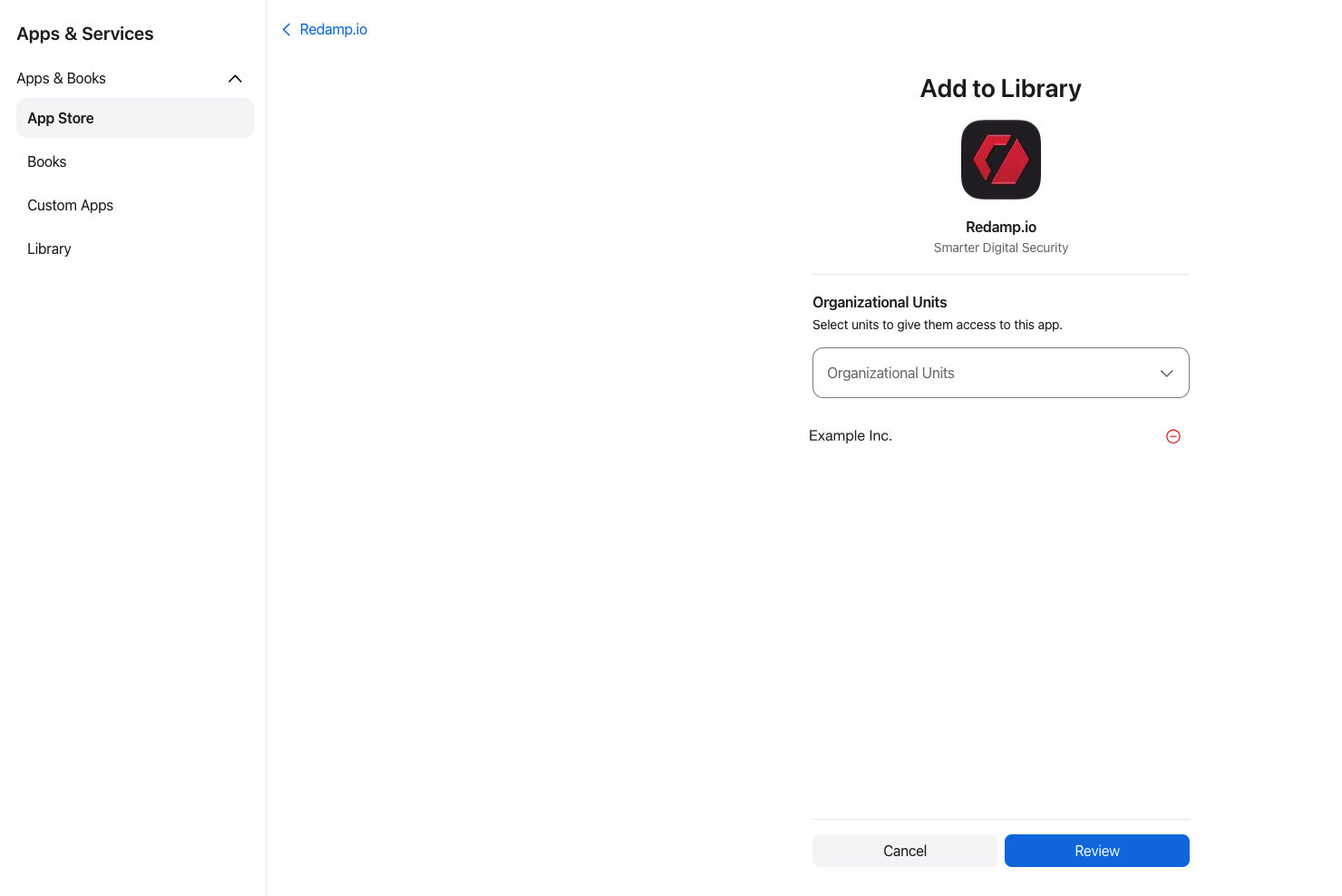
The app now appears in Library. A free app comes with an unlimited number of licences, so you do not have to count devices. A paid app needs as many licences as devices that should get it.
Custom apps that a developer made for your organization are under Apps and Books → Custom Apps. They are not on the public App Store, so they install only with a licence.
Step 4 - Add the apps to the console
- Open the Apps tab and click Add app.
- In the Add an app dialog, open the Purchased in ABM tab. It lists the apps your organization has in Apps and Books and how many licences are free.
- Click Load from ABM if an app you just got is not in the list yet.
- Click Add next to the app.
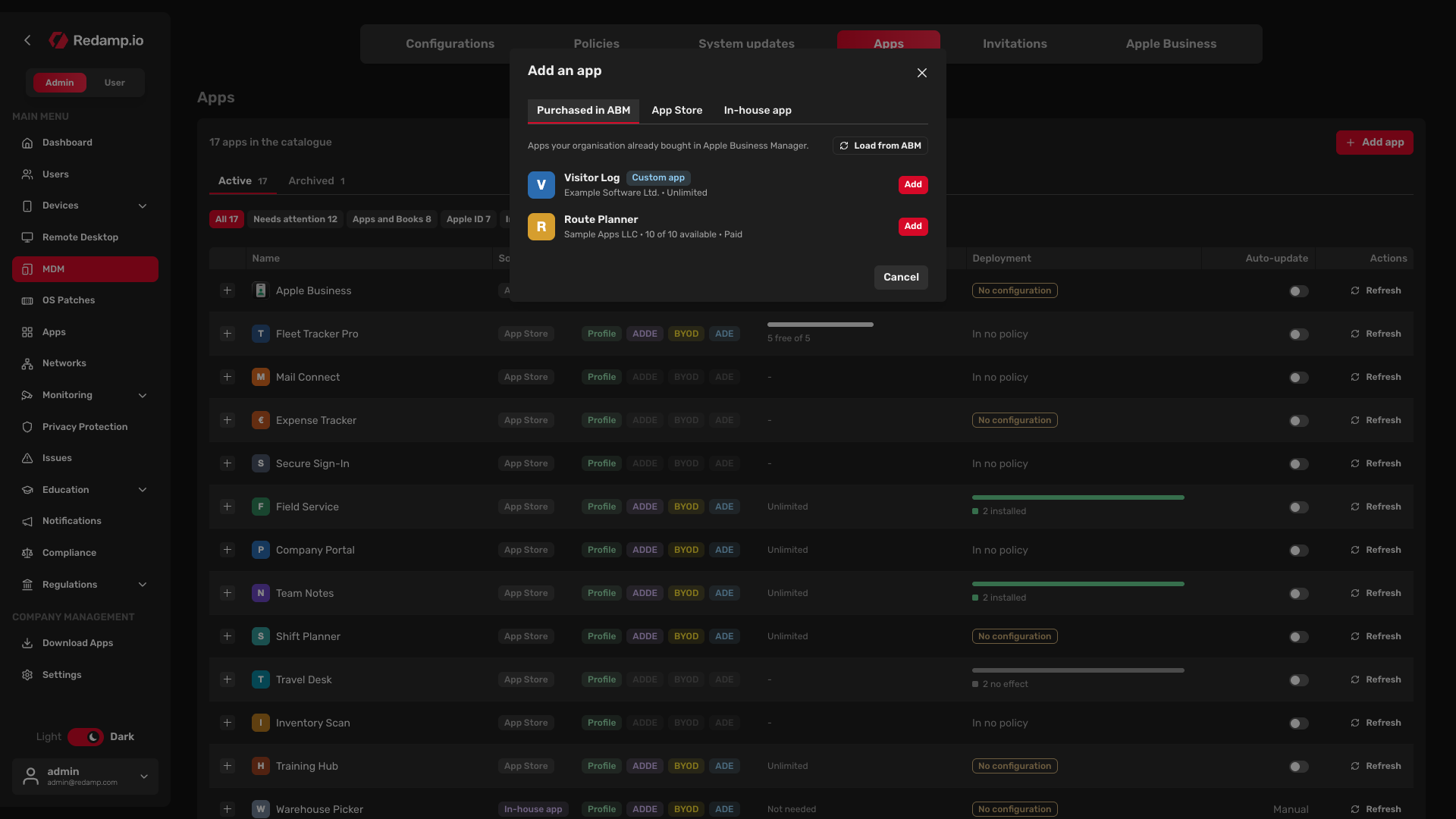
The app is now in the catalogue. Nothing is installed yet.
Note: You can still add a free app from the App Store tab without getting it in Apple Business Manager. It then installs only on devices enrolled with a profile, where the user accepts it with their own Apple ID. A paid app can be added only once Apps and Books holds device licences for it.
Step 5 - Install the apps on devices
Apps reach devices the same way as any other setting: through a configuration in a policy.
- Open the Configurations tab and click New configuration.
- Choose the type App and pick the app from your catalogue. Set how it behaves on the device and save the configuration.
- Open the Policies tab and add the configuration to a policy, or create one with New policy.
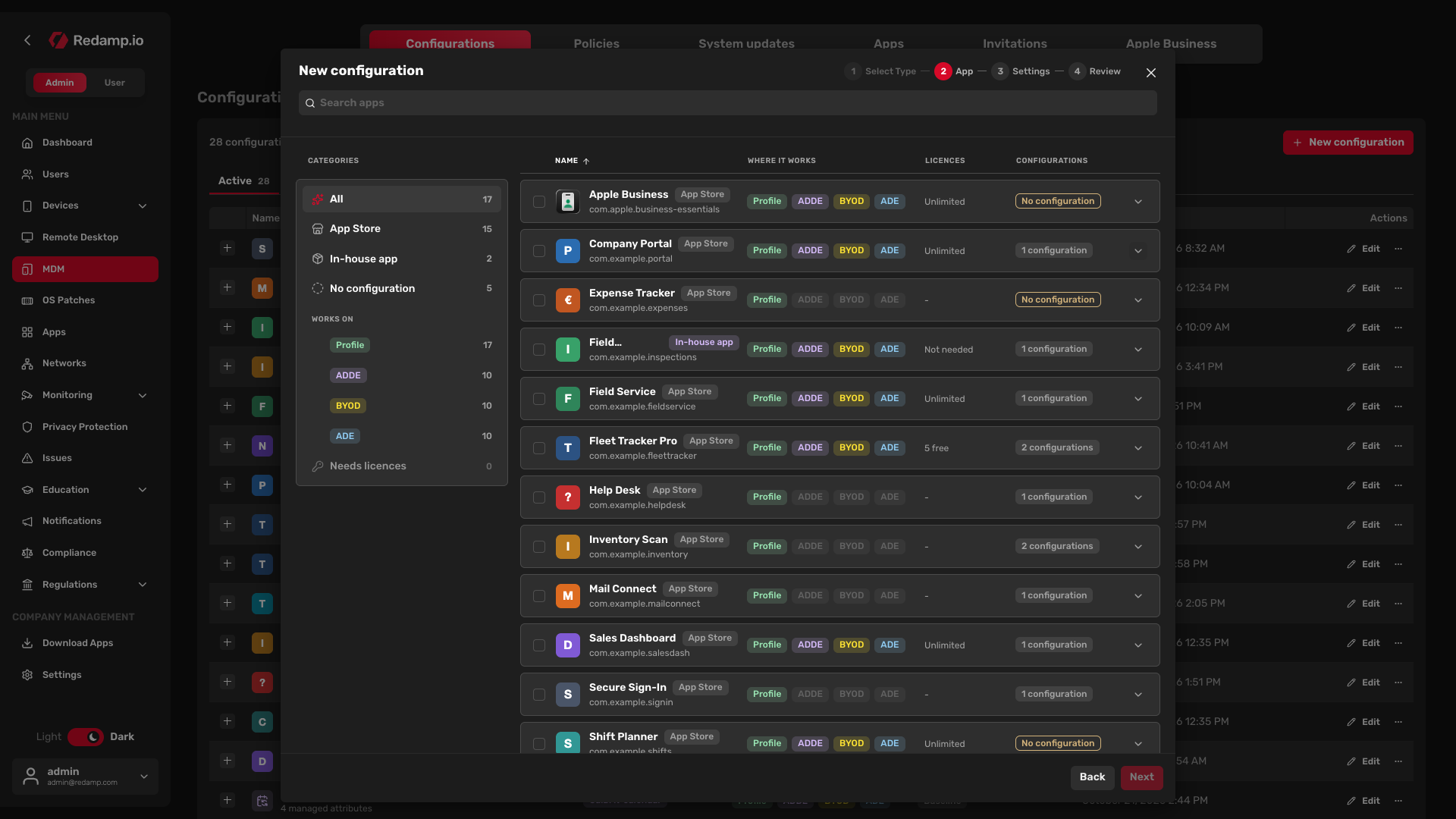
Tip: In the app detail on the Apps tab, Create configuration starts step 2 with the app already selected.
Devices in the policy get the app the next time they sync with MDM. The console assigns the licences by itself. More about configurations and policies: Configurations, apps and policies .
Licences by enrollment type
How a device installs an App Store app depends on its enrollment type. See Enrollment types .
| Enrollment type | Licence | What the user sees | Without a licence |
|---|---|---|---|
| ADE | device licence | nothing, the app installs silently | not installed |
| ADDE | device licence | confirms the install with one tap | not installed |
| BYOD | user licence, on the user's Managed Apple Account | approves the install | not installed |
| Profile | device licence | confirms the install with one tap, no Apple ID needed | free apps only, with the user's own Apple ID |
Paid apps and custom apps always need a licence, on every enrollment type.
Track your licences
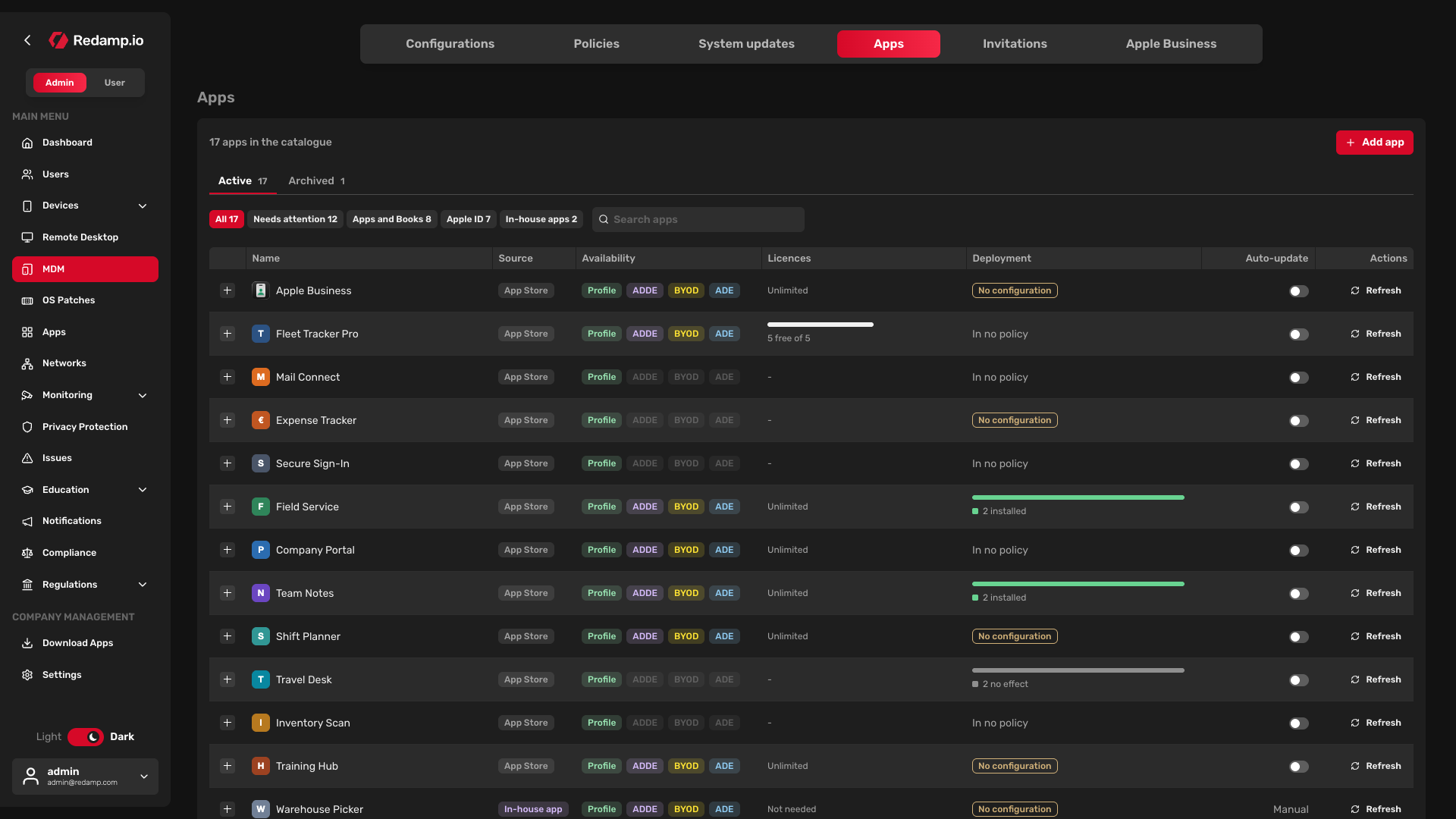
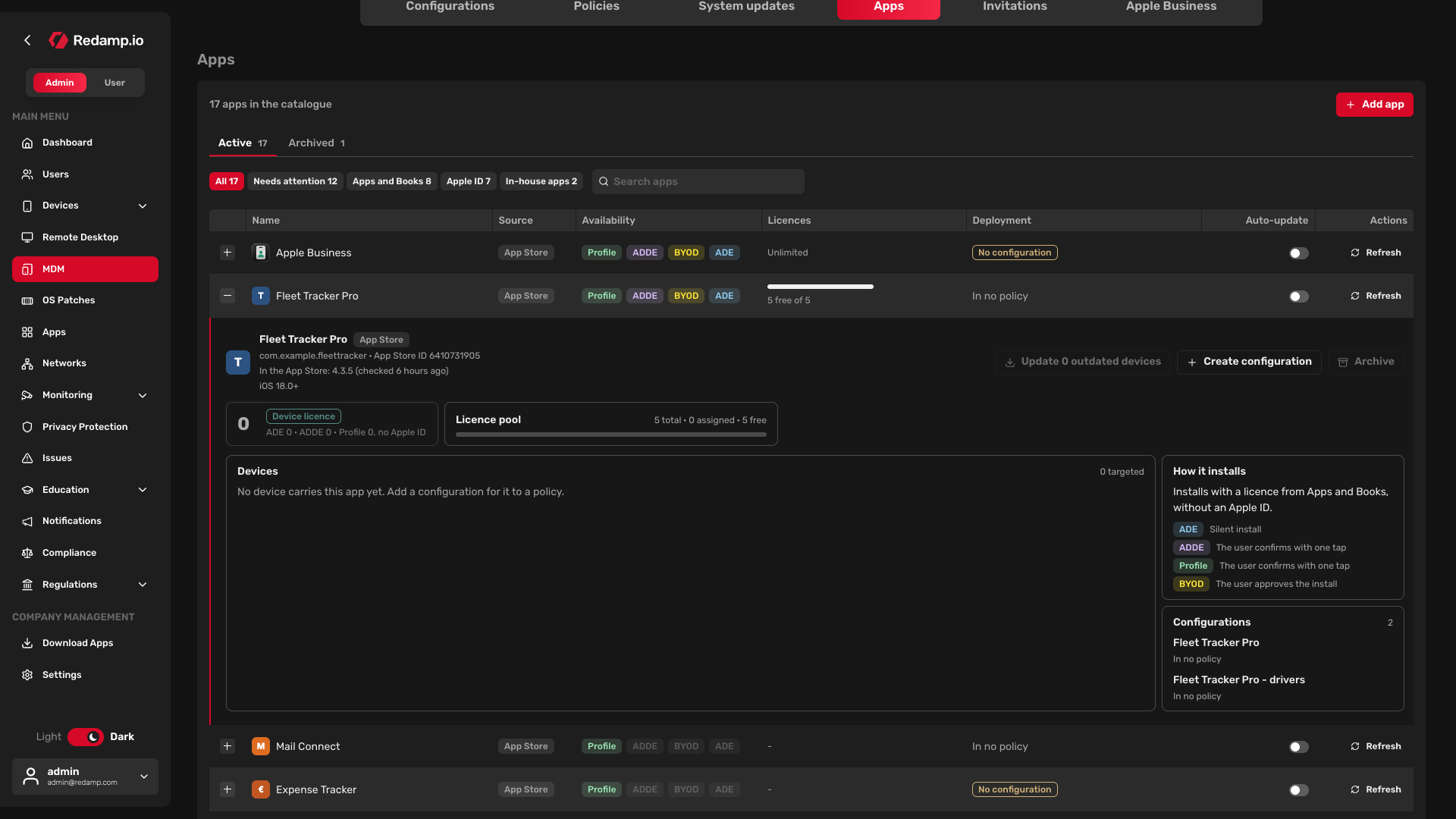
The Licences column on the Apps tab shows the state of each app, for example Unlimited, the number of free licences, or Needs licences for a paid app without any. The app detail shows the full Licence pool: total, assigned and free licences.
- Licences ran out. The device shows No licence and waits. Buy more licences in Apple Business Manager and the install continues on its own after the next sync. The console never falls back to the user's Apple ID.
- App removed from Apps and Books. Devices that already have it keep their licence, but no new device gets one.
- Licences assigned outside the console. If Apple has more licences assigned than the console knows about, the licence pool says so. That happens, for example, when another MDM uses them or a device left without releasing them. Reclaim them in Apple Business Manager.
- Unenrolling a device. The Unenroll devices dialog offers Also release the Apps and Books licences still assigned to these devices, so the licences return to the pool.
Sync and app updates
The console syncs with Apps and Books once a day. After you get new apps or licences, you do not have to wait:
- click Load from ABM in the Purchased in ABM tab, or
- click Sync now (the sync icon) in the Apps and Books row of the Apple credentials strip.
To keep an App Store app up to date on devices, turn on its switch in the Auto-update column on the Apps tab. The switch is off by default.
Renew the token every year
The content token is valid for one year. The Apps and Books row in Apple credentials turns orange 30 days before expiry and red 7 days before. Admins also get an e-mail three weeks before.
- Download a new token in Apple Business Manager, as in Step 1. Use the same organization and organizational unit.
- In the Apps and Books row, click Renew.
- In the dialog Replace the Apps and Books token, upload the new file.
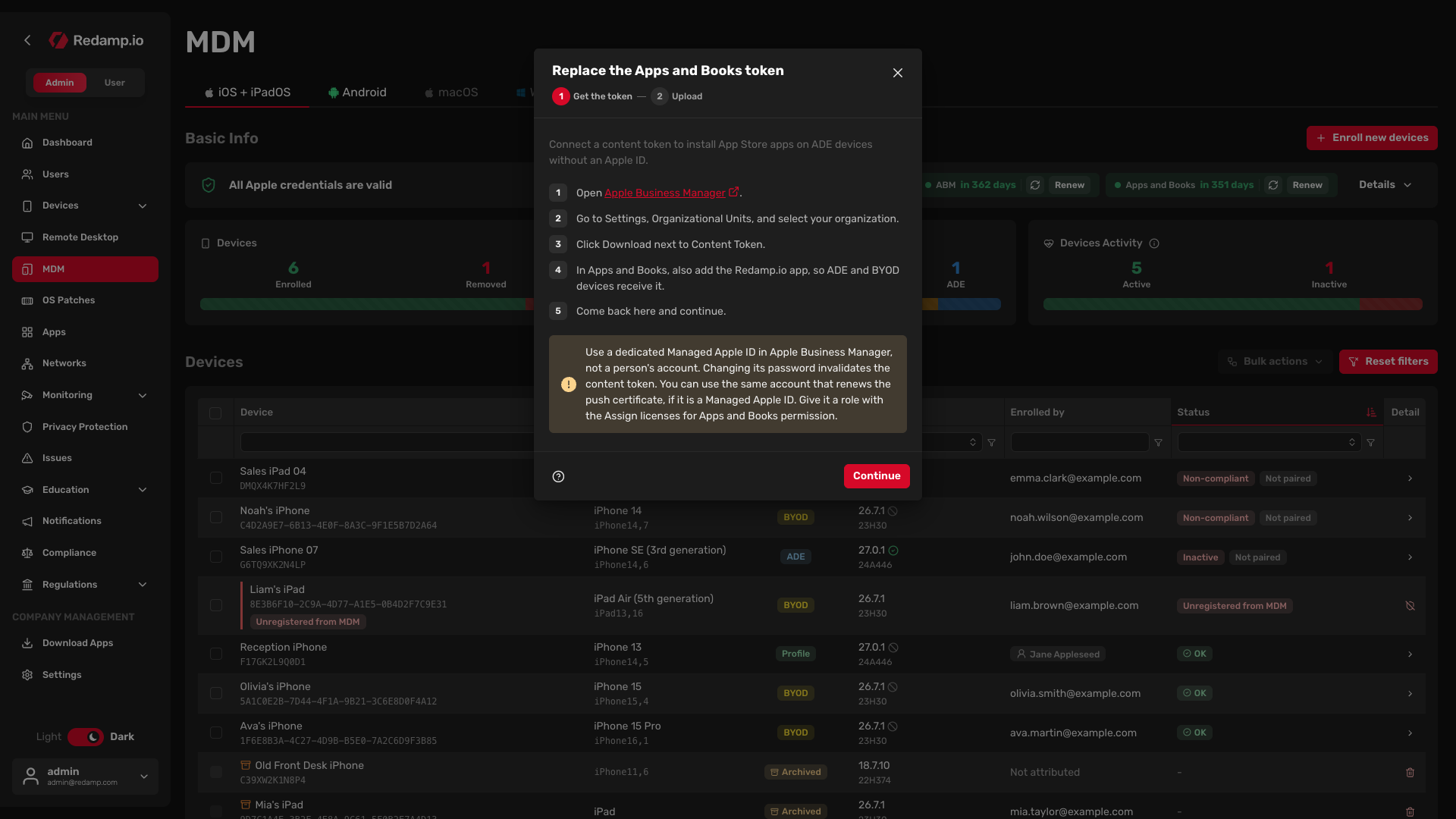
Replacing the token sends nothing to devices. Licences stay assigned and installed apps stay. Downloading the new token does not invalidate the old one, so you can do both steps at your own pace.
Important: Always renew with Renew. Never click Disconnect and connect the token again. Disconnecting can remove licensed apps, and their data, from devices.
If the token has already expired, renew it the same way. Until then, new installs that need a licence wait, and installed apps stay.
What Disconnect does
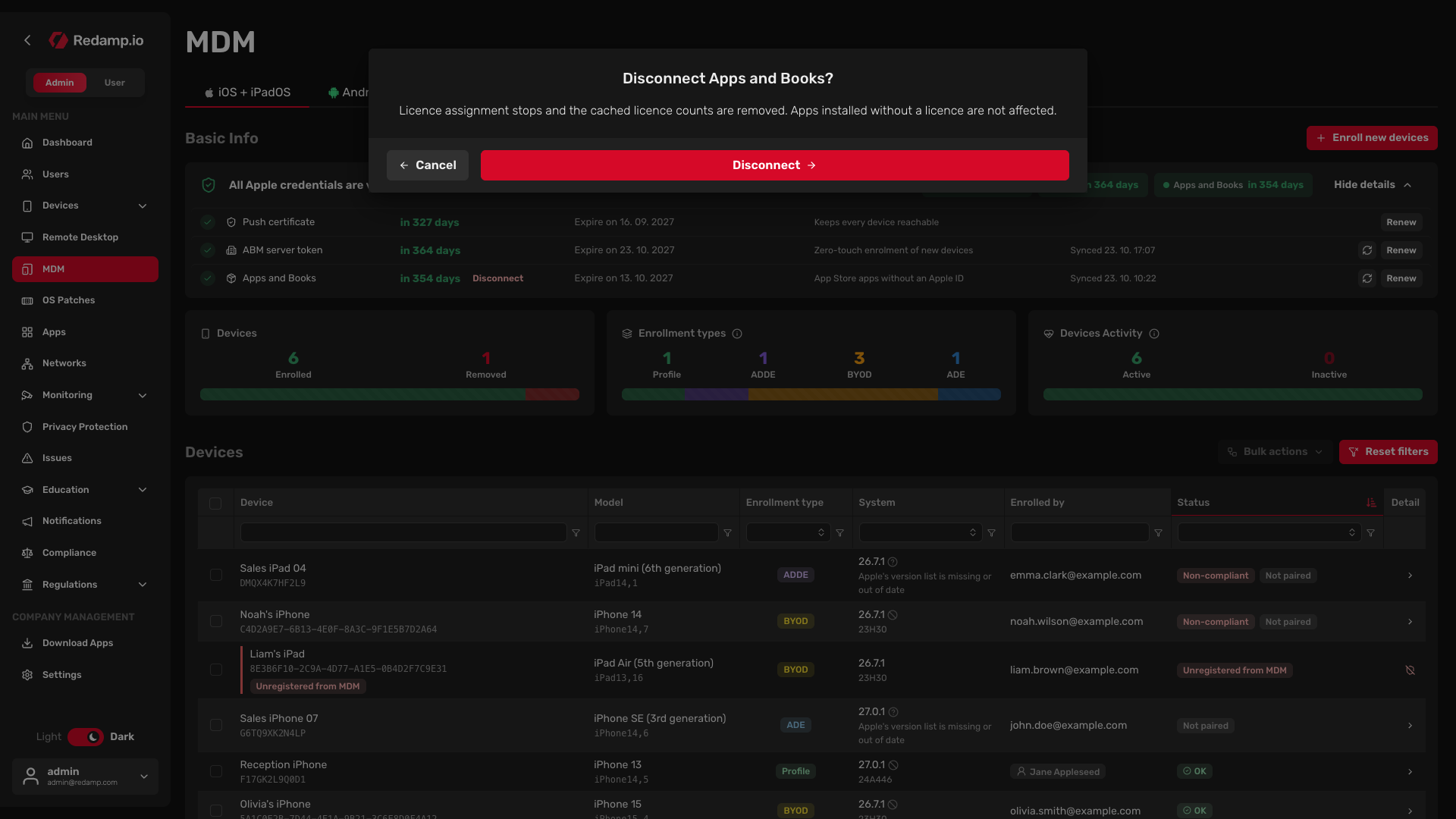
Disconnect only when you stop using Apps and Books for good. You find Disconnect after you click Details in the Apple credentials strip, next to the Apps and Books expiry.
- Licence assignment stops and the console forgets the licence counts.
- If devices have apps installed with a licence, the console asks again with Apps are installed with licences, and you confirm with Disconnect anyway.
- Licensed apps are removed from ADE, ADDE and BYOD devices.
- On devices enrolled with a profile, free apps stay, and new installs use the user's Apple ID.
- Paid apps and custom apps are removed from every device.
- The licences stay assigned in Apple Business Manager until you reclaim them there or connect the token again.
Common problems
| The console shows | Cause | What to do |
|---|---|---|
| Taken over, Managed by another MDM | the token was uploaded to another MDM | click Take back and upload the token again, or leave the licences to the other MDM |
| Needs attention, The token has expired | the token is older than one year | download a new token and click Renew |
| Needs attention, Apple revoked the token / Apple does not accept the token | the token was revoked in Apple Business Manager, or Apple no longer accepts it | download a new token and click Renew |
| Replace this token? when uploading | the token belongs to another organization or location | check you downloaded the token for the right organizational unit |
| Needs licences on an app | a paid app has no licences | buy licences in Apple Business Manager, then Load from ABM |