Pairing Redamp.io with managed devices
How MDM installs Redamp.io and pairs it with managed iPhones and iPads.
When pairing is on, MDM installs the Redamp.io app on every managed iPhone and iPad by itself, so each device also shows up in Devices. This guide explains what pairing does, how it is switched on, which licence the app needs and how to check the result on your devices.
What pairing does
- The app installs automatically. After a device enrolls, MDM installs Redamp.io on it. The user cannot delete or hide the managed app.
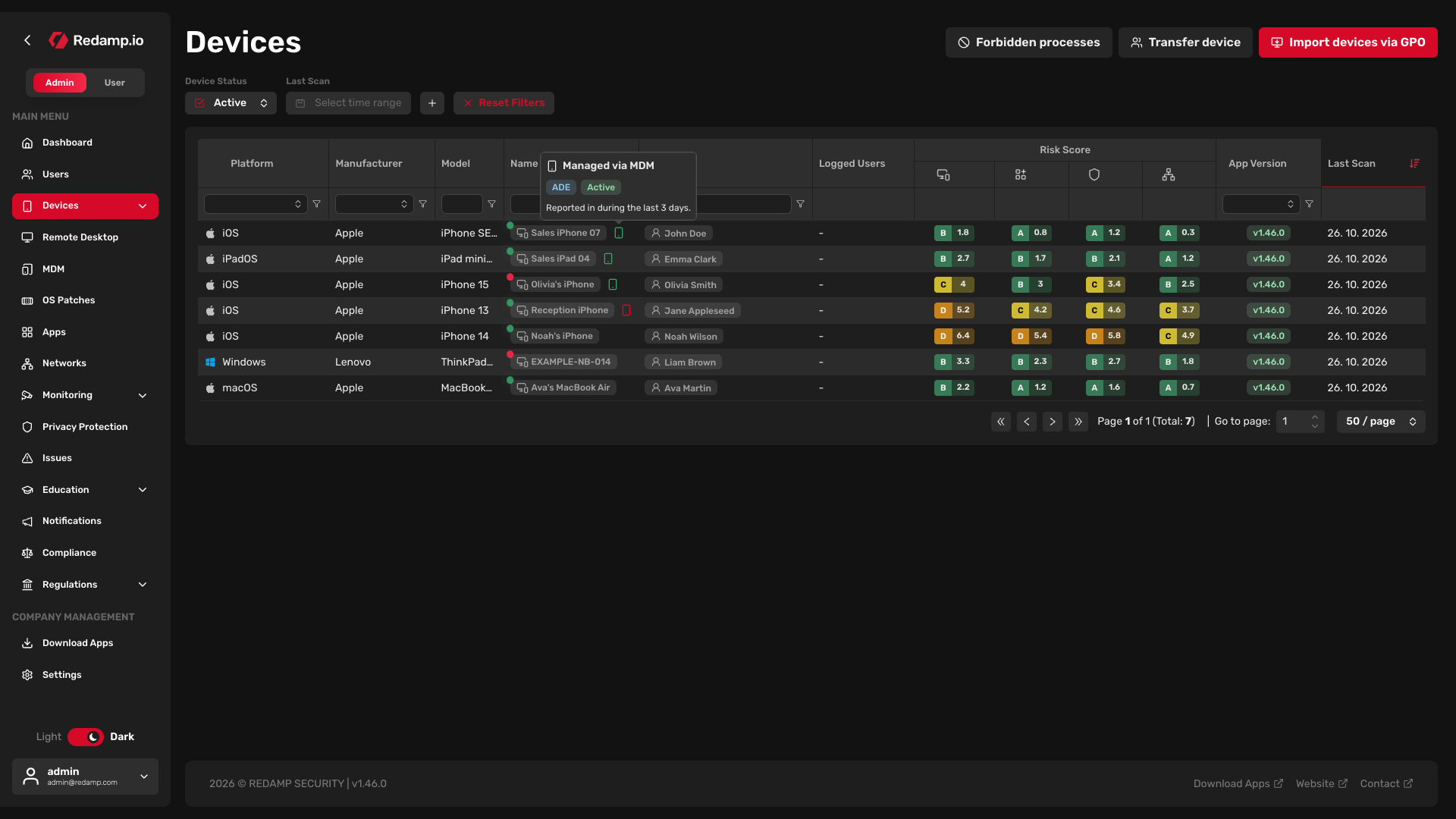
- The device shows its link to MDM. Once Redamp.io is installed and the user signs in, the device appears in Devices with the MDM icon next to its name. Hover over the icon to see the enrollment type and whether the device reports in, and click it to open the device in MDM. In MDM, the device detail shows Paired with a link back.
- You do not add the app yourself. Redamp.io appears among the device's configurations as System configuration, which you cannot edit.
Turn pairing on in the MDM setup
You choose pairing once, in the Redamp.io step of the MDM setup wizard, right after you upload the push certificate.
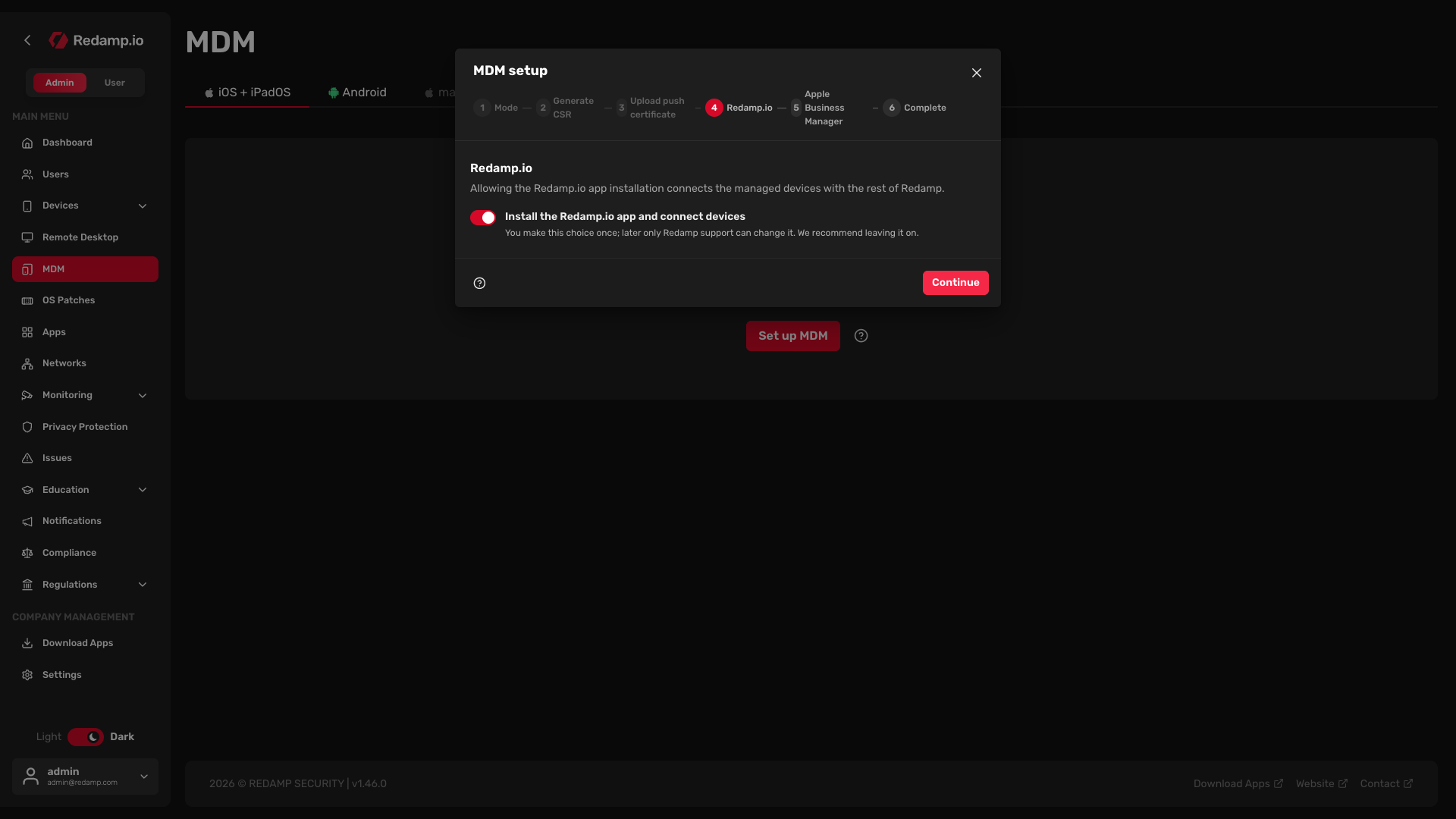
- Leave Install the Redamp.io app and connect devices switched on. It is on by default and we recommend keeping it.
- Click Continue.
Note: You make this choice only once. Afterwards only Redamp support can change it, so write to [email protected] if you need pairing switched on or off later. Switching it off stops new installs and pairing. Apps that are already installed and existing pairings stay.
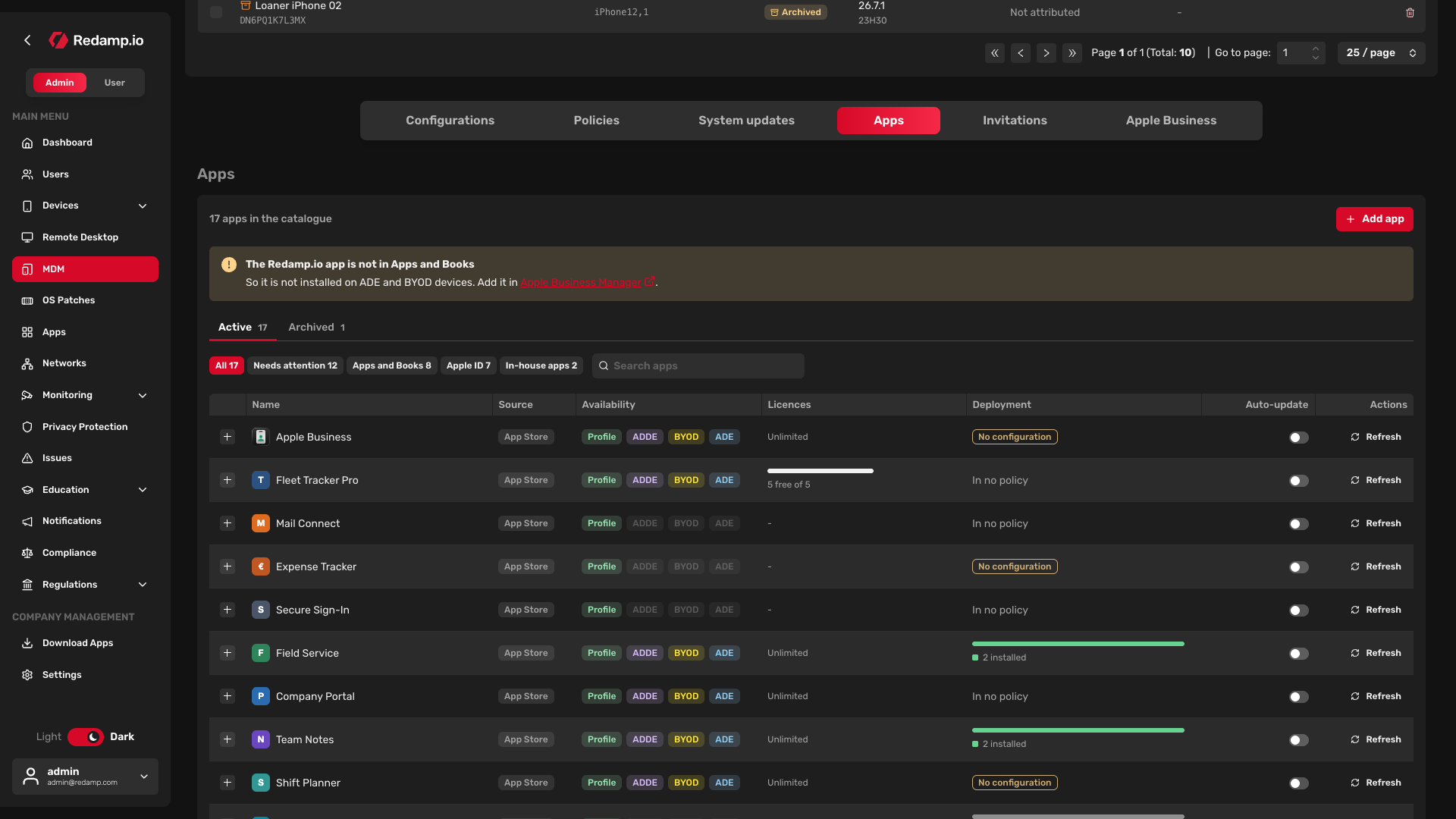
If the wizard has no Redamp.io step, your licence does not include the Redamp.io app and MDM does not install it.
Get a licence from Apps and Books
Whether Redamp.io needs a licence depends on how the device enrolled.
| Enrollment type | How Redamp.io installs |
|---|---|
| ADE (Automated Device Enrollment) | Only with a device licence from Apps and Books. |
| ADDE (Account-driven Device Enrollment) | Only with a device licence from Apps and Books. |
| BYOD (Account-driven User Enrollment) | Only with a licence from Apps and Books, assigned to the user's work account. |
| Profile (Profile-based Device Enrollment) | Without a licence, the user installs it with their own Apple ID when the device asks. A device licence from Apps and Books is used when you have one. |
To get the licence:
- Connect the Apps and Books token in MDM (see Installing App Store apps with Apps and Books ).
- In Apple Business Manager, add Redamp.io to your library for the organizational unit the token belongs to (see Get the apps in Apple Business Manager ). Redamp.io is free, so it comes with an unlimited number of licences.
- Wait for the next sync, or click Sync now at Apps and Books in Apple credentials on the MDM overview. The install then starts on its own.
When the licence is missing, the console tells you in three places:
- the Apps and Books cell in Apple credentials on the MDM overview,
- a warning on the Apps tab,
- the Needs a licence badge on each device that is waiting for the app.
How users sign in to Redamp.io
Pairing finishes when the user is signed in to the app. How they sign in depends on the enrollment type.
| Enrollment type | Sign-in |
|---|---|
| ADE | The app offers to sign in as the person who set up the device. The user only confirms. |
| BYOD and ADDE | The app offers to sign in as the owner of the work account the device enrolled with. The user only confirms. |
| Profile | The user signs in themselves with their email. If Redamp.io was already on the device, iOS first asks the user to allow its management. |
On ADE, BYOD and ADDE the app shows Your work account with the person's name and email. The user taps Sign in and continues with the usual onboarding. If the device belongs to someone else, they tap Use another account and sign in with their email.
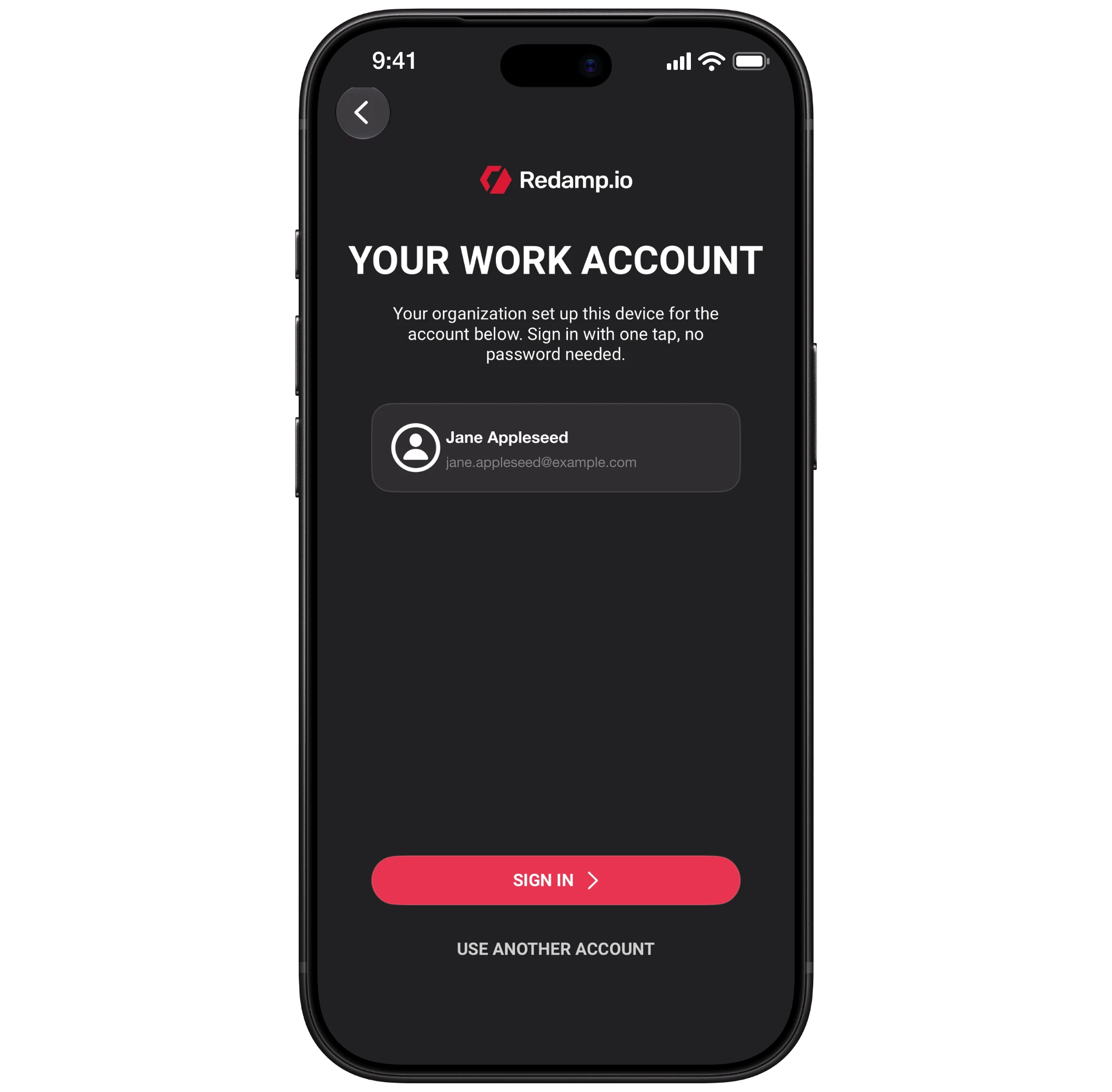
The offer comes once per enrollment. It appears only when Redamp.io can match the person to an active user of your organization, so make sure every user has a Redamp.io account with the same email as their work account.
Turn the offer off for shared ADE devices
For ADE devices that several people share, turn the offer off in the enrollment profile:
- Open MDM → iOS + iPadOS → Apple Business → Enrollment profiles.
- Edit the profile used by the shared devices.
- Switch off Sign users in to Redamp.io automatically.
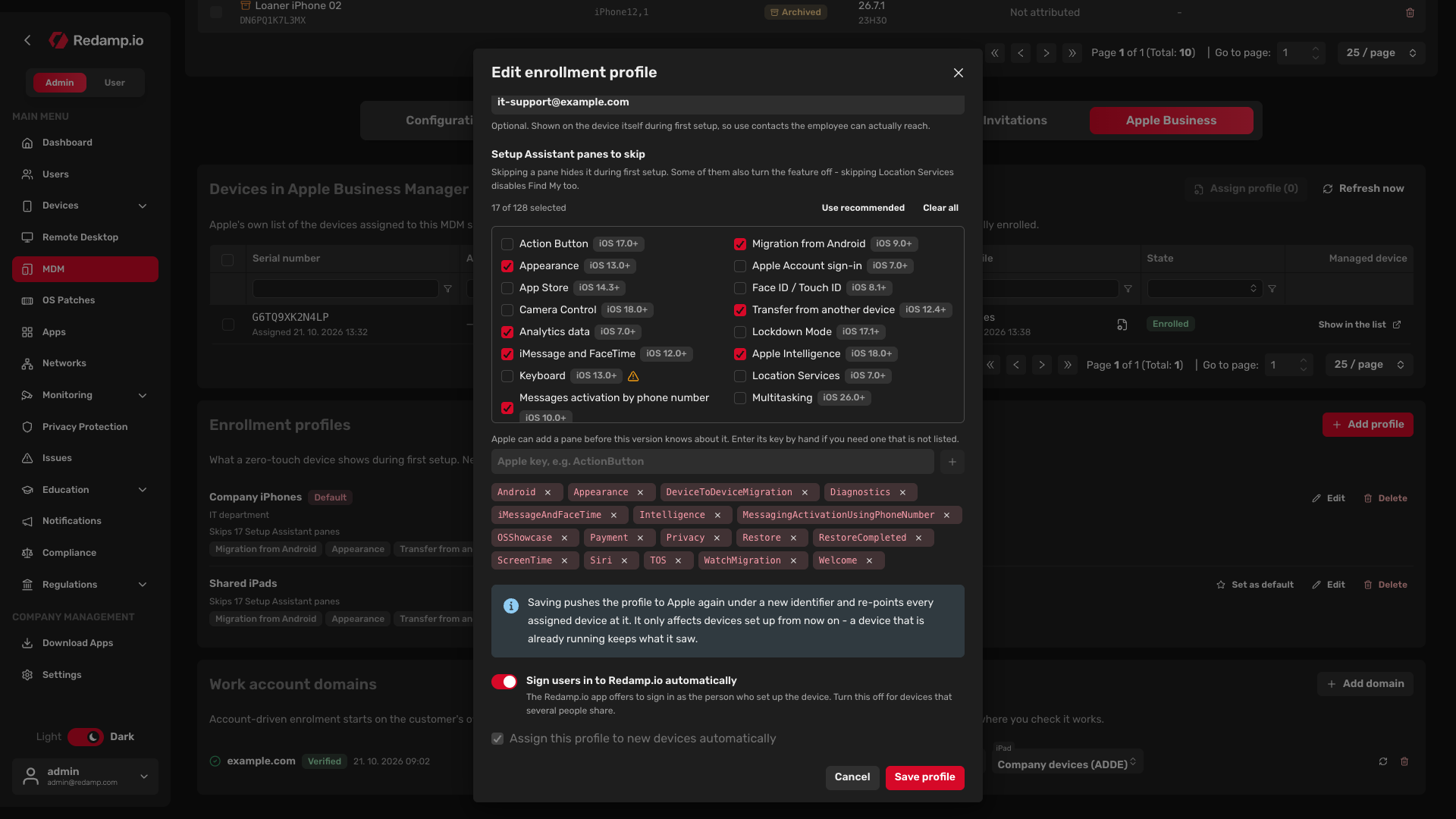
Each person then signs in to the app with their own email. Profiles with the offer turned off show No automatic Redamp.io sign-in in the list.
Check pairing on your devices
In the device table, the Status column shows the pairing state of each enrolled device that needs attention. When everything on the device is fine, including pairing, the column shows OK.
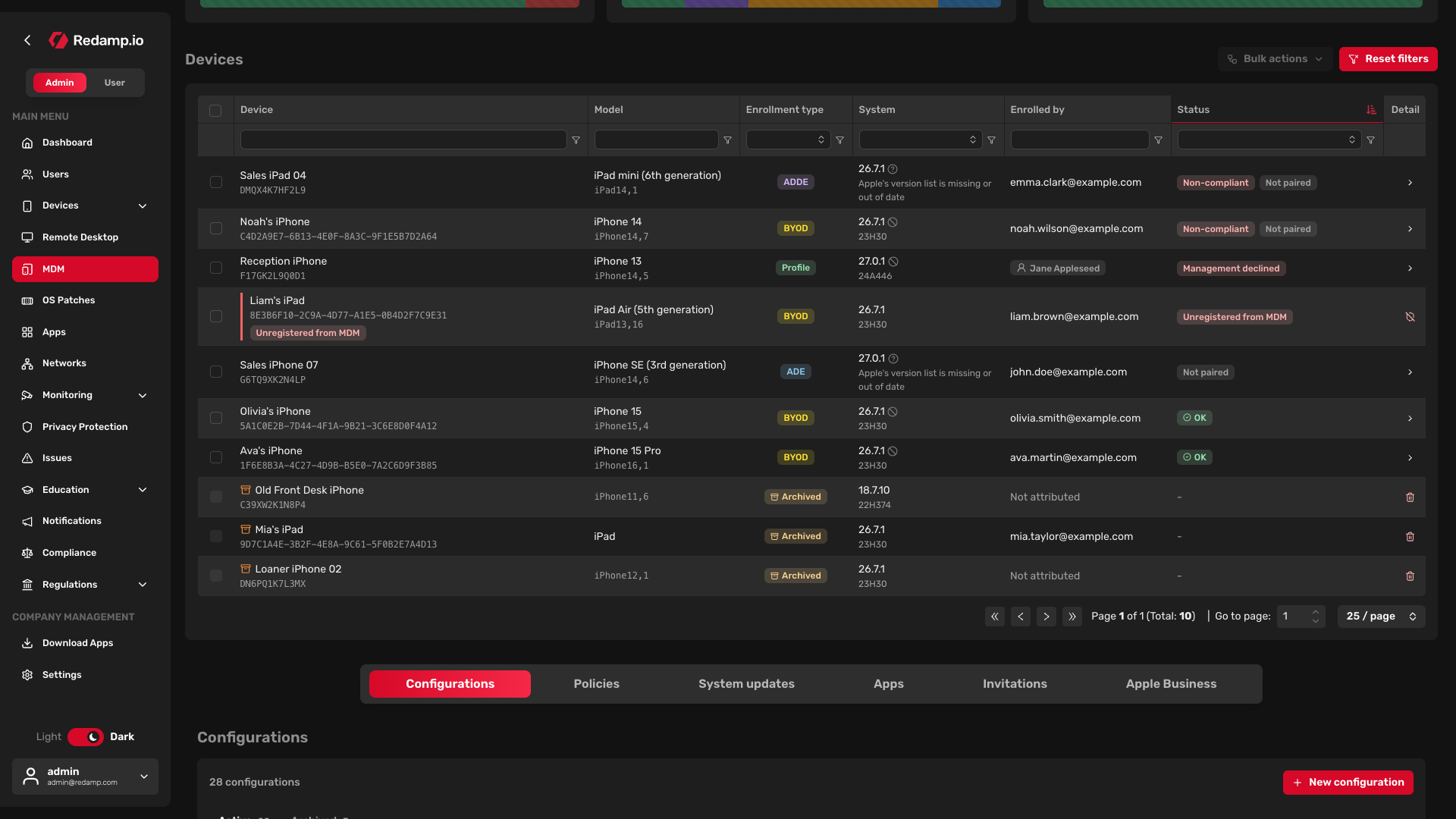
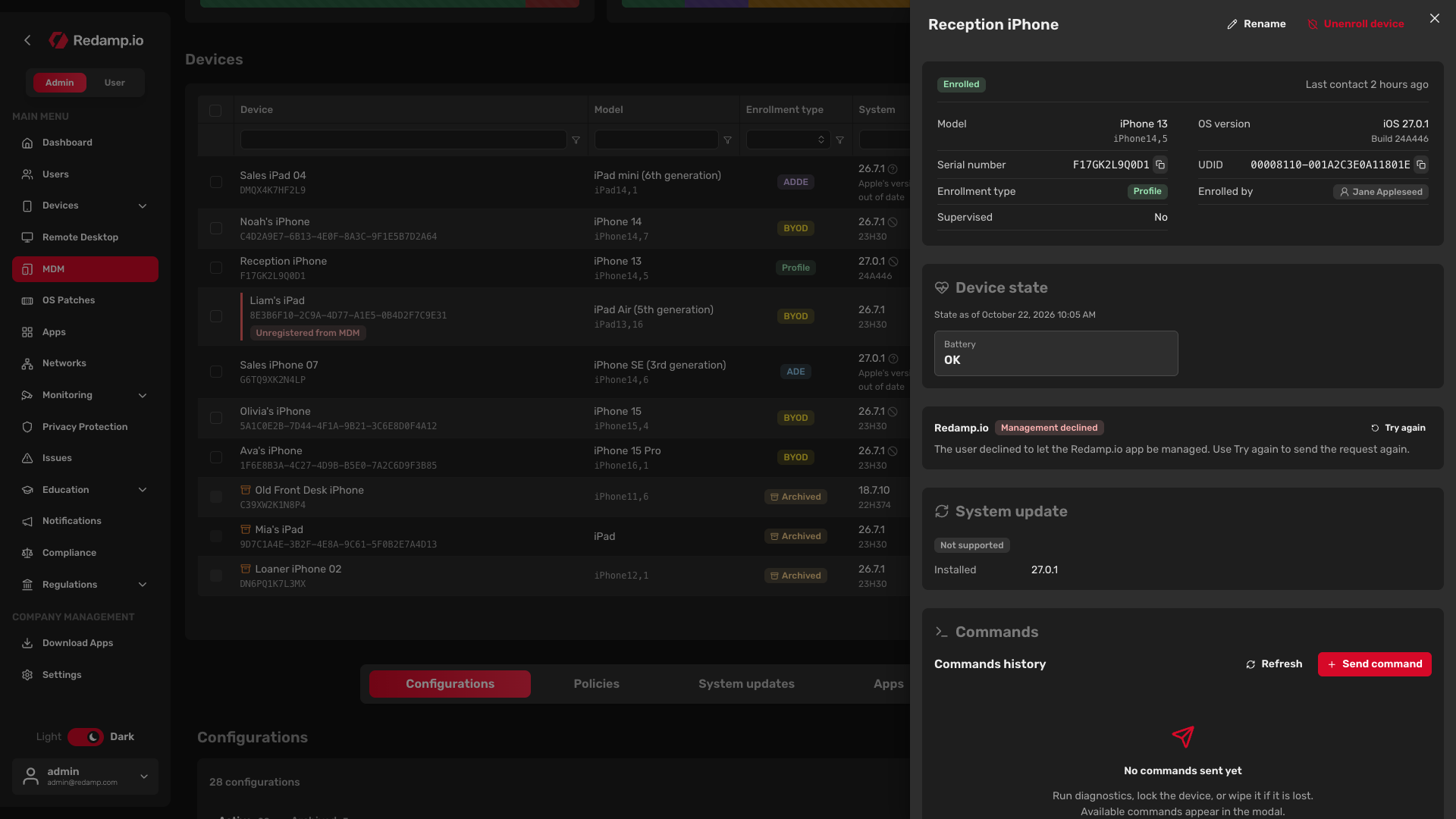
Click a device to open its detail. The Redamp.io section shows the state, the reason, the Try again button when it helps and, when the device is paired, a link to the Redamp device.
| Badge | What it means | What to do |
|---|---|---|
| Paired | The app is signed in and paired. Shown in the device detail. | Nothing. |
| Waiting for the user | The app is being installed, or the user still has to allow its management. | If the device shows a prompt about Redamp.io, ask the user to allow it. Otherwise wait. |
| Waiting for sign-in | The app is installed and managed, but nobody is signed in yet. | Ask the user to open Redamp.io and sign in. |
| Needs a licence | The device can get the app only with a licence from Apps and Books. | Get the licence (see above). |
| Install declined | The user cancelled the install prompt. | Click Try again. |
| Management declined | The user did not allow management of their copy of Redamp.io. | Click Try again. |
| Personal copy | A BYOD device already has the user's own copy of Redamp.io, which blocks the managed install. | Ask the user to delete their copy, then click Try again. |
| Install failed | Installing the app failed. | Click Try again. |
| Other organization | The app tried to pair with an account of another organization. | Ask the user to sign in with an account of your organization. |
| Signed out | The user signed out of the app. The pairing stays until someone signs in again. | Ask the user to sign in again. |
| User archived | The user of the paired Redamp device is archived. | Decide whether the device should stay managed. |
| Not paired | No Redamp device is paired yet. | Wait. If it stays like this, contact Redamp support. |
Try again sends the app to the device once more, and the user sees the prompt again.
Common mistakes
- The app does not reach ADE, BYOD or ADDE devices. Redamp.io is missing in Apps and Books. Get the licence and connect the Apps and Books token.
- A BYOD device stays on Personal copy. The user installed Redamp.io from the App Store before enrolling. Ask them to delete it, then click Try again.
- The sign-in offer does not appear. The person who enrolled the device has no active Redamp.io account with the same email, or the ADE enrollment profile has the offer turned off. The user signs in with their email instead.