Renewing the Apple Push certificate
Learn how to renew the Apple Push Notification certificate for iOS & iPadOS MDM in Redamp.io platform.
The Apple Push certificate lets Redamp.io wake up your managed iPhones and iPads, so they pick up new commands, configurations and apps (see Key terms ). Apple issues it for one year at a time. When it expires, MDM stops working and every device has to be enrolled again.
Renewing takes about five minutes. You download a request from the console, renew the certificate at Apple and upload the new one back. Always renew with the same Apple ID that created the certificate.
How you know it is time to renew
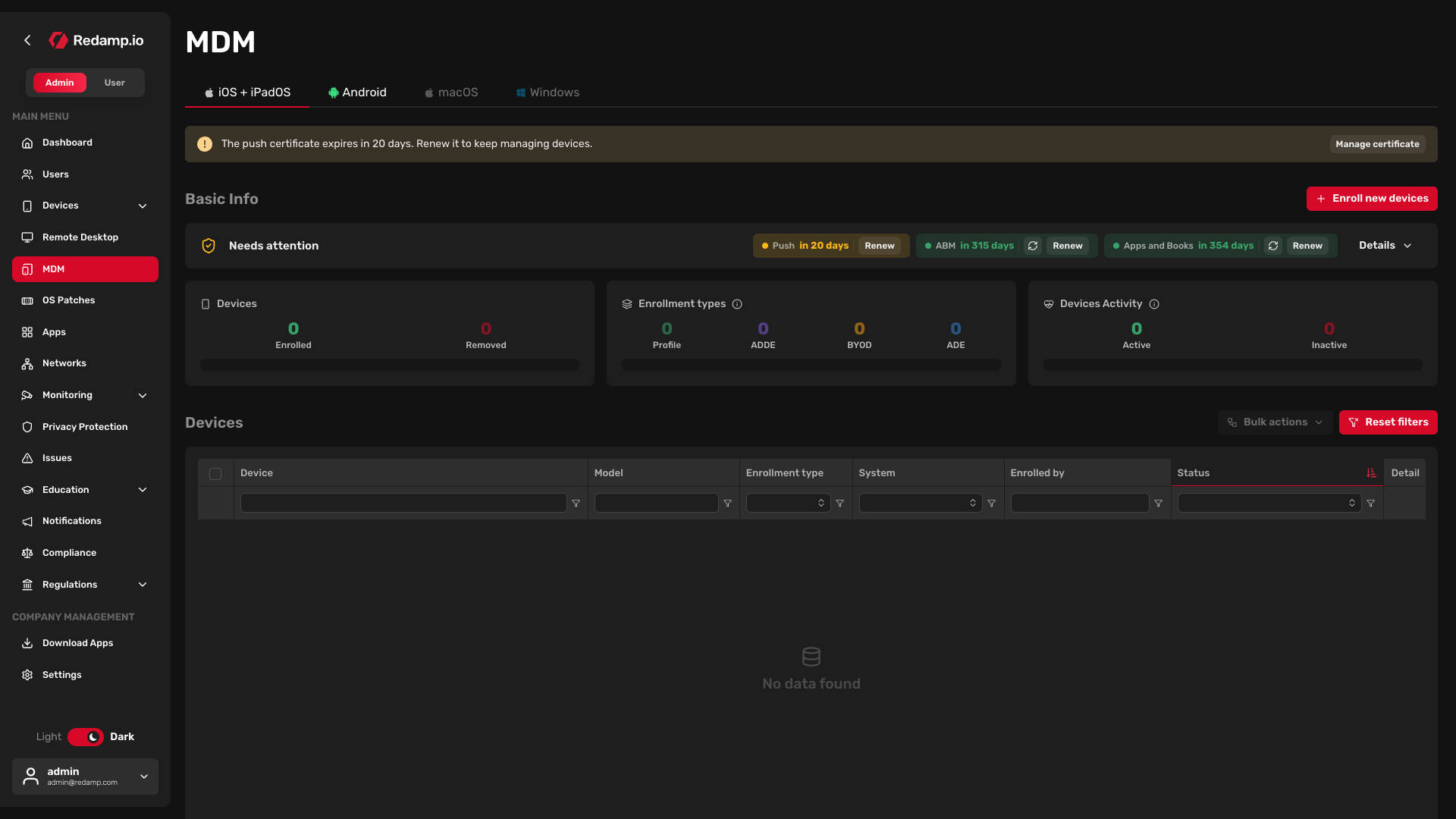
Redamp.io starts warning you 30 days before the certificate expires:
- In the console - the expiry date in MDM → iOS + iPadOS turns orange 30 days before expiry and red in the last 7 days. A banner with a Manage certificate button also appears at the top of the page.
- By e-mail - all admins of your company get an e-mail 30 days before expiry and then every day in the last 7 days.
Tip: Do not wait for the warnings. Put a reminder in your calendar a month before the expiry date shown in the console.
Before you start
You need to sign in to the Apple Push Certificates Portal with the Apple ID that created the current certificate. The renewal wizard shows that Apple ID, so you can check it first.
Make sure you can still sign in to that Apple ID, including its two-factor authentication. If it belongs to someone who has left the company, recover access to it before you continue.
Step 1 - Open the renewal
Go to MDM → iOS + iPadOS and open the renewal in one of these places:
- Manage certificate in the expiry banner at the top of the page.
- Manage on the Certificate expiration tile, if you use Basic MDM.
- Renew next to Push in the Apple credentials strip, if you have Apple Business Manager connected.
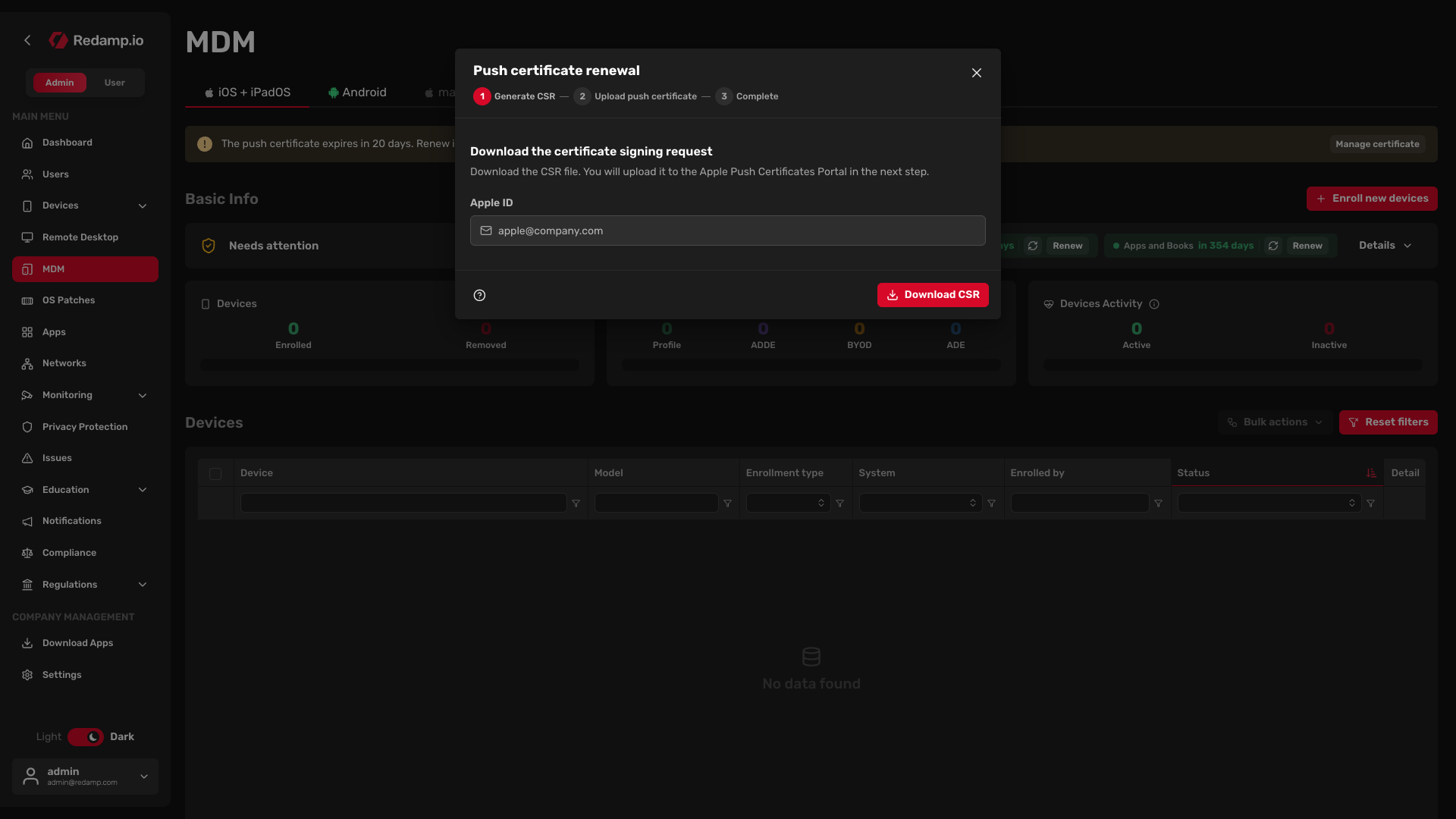
The Push certificate renewal wizard opens.
Step 2 - Download the CSR
The wizard shows the Apple ID of your current certificate. You cannot change it here, because the renewed certificate must belong to the same Apple ID.
- Click Download CSR. Your browser downloads the certificate signing request
PushCertRequest_RedampMDM.csr. - Keep the wizard open and continue at Apple.
Step 3 - Renew the certificate at Apple
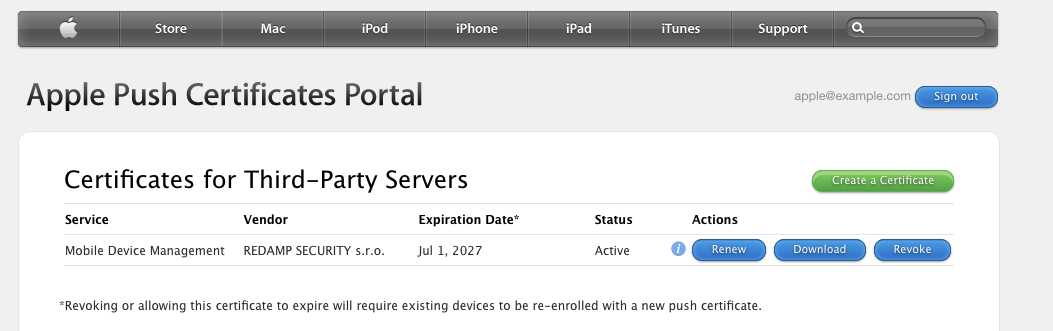
- Open the Apple Push Certificates Portal and sign in with the Apple ID shown in the wizard.
- Find your current MDM certificate in the list and click Renew next to it. If you have more than one, compare the Expiration Date with the date in the console.
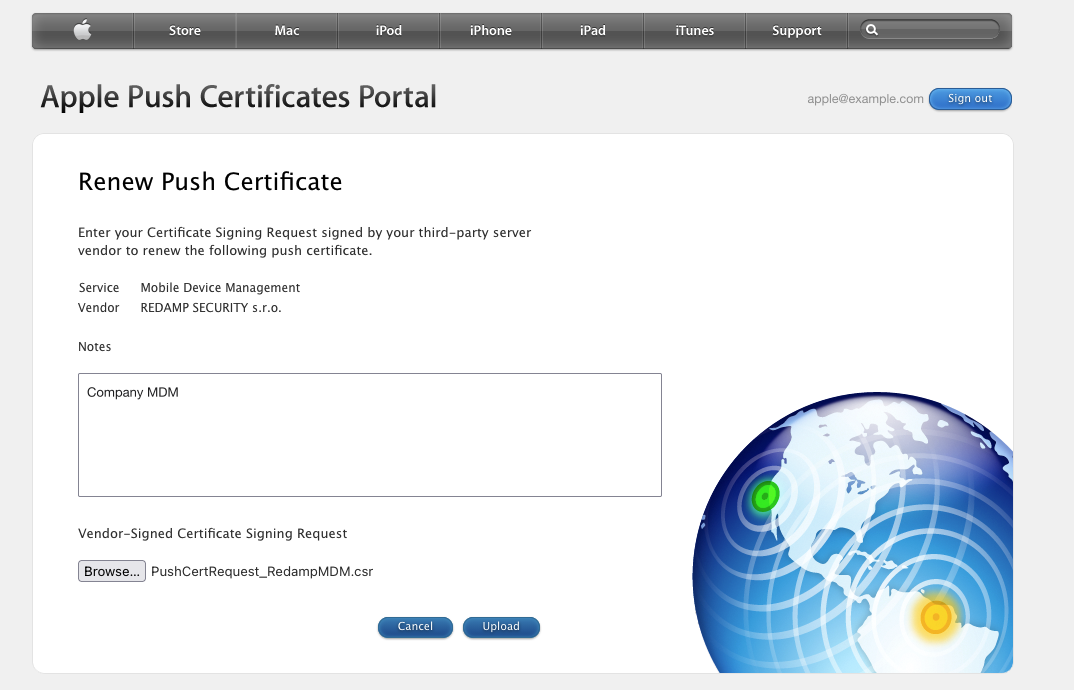
- On Renew Push Certificate, click Browse…, choose the
PushCertRequest_RedampMDM.csrfile from Step 2 and click Upload.
- On Confirmation, click Download. Apple gives you a
.pemfile.
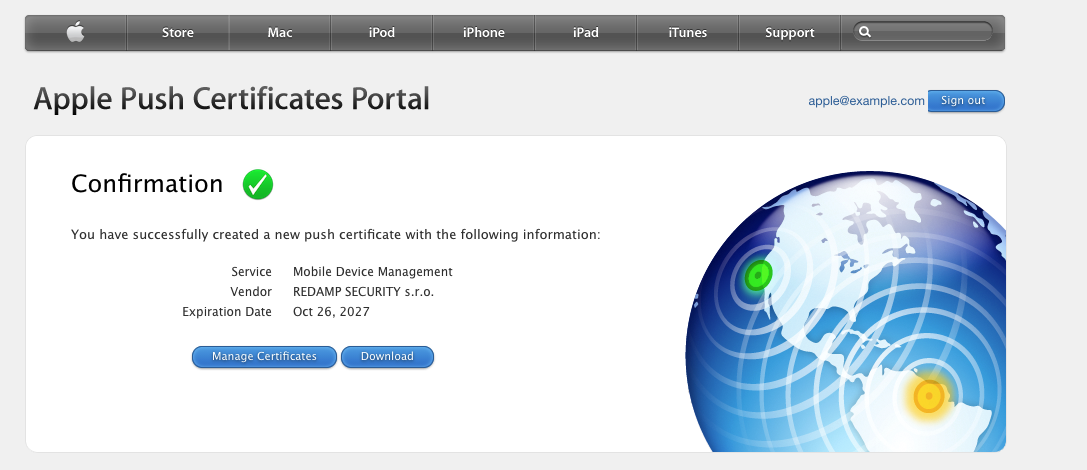
Important: Use Renew on the existing certificate. Do not click Create a Certificate. A new certificate cannot replace the old one, and the console rejects it.
Step 4 - Upload the new certificate
- Back in the wizard, click Next Step: Upload push certificate.
- Drag the
.pemfile from Apple into the Push certificate field, or click the field to choose it. - Click Upload push certificate.
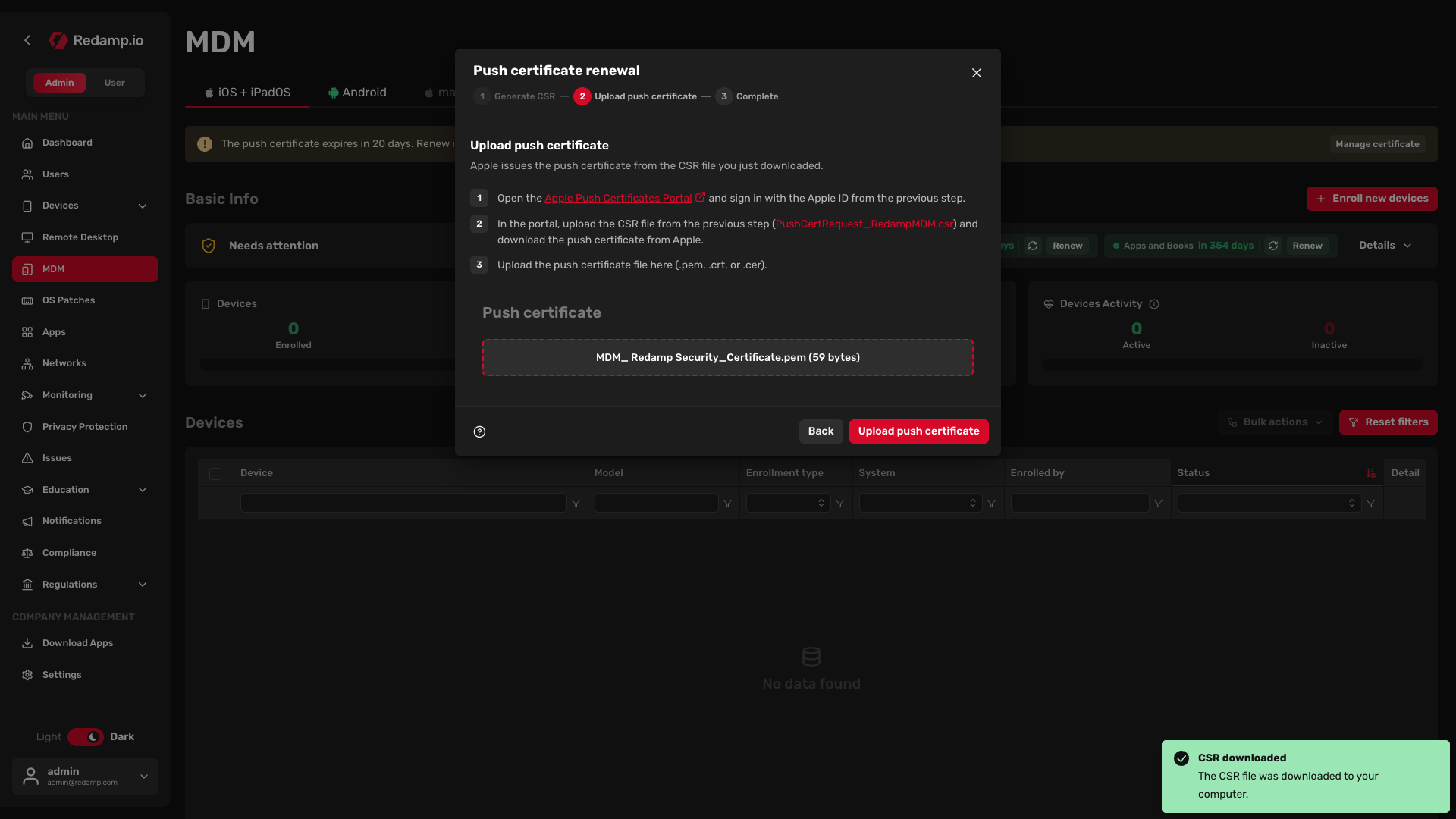
When the console confirms Push certificate uploaded, close the wizard with Back to MDM. The console now shows an expiry date one year ahead. Your devices keep working, and nobody has to do anything on them.
If the certificate has already expired
When the certificate expires, MDM stops working. The iOS + iPadOS section shows only The MDM push certificate has expired and a Contact support button, and your devices are no longer managed.
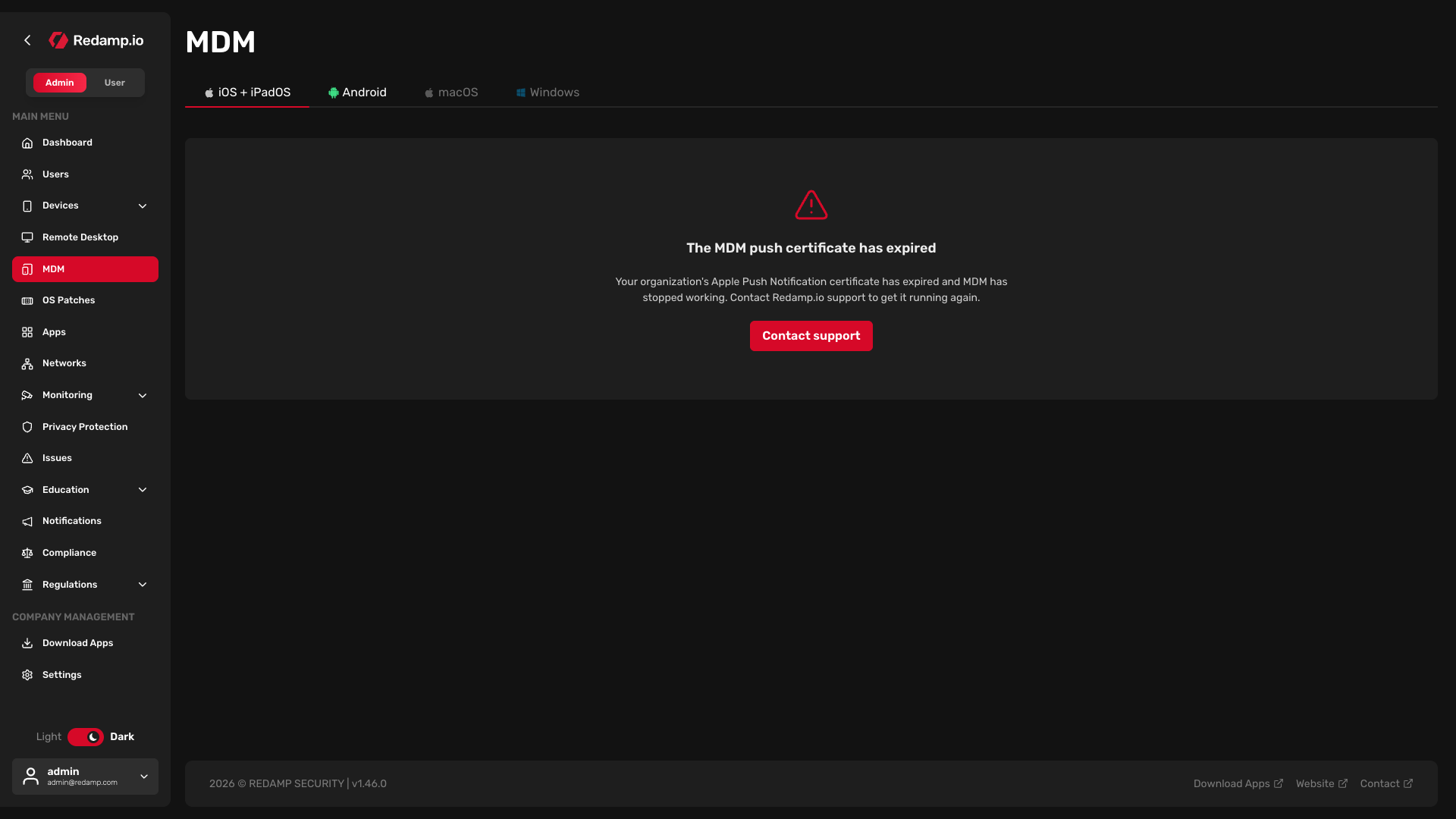
Click Contact support or write to [email protected] . We will help you upload a new certificate. After that, each device has to be enrolled again.
Common mistakes
- A different Apple ID. A certificate from another Apple ID cannot replace the current one, and the console rejects it. Sign in to Apple with the Apple ID shown in the wizard.
- Create instead of Renew. A new certificate is rejected for the same reason. Always click Renew next to the existing certificate.
- A personal Apple ID. If the certificate was created with the Apple ID of an employee who has left, you cannot renew it. Recover that Apple ID in time, and use a company Apple ID on a shared address for the next setup.
- The wrong file. Upload the
.pemfile you downloaded from Apple, not the.csrrequest.