Enrolling company devices with Automated Device Enrollment (ADE)
Learn how to add company-owned iPhones and iPads to iOS & iPadOS MDM zero-touch through Apple Business Manager in Redamp.io platform.
Automated Device Enrollment (ADE) is the zero-touch way to bring company iPhones and iPads under management. You prepare the device in Apple Business Manager (ABM) once, and it enrolls itself in Redamp.io MDM the first time someone turns it on. Nobody has to install a profile or send an invitation.
Every ADE device is supervised: you get the full set of MDM commands and settings, and the user cannot remove management from the device. ADE is the recommended type for devices your company owns. If you are not sure it is the right one, compare it with the other types in Enrollment types . Terms used on this page are explained in Key terms .
Before you start, make sure that:
- Apple Business Manager is connected to the Redamp.io platform and its server token is valid (see Set up MDM with Apple Business Manager ).
- You can sign in to Apple Business Manager with an account that can manage devices.
How zero-touch enrollment works
A device goes through four stages. You do the first three, the device does the last one on its own.
- The device is in Apple Business Manager. Apple knows it belongs to your company.
- The device is assigned to the Redamp.io MDM server. Apple knows which MDM should manage it.
- The device has an enrollment profile. The profile decides what the user sees during first setup.
- The device is turned on. It contacts Apple, finds the Redamp.io MDM server and enrolls during the first setup.
Step 1 - Add devices to Apple Business Manager
Devices bought from Apple or from an authorized reseller that participates in Apple Business Manager appear in ABM automatically. Give your customer number or organization ID to the seller when you order, and the devices show up in ABM under Devices → Inventory once they are shipped.
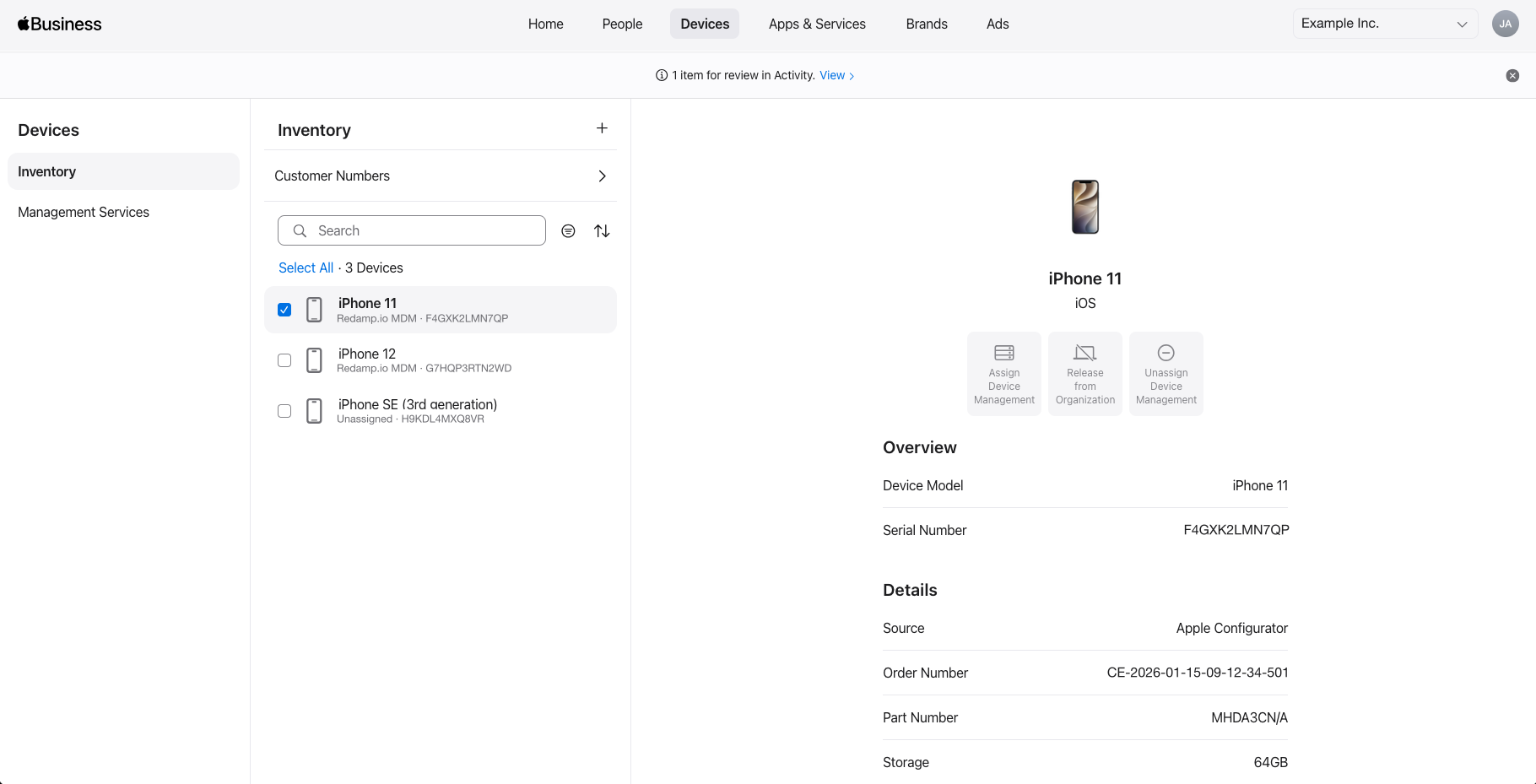
Devices bought elsewhere can be added by hand with Apple Configurator. Adding a device this way erases it.
Tip: You do not have to add devices one at a time. Everything the reseller ships to your organization appears in ABM in one batch.
Step 2 - Assign devices to the Redamp.io MDM server
A device in ABM is not managed by anyone until you assign it to an MDM server. The Redamp.io MDM server was created in ABM when you connected Apple Business Manager to the platform.
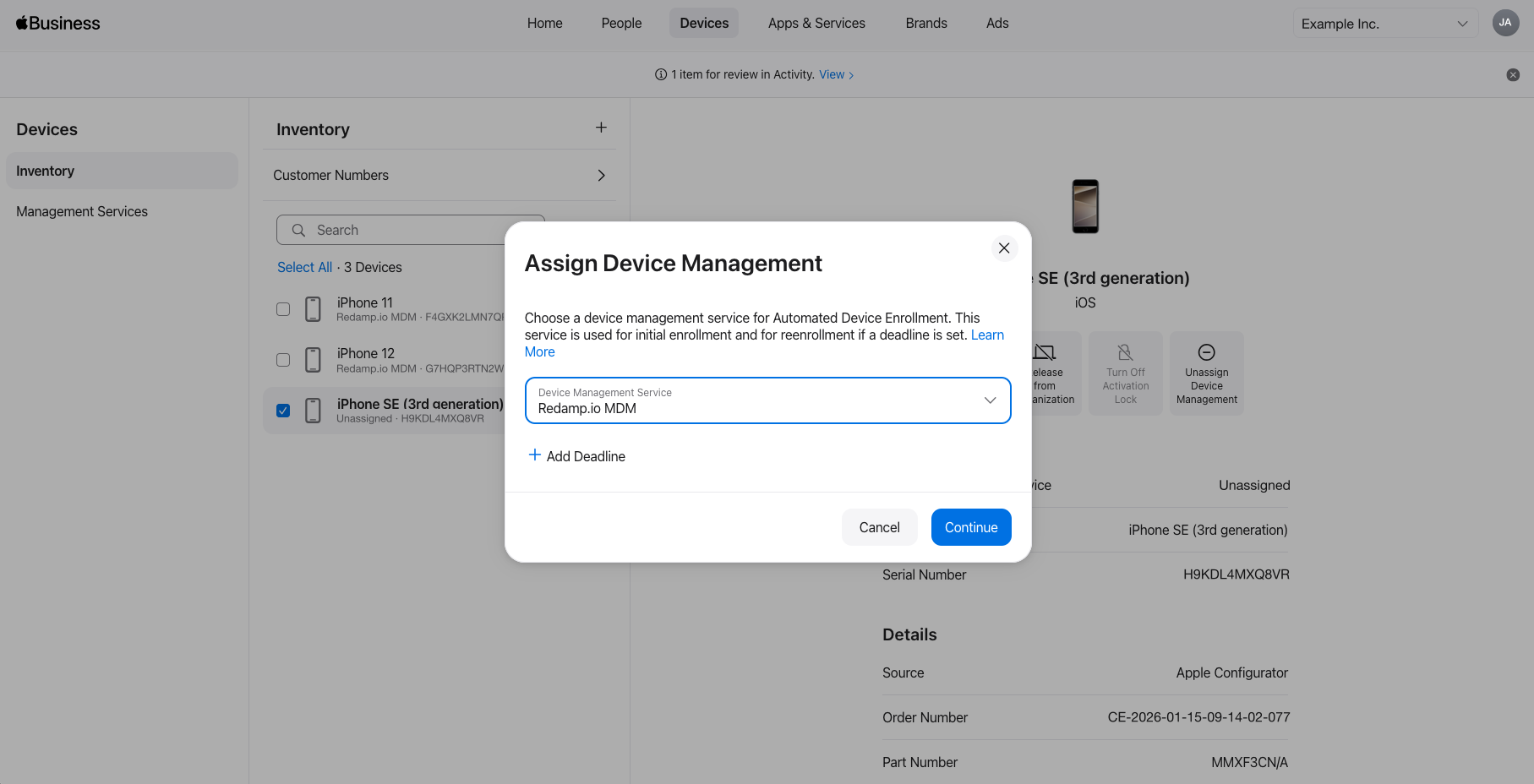
- In Apple Business Manager go to Devices → Inventory and select the devices you want to manage.
- Click Assign Device Management and pick the Redamp.io MDM service.
- Confirm the change.
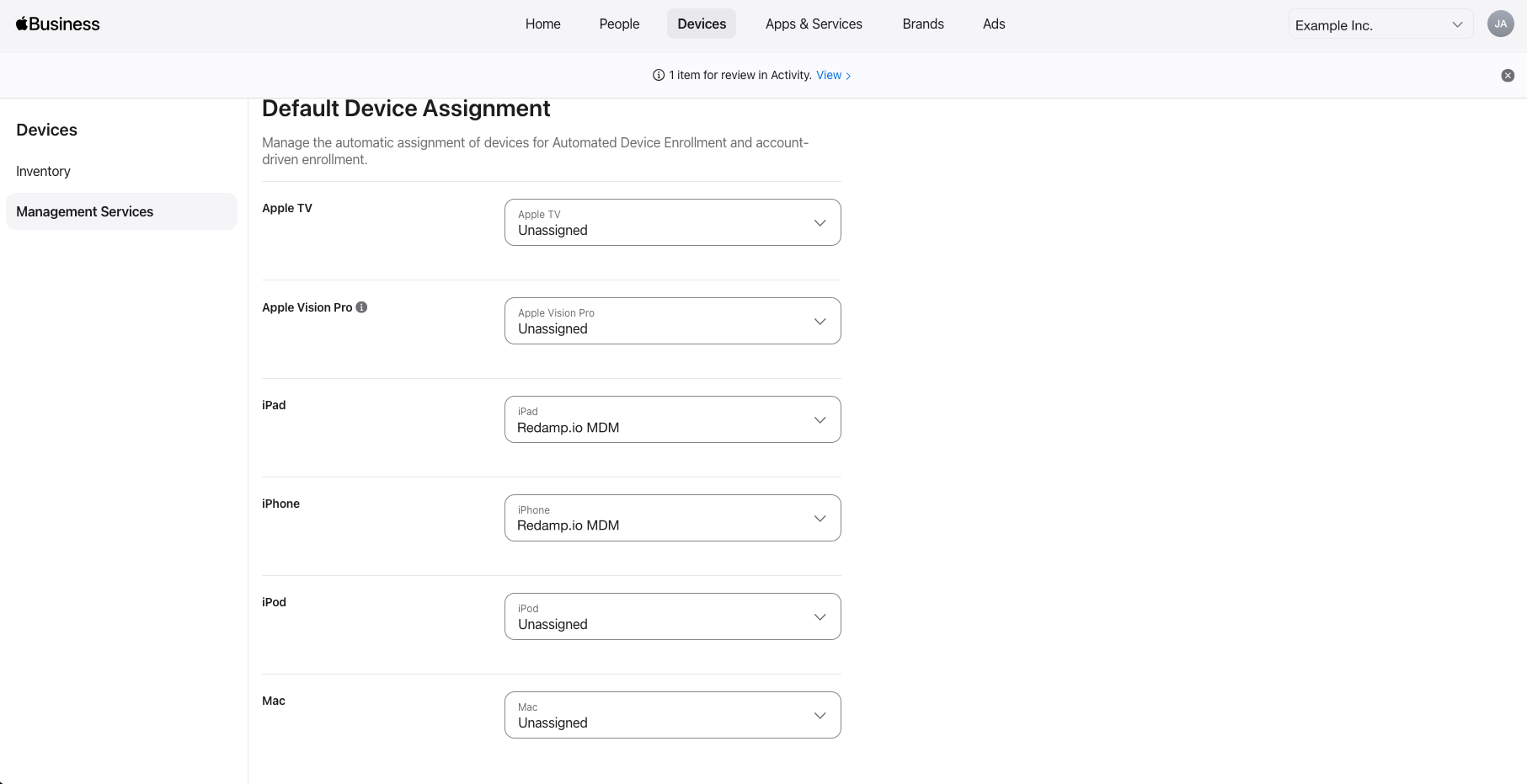
Tip: In Devices → Management Services → Default Device Assignment you can set the Redamp.io MDM service as the default for iPhone and iPad. New devices are then assigned to it automatically and you can skip this step next time.
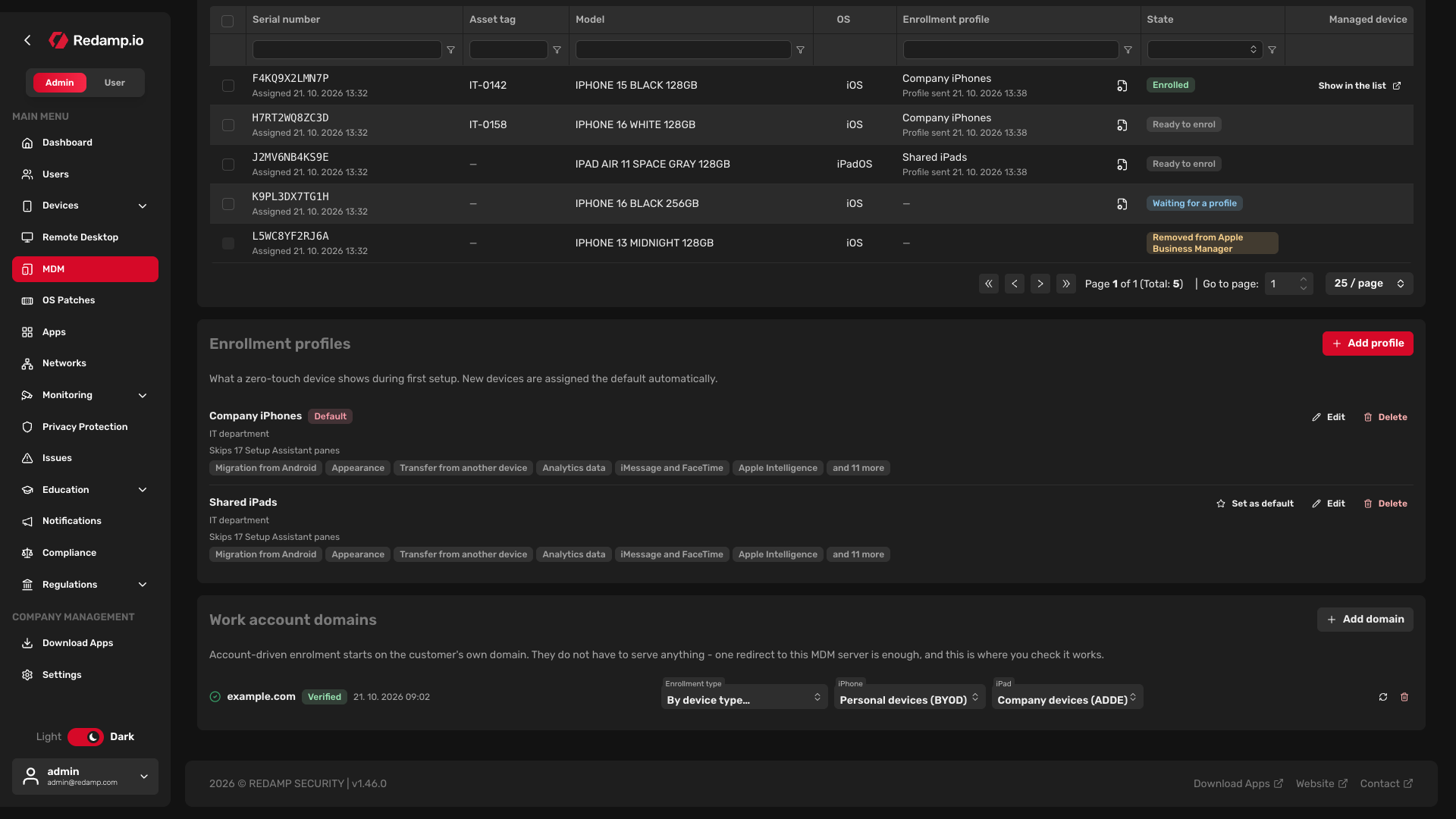
The Redamp.io platform pulls the list of assigned devices from Apple on its own, so new devices appear in the console within an hour. To see them right away, open MDM → iOS + iPadOS → Apple Business and click Refresh now in the Devices in Apple Business Manager card.
Step 3 - Create an enrollment profile
The enrollment profile decides what a zero-touch device shows during its first setup. You manage profiles in MDM → iOS + iPadOS → Apple Business, in the Enrollment profiles card.
- Click Add profile.
- Fill in the profile details (see the table below).
- Click Save profile.
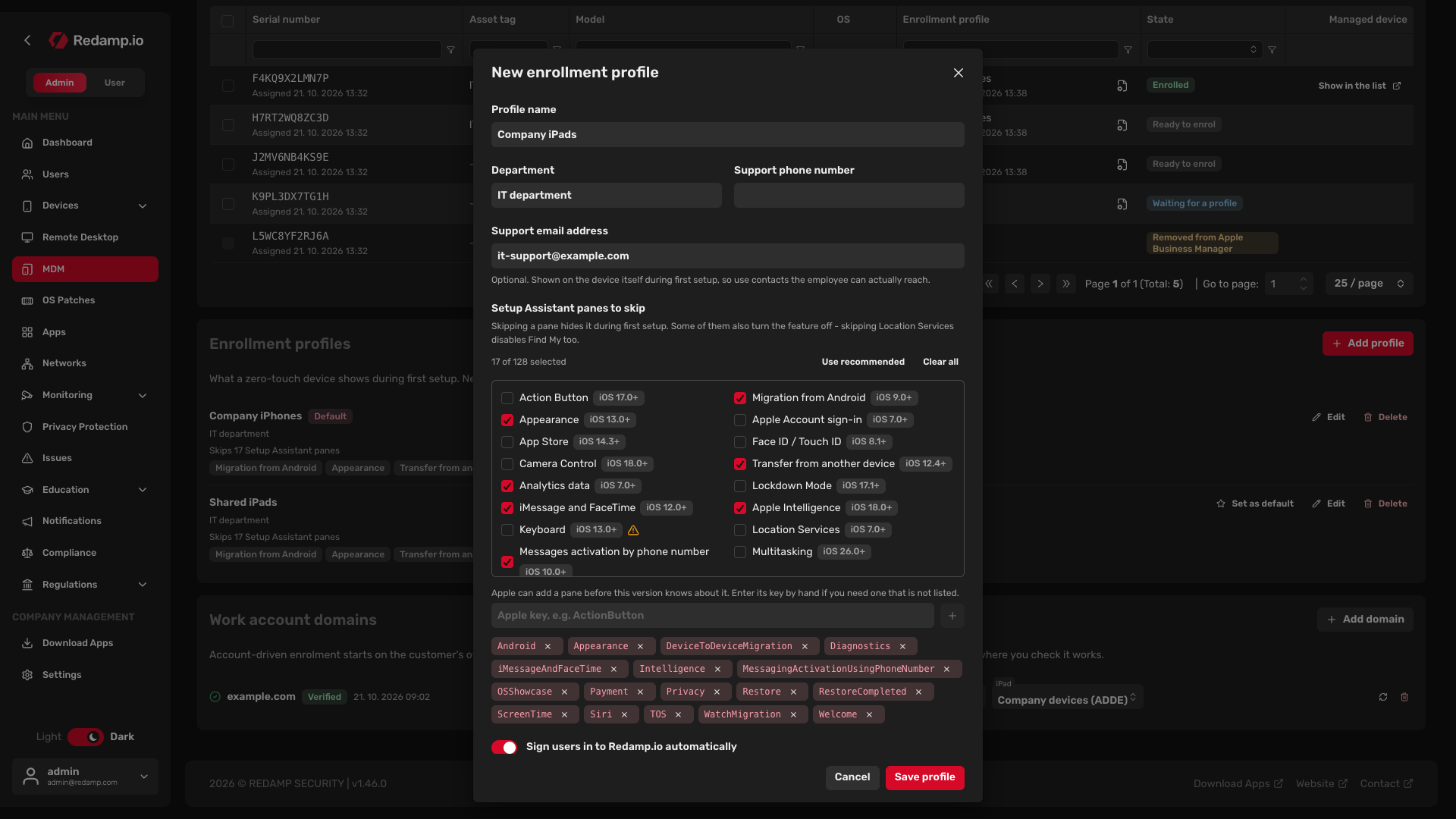
| Field | What it does |
|---|---|
| Profile name | Your own name for the profile, for example Company iPhones. |
| Department | Shown on the device during setup, so the user knows who manages it. |
| Support phone number, Support email address | Optional contacts shown on the device during setup. Use contacts the employee can actually reach. |
| Setup Assistant panes to skip | Screens the user does not see during the first setup, such as Siri, Screen Time or Apple Pay. Use recommended selects a set that makes setup quick. Some panes also turn the feature off: skipping Location Services disables Find My too. |
| Sign users in to Redamp.io automatically | Shown only when the Redamp.io app pairing is on. The app offers to sign in as the person who set up the device. Turn it off for devices that several people share. |
After you save, the profile is sent to Apple. If Apple refuses it, the profile is marked Not accepted by Apple and cannot be assigned to any device until you fix the details and save it again.
What every profile enforces
Some settings are not in the form because the Redamp.io platform always sets them the same way:
- The device is supervised.
- Enrollment is mandatory: the user cannot skip it during setup.
- The user cannot remove management from the device.
The default profile
One profile is always the Default. Every new device that Apple assigns to the Redamp.io MDM server gets the default profile automatically, so in most cases you do not have to assign profiles by hand. The first profile you create becomes the default.
To make another profile the default, click Set as default next to it. You cannot delete the default profile: set another one as the default first.
Note: Editing a profile only affects devices set up from now on. A device that is already running keeps what it saw during its own setup.
Step 4 - Check devices and assign profiles
The Devices in Apple Business Manager card is Apple's own list of the devices assigned to the Redamp.io MDM server. The State column tells you whether each device is ready.
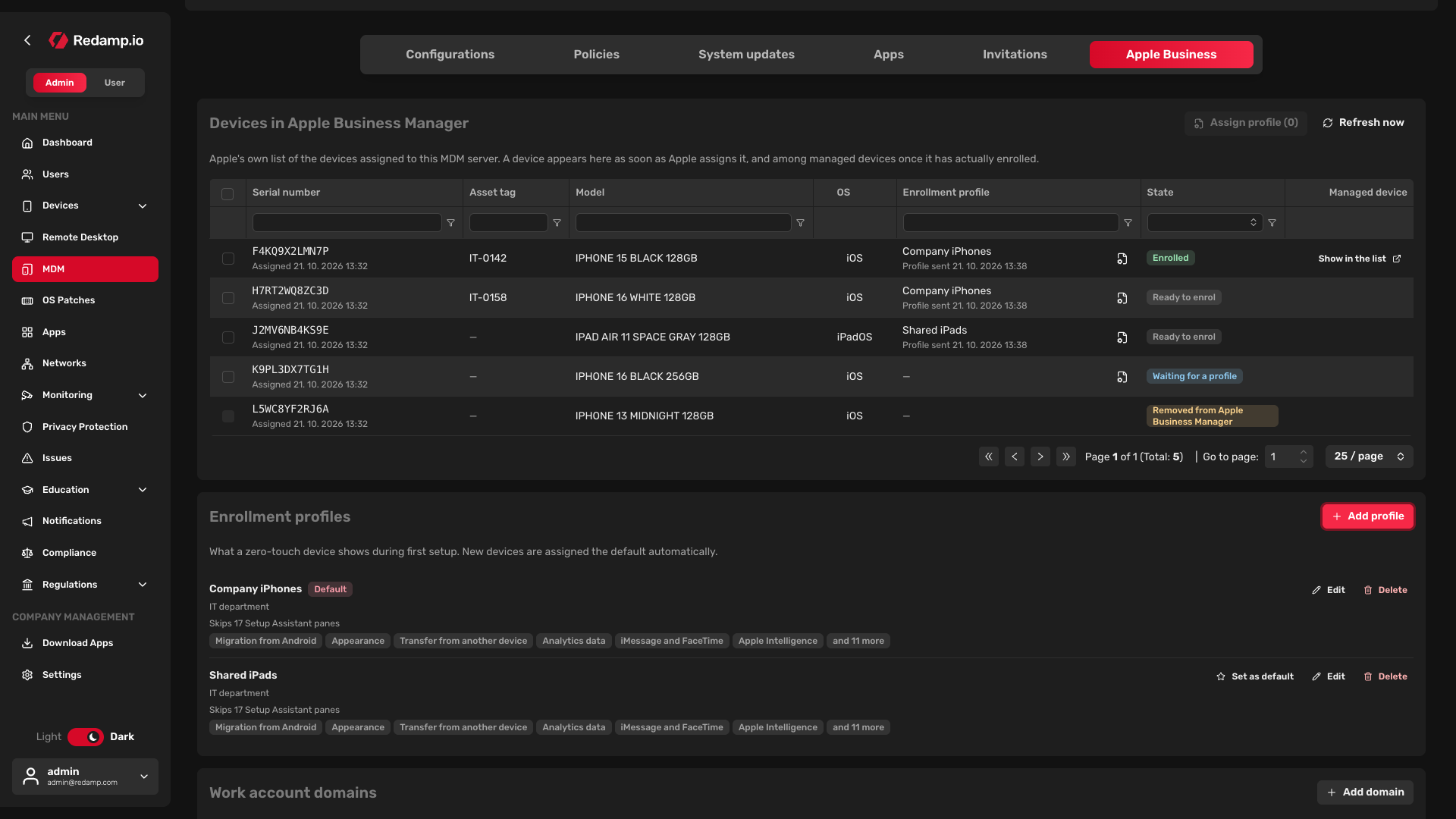
| State | What it means |
|---|---|
| Waiting for a profile | The device has no enrollment profile and cannot enroll yet. This is normally temporary: the default profile is assigned automatically. |
| Ready to enrol | The device has a profile and enrolls when it is first turned on. |
| Enrolled | The device has enrolled. Click Show in the list to open it among managed devices. |
| Removed from Apple Business Manager | Apple no longer lists the device for this MDM server: it was returned or moved elsewhere. This cannot be fixed in the console. |
To give devices a different profile than the default:
- Select the devices in the table.
- Click Assign profile.
- Pick the Enrollment profile and click Assign profile.
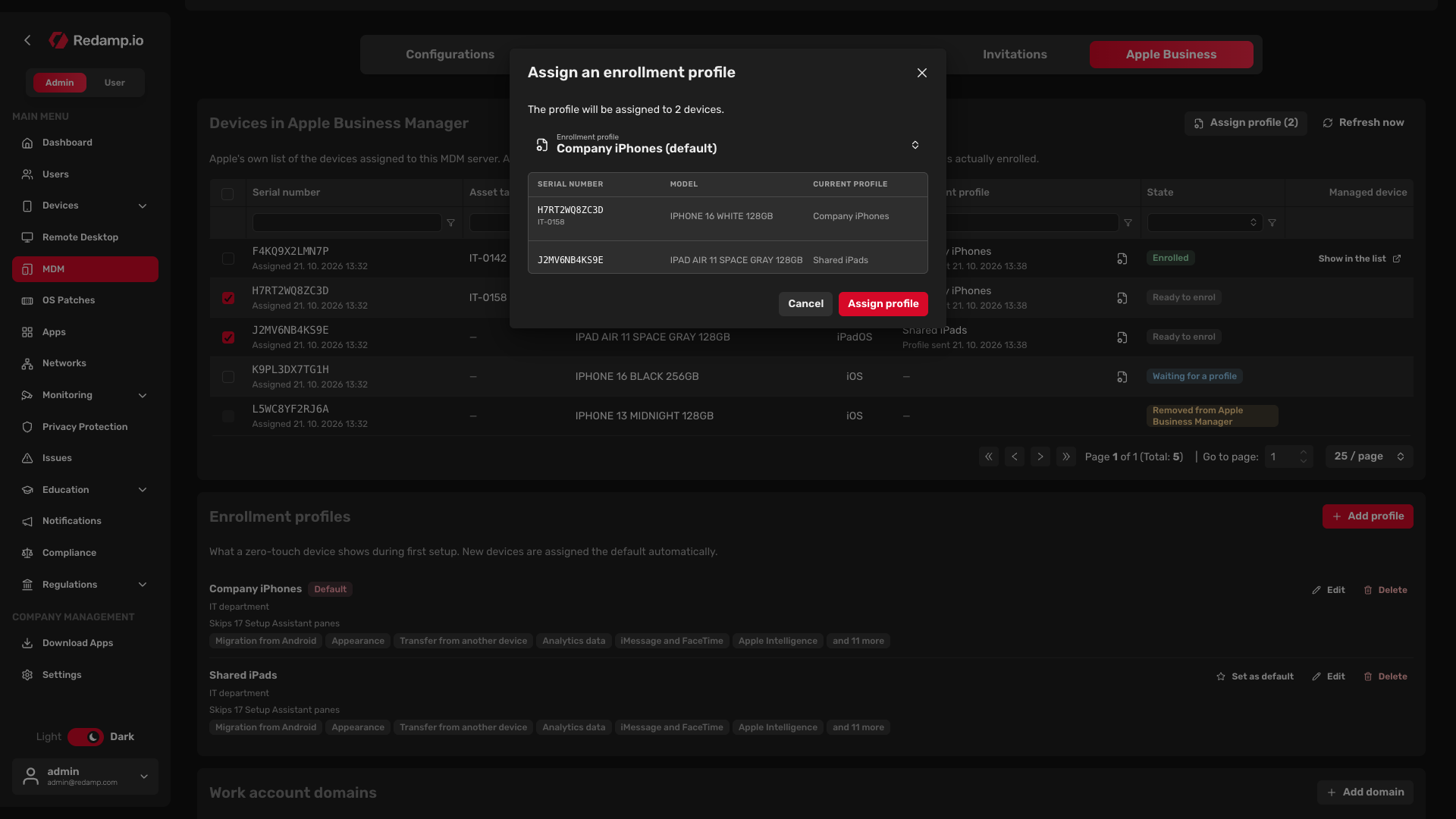
The dialog shows the result for every device. Not available at Apple means the device was returned or moved to another MDM server; Refused by Apple means you should try again in a moment or check the device in ABM.
Users in Apple Business Manager
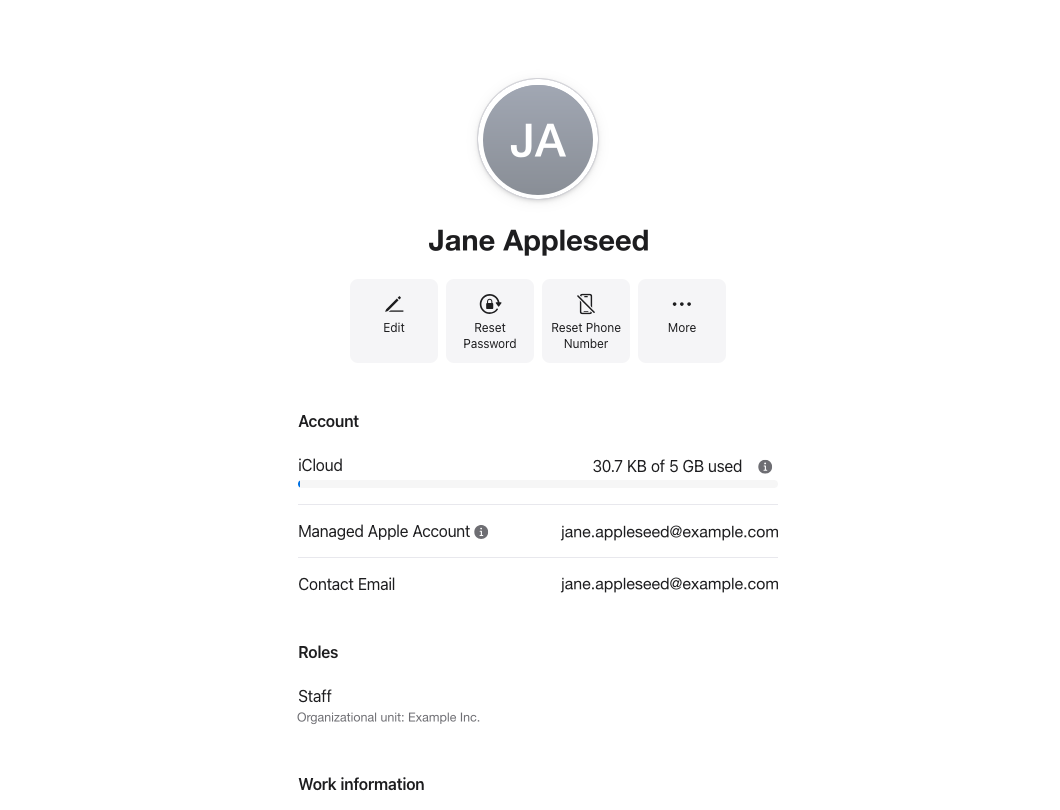
Create each employee's account in Apple Business Manager (People) with the same e-mail address and domain as their account in the Redamp.io platform. If the two differ, the device and the work account do not match.
What happens at first power-on
- The employee turns on the device and goes through Setup Assistant. Panes you chose to skip do not appear.
- On the Remote Management screen the device shows that your organization manages it.
- The employee signs in with their Redamp.io account.
- The device installs the management profile and goes to the Home screen. It now appears among managed devices in the console.
A device that has already been set up does not enroll on its own. Erase it (Settings → General → Transfer or Reset iPhone → Erase All Content and Settings) and it enrolls during the next setup.
Send your employees the user guide Setting up a company iPhone or iPad . It walks them through the setup step by step.
Common mistakes
- No device can enroll. The ABM server token has expired or Apple's updated terms have not been accepted in ABM. The console shows a warning in the Apple Business tab. See Renewing the ABM server token .
- The device does not appear in the console. It is not assigned to the Redamp.io MDM server in ABM, or the list has not been refreshed yet. Click Refresh now.
- The device stays in Waiting for a profile. There is no default profile, or the default one was not accepted by Apple. Fix the profile or set another one as the default.
- The device was set up without enrolling. It was turned on before it was assigned. Erase it and set it up again.