Set up Basic MDM without Apple Business Manager
Set up Redamp.io MDM for iPhones and iPads with only an Apple push certificate, and enroll devices from an invitation.
This guide takes you, the company admin, through the setup of Basic MDM: MDM for iPhones and iPads without Apple Business Manager. You need only a company Apple ID and a push certificate from Apple, and you run the whole setup in the MDM setup wizard. If you want zero-touch enrollment or work accounts, follow Set up MDM with Apple Business Manager instead.
New to the terms on this page? See Key terms .
Before you start
Have these ready:
- Admin access to the Redamp.io console.
- MDM enabled for your organization (see Step 1).
- A company Apple ID on a generic company address, for example
[email protected]. You will renew the push certificate with this same Apple ID every year, so never use someone's personal account.
Step 1 - Open MDM setup
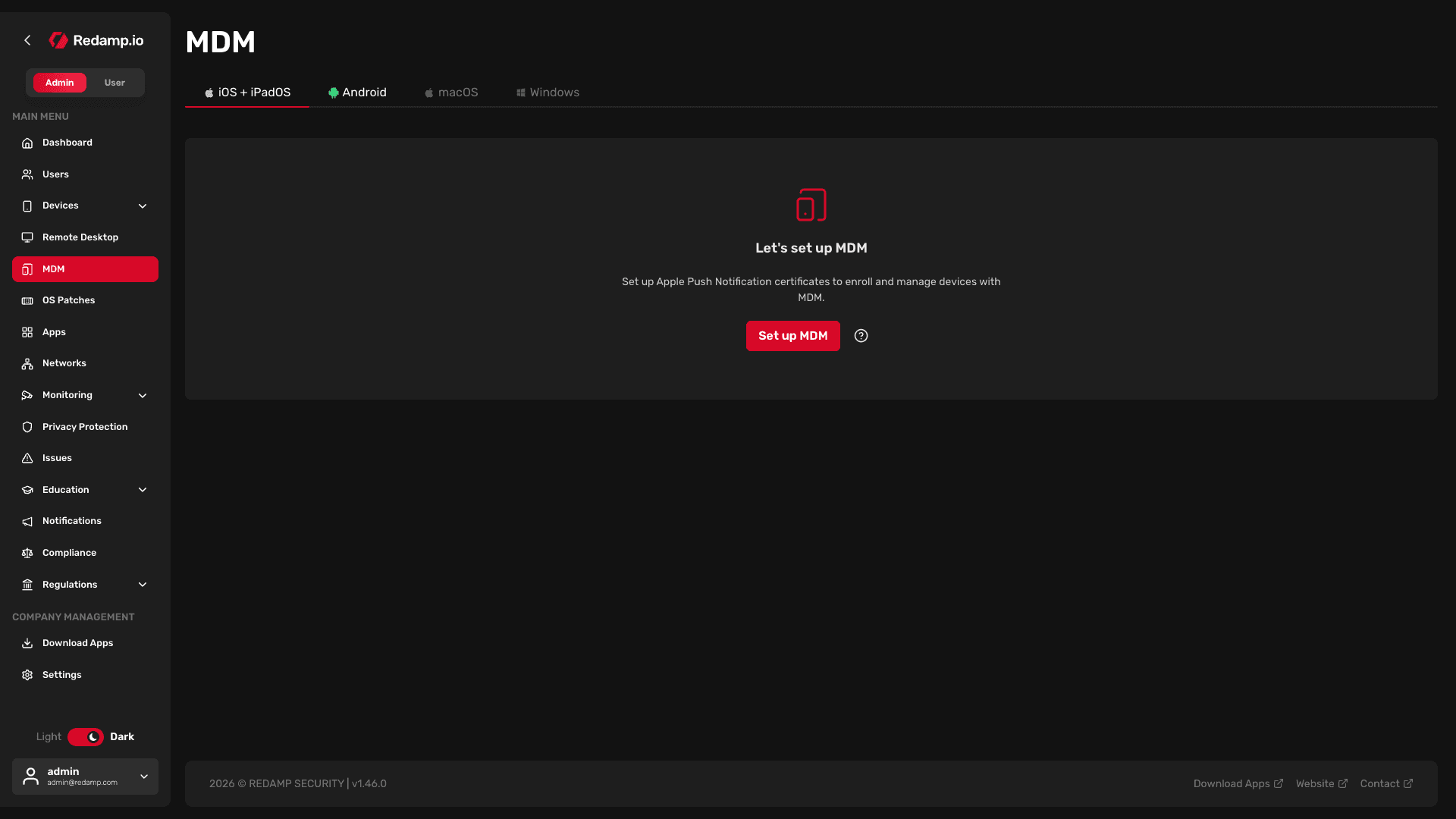
In the console go to MDM → iOS + iPadOS. What you see depends on the state of your organization:
- Ready to manage your mobile fleet? - MDM is not enabled for your organization yet. Click Request MDM access and we will contact you once it is enabled.
- Let's set up MDM - MDM is enabled but not set up. Click Set up MDM to open the wizard.
- The MDM console with your devices - MDM is already set up.
Step 2 - Choose Basic MDM
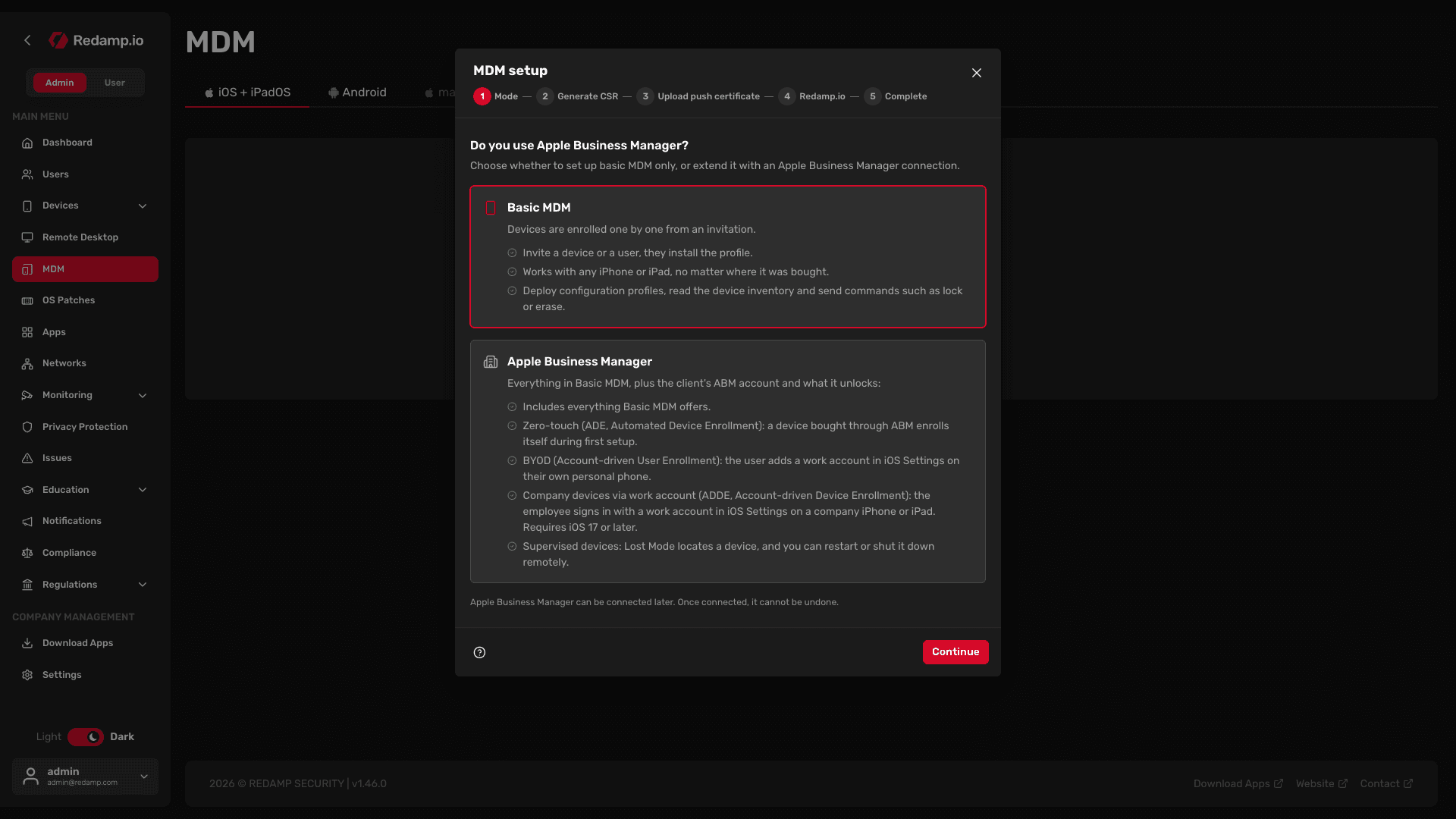
If the wizard opens with Do you use Apple Business Manager?, select Basic MDM and click Continue. When Apple Business Manager is not available for your organization, the wizard skips this question and starts with Step 3.
Step 3 - Generate the certificate signing request
Apple delivers every MDM command through its push service. To use it, you need a push certificate, and Apple issues it from a certificate signing request (CSR) that you download here. This step has three parts.
- Prepare a company Apple ID. Prepare a generic company address and create an Apple ID for it at account.apple.com , or use one you already have. It does not have to be a Managed Apple Account. Click Continue.
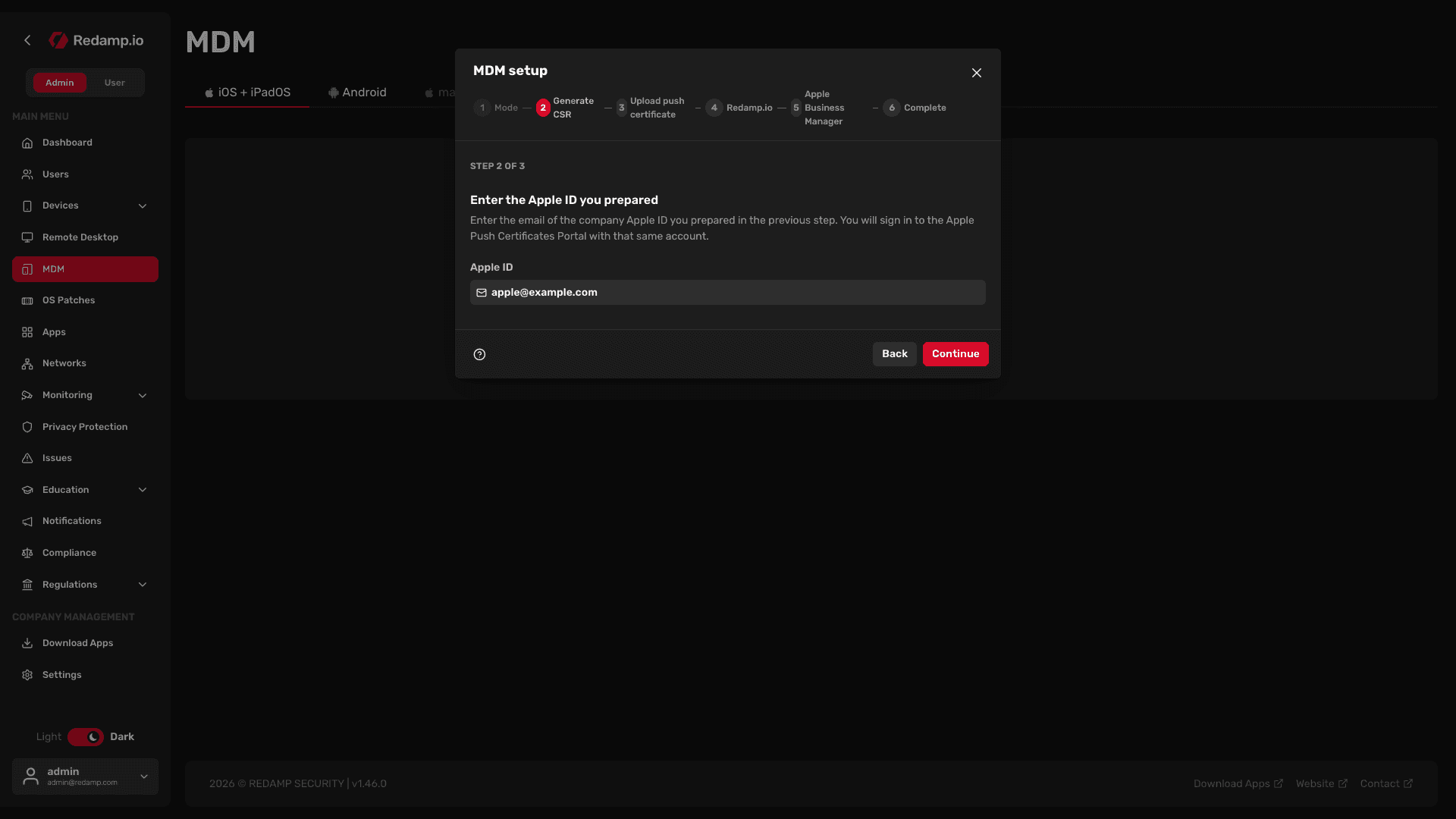
- Enter the Apple ID you prepared. Type its e-mail address and click Continue.
- Download the certificate signing request. Click Download CSR. The file
PushCertRequest_RedampMDM.csris saved to your computer.
Important: The push certificate has to be renewed every year under this same Apple ID. If you lose access to it, you cannot renew MDM and every device has to enroll again.
Step 4 - Upload the push certificate
Now let Apple issue the certificate from the CSR. The video shows the whole round trip:
- Open the Apple Push Certificates Portal and sign in with the Apple ID from Step 3.
- Click Create a Certificate and accept Apple's terms of use.
- Click Choose File, select
PushCertRequest_RedampMDM.csrand click Upload. - Click Download next to the new certificate. You get a
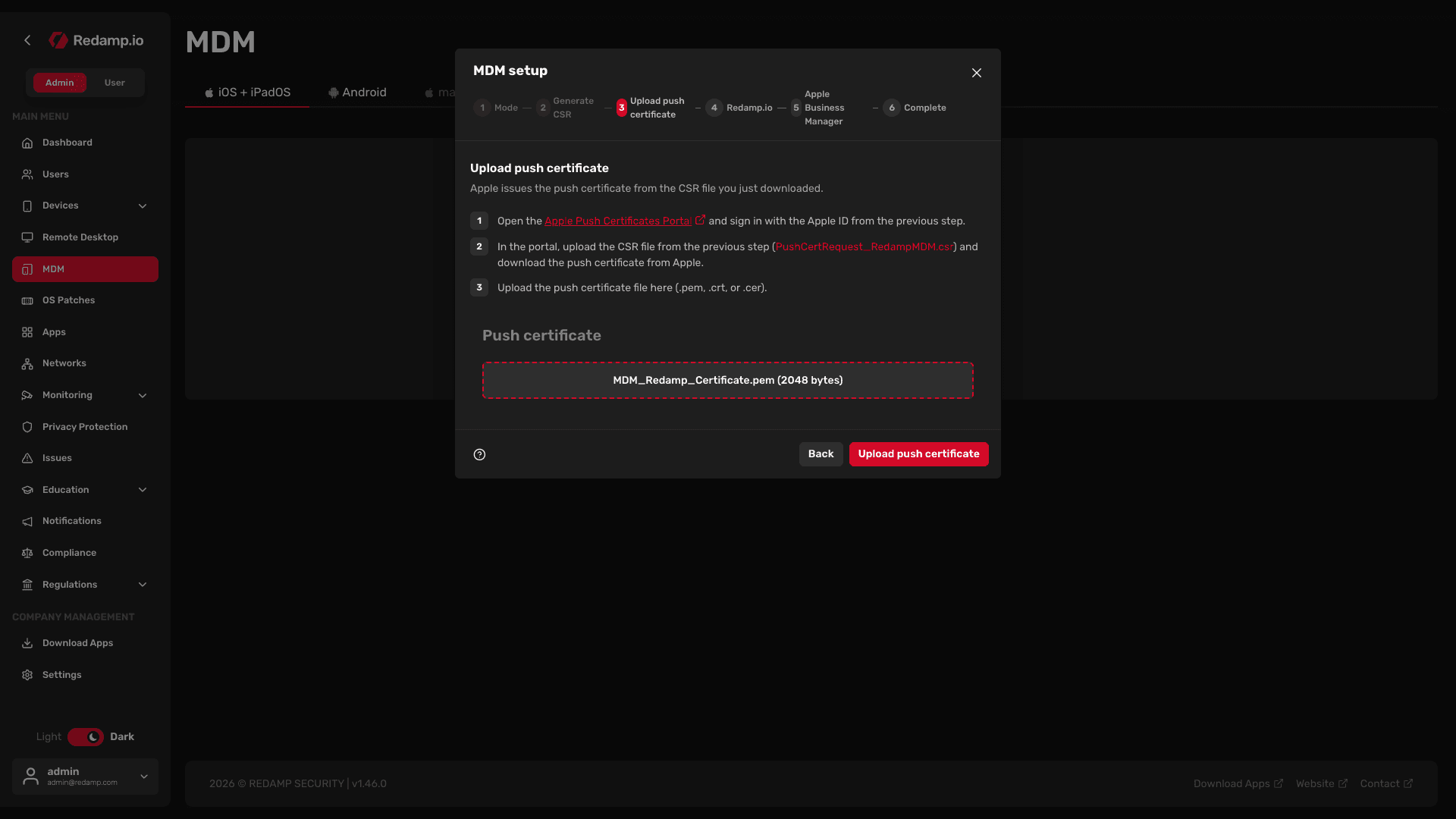
.pemfile. - Back in the wizard, drop the file into the Push certificate field (
.pem,.crtor.cer) and click Upload push certificate.
The push certificate is valid for one year. See Renewing the push certificate for how to renew it.
Step 5 - Choose whether to install Redamp.io
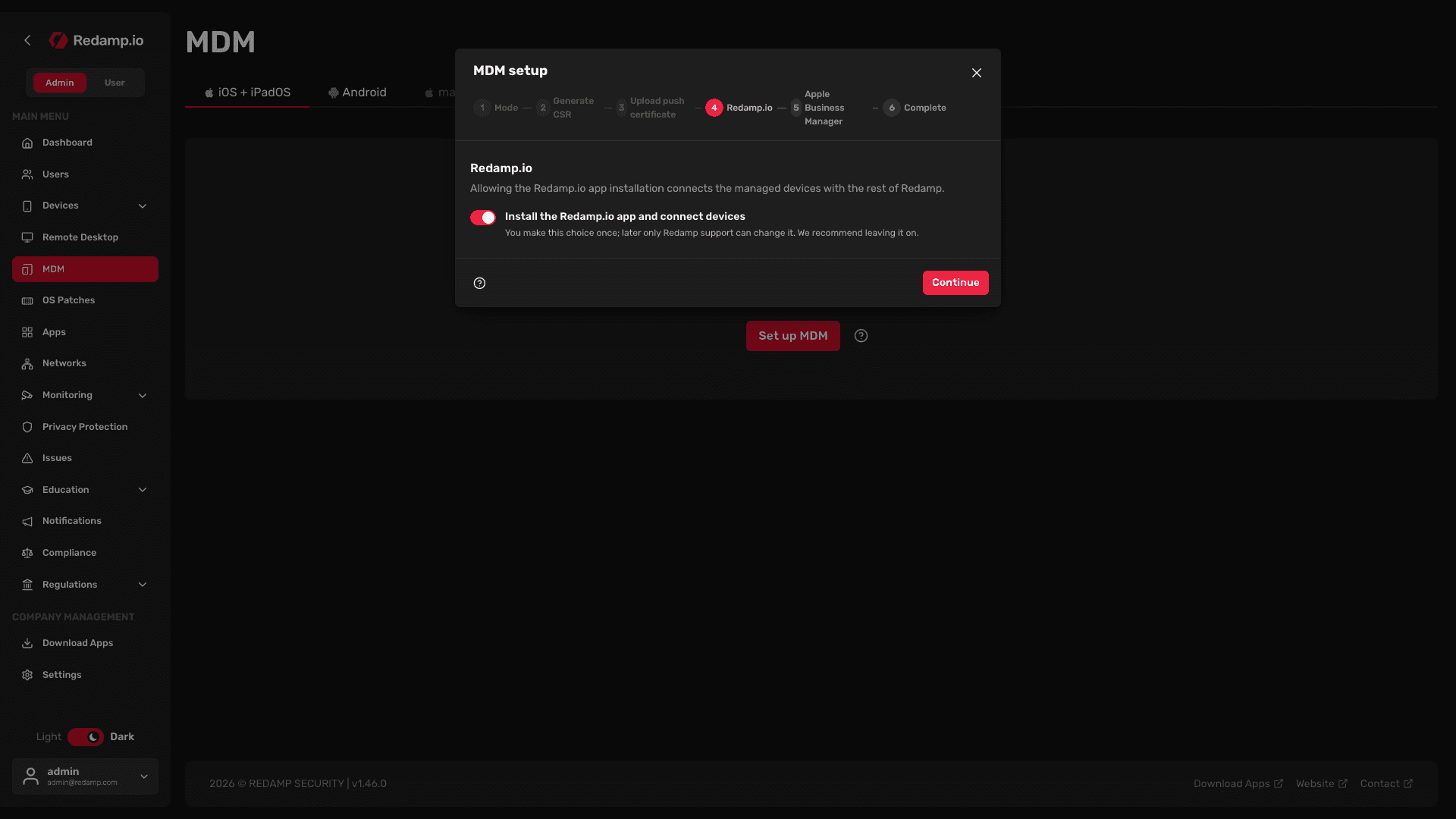
This step appears only when Redamp has allowed app pairing for your organization. With Install the Redamp.io app and connect devices turned on, MDM installs the Redamp.io app on managed devices and connects each one with the rest of Redamp.
You make this choice once. Afterwards only Redamp support can change it, so we recommend leaving it on. Click Continue.
More in Pairing Redamp.io with managed devices .
Step 6 - Finish the setup
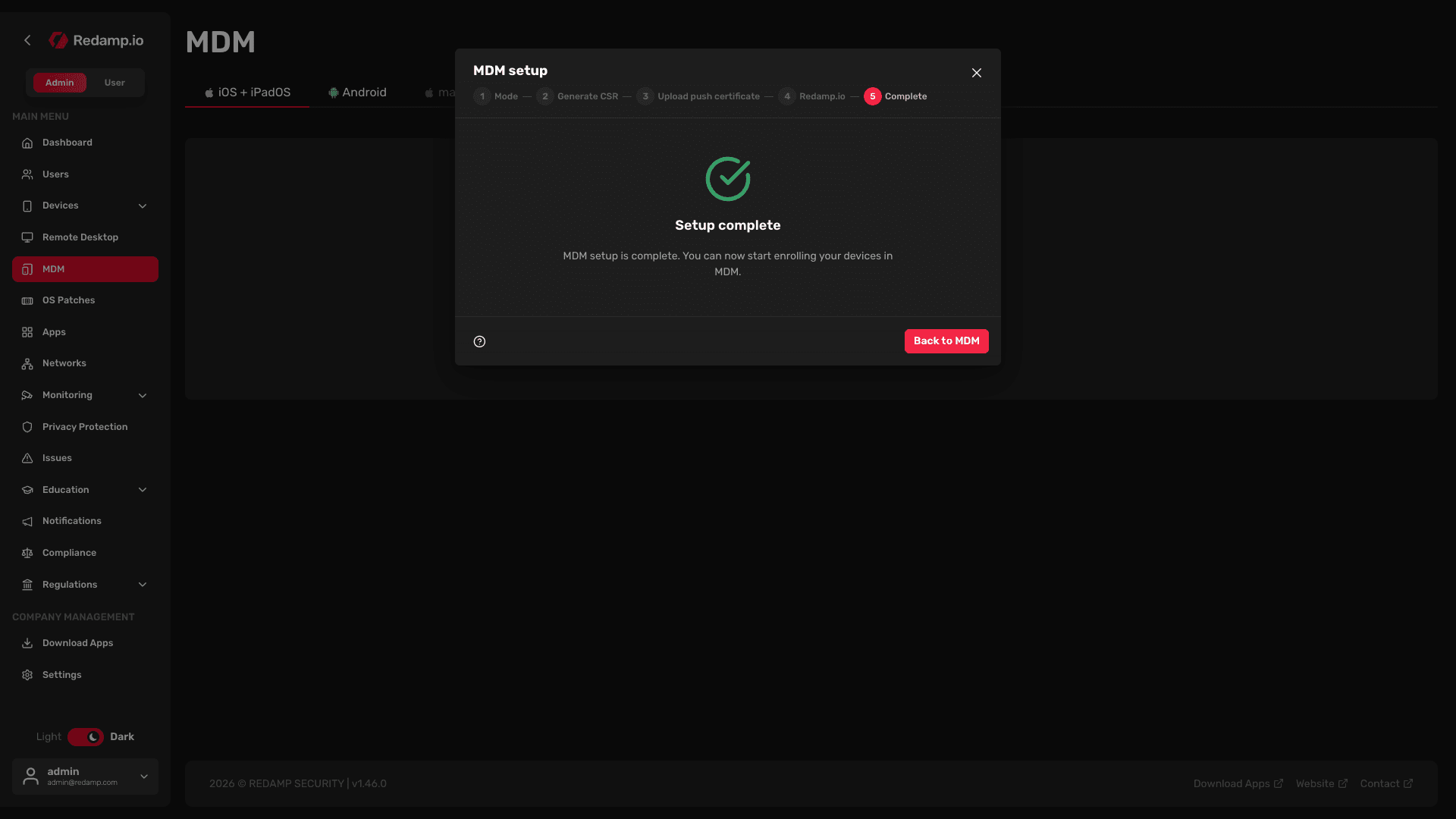
The wizard confirms Setup complete. Click Back to MDM. You can start enrolling devices.
What Basic MDM can do
Basic MDM enrolls devices of one type only: Profile (Profile-based Device Enrollment).
- It works with any iPhone or iPad, no matter where it was bought.
- You invite a device or a user, and the user installs the MDM profile on the device.
- You can deploy configuration profiles, read the device inventory and send commands such as lock or erase.
- The user can remove the profile, and with it the management.
- A Profile device is supervised only when it was prepared in Apple Configurator, so commands such as Lost Mode, restart and shut down are usually not available.
Need zero-touch enrollment (ADE), personal devices with a work account (BYOD) or company devices with a work account (ADDE)? You can extend Basic MDM with Apple Business Manager at any time, and invitations keep working. See Connect Apple Business Manager later . The extension cannot be undone.
What's next
- Profile invitations - invite your first device.
- Profile enrollment - what your users do on the iPhone or iPad.
- Configurations and policies - settings and apps for your devices.
- Commands - lock, erase and other remote actions.
- Renewing the push certificate - once a year.
If anything gets stuck, contact us through the contact form or at [email protected] .